My USB flash drive was working normally, but now Windows says it needs to be formatted before I can use it. It contains important files, so I don’t want to erase anything. What causes this issue, and how can I recover the data safely?
Cancel the format prompt and stop using the USB drive for now. That Windows message does not necessarily mean your files are gone. It often means the file system is damaged and Windows can no longer read it properly.
This can happen after unplugging the drive without ejecting it, losing power during a transfer, or interrupting a write operation. Windows suggests formatting because that creates a new file system, but doing that before recovery can overwrite data you still need.
If the files are important, I would avoid running repeated scans directly on the USB drive. A drive that suddenly appears as RAW or asks to be formatted may have bad sectors or another hardware issue. The more you read from a failing drive, the greater the chance it gets worse.
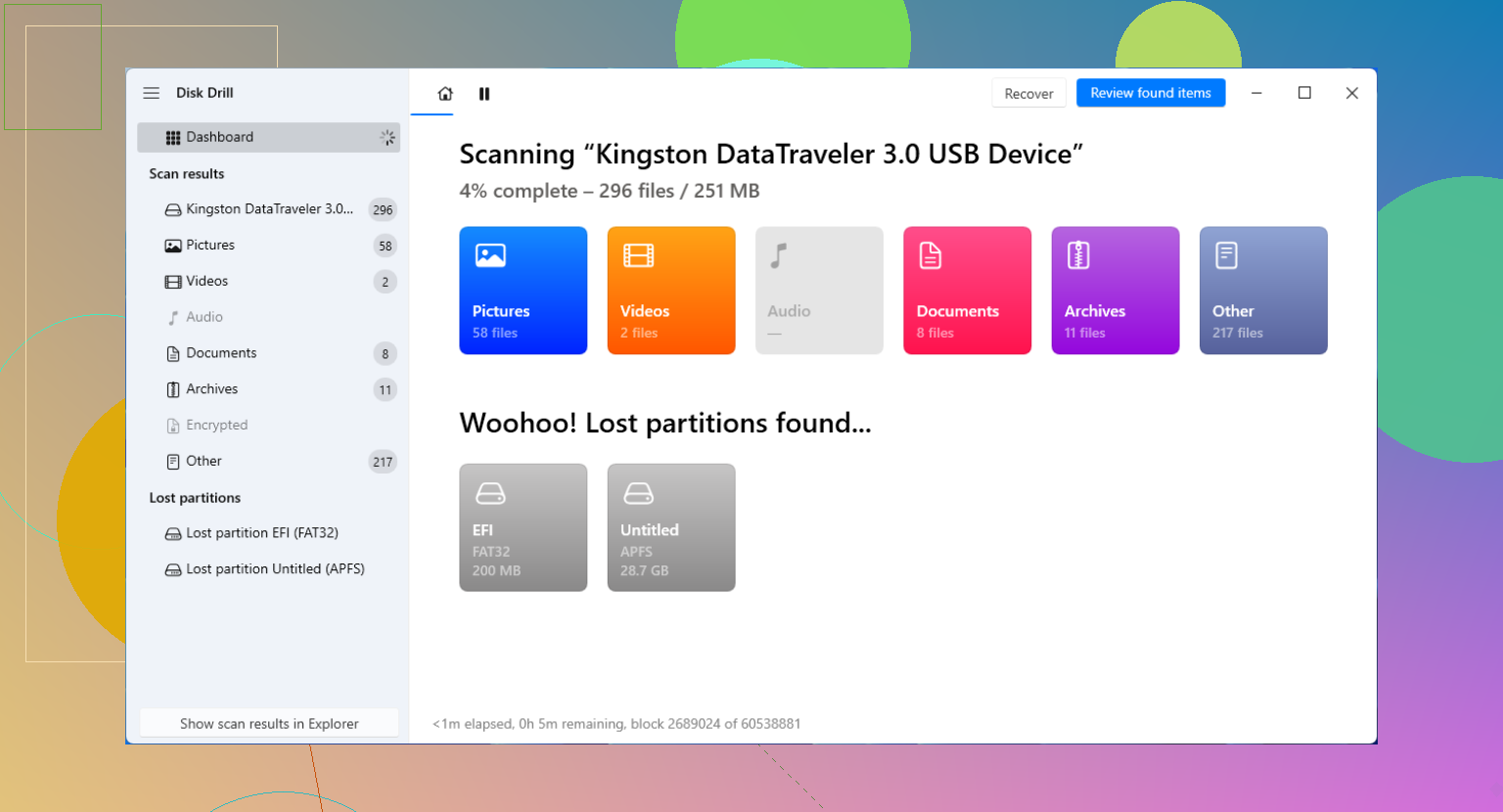
A safer approach is to open Disk Drill and make a byte-to-byte backup first. This creates an image containing every readable sector. You can then scan that image instead of repeatedly accessing the original USB device.
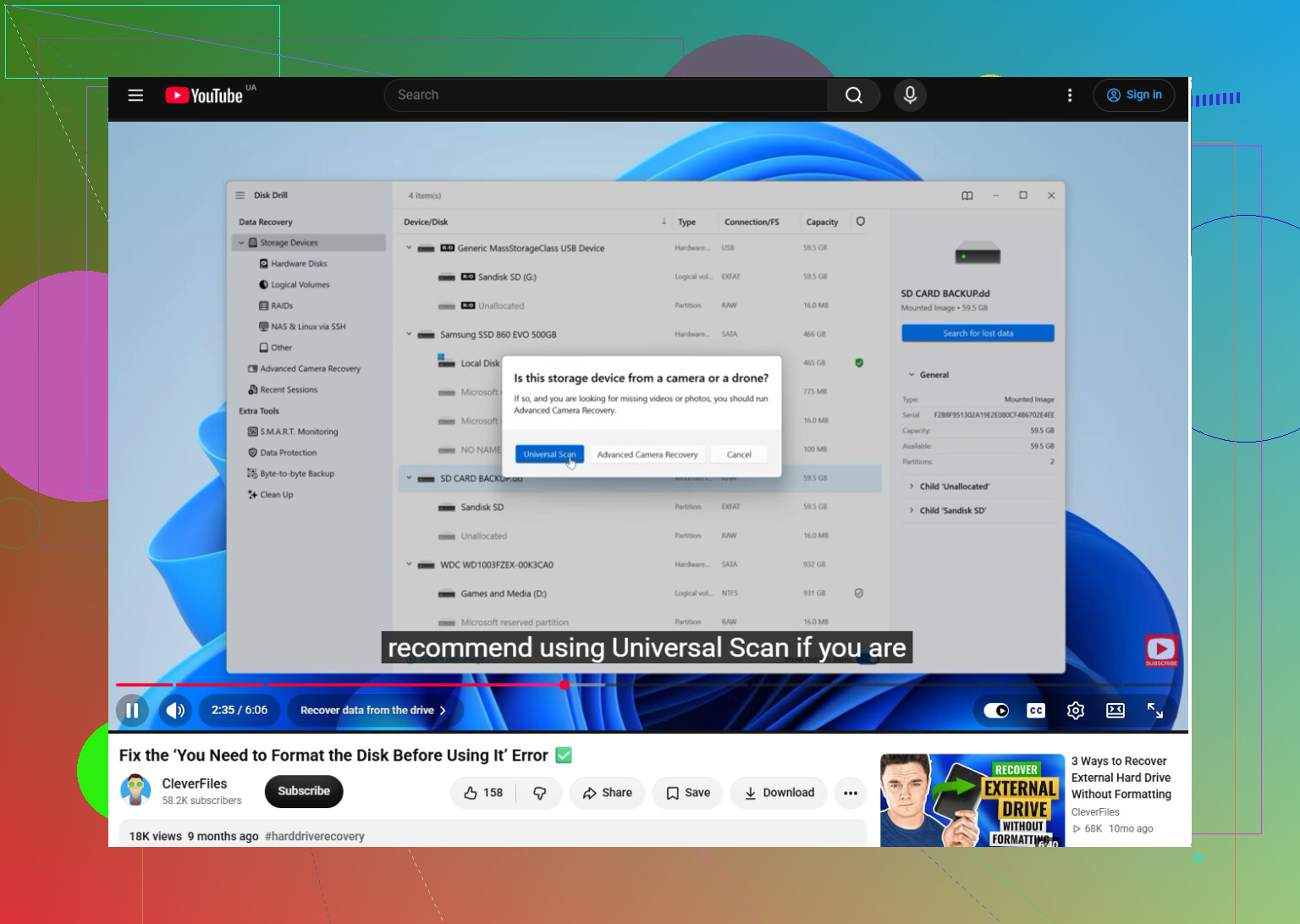
Once the image is ready, use Attach Disk Image in Disk Drill, choose the image from the storage device list, and click Search for lost data. Let the Universal Scan complete, even if files start appearing early.
Disk Drill may recover files using whatever remains of the original file system. If that structure is too damaged, it can also look for known file signatures. That matters with RAW drives because recovery is not completely dependent on Windows recognizing the old partition.
You do not have to wait until the scan finishes to inspect the results. Open Review found items and use the category filters for Pictures, Video, Documents, Archives, and other file types. It is much faster than sorting through everything one file at a time.
Preview a few important files before recovering them. Check photos, documents, and videos to make sure they open and display correctly. A working preview is usually a good indication that the actual file data is usable, rather than Disk Drill having found only a filename or damaged fragment.
When you are ready, select the files and click Recover. Save them to your internal SSD, another external drive, or any other storage device with enough free space. Do not recover them back to the same USB drive. Writing new data there could overwrite files that have not been recovered yet.
Only format the USB after everything important has been copied somewhere safe. At that point, exFAT is a reasonable choice if you need the drive to work with both Windows and macOS. NTFS makes more sense if you mostly use it with Windows.
The order is the important part:
Stop using the USB → create an image if possible → scan the image → preview the results → recover the files to another drive → format the USB afterward.
Treat this as a recovery job first and a drive-repair job second. Formatting might make the USB usable again, but it should come after you have saved the data.
This video also walks through the process, so you can follow the steps shown there:
https://www.youtube.com/watch?v=dSrYeyo6T6o
18 Likes
Do not run CHKDSK or click “Format disk” yet. CHKDSK writes changes to the file system, and on a badly corrupted flash drive that can make recovery harder rather than fixing it.
Check the drive in Windows Disk Management first. If it appears with the correct capacity but shows RAW or an unrecognized partition, the controller is probably still communicating and file-recovery software has a reasonable chance. @deep_hawk’s suggestion to image it before scanning is sensible. Disk Drill can do that, though the important part is working from an image and saving recovered files somewhere else.
If Disk Management shows 0 bytes, “No Media,” a wildly incorrect capacity, or the USB keeps disconnecting, that points more toward controller or memory-chip failure. Trying different USB ports or another computer is fine, but repeatedly reconnecting and scanning it will not repair hardware. For truly irreplaceable files, that is where a professional recovery service makes more sense. Sudden format prompts can come from file-system corruption, unsafe removal, failing flash memory, or even a counterfeit drive that claimed more capacity than it actually had.
Check the drive’s listed size in Disk Management and write it down before doing anything else. The size is a useful clue. A 64 GB stick still showing roughly 64 GB is usually a file-system or partition problem. “No Media,” 0 bytes, or a nonsense size is much more likely to be controller or flash-memory failure.
The format message is Windows saying, “I can see a storage device, but I cannot understand its file system.” It is not a diagnosis, and formatting is simply the easiest fix Windows can offer. Common causes include an interrupted write, unsafe removal, corrupted partition information, worn-out memory cells, or a counterfeit drive reaching the limit of its real capacity.
Plan for enough spare storage before starting recovery. You may need space equal to the entire USB capacity for an image, plus more room for the recovered files. People sometimes get halfway through a scan and realize their system drive has nowhere to save the results. Do not install recovery software onto the affected USB, and do not use that USB as the recovery destination.
Disk Drill is workable if you want a graphical interface, but keep expectations realistic. If it recovers files through the original file-system records, you may get filenames and folder structure back. If it has to fall back to signature scanning, the actual photos, documents, and videos may survive while their original names, dates, and folders do not. You can end up sorting through files named something like file000123.jpg, which is tedious but still better than losing the contents.
I agree with @lucidvector_66 about avoiding CHKDSK at this stage. CHKDSK is a repair tool, not a recovery tool. Its job is to make the file system internally consistent, and that can mean discarding damaged references that recovery software might otherwise use.
If imaging begins producing lots of read errors, runs at an extremely low speed, or the device disconnects, stop treating it like an ordinary corruption case. Software cannot repair a failing controller or unstable NAND chip. For replaceable files, trying recovery software may be reasonable. For the only copy of important work or family photos, repeated DIY attempts can reduce the options available to a recovery lab.
After the files are recovered, I would not trust this particular flash drive with anything important even if a fresh format appears to fix it. USB sticks are cheap, and a sudden unreadable state can be the first warning that the hardware is wearing out.
Plug it directly into another computer once, without a USB hub, and see whether the same prompt appears. If it works there, copy the files immediately because the problem may be the original port, driver, or a flaky connection. If every computer asks to format it, the fault is almost certainly on the stick itself. Stop reconnecting it if it vanishes, gets unusually hot, or keeps changing capacity.
For a cheaper recovery route, TestDisk may be able to locate the missing partition or copy files from a damaged file system. PhotoRec can recover by file type when the directory information is gone, though filenames and folders usually will not survive. Disk Drill is easier to navigate, but whichever tool you choose, scan an image when possible and save everything to a different disk.
A less obvious cause is using the stick in a TV, phone, game console, or other device that reformatted or encrypted it in a way Windows does not recognize. So the format prompt does not automatically mean physical failure. Still, do not “test” fixes by formatting first. Recover the files, verify that the copies actually open, then replace or thoroughly test the pendrive before trusting it again.
Do not click “Initialize disk” in Disk Management either. I assumed that was a harmless detection step, but it can write new partition information, so leave the drive unchanged until the files are recovered elsewhere.
Expect to get your files back but not your folder tree, at least not all of it. That is the honest baseline nobody quite says outright. When a drive flips to RAW and Windows begs to format, the file-system records are usually the casualty, which means the actual photo and document data can still be sitting there fine while the names and folders that pointed to them are scrambled. So prepare yourself to end up with a pile of recovered files you have to identify by opening them, not by their original tidy names.
The counterfeit angle that @lucidvector_66 and @hacksudo8 both raised is the one I’d actually take seriously first, because it changes everything. If this is a cheap no-name stick bought online, there’s a real chance it was flashed to report a much bigger size than it physically has. Those drives work fine until you cross the real capacity, then they corrupt on the next write and throw exactly this format prompt. No recovery tool fixes that, because the data past the real limit was never truly stored anywhere. Quick tell: was the drive nearly full when it died, and did it come from a suspiciously good deal?
On the imaging advice, it’s correct but I’d add a practical annoyance people hit. A byte-for-byte image of a 64 GB stick is a 64 GB file whether the drive is half empty or not, and then you need room for the recovered files on top. If your system drive is a smaller SSD that’s already tight, you’ll stall halfway through wondering where to dump everything. Sort out the free space before you start, not during.
Disk Drill is fine for this as a first pass, especially the imaging step and the preview before you commit to saving. The preview really is the part that matters, since a thumbnail that renders means the data behind it is likely intact rather than a half-corrupt fragment. That said, if the free version’s recovery cap kicks in and you’re staring at gigabytes of results, PhotoRec that @fuzzycircuit_52 mentioned does the same signature-based recovery for nothing. It’s uglier and gives you those file000123.jpg names, but for a one-off rescue the price is hard to argue with.
The thing I’d underline hardest: once you’ve saved and actually verified the files elsewhere, retire this stick. Don’t format it and keep using it for anything you’d miss. A drive that fails once this way has told you what it’s going to do.
Don’t format it if the stick was encrypted with VeraCrypt or similar software. Windows may treat an intact encrypted volume as an unknown file system and show the same prompt, so try mounting it with the original encryption program and password first. If encryption was never used, treat it as corruption or hardware failure as described above.
A successful format would not prove the pendrive is healthy. Cancel the prompt, recover or image the files first, then run a full-capacity write-and-verify test such as H2testw after formatting. If that test reports errors or less usable space than advertised, replace the drive rather than trusting it again.