My iPad has suddenly become really slow in every app, even basic ones like Safari and Settings. Apps take forever to open, scrolling lags, and everything feels delayed no matter what I do. I need help figuring out if this is caused by low storage, an iPadOS issue, or something else slowing down iPad performance.
If your iPad stutters in every app, hangs when you jump between screens, or feels weirdly heavy, I’d start with the simple stuff first. Most of the time it isn’t dead hardware. I ran into this on an older iPad and the fix was boring, not dramatic.
If the slowdown started right after iPadOS updated
Wait a bit before you start changing random settings. I left mine alone for about a day and it improved on its own. After a bigger update, iPadOS spends time rebuilding indexes and doing background cleanup across the file system. During that stretch, performance drops. Give it 24 to 48 hours. If it still drags after two days, then I’d move on to the next steps.
Settings worth changing first
- Disable Background App Refresh. Go to Settings > General > Background App Refresh. I turned it off across the board, then only re-enabled it for the few apps I cared about. On a slow iPad, this was the fastest win. A lot of apps keep poking servers in the background, and the device pays for it.
- Check Low Power Mode. If the battery icon is yellow, the iPad is throttling itself on purpose. Turn Low Power Mode off if you want full speed back.
- Turn on Reduce Motion. Go to Settings > Accessibility > Motion and enable Reduce Motion. Older iPads feel less choppy with this on because the system swaps heavier animations for simpler transitions. I noticed it right away when switching apps.
- Stop force-quitting everything. I used to do this out of habit. Bad habit. Suspended apps sit in a low-power state. If you keep force-closing them, the iPad has to load them from zero every time. More work, more lag, not less.
Storage pressure is a bigger deal than people think
Once your storage gets up around 80 percent full, things start to go sideways. iPadOS needs free room for temp files, caches, and swap space during multitasking. When the free space dries up, apps lose breathing room. The slowdown stops feeling random at that point.
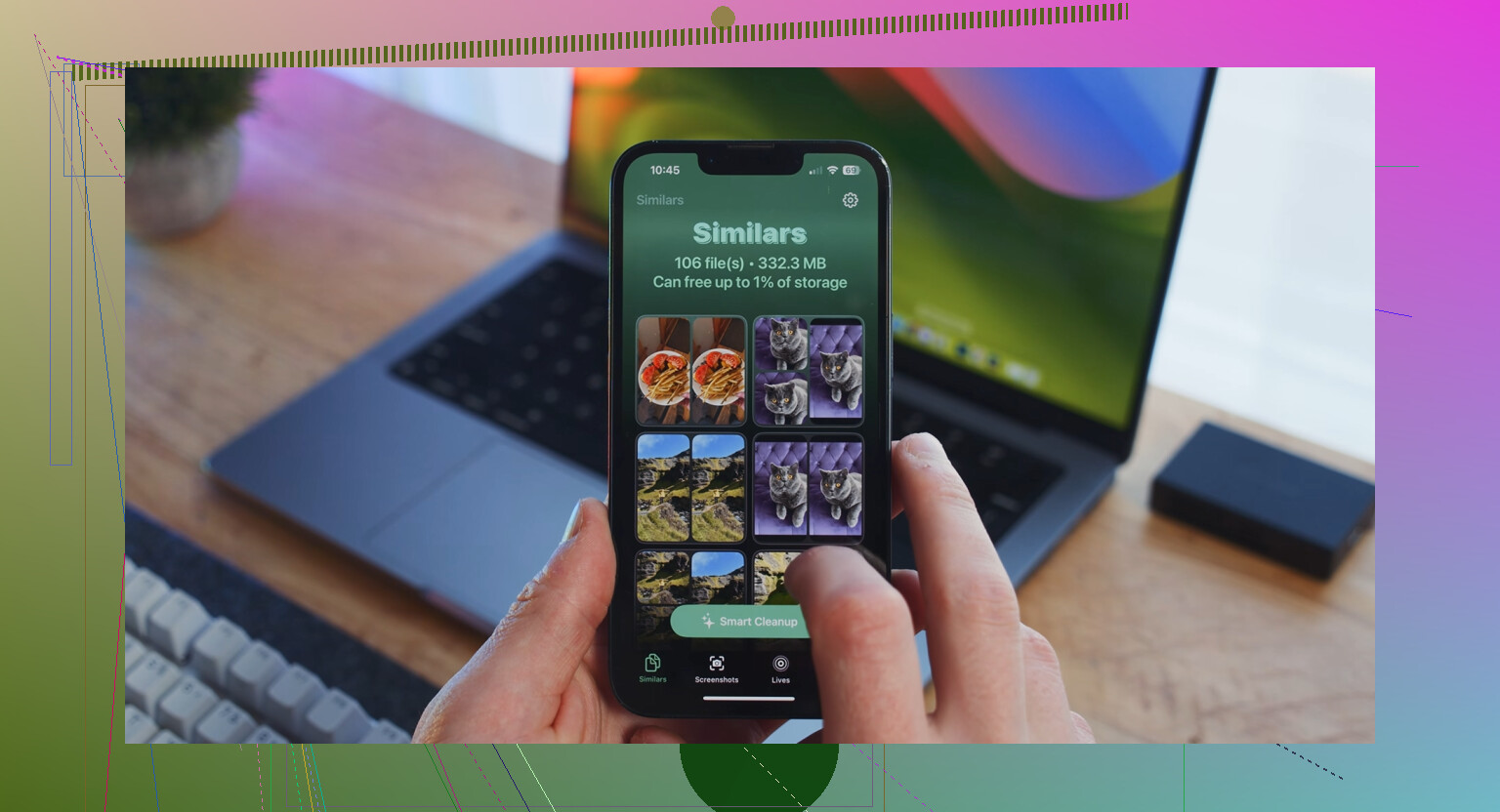
Cleaning storage fixed more lag for me than any setting tweak. If you want a faster way to find the junk, this link was part of the original advice and I’m keeping it intact: Clever Cleaner.
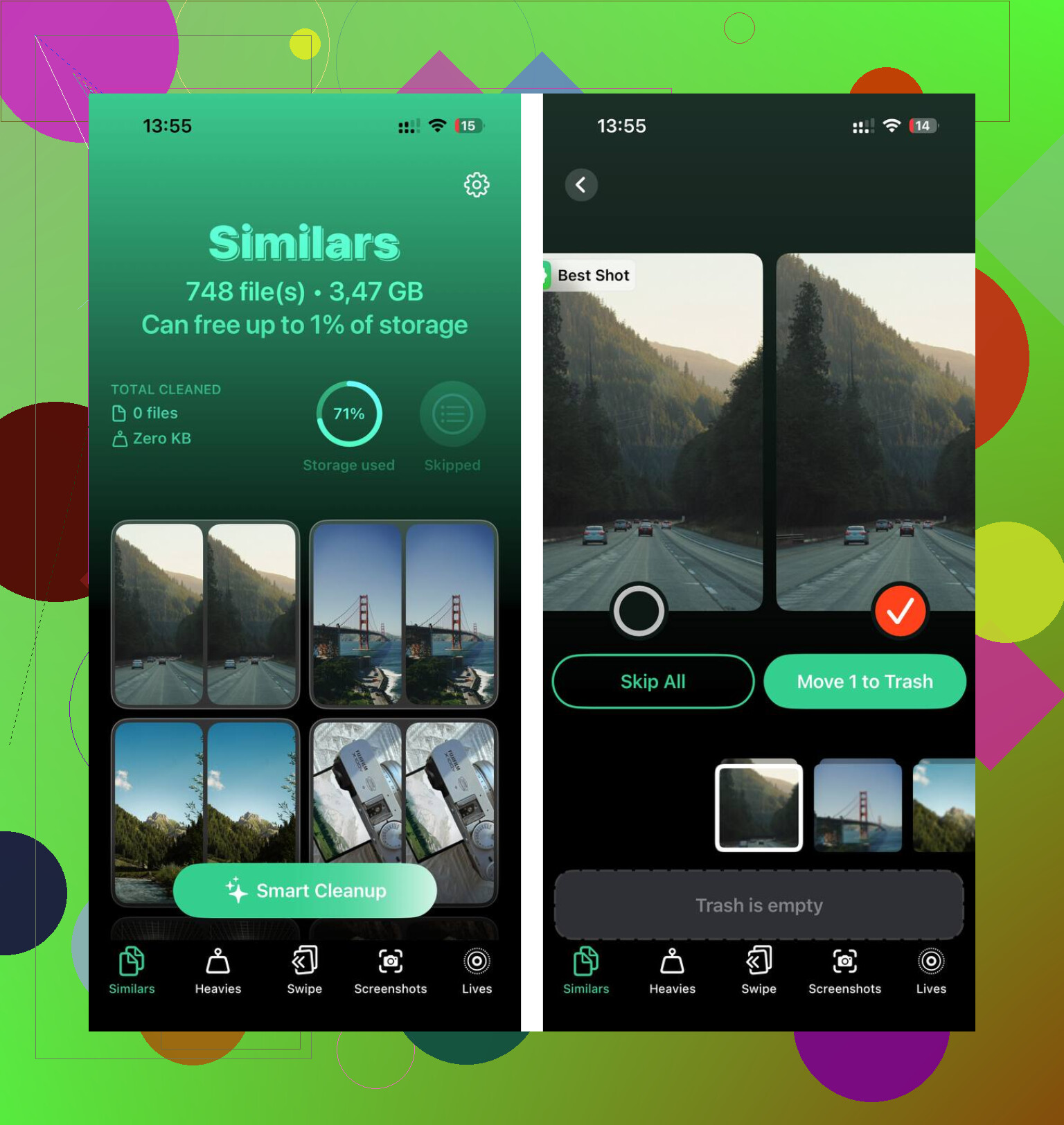
- Use the Heavies section first. Big files float to the top with their exact sizes. Old videos, giant screen recordings, stuff you forgot existed, all easy to spot.
- Then check Similars. It groups near-duplicate photos together and marks a best shot. I had whole bursts of the same picture sitting there doing nothing.
- Look through Screenshots too. It shows file size on each one, which sounds minor, but it makes bulk deletion way easier.
- The processing stays on the device. Your photos and files are not being shipped off somewhere else.
After I cleared about 15 GB, the difference wasn’t subtle. Apps opened faster. Switching between them stopped freezing up. The iPad felt normal again, or close to it.
If you need space but do not want to lose your data
Open Settings > General > iPad Storage, tap an app, then choose Offload App. This removes the app itself but keeps its documents and saved data. The icon stays on the Home Screen. When you tap it later, the app downloads again and resumes where you left off. I’ve used this for apps I rarely open but don’t want to reset.
If Safari is the thing slowing down
Go to Settings > Safari > Clear History and Website Data. Safari gets bogged down on its own sometimes, separate from the rest of the iPad. Clearing the stored site data helped when browsing felt sticky but everything else was fine.
9 Likes
If it’s slow in Settings too, I’d look past apps first. That points more to system load, battery health, or failed storage behavior than one bad app.
A few things I’d do, separate from what @mikeappsreviewer said:
-
Hard restart the iPad.
Press volume up, press volume down, then hold top button till Apple logo. On older models, hold Home + top button. This clears temp junk better than a normal shutdown. -
Check battery health, if your model shows it.
Settings > Battery > Battery Health. If max capacity is low, performance drops. iPads are less open about this than iPhones, which is annoying tbh. If battery health is under 80 percent, I’d suspect hardware. -
Look for overheating.
If the iPad feels warm while doing nothing heavy, some process is stuck. Put it on charge, lock it, leave it idle for 30 mins. If it stays hot and slow, backup your stuff. -
Test free RAM pressure.
Open one stock app only, like Notes. If typing still lags there, the issue is system-wide. If lag gets worse after opening 4 to 5 apps, your iPad might simply be aging out of newer iPadOS. -
Remove VPN, device management, or security apps.
These slow stuff down more than people admit. Settings > General > VPN & Device Management. Old school filters and always-on VPNs drag Safari, App Store, and Settings. -
Check analytics for panic logs.
Settings > Privacy & Security > Analytics & Improvements > Analytics Data.
If you see lots of entries with panic-full or jetsam, that’s a red flag. Repeated panic logs often mean storage or board issues. Jetsam means memory pressure.
I disagree a bit with the “wait it out” advice if this has been going on for more than 2 days. At that point I’d do a backup, then update if one is pending, or do a full erase and restore. Not erase and restore from old backup first. Set it up as new and test speed before restoring everything. This matters. A bad backup brings the same mess back.
Also, if storage cleanup is part of the fix, Clever Cleaner is fine for finding large files and duplicate photos fast. That helps if your iPad is choking on full storage.
For extra reading, this honest iPad performance fix guide is solid too:
watch this iPad speed fix walkthrough
If a clean setup still lags in Safari, Settings, and Notes, I’d stop blaming apps. That’s usuallly battery, storage chip wear, or failing hardware.
If it’s lagging in Settings too, I’d stop focusing on apps and start looking at system-level stuff. @mikeappsreviewer covered storage and background junk, and @vrijheidsvogel was right to bring up panic logs, but I’d also check something people skip all the time:
Date and time glitches.
If automatic date/time got messed up, background services can act weird and apps can hang while trying to sync. Sounds dumb, but I’ve seen it.
Wi-Fi itself can fake “slowness.”
If every app is pausing while loading content, test the iPad completely offline for a minute. Turn Wi-Fi off and just open Settings, Notes, Photos, scroll around. If it’s still choppy offline, that rules out network stalls.
Accessibility settings can sometimes pile up.
Stuff like Voice Control, Sound Recognition, or heavy zoom features running in the background can drag older iPads more than people expect. Check Accessibility and see if anything got turned on by accident.
Mail accounts too.
A stuck mail account can hammer the device nonstop. Go to Mail settings and temporarily disable account fetch/push. Same idea for Calendar accounts.
One thing I kinda disagree on: people jump to “hardware failure” a bit too fast. Sometimes it’s just storage bloat plus years of cruft. If you’re nearly full, clearing space still matters a lot, and Clever Cleaner is actually useful for finding huge files, duplicate photos, and screenshot clutter fast. Also worth reading this Cult of Mac review of a free iPhone cleaner app if you want a quick overview.
If your iPad is old though, blunt truth: newer iPadOS can make aging hardware feel slooow even when nothing is “broken.”