My iPhone storage keeps going up after I delete photos, apps, and other files instead of freeing up space. I’ve checked Recently Deleted and restarted the phone, but the available storage still drops. What could be causing this iPhone storage issue, and how can I fix it?
I’ve run into this too, and it’s incredibly annoying. You delete a huge pile of photos and videos, empty Recently Deleted, then Settings still acts like nothing happened. Sometimes the used storage number even goes up, which makes it feel like the phone is lying to you.
The annoying part is that iOS does not always release that space right away. Even after you clear Recently Deleted, some of it can sit under System Data for a while. The storage graph in Settings can also be slow to refresh. It may be showing cached numbers from earlier, then once you start deleting things, it rescans and realizes the phone was even more full than it showed before.
Here’s what I’d try before jumping straight to a factory reset.
Do a force restart, not just a normal reboot
On newer iPhones, press Volume Up, then Volume Down, then hold the Side Button until the Apple logo shows up. A regular power-off restart does not always clear whatever temporary junk iOS is holding onto. Sometimes it takes more than one force restart before System Data finally drops and the free space shows correctly.
Try the date trick
This sounds sketchy, but it can make old “deleted” photos show back up if the Photos database is stuck.
Go to Settings > General > Date & Time, turn off “Set Automatically,” then move the date forward by about a year. Open Photos, wait a bit, then check Recently Deleted again. If anything reappears there, delete it again. After that, turn Set Automatically back on.
Check Messages and app caches
Messages can quietly eat a ton of space. Go to Settings > General > iPhone Storage > Messages and look at the attachments. Old videos, GIFs, screenshots, and random memes add up fast.
Also check apps like TikTok, Instagram, and WhatsApp. They can build up huge caches. If an app is taking up something ridiculous like 10GB, deleting and reinstalling it is usually the cleanest way to wipe that cache.
Use a cleaner app if the built-in tools are too limited
Apple’s storage tools are pretty barebones. They do not make it easy to sort your media by file size, and they miss a lot of clutter that is not an exact duplicate.
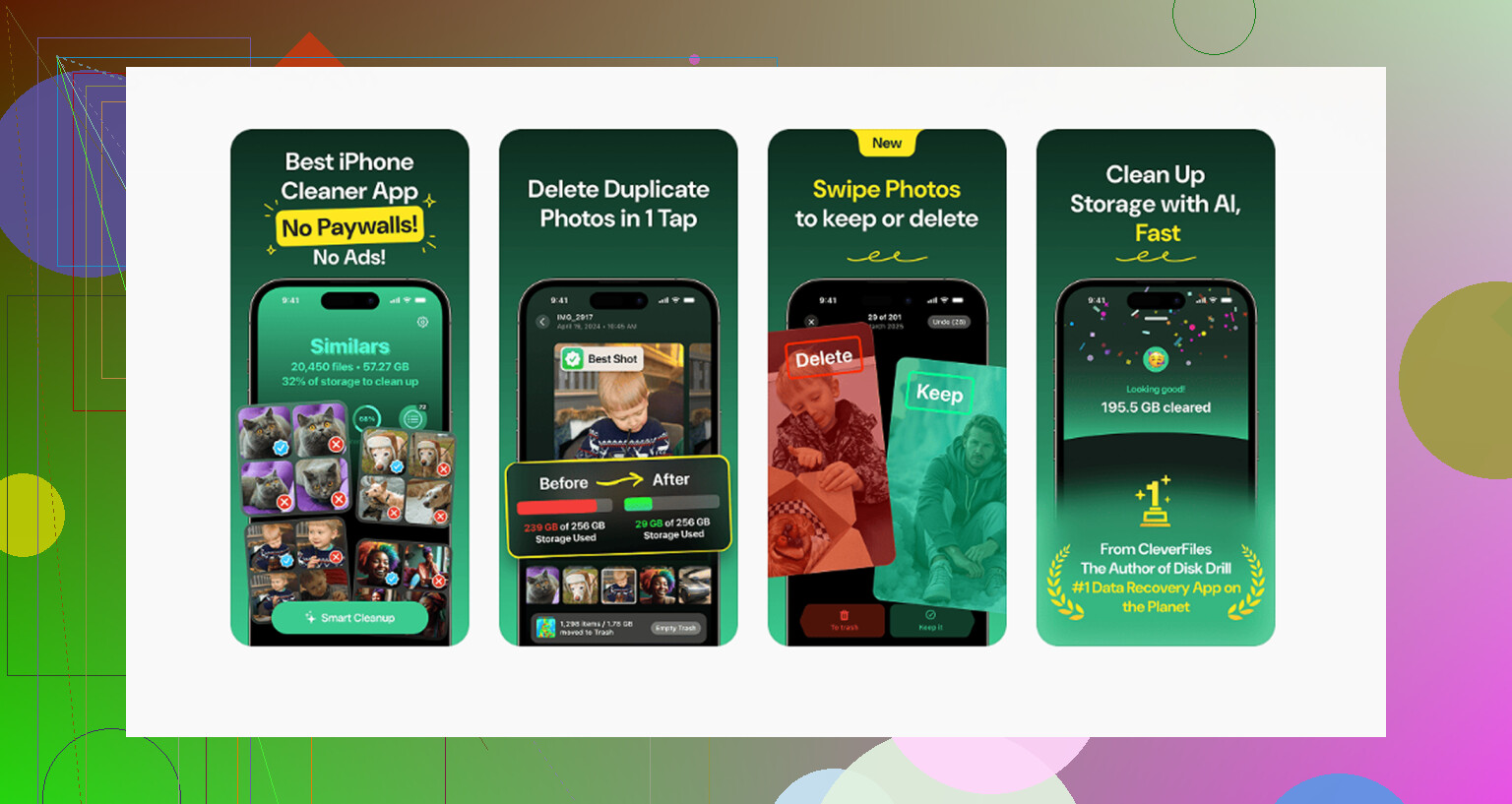
I ended up using Clever Cleaner, and it was the only cleaner app I found that didn’t feel like a subscription trap. It’s free, with no ads, paywall, or trial that quietly turns into a charge later.
The most useful part for me was the “Heavies” section. It sorts photos and videos by size, so you can quickly find the random 4K video taking up a couple gigs. The “Similars” section is also handy because it finds photos that are basically the same shot, even if they are not exact duplicates. It picks the best one and lets you delete the rest. It also shows file sizes, which helps a lot when you’re trying to free space quickly.
Another thing I liked is that the processing happens on the phone, so your photos are not being uploaded somewhere else.
Once you clear around 10 to 15GB, iOS usually starts acting normal again. The storage screen updates more reliably, the lag gets better, and the “Storage Full” warnings stop popping up constantly.
If none of that works, the last option is backing the phone up to a computer and doing a factory reset. That should clear out corrupted system files or stuck storage data, but I’d only do it after trying the force restart and a proper cleanup first.
1 Like
Don’t keep deleting random stuff while the phone is still syncing iCloud Photos or Messages, because iOS may be downloading originals or rebuilding indexes at the same time.
Check Settings > your name > iCloud and see if Photos or Messages are actively syncing. If they are, plug in, get on Wi-Fi, and give it a few hours before judging the storage number.
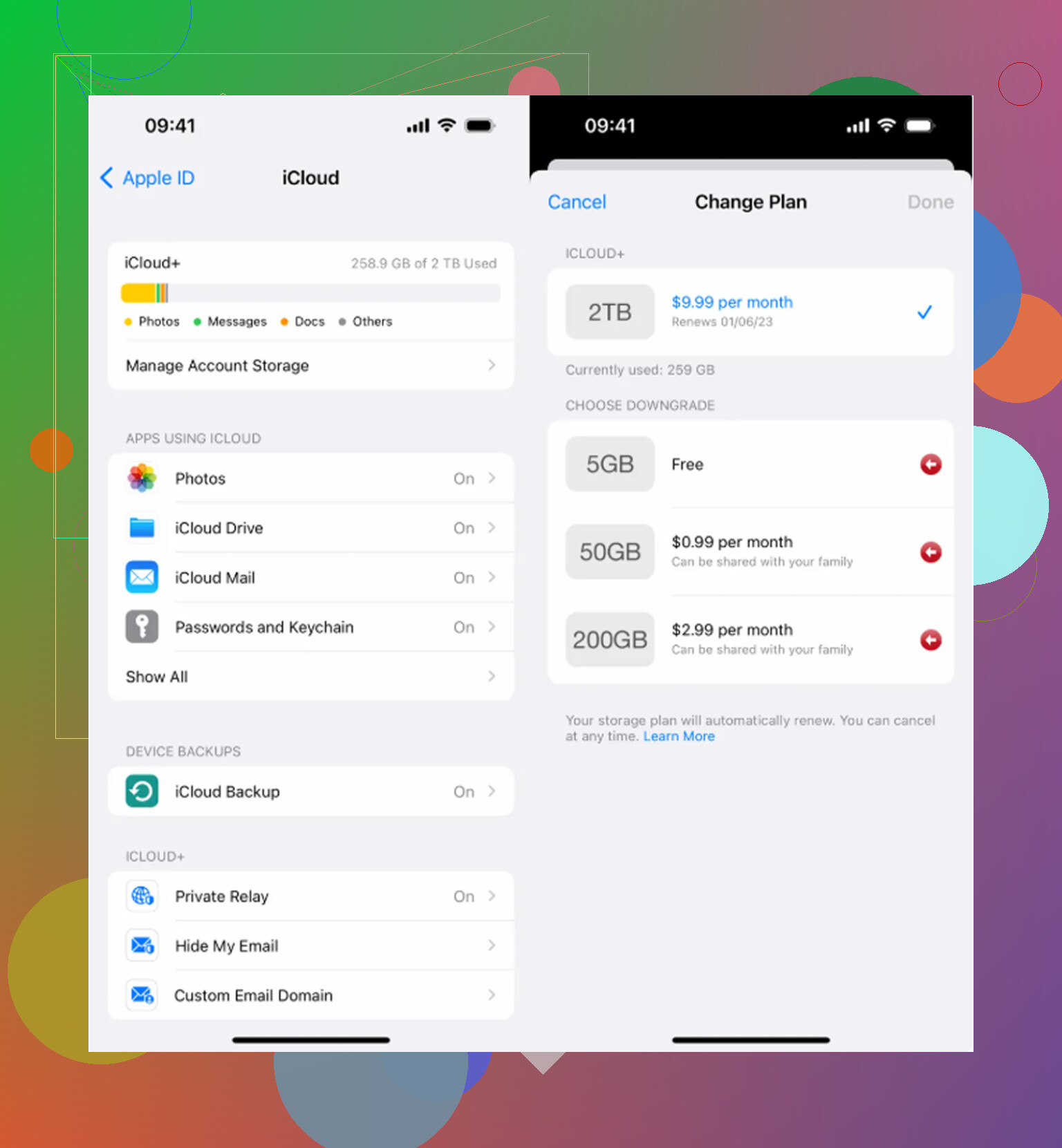
Don’t keep chasing the number minute by minute, especially if the phone is down to its last few GB. At that point iOS may be trying to make temporary room for photo database changes, app cleanup, iCloud checks, thumbnails, and storage recalculation, so your “deleted” space can look like it moved into System Data before it actually clears. I’d leave it plugged in on Wi-Fi overnight, then check Settings > General > iPhone Storage again after that. If it still climbs, look for the category that grew, not just the total. If “System Data” is the problem, a backup and restore through a computer is usually more reliable than deleting more random stuff.