I’m confused about what actually happens when I clear cache versus cookies in Safari on my iPhone. I was trying to fix some website loading and login issues, and different guides keep telling me to clear one or the other, or both. I don’t want to lose important data or saved logins if I don’t have to. Can someone explain the difference between clearing cache and clearing cookies on an iPhone, and when I should use each option?
Short version.
Cache = stored files to load sites faster.
Cookies = small files to remember you, logins, prefs, tracking.
On iPhone Safari you usually hit both at once, but here is what each does.
- What cache does
- Stores images, CSS, JS from sites on your phone.
- Next time you open the same page, Safari loads from local storage first, so it feels faster and uses less data.
- If a site updates but your phone keeps an old cached file, you get glitches, layout bugs, or things not loading.
When you clear cache:
- Pages might load slower for a while, since Safari has to download everything again.
- Visual issues or half-broken pages often fix.
- You stay logged in, as long as you do not clear cookies.
- What cookies do
- Store login tokens, site settings, language, cart contents, tracking IDs.
- Example: staying logged in to Gmail, Amazon, bank, forums.
- Also used for ad tracking across sites.
When you clear cookies:
- You get logged out of most sites.
- Saved preferences on specific sites reset.
- Some tracking data resets until new cookies get created.
- It helps with login loops, “incorrect password” bugs when you know it is right, or a site stuck in an auth error.
- On iPhone Safari, where it gets confusing
Settings > Safari > Clear History and Website Data
This hits:
- Browsing history
- Cookies
- Cache
- Some other website data
So if you use that option, you wipe all of it in one go, not only cache or only cookies.
If you want more control:
- Settings > Safari > Advanced > Website Data
There you can edit per-site data.
You can remove a single problematic site instead of nuking everything.
- When to clear which
If pages look broken, stuck, or load weird:
- Try clearing cache for that site. On iPhone, easiest is:
Settings > Safari > Advanced > Website Data > search the site > Delete.
This clears both cache and cookies for that site though. For true cache-only control, Safari is limited.
If you have login problems, like:
- You get logged out instantly.
- You get redirected in a loop.
- “Session expired” every time.
Then clearing cookies for that site helps most.
If you want to avoid logouts everywhere, try this order:
- Force close Safari.
- Try private browsing window.
- Remove data for single site in Website Data.
- If nothing fixes it, use “Clear History and Website Data” for a full reset.
- Storage and cleanup extras
If your iPhone storage feels tight from lots of browsing and old data, a cleanup tool helps.
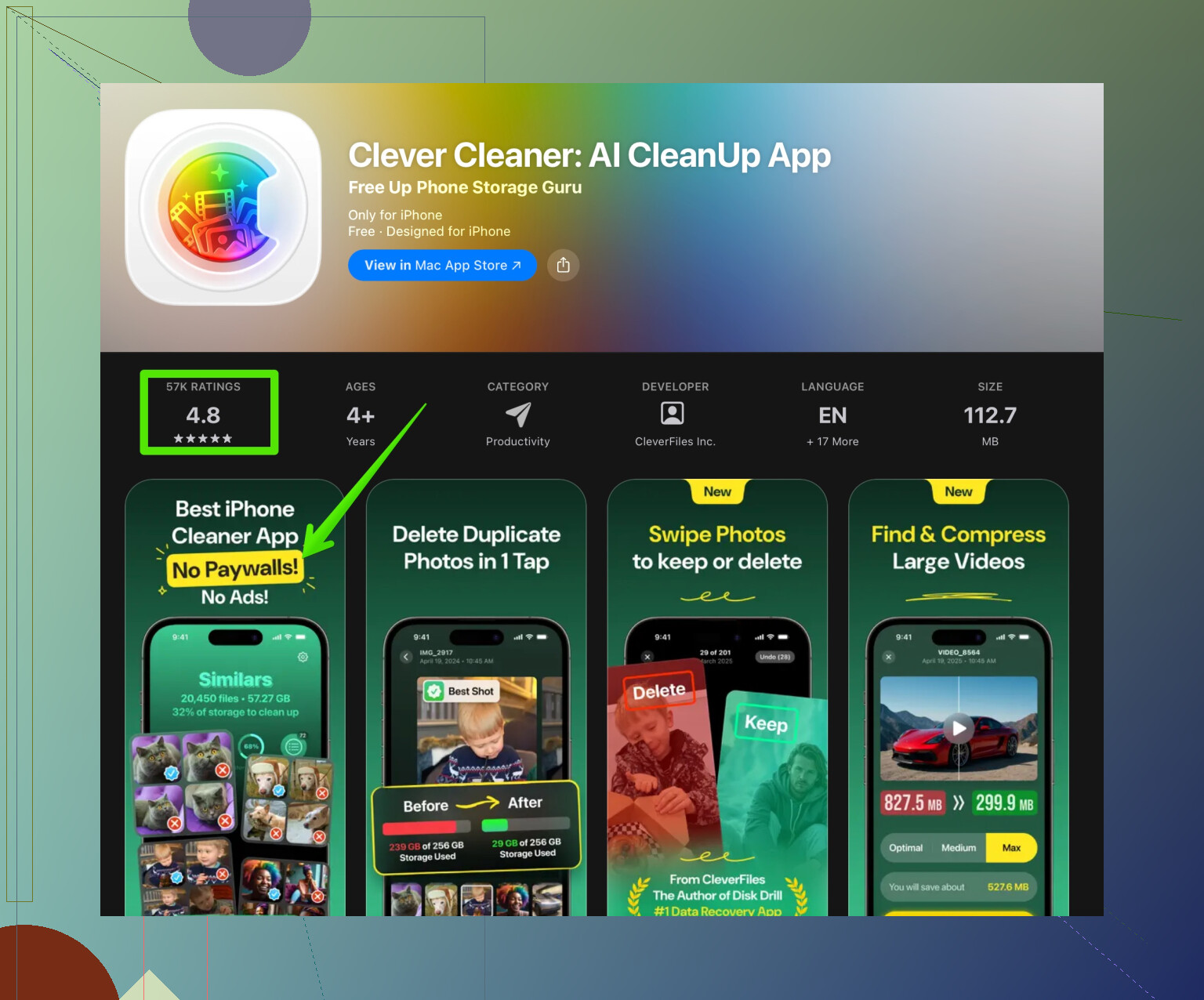
An app like the Clever Cleaner App helps remove junk photos, screenshots, duplicates, and other clutter that Safari and other apps leave around. That keeps the phone lighter and faster without you digging through every folder.
You can check it here for more info and housekeeping features:
smart tools to clean up your iPhone storage
So, for your situation:
- Weird page loading or display issues: clear cache / site data for that site, or use Clear History and Website Data.
- Login issues or stuck sessions: focus on cookies, which on iPhone means deleting that site’s Website Data or doing a full Safari clear if nothing else works.
17 Likes
You’re not alone, iOS makes this way more confusing than it needs to be.
Think of it like this:
Cache = “stuff to show the page”
Cookies = “stuff to remember you”
@techchizkid pretty much nailed the basics, but I’d split the effects a bit differently and clear up one misconception people fall into.
What actually happens when you clear cache in Safari
On a technical level, Safari’s cache is mostly:
- Images
- Stylesheets (CSS)
- Scripts (JS)
- Some other static assets
When those are cleared:
- Pages may look ugly or blank for a second while everything re-downloads.
- You often fix:
- Layouts that look “stuck” in an old version
- Buttons that do nothing because old code is still being used
- Weird visual glitches
You usually do not lose logins just from cache going away. Logins are tied to cookies or other storage, not to the cached images and scripts.
Where I half-disagree with a lot of guides: “Clear cache to fix everything” is oversold. For login problems, cache is rarely the real villain. It’s mostly for broken visuals and outdated page code.
What actually happens when you clear cookies in Safari
Cookies are tiny text bits that say things like:
- “This device is logged in as user X”
- “Show this site in dark mode”
- “This cart has 3 items”
- “This browser belongs to tracking ID abc123”
When you clear cookies:
- You get logged out of sites that rely on them
- “Remember me” checkboxes stop remembering you
- Site preferences reset
- Some tracking is temporarily wiped
Clearing cookies is way more destructive to your “logged in and comfy” experience than clearing cache. That is why it sometimes does fix login loops, “session expired,” or sites that keep forgetting you.
So:
- Visual / layout issues → usually cache / site data
- Login / session issues → usually cookies
The annoying iPhone Safari part
This is where things get messy and where I’ll slightly push back on what tutorials (and even @techchizkid) tend to gloss over:
- “Clear History and Website Data” in Settings is a nuke:
- History
- Cookies
- Cache
- Other website data
You do not get fine-grained control from that button. It is basically “reset Safari like you just bought the phone” for website stuff.
If you want something less extreme, you did have the right instinct poking around:
- Advanced > Website Data list shows per-site stuff.
- Deleting one site there blows away that site’s:
- Cookies
- Cache
- Local storage
This is more targeted, but here’s the catch a lot of people misunderstand:
Safari does not give you a true “only cache, not cookies” option per site.
If some guide says “just clear cache but keep cookies” on iPhone Safari specifically, that is technically not what is happening when you use Website Data. For that level of precise control, you’d need a different browser or dev tools, not regular iOS Safari settings.
So, what should you actually do?
Given your issues:
-
Weird loading / some elements not updating
- Use a Private tab first to test.
- If the site works fine there, your normal session’s cookies or cache are the problem.
- If only one site is broken:
- Delete that one site from Website Data.
- If a ton of sites act weird:
- Then the nuclear “Clear History and Website Data” is worth a shot.
- Use a Private tab first to test.
-
Login issues (stuck, loops, keeps logging you out)
In this case, people over-focus on cache. It is far more often a cookie / session issue:- Try Private browsing
- If it works privately, delete just that site under Website Data
- If it still breaks everywhere, then full Safari clear
Expect this side effect: once you hit the big clear or you remove a site’s data, that site will behave as if you visited it for the first time.
Side note: storage & cleanup
If part of the motivation is “Safari and old app junk are clogging my iPhone,” then clearing website data is only one piece. A lot of space hogs are:
- Duplicate photos
- Burst photos you forgot about
- Ancient screenshots
- Big videos
For that side of cleanup, something like the Clever Cleaner App is actually useful. It does more than just browser stuff and helps with photos, videos, and other clutter. You can check it out here for a broader cleanup:
smarter tools to clean and speed up your iPhone
That’s more about overall iPhone performance and storage than the cache vs cookies behavior itself, but it pairs well if you’re already in “tidy up my phone” mode.
In plain terms, all in one place
-
Clearing cache on iPhone Safari
- Mainly affects how pages look and load
- Fixes old or broken layout / scripts
- Doesn’t normally log you out
-
Clearing cookies on iPhone Safari
- Mainly affects how sites remember you
- Fixes login loops and broken sessions
- Logs you out, resets prefs
-
On iPhone there is no perfect button labeled “just cache” or “just cookies” per site.
- Per-site delete under Website Data clears both
- The big “Clear History and Website Data” clears everything for all sites
If you remember only one thing:
Cache = speed and visuals.
Cookies = identity and memory.
Safari’s settings mash them together more than they should, so you pick the least destructive reset that still fixes your problem.
Think of Safari on iPhone as having three “memory buckets,” not just cache vs cookies:
- Stuff that makes pages load fast
- Stuff that remembers who you are
- Stuff that remembers what the site can do on your device
@techchizkid covered 1 and 2 really well. I want to poke a bit at bucket 3, because that’s where a lot of confusion comes from.
1. Cache vs cookies vs “other site storage”
Very roughly:
-
Cache
- Images, styles, scripts, fonts
- Affects how fast and smooth a page loads
- Corruption here causes half-loaded pages, weird layouts, buttons not responding
-
Cookies
- Login tokens, preferences, basic tracking
- Affects how a site remembers you
- Corruption here causes login loops, “session expired” right after you log in, cart suddenly empty
-
Other storage (localStorage, indexedDB, etc.)
- Sometimes used like “super cookies”
- Stores things like app state, cached content for offline use, or advanced login/session data
- When this goes bad, you get:
- Site acting logged in on one screen and logged out on another
- Infinite spinners
- Old versions of “web apps” that refuse to update
What I slightly disagree with: a lot of guides say “login issues = cookies only.” On modern sites, broken logins can be a mix of cookies plus that other storage. That is why on iPhone when you delete a site under Website Data, it often fixes problems that “cookie-only” advice on desktop would not.
2. What iPhone actually lets you control
Safari on iOS is pretty crude compared to desktop:
- There is no clean, user-facing toggle for “only cache” vs “only cookies”
- Per-site deletion under Settings > Safari > Advanced > Website Data kills:
- Cache
- Cookies
- Local storage
- IndexedDB
All in one shot.
That is actually useful for stubborn login or loading problems, but it is more destructive than just “clear cache” in the traditional sense.
So if a guide tells you “clear only cache on iPhone,” that is a bit theoretical. In practice you are almost always killing more than just cache.
3. How I’d choose what to clear, in real life
Instead of repeating the same step list, here is how I decide what to blow away:
-
Symptom: page looks wrong but login still works fine
- Think: primarily cache & scripts
- I try:
- Pull to refresh a couple times
- Rotate the phone or reload with bad network off then on
- If that fails and it is just one site, I remove that site under Website Data
- I do not immediately nuke everything, since it is usually overkill.
-
Symptom: stuck login loop, or “you must log in” right after logging in
- Think: cookies + other storage
- I:
- Test in a Private tab
- If it works there, my existing site data is definitely the issue
- Remove that one site from Website Data
- Test in a Private tab
- If multiple unrelated sites show login weirdness, that is when the big “Clear History and Website Data” starts to make sense.
-
Symptom: Safari feels slow across the board, not just one site
- Could be:
- Massive old website data
- Overall phone storage pressure
- At that point, instead of constantly clearing Safari, I also look at overall storage cleanup.
- Could be:
This is where a broader tool can help.
4. About the Clever Cleaner App
If you are already in “let me clean my phone” mode, something like the Clever Cleaner App can be a decent companion to Safari’s limited controls.
Pros:
- Focuses on whole device clutter, not just browser data
- Very good for:
- Duplicate or similar photos
- Old screenshots and screen recordings
- Large videos you forgot about
- Can free enough space that Safari and other apps stop misbehaving when storage gets tight
Cons:
- It will not give you surgical, per-cookie control in Safari
- Can flag photos or videos you still care about, so you must review suggestions instead of one-tapping everything
- Another app to install and occasionally open, which some people do not like
So I treat Safari’s own settings for site-specific problems and a cleaner app for global storage pressure issues.
5. Where this leaves your original confusion
Short mental model that lines up with how iPhone really behaves:
- Cache = “how the site looks and loads”
- Cookies = “how the site recognizes you”
- Other storage = “how the site acts like an app”
On iPhone, Safari settings clump them. Per-site deletion is more than “just cache,” and the all-in-one nuke is exactly that: everything. Use the smallest reset that matches your symptom, then if the phone itself feels cramped, offload the bulk junk with something like Clever Cleaner App instead of repeatedly wiping Safari.