My hard drive started acting up with slow reads, random freezes, and file errors. I’m trying to find a reliable disk repair program before I replace the drive or lose data. If you’ve used hard drive repair software that actually worked, what did you use and what issue did it fix?
“Disk repair” can mean a few different things, so the best tool depends on what’s actually broken.
If you’re trying to get files back from a RAW or damaged drive, that’s one kind of job. If the partition disappeared or the boot sector is messed up, that’s a different job. And if you just want to know whether the drive is dying, you want a health-check tool, not recovery software.
I’d look at it this way:
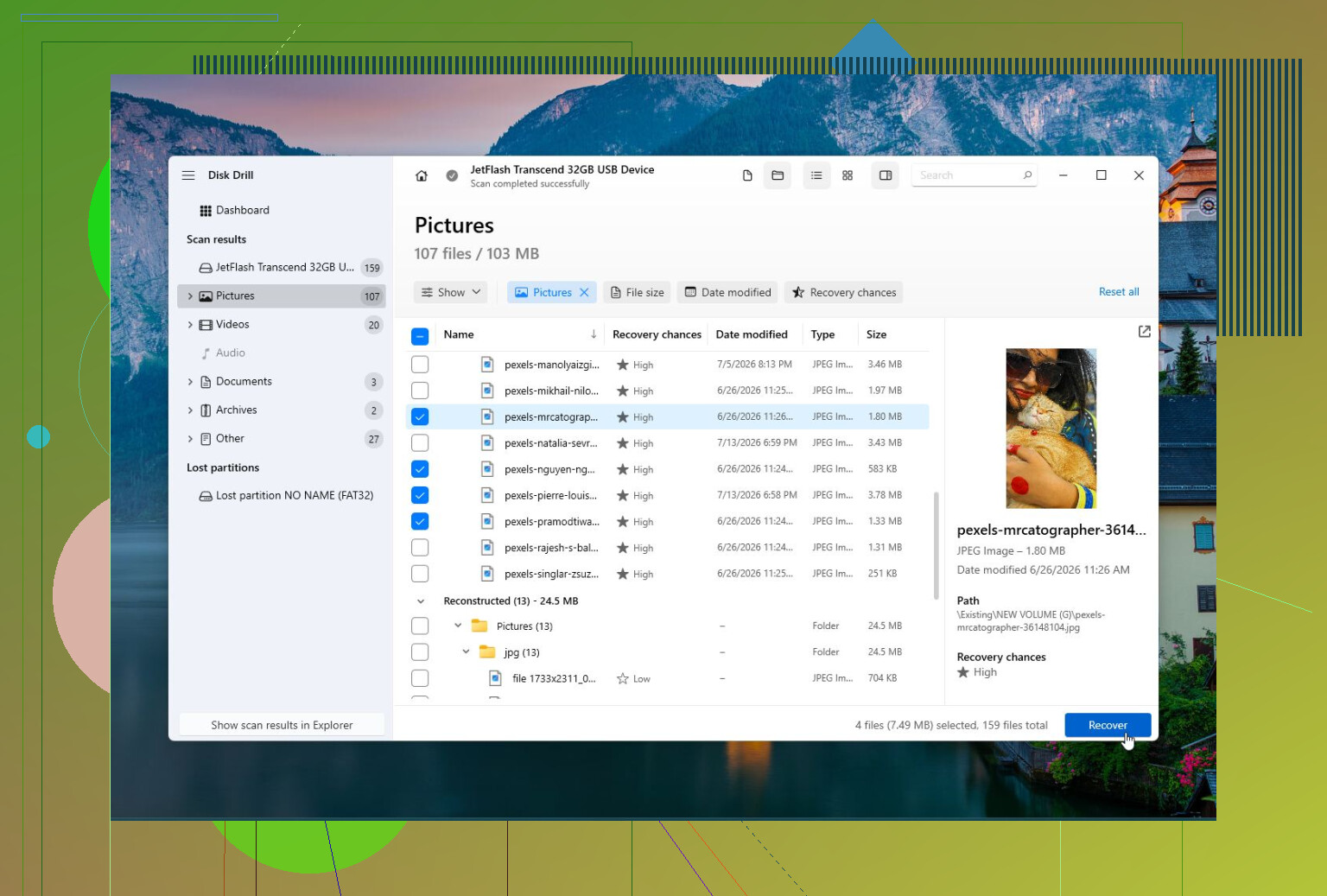
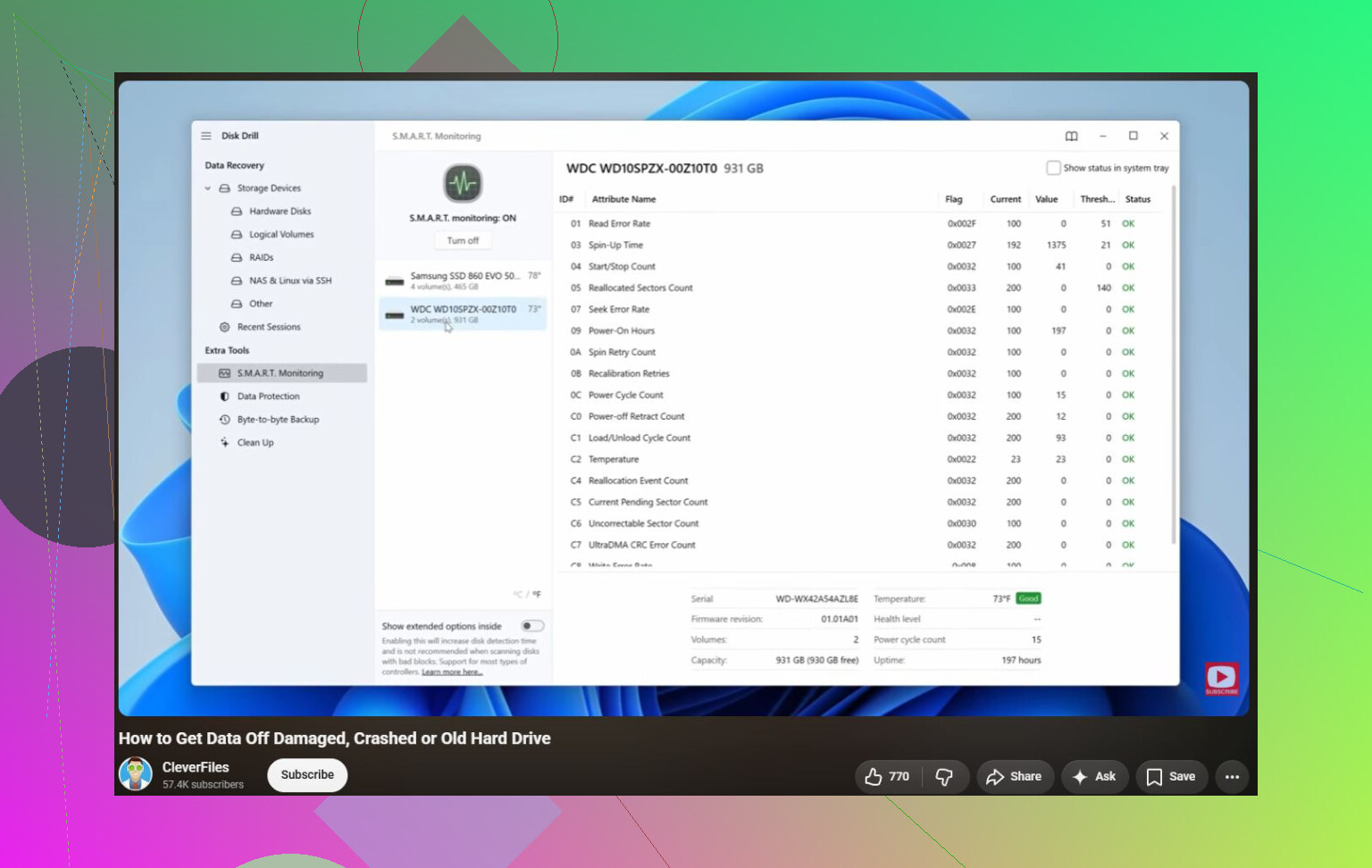
Disk Drill is the one I’d try first when the files matter. If Windows wants to format the drive, the disk turned RAW, or something was deleted or formatted by mistake, it’s made for that kind of recovery. It can scan corrupted or inaccessible drives, make a disk image before the drive gets worse, and check S.M.A.R.T. health too. The big plus is that it’s easy to use even if you’re not very technical.
Good:
- Easy for beginners.
- Strong recovery from RAW, corrupted, and formatted drives.
- Includes disk imaging and S.M.A.R.T. monitoring.
- Works with most common file systems.
Not so good:
- It’s not meant to rebuild partition tables or fix boot sectors.
TestDisk is better when the problem is the partition itself. If the drive suddenly shows as unallocated, a partition vanished, or the partition table is damaged, this is one of the better free options. It can rebuild partition tables and repair boot sectors, but it’s not exactly beginner-friendly. The interface is text-based, and you do need to understand what you’re changing.
Good:
- Free and open source.
- Very good for recovering lost partitions.
- Can repair boot sectors and partition tables.
- Runs on Windows, macOS, and Linux.
Not so good:
- Command-line style interface.
- Easy to mess something up if you don’t know partitions well.
- Not the best choice for picking out individual files to recover.
CrystalDiskInfo is the one to use when you’re trying to figure out whether the drive is actually failing. It won’t repair files, partitions, or file systems, but it reads S.M.A.R.T. data, shows temperature, and gives you a quick idea of the drive’s health. I’d use it early if you’re not sure whether the issue is Windows being weird or the hardware going bad.
Good:
- Free.
- Simple to use.
- Useful for checking drive health.
- Can warn you before a drive fully dies.
Not so good:
- No file recovery.
- No partition or file system repair.
Also, don’t ignore the obvious warning signs. If the drive is clicking, dropping in and out, freezing while reading, or showing more bad sectors over time, stop experimenting with random repair tools. Get the files off first, preferably from a disk image if the drive is unstable, then replace the drive. Software can fix logical damage, but it can’t fix worn-out hardware.
For a damaged or RAW drive, this video is also relevant:
https://www.youtube.com/watch?v=_e4D_2bu8LE
5 Likes
If the drive is freezing during reads, I wouldn’t run repair tools against it directly at all. Mike’s Disk Drill suggestion makes sense for recovery, but I’d use its imaging/cloning option first and recover from the copy, because CHKDSK-style “fixes” can make a failing drive worse.
No software is going to make a physically failing hard drive trustworthy again. At best, a “repair” program can help you get data off, fix a file system problem, or tell you the drive is done.
I’d be careful with the word repair here. Slow reads, freezes, and file errors are exactly the symptoms where people run a bunch of tools and accidentally turn a recoverable drive into a worse one. I agree with @shizuka on the image-first approach. If the data matters, cloning/imaging comes before fixing.
My order would be:
-
Check the simple hardware stuff first.
If it’s an external drive, try a different USB cable, port, and power adapter if it has one. If it’s an internal SATA drive, try another SATA cable and port. Bad cables and flaky USB enclosures can look a lot like a dying drive. -
Look at drive health, but don’t treat it as a final answer.
S.M.A.R.T. tools are useful, but they can miss failures. If you see reallocated sectors, pending sectors, uncorrectable errors, or the numbers keep increasing, stop treating it like a repair job. -
Make an image or clone if the files matter.
Disk Drill makes sense for this kind of user-friendly recovery workflow, especially if you want to scan a copy instead of hammering the original disk. The caveat is that if the drive is badly unstable, even imaging software may struggle, and a professional recovery shop is safer than repeated DIY scans. -
Run file system repair only after you have a copy.
CHKDSK can fix directory and file system errors, but it can also delete or move damaged records into fragments. That’s fine when the data is backed up. It’s not fine when it’s your only copy. -
Use the drive maker’s diagnostic for the final verdict.
If the manufacturer’s long test fails, replace the drive. Don’t spend days trying to “repair” it back into service. A drive that has already started freezing during reads is not one I’d keep using for anything important.
The tool that “works” depends on the failure. For lost partitions, TestDisk is still useful if you know what you’re doing. For file recovery from a damaged file system, Disk Drill or similar recovery tools are more approachable. For deciding whether to keep the drive, use diagnostics and S.M.A.R.T., then be ruthless.
The thing I wouldn’t use is any program promising to repair bad sectors and make the disk healthy again. Those tools mostly force the drive to reread or remap weak areas, which can be useful in narrow cases, but on a drive that is already freezing it’s extra stress. Get the data first, then replace the hardware.
Don’t run CHKDSK just because Windows pops up and suggests it. If you use Disk Drill or any recovery tool, make sure you have a second drive ready first, because recovering files back onto the sick drive is a good way to overwrite the stuff you’re trying to save.