My iPhone suddenly shows a large amount of synced media, and I have no idea where it came from. I don’t remember syncing movies, music, or photos from a computer, so I’m trying to figure out what added it, why it’s taking up storage, and how to remove it safely without deleting anything important. Looking for help understanding synced media on iPhone storage and where it comes from.
After one of the iOS 17 updates, I opened iPhone Storage and saw a huge block called Synced Media. No clear explanation, no delete button, and the number looked way too high. If you ran into the same thing, here’s the plain version.
What Synced Media means
This category is for files you moved onto the iPhone from a computer with a cable, using Finder on Mac or iTunes on Windows. Think music, photos, books, and similar stuff you loaded manually.
Older iOS versions showed those files inside the app they belonged to. Music sat under Music. Books sat under Books. With iOS 17, Apple split them out and put them into one storage bucket called Synced Media.
Stuff downloaded on the phone from the App Store does not go there. Only content pushed from a computer ends up in this section.
Can you delete it?
Yes, if the originals still live on your computer and you do not need copies on the phone anymore.
The annoying part is how removal works. Since a computer put those files there, a computer usually has to remove them too. You won’t find a clean swipe-to-delete option in iPhone Storage for this.
Why the storage number looks fake
I saw this myself. The size looked inflated, almost like the phone counted the same files twice. On iOS 17, there’s been a storage reporting issue where synced files show once under their app and again under Synced Media.
So your phone looks packed, even when the real usage is lower. The bad part, iOS still behaves like storage is full. Downloads fail. Updates stall. Apps get weird.
How I removed Synced Media
Method 1, remove it from Finder or iTunes
- Plug the iPhone into your Mac or Windows PC.
- Open Finder on Mac, or iTunes on Windows.
- Select the iPhone.
- Open the tab for the content type, usually Music, Photos, or similar.
- Uncheck whatever you no longer want synced.
- Hit Sync or Apply.
Once the sync finishes, the unchecked files should come off the phone.
Method 2, the empty folder fix for stuck synced photos
This one saved me when photo sync got stuck and refused to clear.
- Make a new empty folder on your computer.
- In Finder or iTunes, choose to sync photos from that empty folder.
- Run Sync.
Since the folder has nothing in it, the iPhone removes the synced photo set tied to the old folder. It’s a dumb workaround, but yeah, it works.
Method 3, remove and reinstall the app
If the leftover synced data is tied to music, deleting the Apple Music app and installing it again from the App Store sometimes clears data the normal sync process leaves behind.
Why fixing Synced Media might not solve the whole storage mess
Even after I cleared it, my phone still felt cramped until I dealt with the rest of the junk. When free space drops too low, iPhone performance gets rough. You want around 5GB to 6GB free for temp files, updates, caching, and background tasks.
Once storage gets tight, you start seeing the usual symptoms:
- Lag when switching apps
- Random app closes
- Camera storage warnings
- iOS updates refusing to install
And yeah, Synced Media is often only part of it. In my case, the bigger problem was repeated photos, old videos, and piles of screenshots I forgot existed.
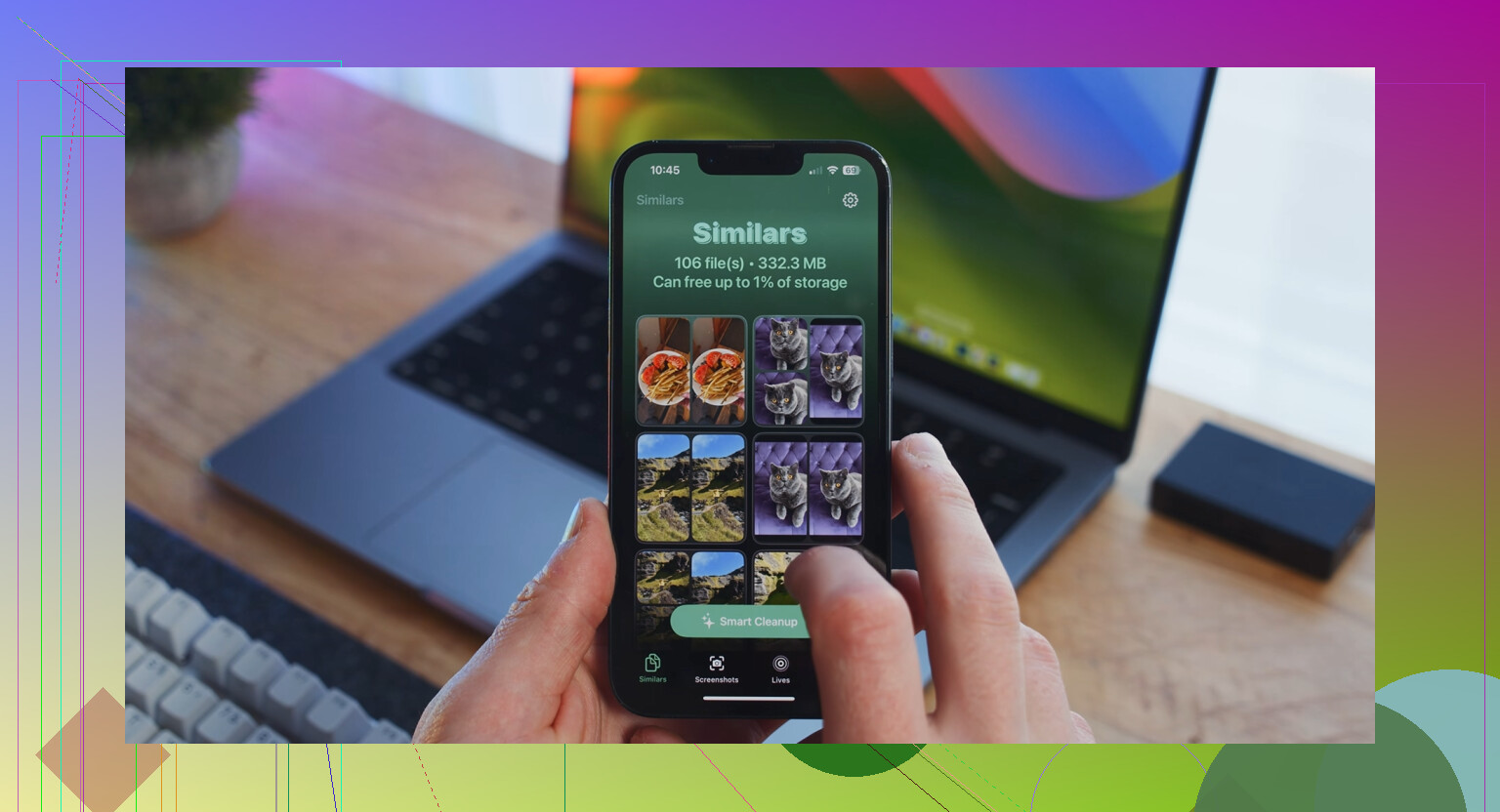
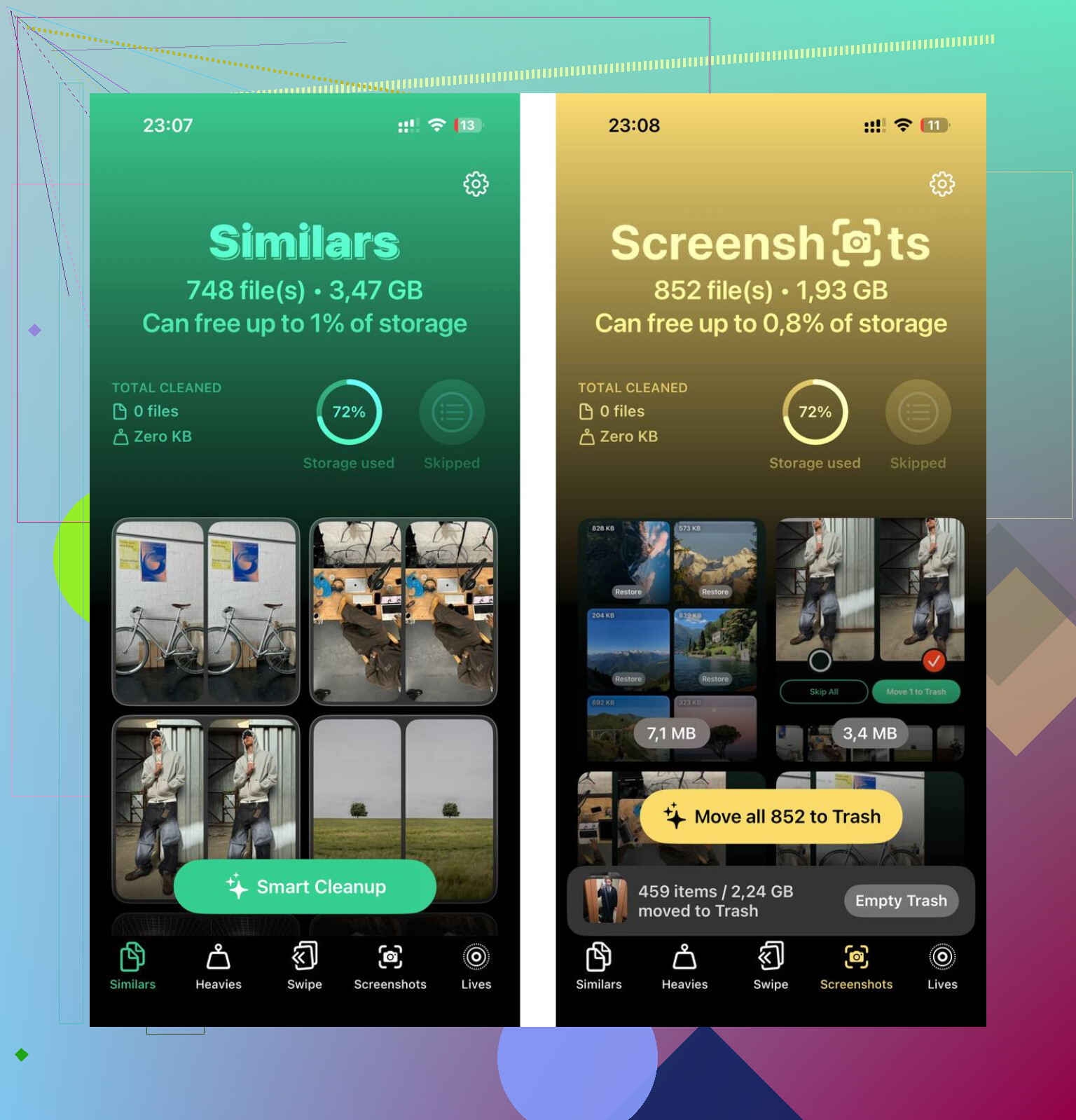
Clever Cleaner is aimed at cleaning up those extra files. The Similars section groups close-duplicate photos and picks a best shot, which helps if your library is full of burst shots or five attempts at the same pic. The Heavies section lists files by size, largest first, so you spot what’s eating space fast. It runs on-device, so your files aren’t sent out somewhere else.
What fixed it for me was doing both parts. First, I removed the synced files through Finder. Then I cleaned up the photo library. After tha,t the lag was gone and the next iOS update installed without the usual storage tantrum.
11 Likes
What you’re seeing is often a label change, not some mystery dump of new files.
I agree with part of what @mikeappsreviewer said, but I don’t fully buy the idea that it always means you synced stuff recently. On some iPhones, especially after iOS updates, “Synced Media” shows old content mappings, stale indexes, or storage accounting junk from years ago. Stuff from an old Mac, an old iTunes install, even a restore. You forget it, iPhone does not.
A few things to check first.
-
Look at Apple apps tied to imported media.
Open Music, TV, Books, Photos.
See if you spot old albums, home videos, PDFs, or photo folders you never use. -
Check Settings, your Apple ID, then Media & Purchases.
Sometimes people mix up purchased downloads with synced files. They are not the same, but iOS storage reporting gets messy and looks wrong. -
Restart, then re-check storage after 10 to 15 minutes.
iPhone Storage recalculates slowly. I’ve seen “Synced Media” drop by multiple GB after a reboot. No joke. -
If you ever used a third-party desktop app, check there too.
Some apps wrote media through Apple sync frameworks. So you may not remember using Finder or iTunes directly.
If the size still looks fake, I’d treat it as a reporting bug first and a cleanup job second. If your free space is still low, focus on big space hogs you control right now. Videos, duplicate pics, offline downloads, giant message threads. Clever Cleaner helps with duplicate photos and heavy files, which is more useful than staring at Apple’s vague storage labels tbh.
Also, if you want a solid outside review, this covers how Clever Cleaner performs in real use, NY Weekly’s hands-on review of Clever Cleaner for iPhone.
If you post which apps are largest under iPhone Storage, ppl here can narrow it down fast.
I’d split this into 2 possibilities, and this is where I kinda differ from @mikeappsreviewer and @andarilhonoturno a bit.
Sometimes “Synced Media” is real imported stuff. Sometimes it’s just iOS doing a trash job labeling old media caches and legacy library data after an update. Apple loves a mystery bucket.
What I’d check that they didn’t really stress enough:
- Settings > General > About
Compare total capacity vs available space there, not just the colorful bar. - Open Music, TV, Books, Podcasts, Files
Look for downloaded/offline stuff that may not appear where you expect. - Settings > Photos
If Shared Library, iCloud Photos, or downloaded Originals changed recently, storage can reshuffle and look weird. - Files app > On My iPhone
Some imported media lives there and ppl forget.
Also, if you use Apple Music sync library, downloaded songs are not the same thing as old-school cable sync, but iOS can make the storage view look super wonky. That’s why I wouln’t assume a computer caused it 100%.
If the phone is actually low on space, don’t tunnel vision on that one label. Usually the real hog is photos/videos anyway. Clever Cleaner is useful for clearing duplicate pics and big files fast, and this free iPhone cleaner app review and storage cleanup guide gives a decent breakdown of why ppl use it.
If “Synced Media” stays huge after a reboot and 24 hrs, then yeah, I’d call it semi-bugged or stale data. Annoying, but very on-brand for iOS tbh.
One angle I think @andarilhonoturno, @viajantedoceu, and @mikeappsreviewer only partly covered: sometimes Synced Media is inherited from backups or migrations, not from a recent cable sync. I’ve seen it show up after Quick Start transfers, encrypted local backups, and even device-to-device restores where the phone keeps an old media database flag alive.
What I’d do differently:
-
Check Analytics Data for storage/accounting weirdness:
Settings > Privacy & Security > Analytics & Improvements > Analytics Data
Search entries withstorage,medialibrary, orassetsd. If those logs are exploding, it points more to indexing weirdness than real giant files. -
Test reality with a simple file copy.
Try recording a 1 minute 4K video or downloading a large app. If it works, the Synced Media number may be mostly cosmetic. If it fails immediately, it is affecting real free space. -
Compare storage from a computer.
Plug into Finder or iTunes and see whether the category breakdown there matches the phone. If not, that usually screams bad local accounting.
I slightly disagree with the “focus elsewhere first” idea if your available space is critically low. A phantom 20 to 40 GB block can absolutely break updates and app installs, so it is worth isolating.
If you need to free space while diagnosing, Clever Cleaner is fine for the side cleanup:
- Pros: fast duplicate detection, easy large-file review, good for screenshot mess
- Cons: won’t truly remove actual Finder/iTunes synced media, and sometimes suggested duplicates need manual checking
So my take: verify whether it’s real usage, migrated legacy data, or a reporting bug before trying random deletion tactics. That distinction matters way more than Apple’s vague label.