Which do you actually use to stream to a TV from an iPhone: screen mirroring, casting from the app, or a wired connection, and why? I was trying to show 7 vacation clips on my TV, but mirroring kept freezing while the sound carried on. Disconnecting and starting again got the picture back, only for it to stall on the next clip. It’s annoying having everyone wait while I fiddle with my phone.
How I compared the options
I compared these routes by the TV’s compatibility, whether they need Wi-Fi, and whether I’m sending individual media or showing the whole phone screen. This isn’t a speed test. I’m separating the options by what they let me do and what equipment they need.
That distinction matters because playing a video on the TV doesn’t always mean I need to mirror my phone.
Start with what’s playing
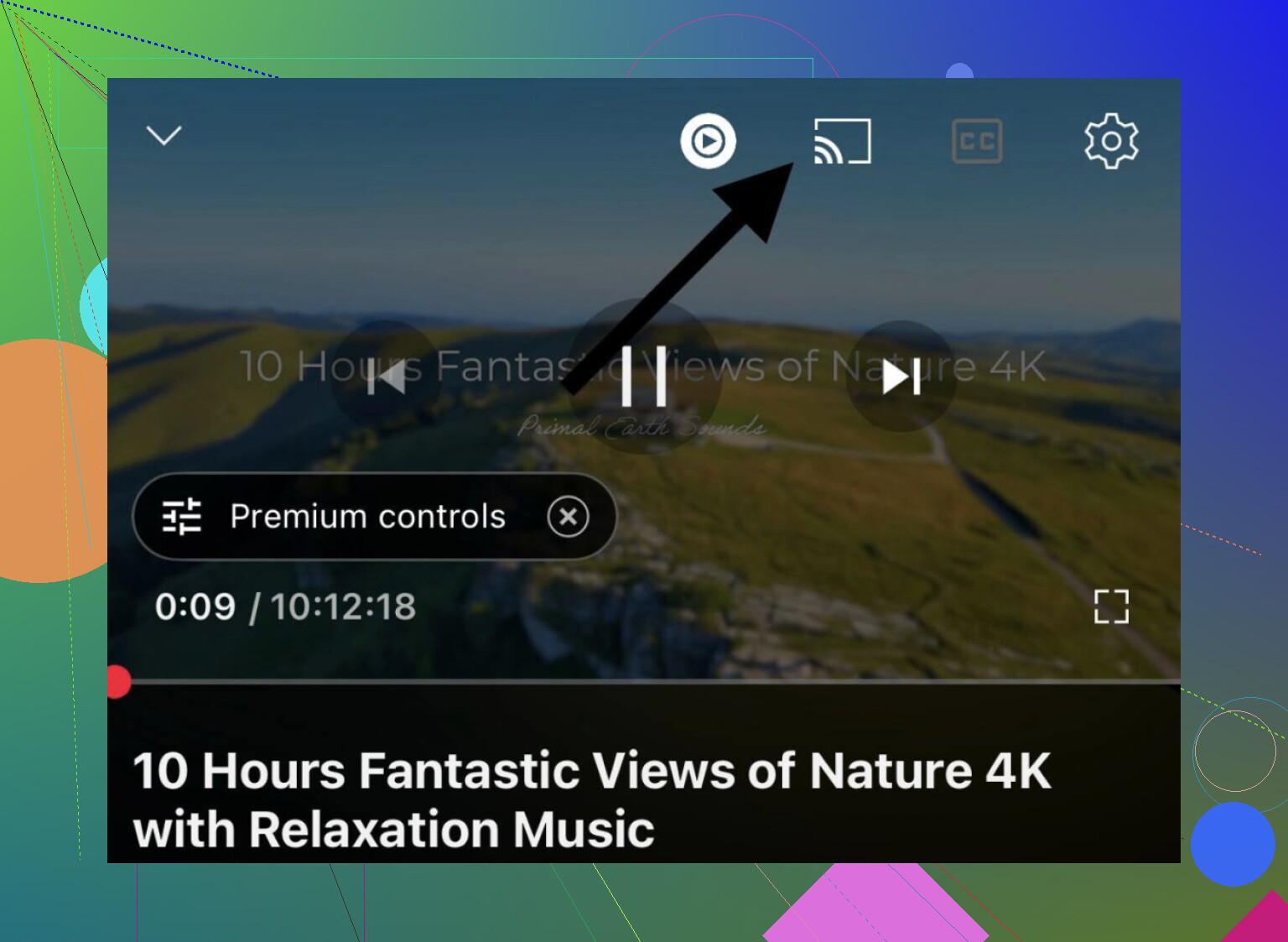
If I’m watching something in YouTube, Netflix, or another app with a cast button, I’d start there. I can select the TV from the app and keep my phone available for other things.
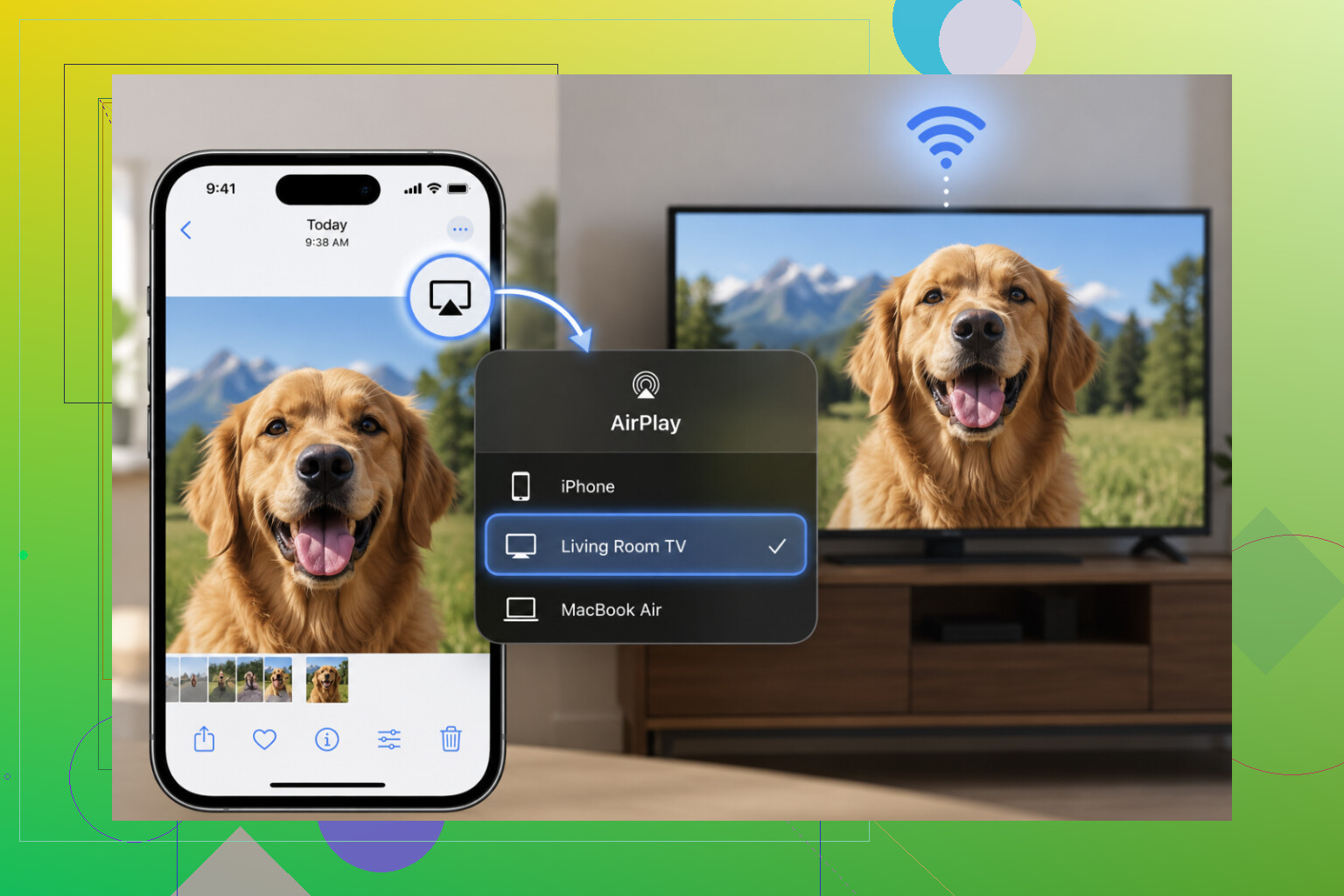
For an AirPlay-compatible TV, I’d connect both devices to the same Wi-Fi network, tap the video player’s AirPlay icon, and select the TV. Many newer Samsung, LG, Sony, Vizio, and Roku TVs support AirPlay 2, as do Apple TV boxes.
Showing the entire screen takes a different route: Control Center, then Screen Mirroring, then the TV. I wouldn’t treat that as interchangeable with sending a single video.
When I’d use a cable or box
If avoiding lag is my priority, I’d use an HDMI connection rather than make wireless streaming work. Apple’s Lightning Digital AV Adapter handles a Lightning connection; iPhone 15 and newer use a USB-C to HDMI adapter.
I’d connect the adapter to the phone, run HDMI to the TV, and select that HDMI input. This route doesn’t need Wi-Fi.
A streaming box is another option if I want wireless playback but the TV lacks support. An Apple TV box adds full AirPlay support to a TV with an HDMI port.
Without built-in AirPlay
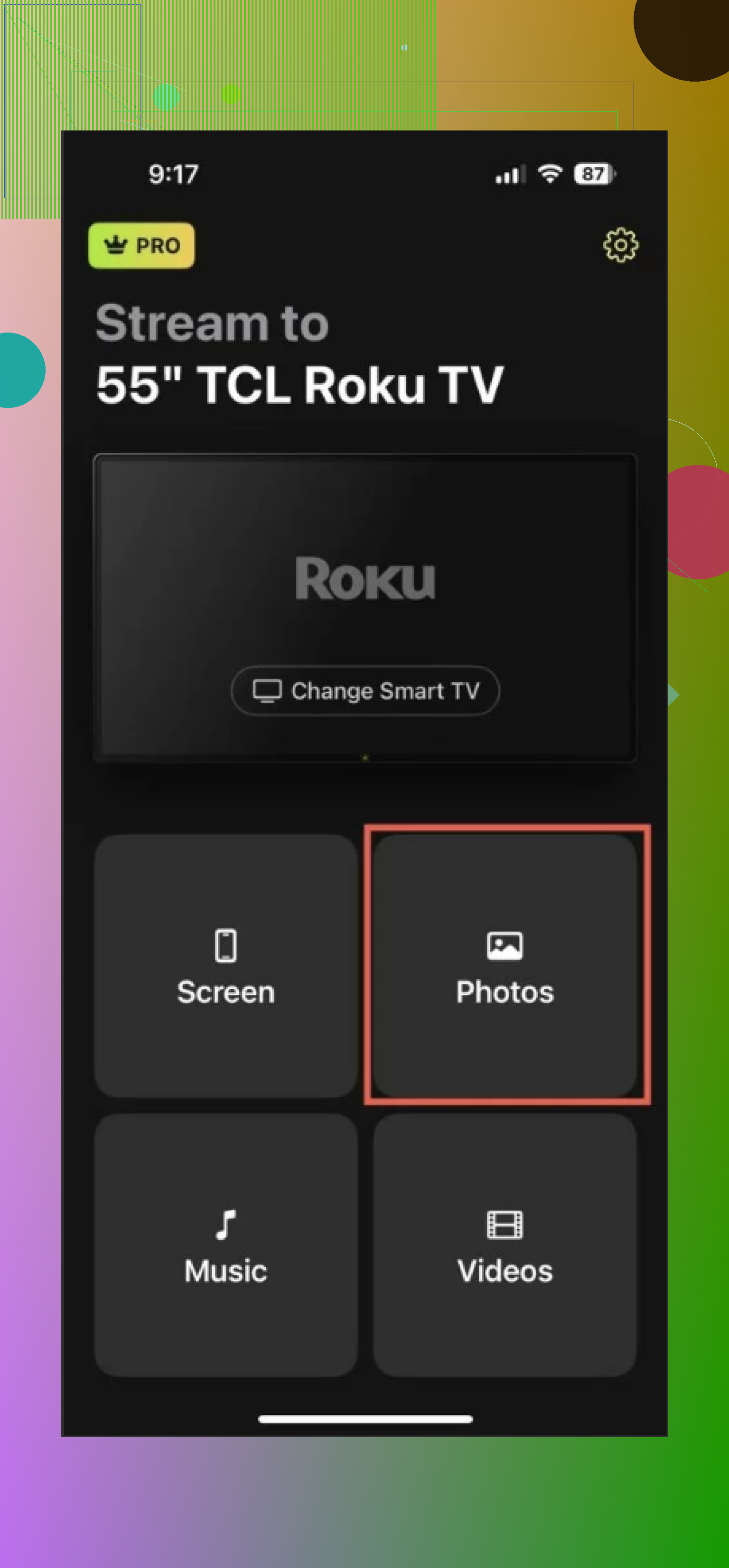
For a wireless alternative, DoCast supports Chromecast, Fire TV, Roku, and DLNA smart TVs, including models from Samsung, LG, Sony, and Panasonic. I’d put the phone and TV on the same Wi-Fi, select the TV, and choose the media type in the DoCast app.
Videos come from the Photos library, and photo casting is free and unlimited. Music can play through the TV or Chromecast-enabled speakers. If I need to show more than individual files, screen mirroring is also available through DoCast streaming.
If the TV doesn’t appear
I’d check compatibility before assuming the connection’s broken. A TV missing from the AirPlay list might not support AirPlay.
Then I’d check that both devices are on the same network, not a guest network that blocks them from seeing each other. Restarting the phone, TV, and router is another step, along with updating iOS and the TV’s software.
I’d also set a longer Auto-Lock interval on the iPhone. Screen mirroring stops when the phone locks.
1 Like
If those clips freeze on the phone too, changing the TV connection wouldn’t be my first move. I’d disconnect mirroring and play a troublesome clip all the way through before buying an adapter. The cable suggestion makes sense, but it skips that basic check. Assuming playback on the phone is smooth, I’d lean wired for a planned showing. App casting would be my first wireless choice, with full-screen mirroring reserved for when people actually need to see the phone screen.