My iPhone has been running slow lately, with apps taking longer to open and typing feeling laggy. I’ve tried closing apps and restarting it, but it still feels sluggish. What’s the most effective way to improve iPhone performance without doing a full reset?
If an older iPhone feels slow, it usually is not because the phone is done. Most of the time it is a mix of iOS doing too much in the background and the storage being too full. Fix those two things before spending money.
Start with the settings that actually affect speed
Restarting can help for a few minutes because it clears temporary junk and kills frozen processes, but it does not fix the real cause. Older iPhones struggle more with newer visual effects, background tasks, and full storage.
Turn off Background App Refresh first. Go to Settings, then General, then Background App Refresh. Either shut it off completely or leave it on only for apps that really need it, like messaging. Apps constantly checking for updates in the background still use battery and processing power, even when you are not looking at them.
Next, reduce the visual effects. In Settings, go to Accessibility, then Motion, and turn on Reduce Motion. Then go to Display and Text Size and turn on Reduce Transparency. The phone will look a little plainer, but older hardware usually feels more responsive without all the blur and animation effects.
Also check Low Power Mode. If it is always on, turn it off when you care about speed. It saves battery partly by limiting performance, so leaving it on all day can make an already-slow phone feel worse.
Battery Health matters too. Go to Settings, Battery, then Battery Health. If maximum capacity is under 80 percent, the phone may be slowing itself down to avoid random shutdowns. At that point, replacing the battery can make a bigger difference than tweaking settings.
Storage is usually the part people ignore
An iPhone needs free space to work properly. It is not just for saving photos and apps. iOS uses that space for temporary files, indexing, updates, and normal system tasks. Once storage gets close to full, especially around 90 percent or higher, basic things start dragging. Apps open slower, the camera can lag, and the phone may run warm for no obvious reason.
Try to keep at least 10 to 20 percent of storage free on an older iPhone. It sounds like a lot, but it makes a real difference.
There are a few quick wins. Clear Safari data through Settings, Safari, then Clear History and Website Data. Offload apps you do not use from Settings, General, iPhone Storage. But for most people, the big storage problem is the photo library.
The cleanup that makes the biggest dent
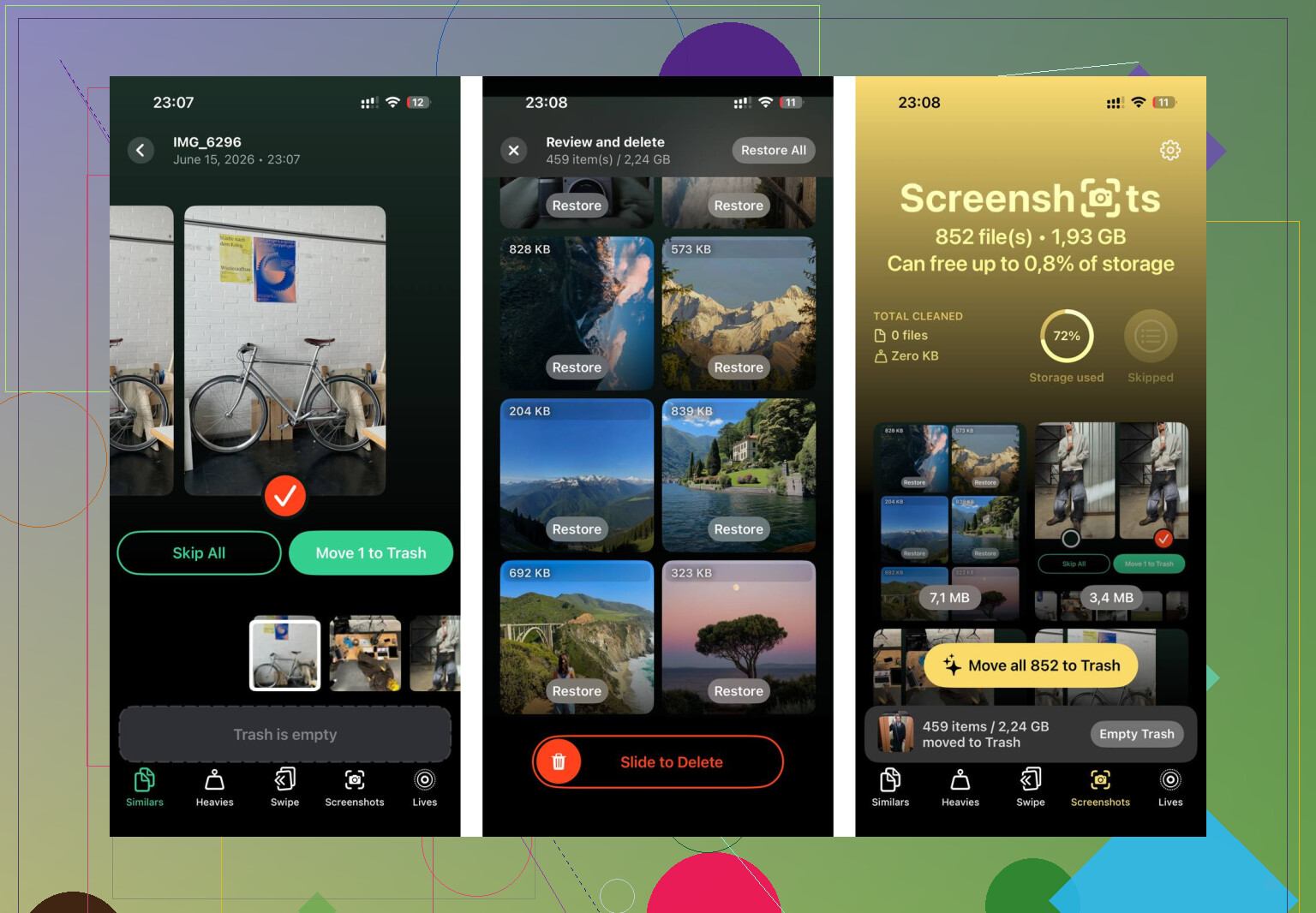
Manually digging through thousands of photos, videos, screenshots, and duplicates is miserable. Clever Cleaner makes that part much easier, and it is free with no ads or subscription.
The Heavies tab is useful because it sorts files by size. That is where old screen recordings, long videos, and forgotten 4K clips show up. A few of those can take more space than hundreds of regular photos, so deleting just a handful can free up several gigabytes fast.
The Similars tab groups near-duplicate photos and uses AI to pick the sharpest one from each set. So instead of checking ten almost identical shots one by one, you can clean them up much faster.
It also shows file sizes on screenshots before you delete anything, which helps because screenshots can quietly pile up into several gigabytes. You are not guessing what is worth removing.
Everything is processed on the phone, so the scan and cleanup do not upload your photos anywhere.
What you can expect
After doing the settings changes first and then clearing about 30GB of storage, the phone felt noticeably less bogged down. Apps opened faster, the camera stopped lagging at launch, and the phone no longer got warm during normal use.
The settings changes help. The storage cleanup usually helps more. Doing both is the best shot at getting an old iPhone feeling usable again without buying a new one.
10 Likes
Do not factory reset your iPhone until you have a backup you can actually restore from. If you want the single biggest “is this fixable?” check, look at Battery Health before spending an evening deleting stuff. Full storage can absolutely make an iPhone crawl, but a worn battery can make the phone throttle no matter how tidy your apps are. Go to Settings > Battery > Battery Health & Charging and see if there’s a service warning or very low maximum capacity. Apple explains the behavior here: iPhone battery and performance. If the battery is bad, replacing it is usually more effective than closing apps, clearing Safari, or turning off animations. If the battery looks fine, then yeah, storage cleanup is the next place I’d attack.
If your iPhone is more than a few years old, the realistic win is making it stop stuttering, not making it feel like the newest model.
The first thing I would do is check whether the slowdown is everywhere or only in a few places. If typing lags in every app, the camera opens slowly, Settings takes a second to respond, and apps keep reloading, that points to a general phone problem. Battery, storage, or iOS itself. If it is mostly Safari, Instagram, Mail, or one keyboard app, then chasing battery settings may waste your time.
For a general slowdown, I agree with the battery and storage comments above, but I would be careful about “cleaning” in the vague sense. Deleting ten small apps usually does almost nothing. Deleting one 8 GB video, old offline Netflix downloads, podcast downloads, Messages attachments, or a giant WhatsApp cache can matter a lot more. Go to Settings > General > iPhone Storage and look at the actual list. Sort of boring, but it tells the truth.
The single most effective low-risk move is to get the phone comfortably away from full storage and keep it there. Not “I freed 600 MB and now there is space.” More like several GB free at minimum, and ideally much more if it is an older 64 GB phone. iPhones behave badly when they are constantly trying to juggle caches, photos, updates, and app data with no room left.
Do not spend much time force-closing apps. That is one of those habits that feels productive but usually does not fix sluggishness. iOS is already managing memory. If an app is frozen, sure, swipe it away. But clearing the app switcher every hour is not the magic button.
A few places people forget to check:
Settings > General > iPhone Storage > Messages
Large attachments can sit there forever.
Photos > Albums > Videos
Videos are usually the real storage hog, not normal photos.
Files app > On My iPhone
Downloads and copied videos can hide there.
Music, Podcasts, TV, Netflix, Spotify, YouTube
Offline downloads can quietly eat a huge chunk of space.
Safari tabs
Not usually the whole problem, but hundreds of tabs on an older phone is not helping.
Clever Cleaner can be useful if your photo library is the mess, especially for finding large videos and similar shots faster than doing it by hand. I would still treat it as a cleanup helper, not a miracle speed app. Anything promising to “clean RAM” or “optimize your iPhone” is usually not worth trusting.
If storage is fine and Battery Health is fine, then my next move would be different: update iOS if you are behind, then update all apps. If the phone got slow right after an update, give it a day or two plugged in on Wi-Fi because Photos, Spotlight, and iCloud can re-index in the background. During that period the phone can feel warmer and slower than normal.
If typing is the main symptom, check keyboards too. Third-party keyboards, heavy autocorrect dictionaries, and some accessibility features can make typing feel laggy. Try switching back to the default Apple keyboard for a bit. If the lag disappears, you found the cause without deleting half your phone.
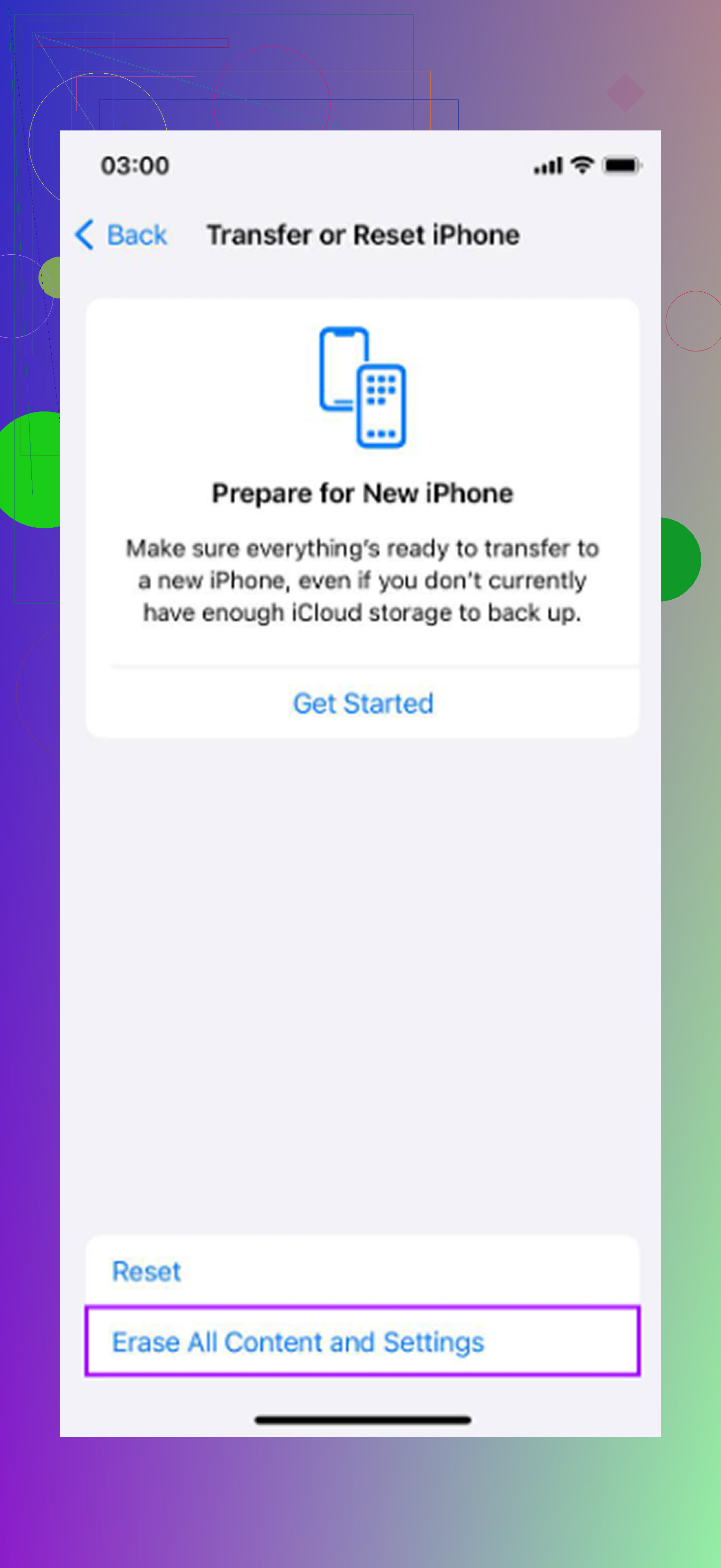
Factory reset is the last thing I would do, not the first. It can help when the software install is just messy, but only after you have a real backup and know your passwords. A reset without a usable backup turns a slow phone into a much worse problem.
So my short answer: free up real storage first, not tiny scraps. Then check battery health. If both are okay, look for one bad app, keyboard, VPN, profile, or background sync problem instead of randomly changing every setting. That approach is less flashy, but it avoids wasting an afternoon on fixes that only make the phone feel faster for five minutes.
A nearly full iPhone and an iPhone stuck syncing iCloud are two different slow phones. Before deleting half your apps, check Photos and iCloud to see if it says syncing, restoring, or uploading forever. If it does, plug it in on Wi-Fi overnight and let it finish, because fighting that process can make the lag keep coming back.
Pull up Settings, Battery and look at the per-app breakdown for the last 10 days, not just the health number. If one app you barely touch is showing a big chunk of background activity, that’s usually your lag culprit right there, and no amount of storage cleanup fixes it. Delete or reinstall that one app first.
The storage advice above is solid, and Clever Cleaner is fine for chewing through a bloated photo library, but I think people here are treating ‘slow’ like it always has the same cause. A single misbehaving app or a stuck sync can drag the whole phone down while your storage and battery look perfectly healthy. Check the culprit before you spend an evening deleting videos you might actually want.