I accidentally deleted the wrong folder from my SD card while using my Mac, and it had important photos and videos I still need. The folder is no longer where I saved it, and I’m worried about overwriting the data. I need help figuring out the best way to recover deleted files from an SD card on Mac before they’re gone for good.
If this were my card, I’d stop using it right now. No test shots. No dragging files onto it. No format. I made this mistake once, kept poking at the card to “see if it still worked,” and I ended up shrinking my recovery odds.
On a Mac, deleted files from an SD card are often still sitting there for a while. What usually disappears first is the index, not the photo data itself. So if you haven’t reused the card much, and you didn’t do a full format, you still have a shot. Once new data lands on top of the old blocks, things get ugly fast.
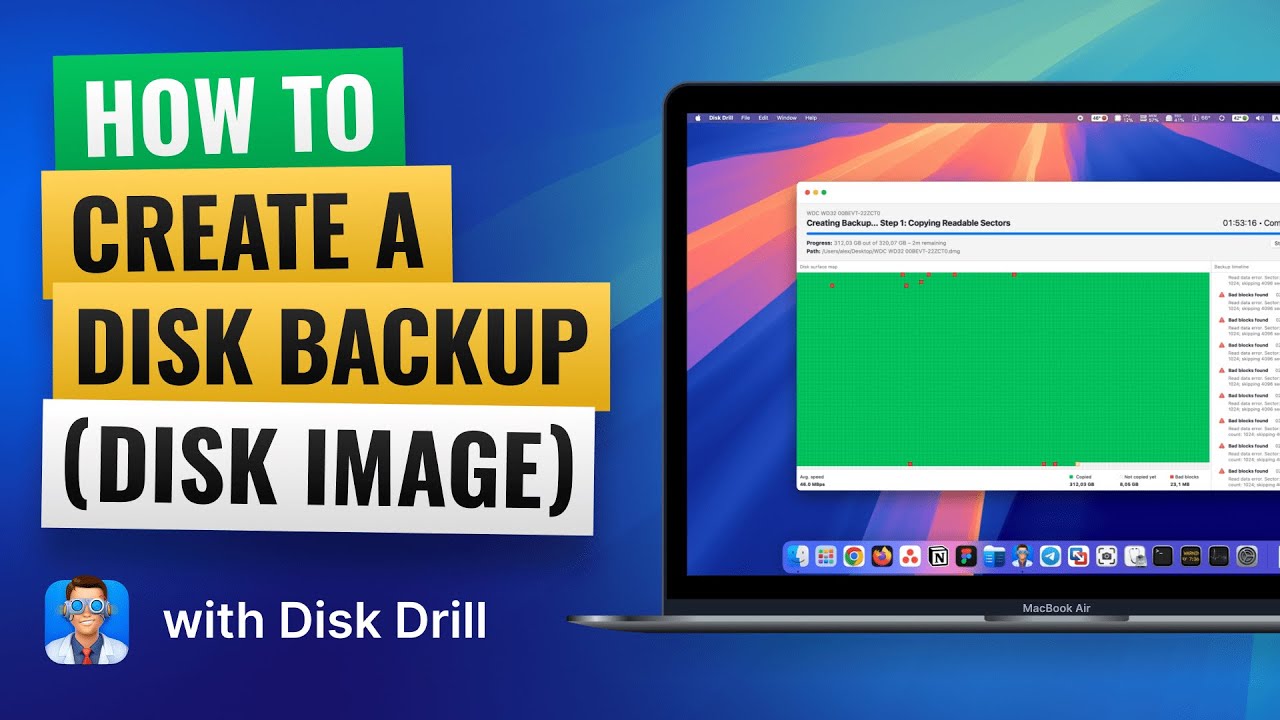
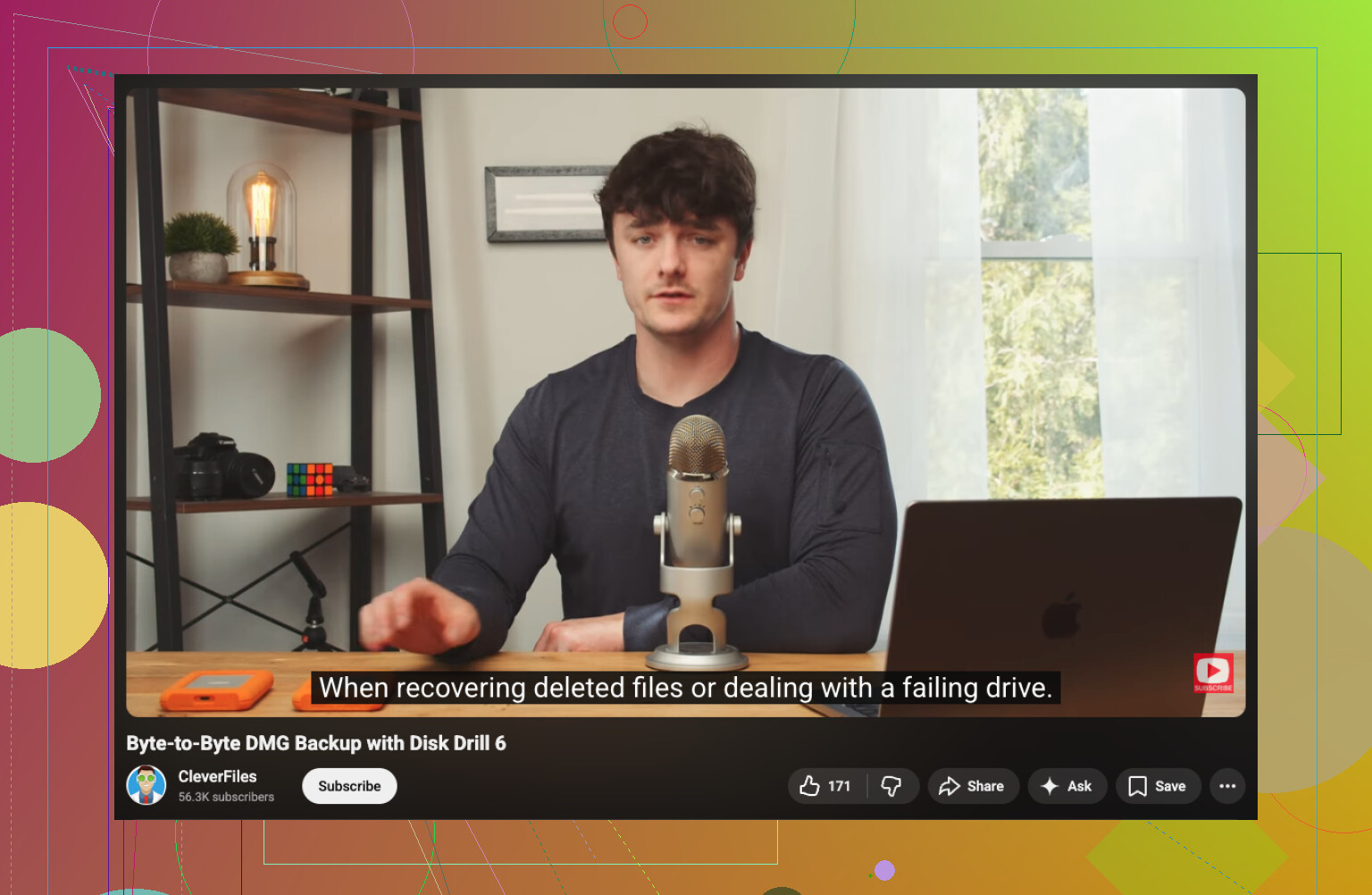
For software, I’d start with Disk Drill. I know people argue over recovery apps forever, but this one is easier to deal with on macOS than some of the older tools. I didn’t need to mess around with partition jargon to get going. The file preview helped me sort junk from stuff I wanted back, and it handled RAW photo formats fine when I tried it. One part I’d pay attention to, if your card is flaky, is the option to make a byte-to-byte image first. Here’s the link mentioned for that:
If I were doing it step by step, I’d do this:
- Plug the SD card into your Mac with a decent card reader.
- Open Disk Drill and pick the SD card, not your Mac drive by mistake.
- Run the full scan and wait. Don’t stop halfway because it looks slow.
- Preview what turns up.
- Recover the files to your Mac’s internal drive or a different external drive.
Do not restore anything back onto the same SD card. Seriously. I’ve seen people do this once and torpedo the rest of their recovery chances. You want the card left untouched while the data gets copied somewhere else.
PhotoRec is the other name people throw around a lot. Fair enough. It’s free, and on damaged or corrupted cards it sometimes pulls out files when prettier apps miss stuff. The tradeoff is the interface feels old and rough, and your recovered files often come back with scrambled names and no folder layout. If you care about keeping things organized, that part is a pain.
One more thing. If the card keeps disconnecting, throws read errors, acts dead on the Mac, or has any sign of physical failure, I wouldn’t keep hammering it with home recovery attempts. At that point I’d back off and look at a pro recovery service. Repeated reads on a failing card can make the situation worse. I learned that one the annoyng way.
10 Likes
First thing, eject the SD card and leave it alone. @mikeappsreviewer is right on that part. Every write drops your odds.
One thing I’d add, check the Trash on your Mac before you go full recovery mode. If you deleted the folder through Finder and the card was mounted normally, macOS sometimes moves files to a hidden .Trashes folder on the card, not straight into oblivion. You won’t always see it in Finder. Use Terminal or show hidden files and look before scanning. I’ve seen people save hours that way.
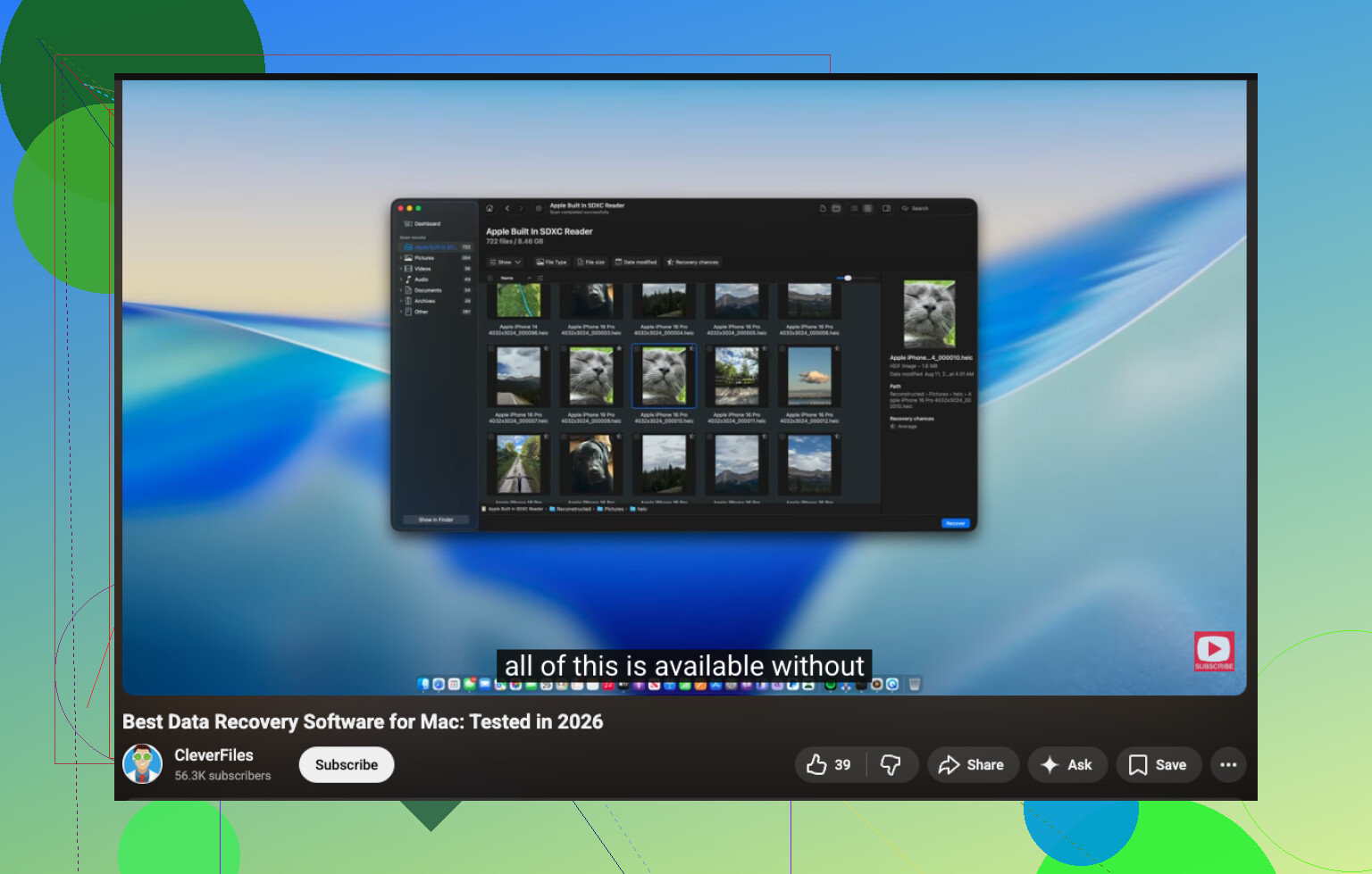
If the folder is gone from both Finder and Trash, then use Disk Drill on the SD card from your Mac. It’s one of the better Mac SD card recovery tools because previews save time, and it tends to sort photo and video results better than a lot of free stuff. I don’t fully agree with going straight to PhotoRec first unless you enjoy messy filenames and sorting 2,000 files by hand. It works, sure, but it’s a bit of a pain.
Also, if Photos imported any of those files before deletion, check Photos, Recently Deleted, and your iCloud account. A lot of people miss this and start recovery too soon.
For a quick walkthrough, this video is solid, see how to recover deleted files from an SD card on Mac.
Recover everything to your Mac drive, not back to the card. If the card starts disconnecting, stop. That’s where DIY goes bad fast.
I’d do one check before diving into recovery apps, and this is where I slightly differ from @mikeappsreviewer and @hoshikuzu. If the deletion was recent and happened in Finder, open Terminal and see whether the folder got shoved into the card’s hidden trash instead of being truly deleted.
Try:
ls -la /Volumes
then find your SD card name and run:
ls -la '/Volumes/YourCardName/.Trashes'
If you see your files there, copy them off to your Mac immediately. That’s the easy win people miss.
If not, then yeah, use Disk Drill and scan the whole card. It’s probly the most Mac-friendly option for SD card recovery, especially for photos and videos. I would also disable Spotlight indexing for that card while it’s mounted, just to reduce extra writes:
mdutil -i off '/Volumes/YourCardName'
One more thing nobody mentions enough: check whether the camera created DCIM sidecar files or thumbnails that still exist. Sometimes even if the originals are gone, you can at least recover preview versions.
If you want extra reading, this thread has some decent Facebook advice on Mac and SD card data recovery.
And yeah, recover to your Mac, not back to the SD card. That part is non-negotiable.

One angle I’d add that @hoshikuzu, @cazadordeestrellas, and @mikeappsreviewer only touched lightly: check whether the folder was deleted from inside an app, not Finder. If it happened through Photos, Image Capture, or even a file manager with its own delete logic, the hidden trash trick may not apply at all. In that case, don’t waste too much time hunting for a moved folder structure that may never exist.
I also slightly disagree with turning off Spotlight unless you plan to keep the card mounted for a while. For most people, the bigger win is simpler: mount read-only if you can, or just remove the card between attempts.
My order would be:
- Stop using the SD card.
- If possible, make an image of the card first.
- Scan the image, not the original card.
- Only then try recovery software.
That image-first approach matters more than people think, especially for cards that start acting weird halfway through.
As for Disk Drill, pros: easy Mac workflow, previews, decent photo/video filtering, and less chaos than raw carving tools. Cons: not free for full recovery, and sometimes it returns lots of duplicates or loses original filenames/folders if filesystem metadata is damaged.
If Disk Drill doesn’t find the folder cleanly, then I’d try a second-opinion tool after, not before. Different scanners sometimes catch different fragments. The main thing is: recover to your Mac or another drive, never back to the SD card.