I accidentally deleted important files on my Mac and realized too late that I still need them for work. I already checked the Trash, but some files are missing, and I’m not sure what recovery options are safe or actually work. What’s the best way to recover permanently deleted files on Mac without making things worse?
I’ve done this more than once, and yeah, the second you realize you emptied Trash with something important in it, your stomach drops. First thing, stop using the Mac. Don’t keep browsing, don’t install stuff, don’t leave it busy if you can avoid it. Deleted files aren’t always gone right away, but new writes to the drive can wipe out the space they were sitting in. After overwrite, you’re cooked.
What I’d do next, in order from easiest to ugliest:
1. Try the obvious stuff first
If it happened a minute ago, press Command+Z. I’ve seen macOS undo a move to Trash if I hadn’t done much else yet. Also check Trash again, slowly this time. If the file came from an external SSD, USB drive, or SD card, keep in mind those devices often keep their own hidden trash folder, and it only shows up while the device is connected. If the file is there, right-click it and choose Put Back.
2. Check backups you forgot you had
If Time Machine was on, you’re in decent shape. Open the folder where the file used to live, hit the Time Machine icon in the menu bar, then choose to browse backups. Scroll back to a point before deletion and restore the file.
If you never set up Time Machine, look at iCloud.com. When Desktop and Documents syncing is enabled, iCloud often keeps a Recently Deleted area for 30 days. I found missing files there once after thinking I had trashed them for good.
3. Use recovery software before the drive changes more
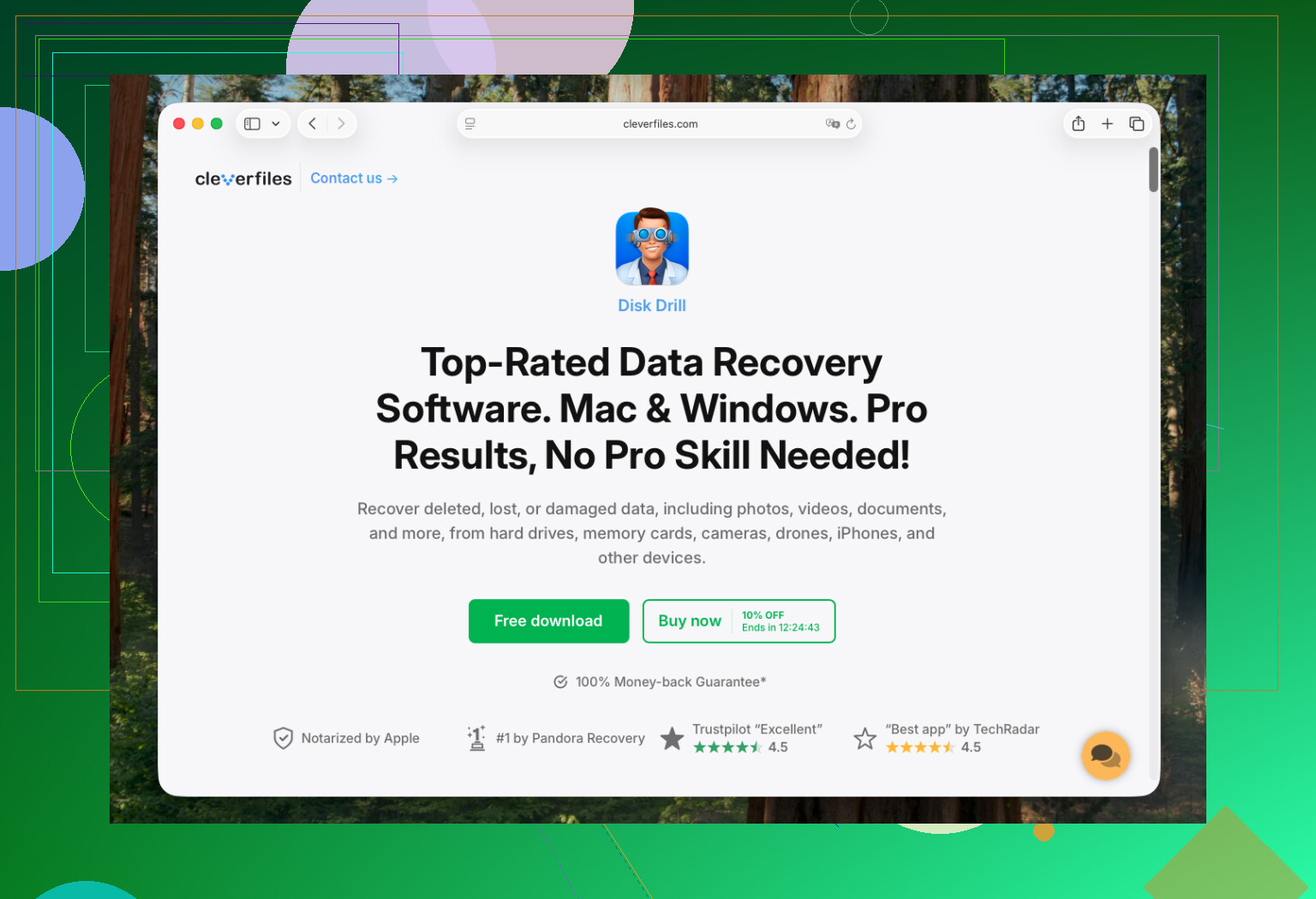
If no backup exists, this is usually the next move. For most Mac users in 2026, Disk Drill is the one I’d start with. I’ve had the least friction with it on newer Macs. It keeps up with newer macOS releases, including Tahoe, and it runs properly on Apple Silicon systems from M1 forward.
New Macs complicate recovery because of Apple’s security setup and storage encryption. A lot of older recovery apps feel like they belong to another era and don’t handle modern Macs well. This one installs its own system extension so it can access the drive at a lower level. The workflow is simple, pick the drive, scan it, wait. The preview tool matters a lot because you get to see whether your file shows up before spending time or money going further.
If you like terminal tools and don’t mind rough edges, PhotoRec is still an option. It’s free, open source, and ugly in the most honest way possible. I wouldn’t point a casual user at it unless they’re patient. One big downside, it often strips filenames, so you end up sorting through a pile of stuff named like f12345.jpg. If you lost five photos, fine. If you lost a semester of work, have fun, lol.
4. Look for APFS snapshots
This one gets missed a lot. Even without a full Time Machine setup, macOS sometimes creates local snapshots through APFS, often around updates or system events. Open Disk Utility, select your Data volume, then look for the option to show APFS snapshots. If one exists from before you emptied Trash, you might be able to mount it and pull the file out.
One thing people underestimate, SSDs behave differently from old hard drives. Modern Macs use SSD storage, and SSDs use TRIM. TRIM clears deleted blocks faster so the drive stays quick. Good for performance, bad for recovery. On an older spinning drive, I used to feel like there was time. On a current MacBook Pro, the window feels shorter, sometiems a lot shorter.
If this were my machine, I’d check Time Machine and iCloud first. If both come up empty, I’d run a recovery scan next, and I’d do it from an external drive if possible so I’m not writing more data onto the same internal disk.
Hope you catch it in time.
15 Likes
I’d add one thing @mikeappsreviewer did not stress enough. Check the app you deleted from, not only Finder.
A lot of work files stay in app-level recovery:
Pages, Word, Excel, Photoshop, Preview, and many code editors keep AutoRecovery, temp saves, or version history. In Word, look in AutoRecovery. In Adobe apps, check Recent and cloud history. In Notes, Photos, and mail apps, deleted stuff often sits in their own Recently Deleted area. I’ve recovered files there after Finder showed nothing. Kinda dumb, but it works.
Also check these spots in Finder with Go to Folder:
~/Library/Containers/
~/Library/Application Support/
~/Library/Autosave Information/
~/Library/Mobile Documents/
If your Mac uses Google Drive, Dropbox, OneDrive, or Box, log into the web dashboard. Most keep deleted files for 15 to 30 days, some longer on business plans. Version history often saves you when deletion recovery fails.
I slightly disagree with the “scan right away no matter what” advice. If FileVault was on and the Mac has been restarted a few times, raw recovery on the internal SSD gets ugly fast. In those cases, cloud version history and app recovery often beat file carving.
If you need a scanner, Disk Drill is still a solid Mac file recovery tool. Preview results first. Save recovered files to an external drive, not your Mac. Also useful, this Mac data recovery step by step video guide walks through the process without too much fluff.
If the files are tied to work and worth real money, stop tinkering after the easy checks. A pro service gets expensive, but so does redoing a week of work.

One angle I’d add to what @mikeappsreviewer and @ombrasilente said: check for Versions if the file was made in an Apple app or anything that supports macOS document versioning. In Finder, open the app, then look for File > Revert To > Browse All Versions. That can save you even when the original file got deleted because sometimes the app kept prior states separately. Weirdly underused feature.
Also, use Spotlight and Terminal before you go full recovery-mode. Spotlight sometimes still finds recently removed items or duplicates in odd locations. In Terminal, you can try:
mdfind 'filename'
find ~/ -name '*part-of-file-name*' 2>/dev/null
I know that sounds basic, but I’ve seen “deleted” files turn out to be moved, renamed, or duplicated in a synced folder.
Small disagreement with the usual advice: I would not obsess over APFS snapshots first unless you already know your way around them. Easy to waste time there while the recovery window gets worse. For most people, hidden copies in apps, cloud trash/version history, and then a proper scan is the faster path.
If you do scan, Disk Drill for Mac is one of the safer first choices because the interface is not a total mess and previews help you avoid restoring junk. Just don’t recover back onto the same internal drive. That part matters more than people think.
And if the files came from a work app like Office or Adobe, check whether your company has MDM, OneDrive retention, or server-side backups. IT sometimes has a rollback and never bothers telling users it exists. Annoying, but real.
Also relevant: Mac data recovery software tips and recovery discussion
If it’s super critical, stop poking at it after the low-risk checks. Tinkering is how people make a bad situtation worse.
One extra angle not covered enough by @ombrasilente, @techchizkid, and @mikeappsreviewer: check whether the file was ever attached, exported, or duplicated somewhere else by macOS itself.
Stuff I’d check:
- Mail attachments folder if you emailed it recently
- Messages if you dragged it into a chat
- AirDrop destination folders
- Downloads in case an app exported a copy there
- Recents in Finder, but sort by kind and date, not just name
- Open/Save panels inside the app you used, because they sometimes point to the real path even after you forgot where it lived
Also, if the file was on an external drive, stop plugging that drive into different Macs. Spotlight indexing alone can create writes you do not want.
Slight disagreement with the usual “scan ASAP” advice: if the file was in a synced workspace like OneDrive or Dropbox, I’d check the web-side activity log first. It is lower risk than hammering the disk with scans.
If you do need software, Disk Drill is a reasonable first pass.
Pros
- easy previews
- decent APFS support
- simple enough for non-technical users
Cons
- not magic on TRIMmed internal SSDs
- deep scans can return lots of junk
- paid recovery tier
If Disk Drill finds nothing useful, that does not always mean the file is impossible to recover. It can also mean the data blocks are already trimmed or the file only survives as an app/cloud version, not as raw disk data.