Under one second of mirroring delay on strong Wi-Fi is what caught my attention. That is close enough to be considered usable, but the best way to get your iPhone video onto a TV still depends on what you are watching and which receiver is connected.
Begin by taking note of what the TV already supports
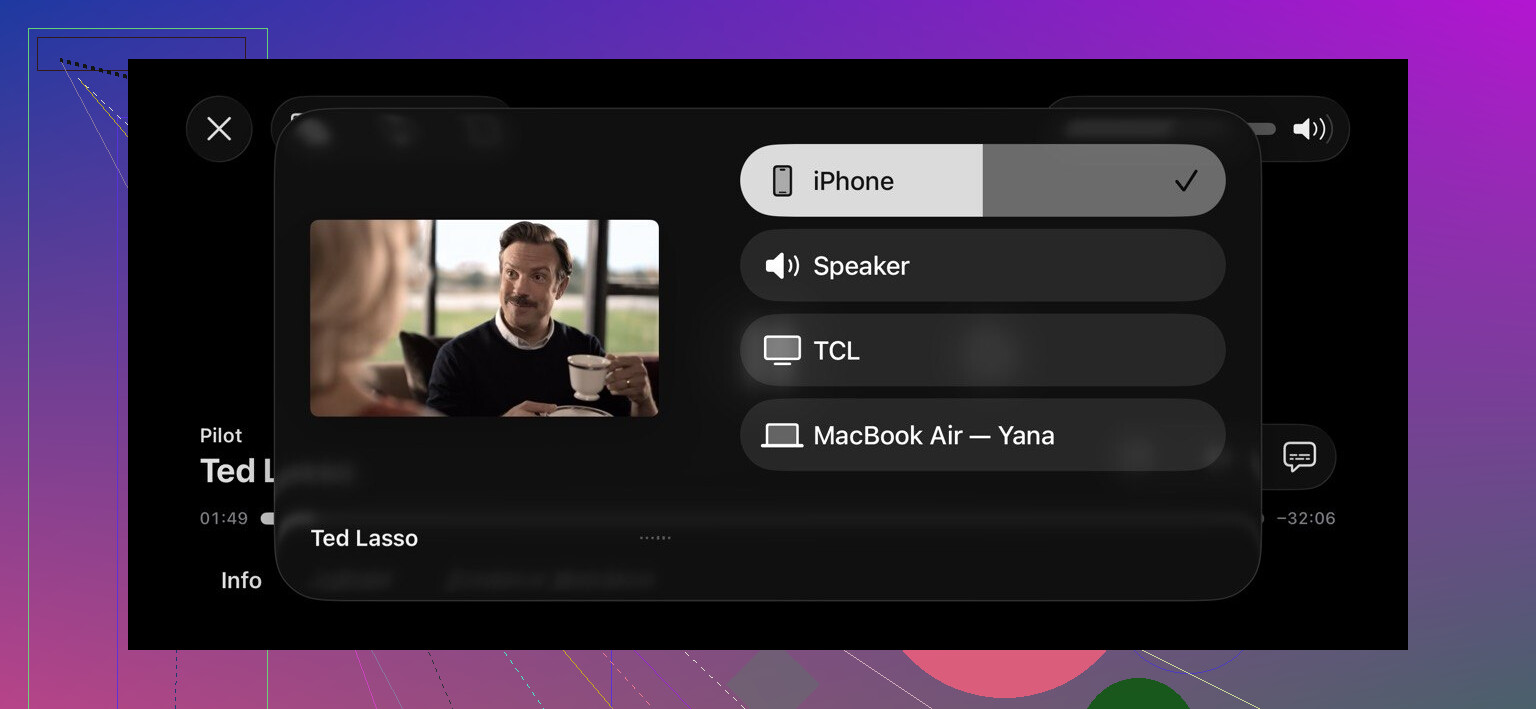
For an Apple TV or an AirPlay-compatible television, I would use AirPlay first. Put both of them on the same Wi-Fi, open the video, tap the AirPlay icon, and choose your TV. It works with personal clips in Photos as well as the supported apps but not with Chromecast, Fire TV, or most old TVs.
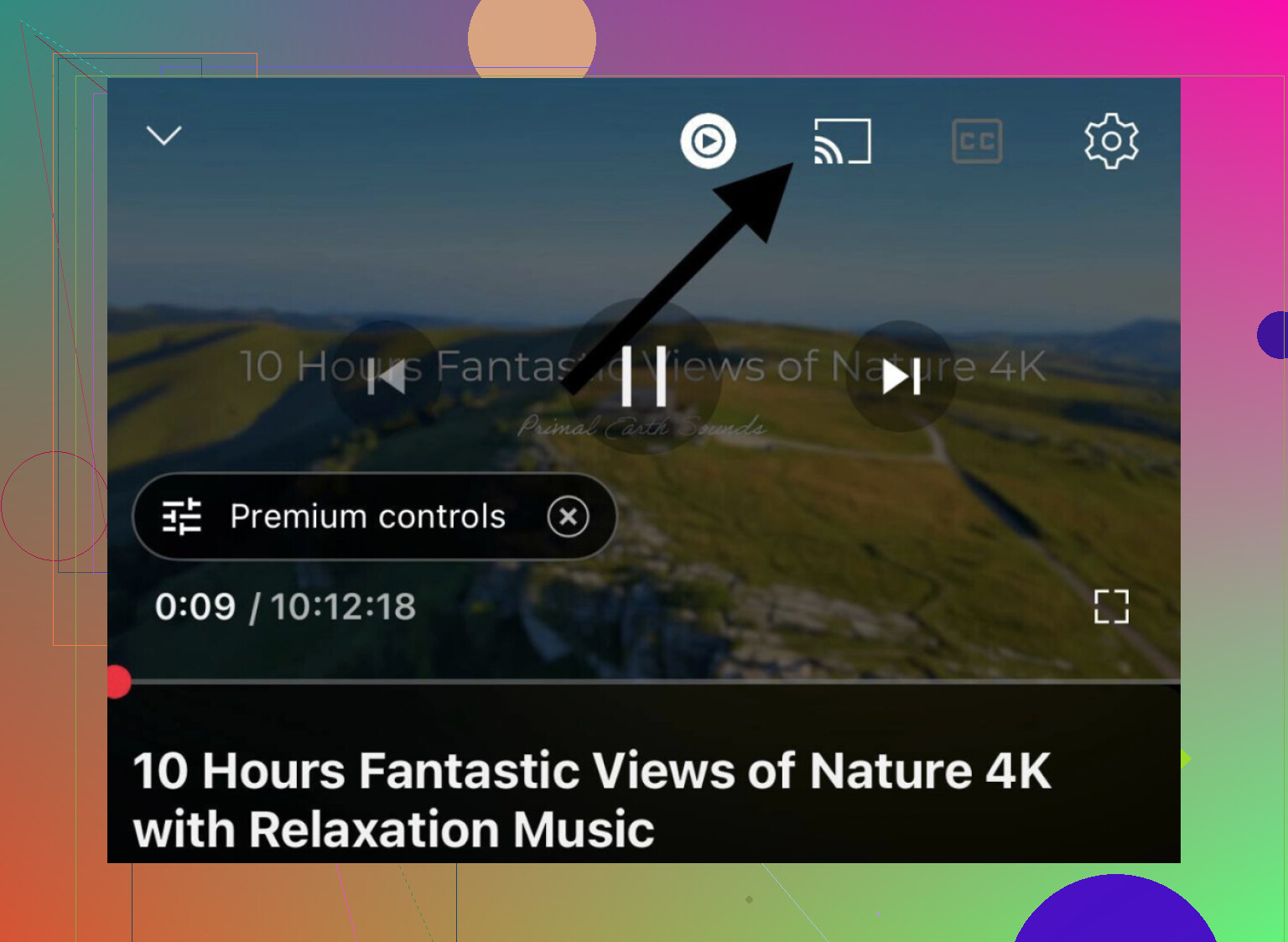
Streaming apps are a different animal altogether. YouTube, Netflix, Disney+, Max, and Google Photos all have a Cast button built right in. That’s your most straightforward option for getting content onto a Chromecast, although it won’t do much good for files and recordings saved directly to your phone’s storage.
When compatibility gets messy
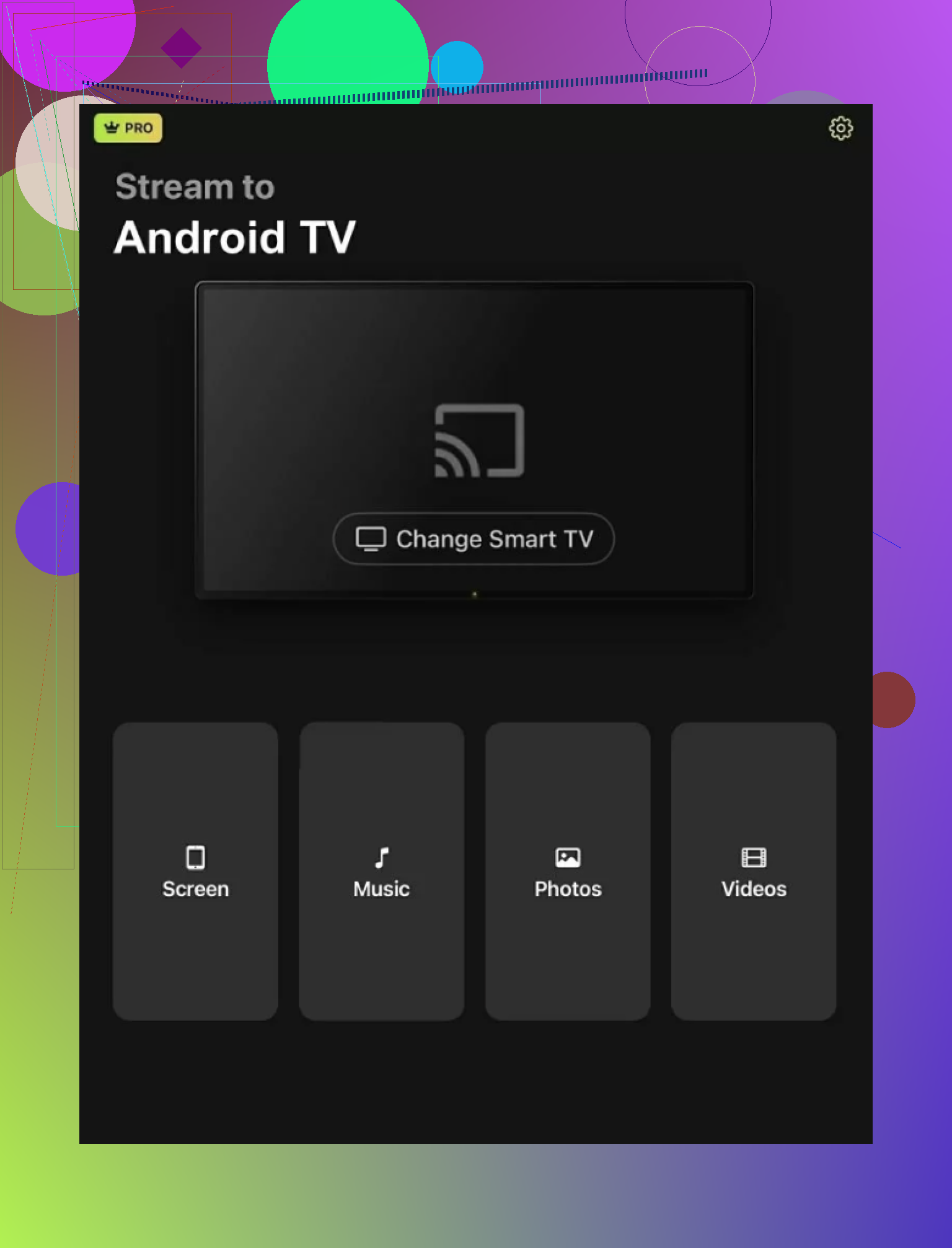
For mixed hardware, I’d consider the DoCast app, which requires iOS 15 or later. It supports a broad mix of smart TVs, Roku, Chromecast, Fire TV, and Android TV devices. After choosing the receiver, you can play a library video or mirror the full screen.
The free version limits video sessions to 3 minutes, while paid plans remove that restriction. The DoCast overview also covers quality controls and rotation, and the DoCast details are worth checking before paying.
If Wi-Fi is unavailable, HDMI is a reliable alternative. Connect it with an appropriate Lightning or USB-C adapter and switch inputs on the TV. It will require being tethered to the TV with a cable, but it will display the phone’s content on the TV screen.
One of the drawbacks of using such technology is that protected streaming videos may appear black when being mirrored. I would say change the setting if other options could be available to test it out on different kinds of local files, diverse television hardware, and different protected software without additional accessories.