My Outlook .pst file suddenly stopped showing up, and now I can’t access important emails, contacts, and folders I need for work. I’m not sure if the PST file is hidden, corrupted, or disconnected from Outlook. Has anyone dealt with Outlook PST file not showing and found a safe way to recover or restore it?
I hit this once after cleaning out old folders, and Outlook threw the classic 'file cannot be found' error like it was my fault. If you deleted the PST, the first move is simple. Stop writing stuff to that PC for now. No big downloads, no random installs, no Windows update if you can avoid it. Deleted in Windows often means 'marked free,' not gone. New data is what ruins your shot.
Here’s the order I’d go in.
Start with the easy stuff
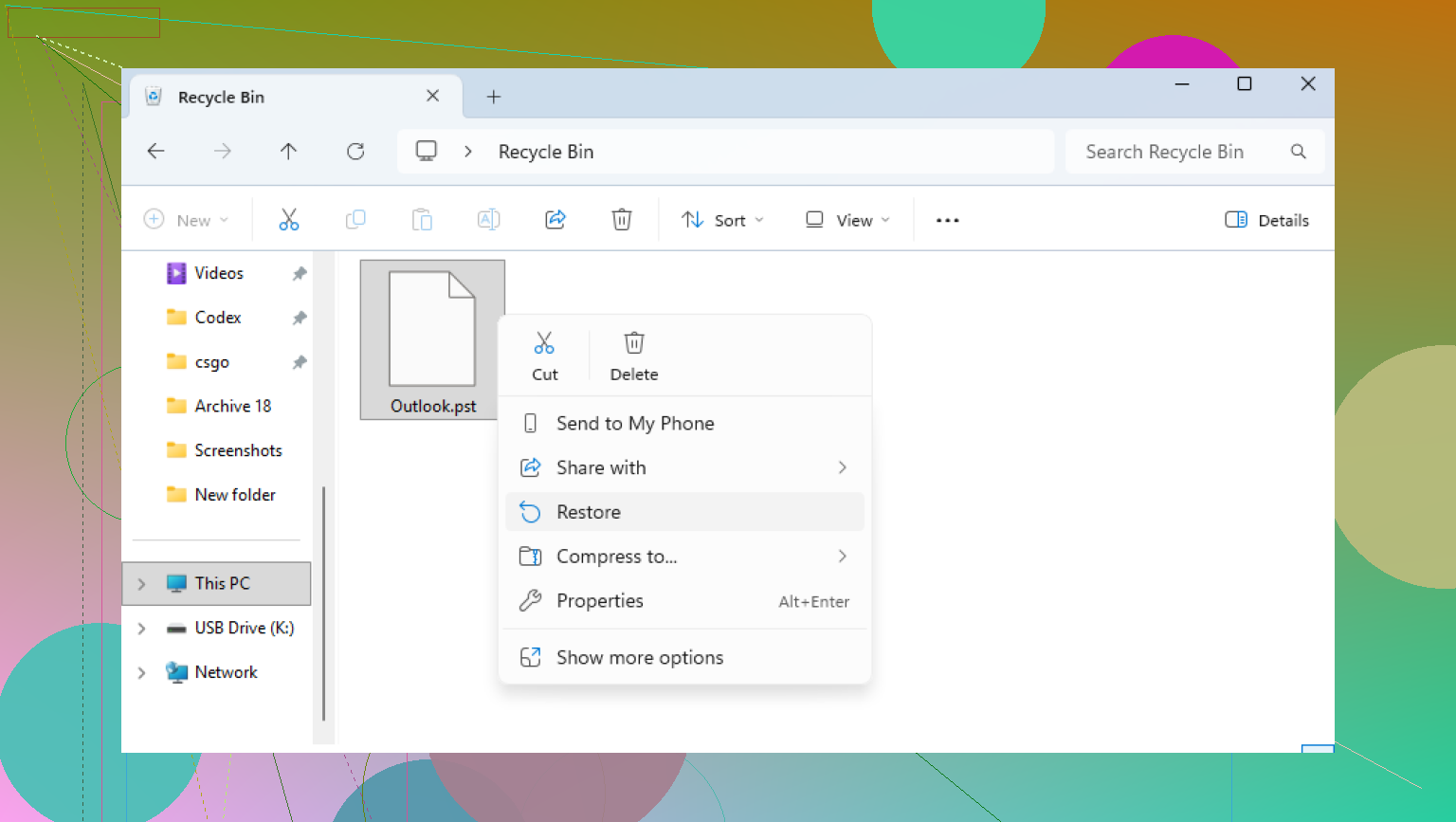
Open the Recycle Bin first. If you deleted the PST the normal way, it might still be sitting there. Restore it and check Outlook again.
If you used Shift+Delete, skip the Bin and look at any sync service tied to your machine. OneDrive, Dropbox, Google Drive, whatever you use. Open the website, not the desktop app, and check deleted items, trash, or version history. I’ve seen files hang around there longer than people expect.
Check Windows for older folder copies
Sometimes Windows kept an earlier snapshot of the folder. I’ve had mixed results with this, but when it works, it saves a ton of time.
Look in the folder where the PST used to live, often:
C:\Users\YourName\Documents\Outlook Files
Right-click the folder, choose 'Restore previous versions,' then open anything dated before the deletion. If you see your PST, copy it somewhere else first. Don’t restore blind and hope for the best.
If those fail, use recovery software
This is the part where people make it worse by installing recovery tools onto the same drive they’re trying to recover from. Try not to do that. Put the software on another drive or a USB stick if you have one.
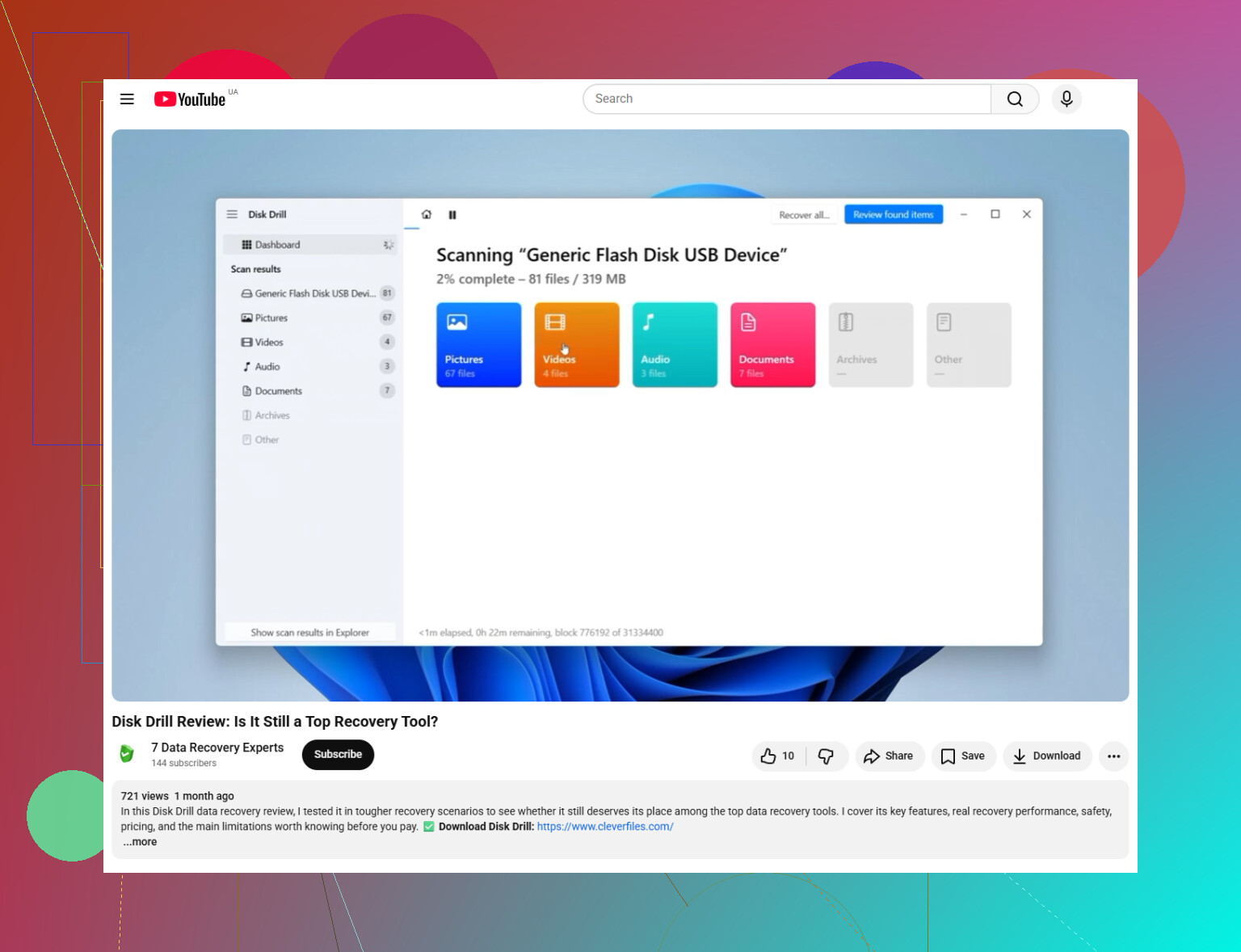
I’d scan the system drive, usually C:, with Disk Drill. Search for .pst in the results, or filter by file type if the app supports it.
One thing worth watching is file size. Tiny PSTs are often the fresh empty ones Outlook made after the old one vanished. Your real file is usually much larger. Hundreds of MB, sometimes multiple GB. That size clue matters a lot.
When you recover it, save it somewhere else. Desktop is fine. External drive is better. Don’t dump it back into the original folder yet.
Watch out for the fake 'looks fine' Outlook file
Outlook likes to spin up a new blank data file after it loses the original. The name often looks normal enough to fool you for a minute. Then you open Outlook and all your old folders are gone. Been there. Annoying as hell.
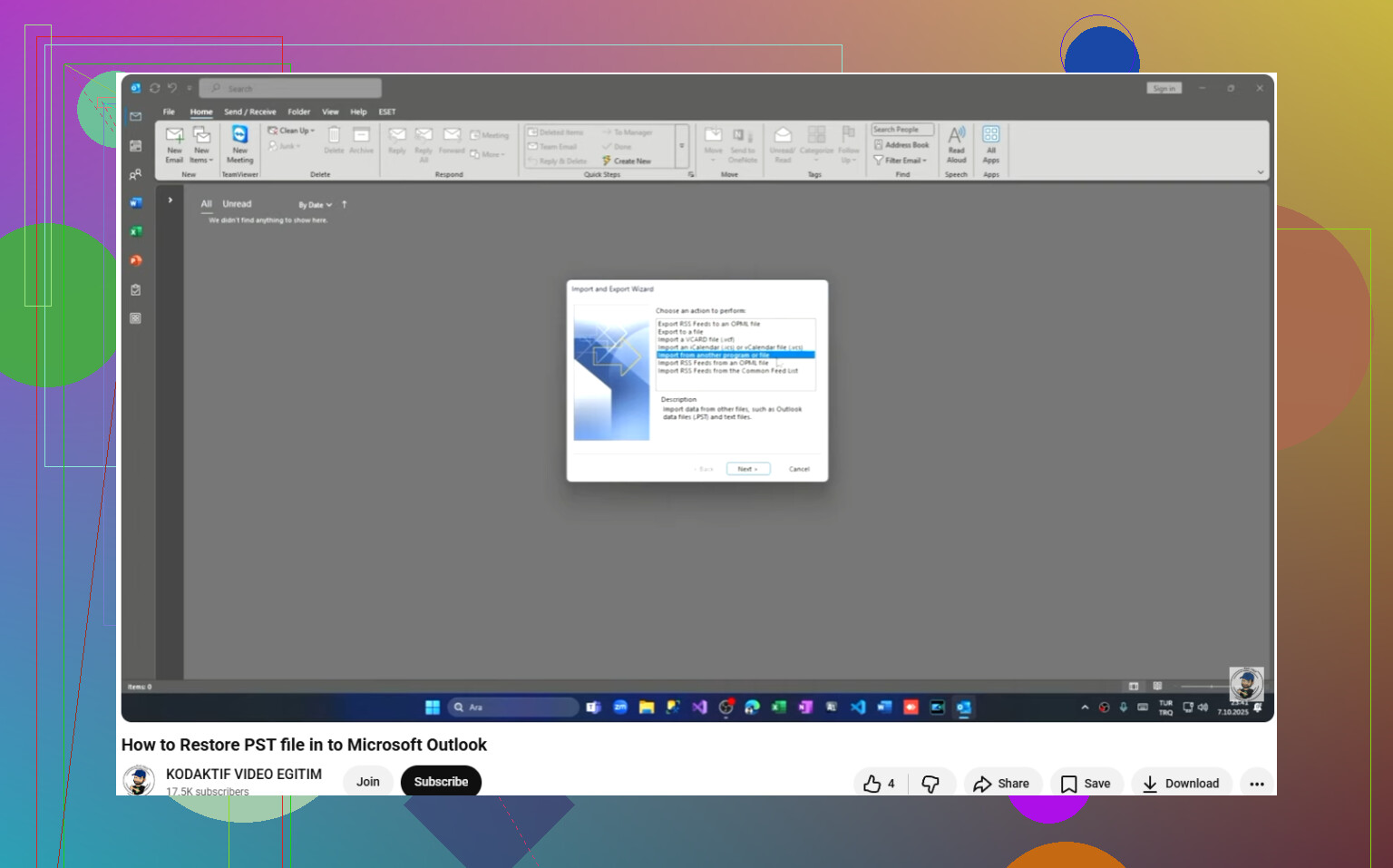
Once you recover the old PST, load it manually:
File > Open & Export > Open Outlook Data File
Pick the recovered PST. If the recovery worked, your old mail folders should show up in the left pane. After you confirm the contents look right, go into Account Settings and switch the default data file back to the recovered one.
If your account uses IMAP, read this part
If the account is Gmail, Yahoo, Comcast, or another IMAP setup, your inbox mail is often still on the server. Re-adding the account in Outlook often rebuilds the OST and pulls mail down again.
What it usually does not bring back is local-only stuff. Old archives, custom folders, mail stored outside the synced mailbox, and anything saved only in the PST. So if those matter, recovery still matters. A lot.
What I’d do after you get it back
Move the PST into a folder your backups already cover, or copy it to an external drive on a schedule you’ll stick to. Outlook data files get huge and people forget they hold years of mail until one goes missing. I learned that the dumb way.
If your scan finds a large PST, don’t ignore it. That’s usuallly the best sign you’ll get.
7 Likes
I’d check Outlook itself before treating this like a deleted-file case. @mikeappsreviewer covered recovery well, but I would not start with file recovery unless the file is confirmed missing.
Do this first.
Open Control Panel, then Mail, then Data Files. If your PST is listed there with a broken path, Outlook lost the link. Browse to the file and reattach it. If it is listed twice, one entry is often a new empty PST. That fools people all the time.
Next, search Windows for *.pst. Turn on hidden items in File Explorer first. I’ve seen PSTs sitting in AppData or an old archive folder after a profile change. Also check file size and modified date. A 265 KB PST is junk. A 2.4 GB PST is the one you care about.
If you find the file but Outlook refuses to open it, run ScanPST.exe. It ships with Office. Common path is under Program Files\Microsoft Office\root\Office16. Repair the PST, then open Outlook and attach the file again. This works a lot for mild corruption.
If Outlook profile damage is the issue, build a new profile. Control Panel, Mail, Show Profiles, Add. Reconnect your account, then attach the old PST manually. This fixes a suprising number of “missing mail” cases where the file was fine the whole time.
If the PST is gone from disk, then yes, Disk Drill is a solid next step. Recover to another drive, not C:. And this video is a decent walkthrough for Outlook file recovery with Disk Drill:
how to recover a lost Outlook PST file with Disk Drill
One more thing people miss. If the PST is on a network share or external drive, Outlook drops it often. Microsoft has a long history of PST corruption from flaky storage. If you recover it, keep it local first. Then copy it elsewhere for backup. That part matters.
I’d actually separate this into 2 different problems, because people lump them together and waste time.
- Outlook cannot see the PST
- The PST is actually damaged or missing
@waldgeist is right about checking Mail > Data Files, and @mikeappsreviewer is right about recovery if the file is gone. Where I kinda disagree is with jumping straight into file hunting all over Windows unless you first confirm whether Outlook is opening in the correct profile. Outlook profiles get weird, esp after Office updates.
What I’d check that hasn’t been mentioned much:
- In Outlook, switch to Folder List view with Ctrl+6. Sometimes the data file is mounted, but the folder pane is collapsed and people think the PST vanished.
- In File > Account Settings > Data Files, note the default delivery location. If Outlook silently changed the default to a fresh file, your old PST may still be attached lower in the pane.
- Start Outlook in safe mode:
outlook.exe /safe
If the PST appears there, an add-in may be breaking the profile display. - Check
View > Change Viewand reset the navigation pane with:
outlook.exe /resetnavpane
Sounds small, but I’ve seen the nav pane bug make folders “disappear” when the file itself was fine.
If the PST opens but folders are missing, use Outlook’s Import/Export carefully. Don’t import into the wrong mailbox or you’ll create a mess. Usually better to open the PST first, verify contents, then copy mail where you want it.
If the file is present but acting flaky, make a copy of it before any repair attempts. ScanPST can help, but it’s not magic and sometimes “repairs” by trimming broken items. Better than total loss, but still annoying.
If Windows search finds nothing and the PST really disappeared, then yes, Disk Drill is a sensible next step. Recover it to another drive, not the same one. Also, restored PSTs should be tested by opening them in Outlook first, not set as default immediatley.
For the reattach step, this is a decent walkthrough: restore a recovered PST file in Outlook step by step
One more boring but important thing: if this PST was over 10 GB and living in OneDrive, an external USB drive, or a network path, that setup is asking for trouble. PSTs really want local storage. Copy local first, then back it up elsewhere. That part saves headaches later.