My iPhone storage is almost completely full and it’s slowing everything down. I’ve deleted a few apps and photos, but the “Other” and system data are still taking up a lot of space. I’m worried I’ll miss important updates and can’t download new apps. What are the most effective, safe steps to quickly free up storage without losing important data?
-
Start with iPhone storage tools
Go to Settings > General > iPhone Storage.
Wait a minute for it to load.
Check the top list. You see which apps eat most space. Focus on big ones first, not the tiny apps. -
Clear Safari and Messages
Safari: Settings > Safari > Clear History and Website Data.
Messages: Settings > Messages.
Set “Keep Messages” to 30 Days.
Old photos and videos in Messages take a lot of space. -
Offload apps instead of deleting
Settings > General > iPhone Storage.
Tap big apps you rarely use.
Tap “Offload App”.
iOS removes the app but keeps its data.
You get space back and you keep your stuff if you reinstall. -
Optimize Photos
Settings > Photos.
Turn on “iCloud Photos” and “Optimize iPhone Storage”.
Your iPhone keeps smaller versions, full versions stay in iCloud.
If you already use iCloud, this change alone often frees a few GB. -
Clean large files in apps
Open WhatsApp, Telegram, etc.
Go to their storage or data settings.
Delete old videos, audio, and GIFs.
These apps often store gigabytes of junk. -
Tackle “Other” and System Data
“Other” is caches, logs, temp files.
You reduce it by:
• Restarting the iPhone after big cleanups.
• Deleting and reinstalling heavy apps like Instagram or Spotify if they show huge “Documents & Data”.
• Keeping at least 5 to 10 GB free so iOS can manage its own cache. -
Use a cleaner app for faster sorting
If you have a huge camera roll and tons of duplicates or similar shots, doing it by hand is slow and boring.
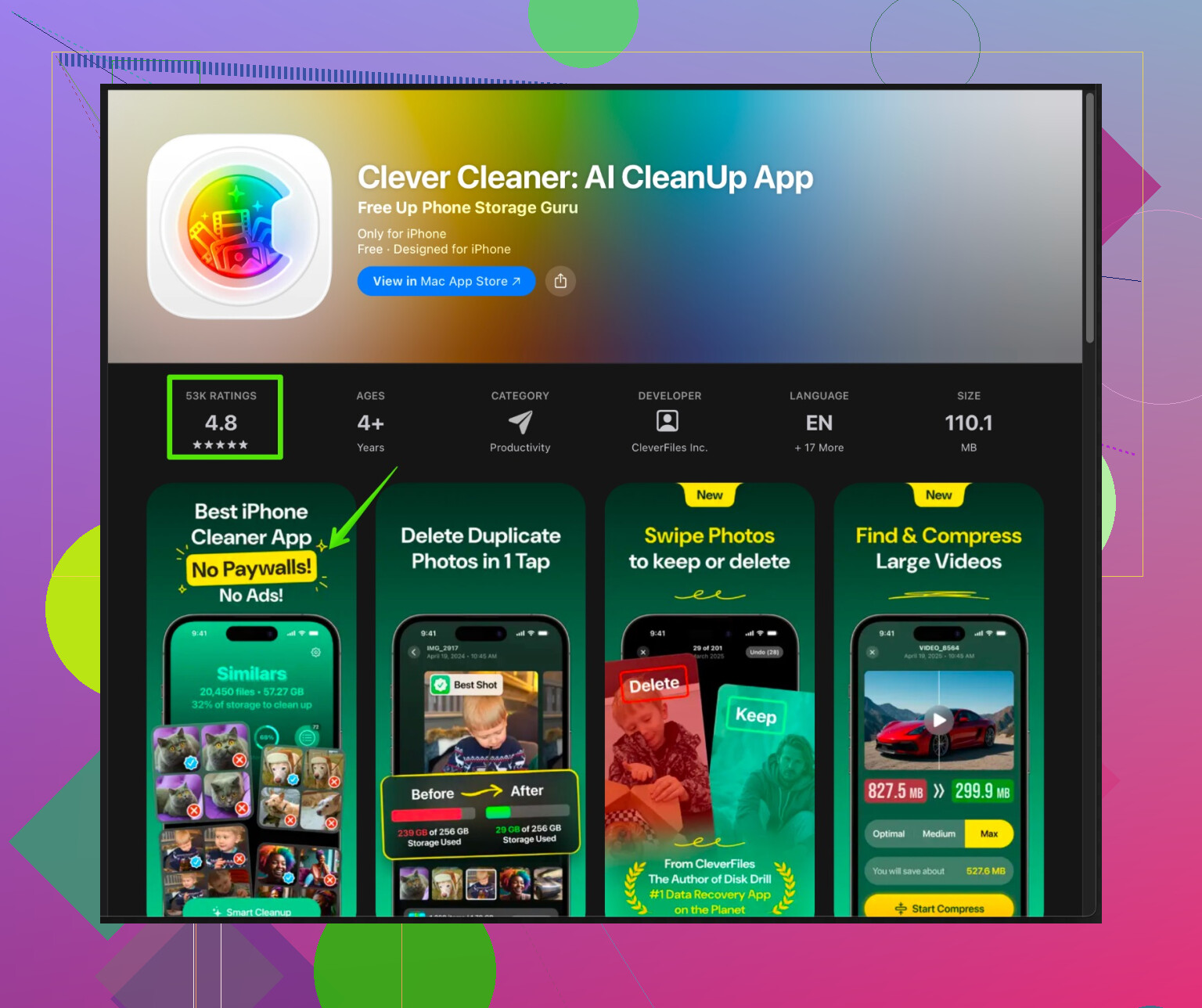
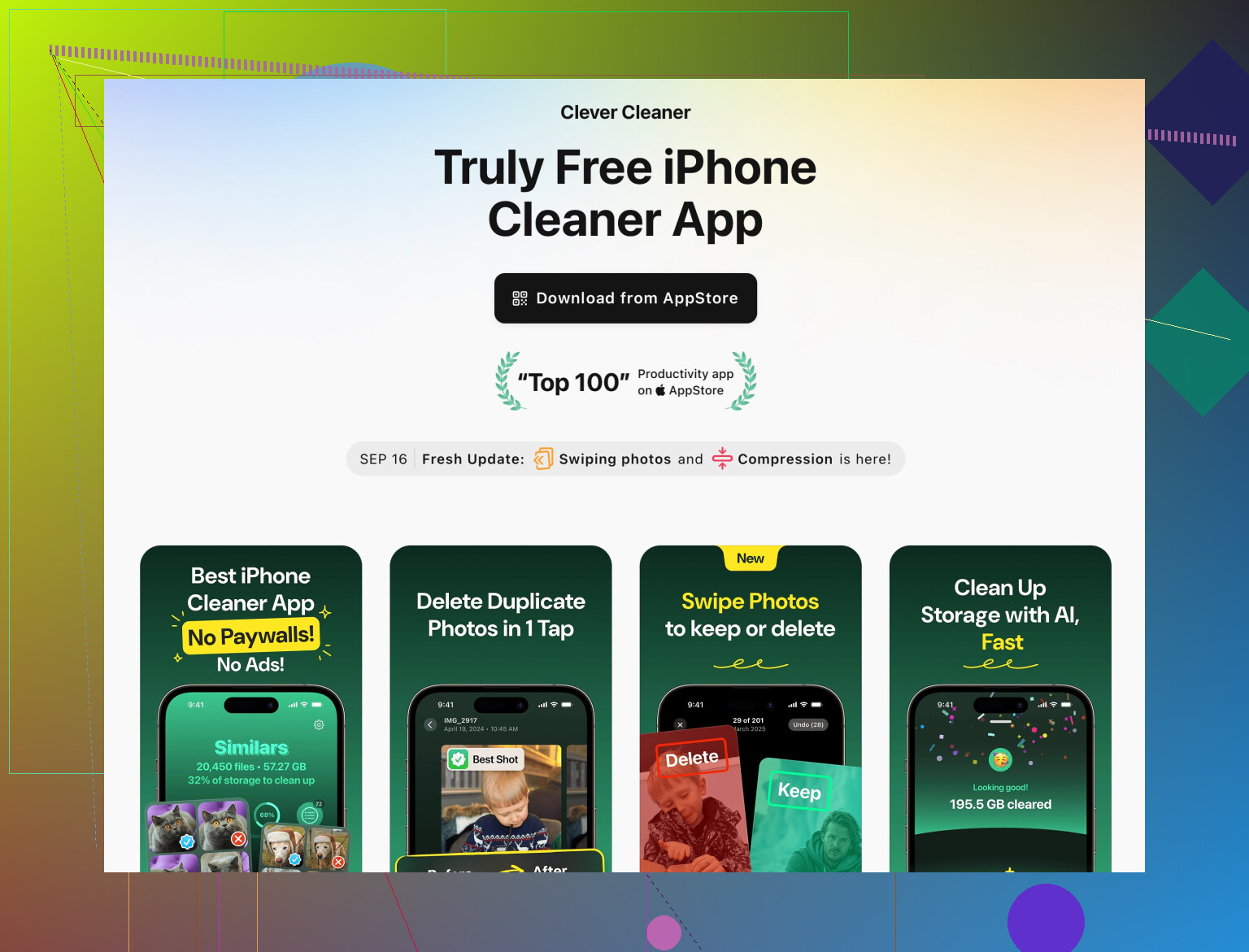
An app like Clever Cleaner App helps automate this. It finds duplicate photos, similar shots, screenshots, and big videos so you remove them in batches instead of one by one.
Check this out for iOS storage cleanup help:
Clever Cleaner App for faster iPhone cleanup and storage management -
Make updates easier
Try to keep at least 5 GB free before major iOS updates.
Delete and reinstall a couple of heavy streaming or social media apps if you need a quick chunk of space.
After the update, you often see “System Data” shrink a bit as temp files get cleared.
If you do steps 1 to 4 plus a cleaner app sweep, you usually free several GB and your phone stops slowing down so much.
Honestly, iPhone storage is like a never‑ending boss fight. You clear stuff, it fills again. @codecrafter already covered the “official” tricks pretty well, so here are some extra angles that hit the stuff Apple doesn’t make obvious, and a couple spots where I’d do things differently.
1. Treat “System Data / Other” like a clogged pipe
You can’t delete “System Data” directly, but you can nudge iOS into flushing a lot of it:
-
Do a full backup to computer, then restore:
- Plug into a Mac or PC.
- Use Finder (macOS) or iTunes (Windows).
- Make an encrypted backup.
- Then restore the iPhone from that backup.
This is annoying and slow, but it’s one of the only ways that reliably nukes bloated “Other” data in bulk. I’ve seen 5–15 GB vanish after this.
-
Avoid constantly sitting at 0–1 GB free.
iOS can’t clean its caches properly when it’s suffocating. Try to get at least 5 GB free once, let it sit a bit, then check Storage again.
2. Photos & videos: the hidden monsters
Deleting a few random pics won’t do much. You want targeted hits:
- Sort by size in Photos:
- In Photos, go to Albums > Utilities > Duplicates / Recently Deleted / Videos.
- Kill long 4K videos or slow‑mos first. Ten useless 2‑minute videos can be multiple GB alone.
- After deleting, always empty Recently Deleted. A lot of ppl skip that and wonder why storage didn’t change.
This is where a tool actually helps. Doing it manually is mind‑numbing.
3. Streaming apps are secretly hoarding space
This is where I slightly disagree with the “just clear some caches” approach and prefer the blunt method:
- Open Settings > General > iPhone Storage and check:
- Netflix
- Spotify / Apple Music
- YouTube / YouTube Music
- Podcasts
- If an app shows something like “Documents & Data: 6 GB” and you’re not intentionally offline‑downloading that much:
- Delete the app
- Reinstall it from the App Store
This is way faster than digging through the app’s internal settings trying to find every cache toggle.
4. iCloud, but carefully
People say “turn on iCloud Photos” like it’s magic. It’s helpful, but:
- It won’t free space instantly. The phone needs time on Wi‑Fi and power to upload, then optimize.
- If your iCloud is almost full or you don’t plan to pay for any storage, it’s not a long‑term fix.
So yeah, it’s good, but don’t expect it to save you in the next 10 minutes when an iOS update needs 7 GB free.
5. Kill old local backups and junk on your computer
If you ever synced your iPhone to a computer:
- On Mac:
- Finder > select your iPhone > Manage Backups
- Delete super old backups
- On Windows (iTunes):
- Preferences > Devices > delete old backups
This doesn’t clear space on the iPhone, but it prevents future restore/backup headaches and lets you do the “backup then restore” trick more comfortably.
6. Use a cleaner app, but pick one for actual storage work
You don’t need an app, but if your camera roll is huge and you’re staring at 18,000 photos thinking “nope,” a cleaner tool is honestly saner.
This is where something like Clever Cleaner App actually earns its keep:
- It scans for:
- Duplicate photos
- Nearly identical shots (like that 12‑photo burst of your cat blinking)
- Screenshots and screen recordings
- Oversized videos
- Lets you remove stuff in batches instead of tapping delete 500 times.
If you want an easy starting point, check this out for iPhone cleanup and storage optimization:
Clever Cleaner App for smarter iPhone storage cleanup
It’s a more efficient way to free up a few gigabytes than just guessing which random photos to delete.
7. Prep specifically for iOS updates
If your main fear is “I’ll miss an update because there’s no space,” focus on temporary and re‑downloadable stuff:
- Delete:
- Offline Netflix / Spotify content
- Big games you don’t play weekly
- Unused video editing / camera apps with lots of local files
- Do the update
- Then reinstall or redownload what you actually need
Think of updates like moving furniture: clear a path, move the thing, then put some stuff back.
Quick hit checklist:
- Backup to computer and restore to shrink “Other / System Data.”
- Nuke big videos and empty Recently Deleted.
- Delete and reinstall any app with massive “Documents & Data.”
- Use iCloud Photos plus time on Wi‑Fi if you’re okay with cloud.
- Use something like the Clever Cleaner App to mass‑clean duplicates and huge media.
- Free 5–10 GB right before doing major iOS updates, even if it means temporarily uninstalling big apps.
Do a round of that, then check Settings > General > iPhone Storage again. You should see a noticeable drop and the phone should stop crawling like it’s from 2014.
8 Likes
Try cleaning Messages first. Videos and photos in chats often use several GB.
Go to Settings > General > iPhone Storage > Messages. Open Videos, Photos, and Top Conversations. Delete large attachments you no longer need. Save important files to Photos first.
Then open Settings > Apps > Messages > Keep Messages. Choose 1 Year instead of Forever. Avoid 30 Days if you need older chats.
Restart your iPhone afterward and wait a few mins for storage totals to refresh. This takes less effort than a full restore and often frees 2 to 10 GB.
Be careful with the backup-then-restore trick @cazadordeestrellas mentioned. It works, but if your only backup is a bad one, or the encrypted backup password is something you set months ago and forgot, you can end up stuck with a half-restored phone and no easy way back. Do it only when you have a verified backup and you actually remember that password. It’s not a casual afternoon fix.
On the offload advice from @codecrafter, just know offloading doesn’t touch the part that’s usually bloated. Offload frees the app binary, but the ‘Documents & Data’ stays put. So if an app shows 200 MB app size and 6 GB of data, offloading barely helps. That’s the exact case where deleting and reinstalling wins, which is why the streaming-app suggestion further down is the better move for space.
The thing nobody flagged: System Data is a moving target and partly out of your control. It swells during updates, big downloads, and streaming, then shrinks on its own later. So don’t panic-clean at 2 GB free and assume something is broken. Sometimes it drops a few gigs a day or two after you stop hammering the phone. Restarting helps nudge it, and honestly that’s the cheapest step in this whole thread.
The cleaner app that keeps coming up is fine for one specific job, chewing through a giant camera roll of duplicates and burst shots. It won’t do anything for System Data or app caches, so treat it as a photo-sorting shortcut, not a storage cure. If your storage problem is mostly photos, worth a look. If your storage problem is a 6 GB Instagram cache, it’s the wrong tool.
If I had to pick a lazy but effective order: clear Recently Deleted first since people forget it constantly, kill the biggest videos, then delete-and-reinstall your worst streaming app. That combo usually gets you enough headroom for an update without touching a full restore at all.