I accidentally deleted a large batch of family photos from my external hard drive and realized it after emptying the recycle bin. These pictures include important vacations and old family memories that I don’t have backed up anywhere else. I need advice on the best external hard drive photo recovery options, what software is actually safe to use, and whether I should stop using the drive right away to avoid making recovery harder.
Deleted photos on an external drive are often still there for a while. I learned this the bad way. What disappears first is the file entry, not the photo data itself. The drive marks the space as free, and if you keep using it, new files start landing on top of the old ones. After overwrite, you’re done.
First thing I would do, unplug the drive. Do not copy to it. Do not rename folders on it. Do not let anything write to it. Even small changes are a risk.
Before you try recovery software, check whether the drive looks healthy enough for home recovery.
Signs I would stop and send it to a recovery lab:
- Clicking, grinding, beeping, scraping, or any ugly noise.
- No spin, no light, no sign of power.
- The drive does not show up anywhere, even after trying another cable, another USB port, and another computer.
If any of those are happening, I would not keep poking at it. A damaged drive gets worse fast.
If the drive spins normally and your system sees it, software recovery is usually the move for accidental deletion. No need to pay lab prices if the hardware is fine.
I tried a bunch of recovery tools over time, mostly after doing dumb stuff to my own archives. For photo recovery, Disk Drill gave me the least headache. The layout is easy to follow, and its photo scan tends to pull up image formats other tools miss. It also lets you preview files before recovery. If the preview opens cleanly, your odds are decent.
If you want a free route, PhotoRec is still around and it does pull files by signature. It works. It also feels like software from another era. No proper modern UI, ugly output, random filenames, giant piles of recovered junk. I used it once and spent longer sorting files than scanning for them.
Recuva is another free option on Windows. Easier to use than PhotoRec, no doubt. Still, its deeper recovery feels older, and on photo-heavy drives I didn’t get results as good as newer tools.
If you go with Disk Drill, this is the safest order:
Safer recovery steps
1. Install it on your computer, not on the external drive
Put the software on your internal system drive. Keep the affected external drive untouched.
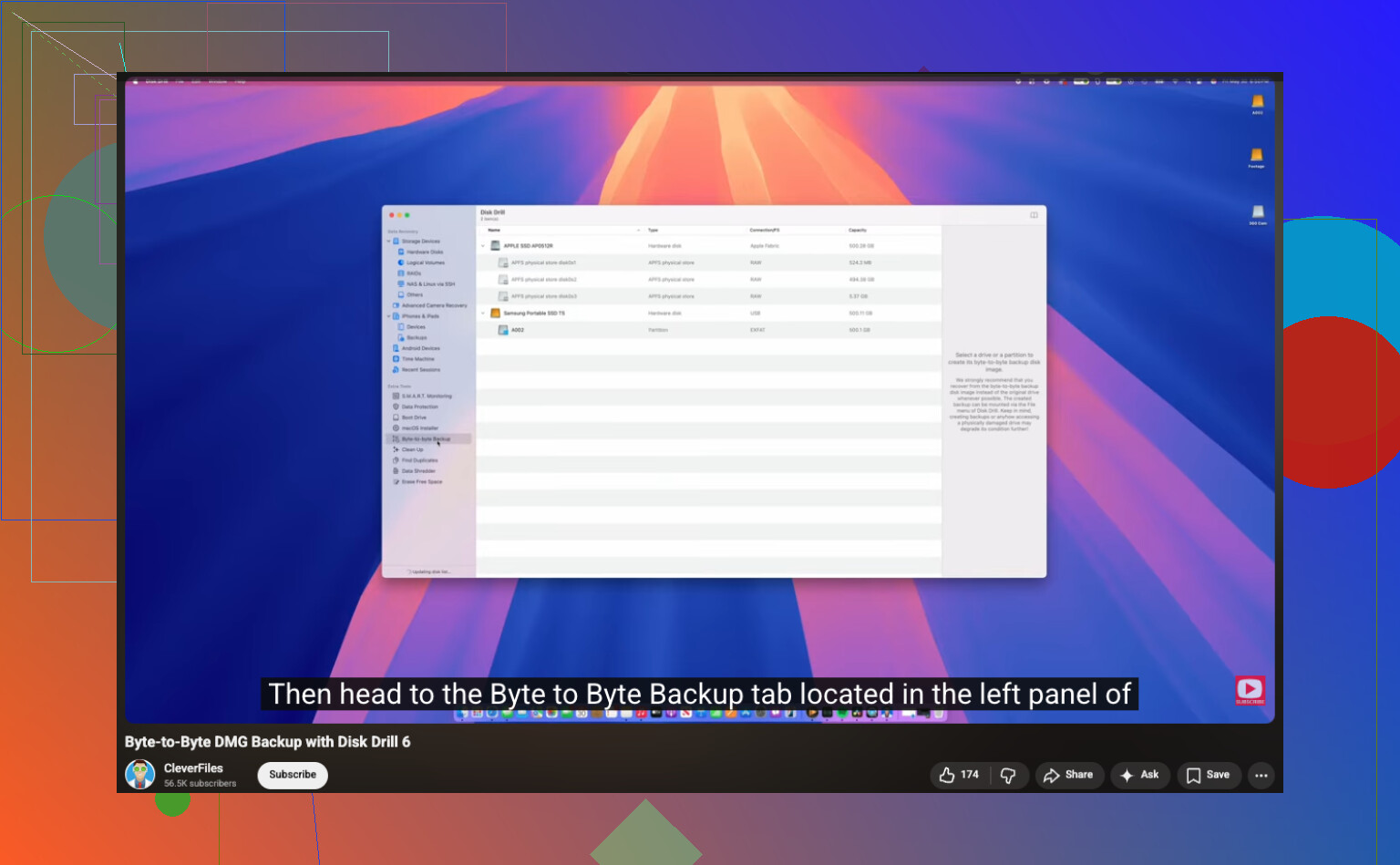
2. Make a full image first
Reconnect the external drive and create a full disk image before you scan for files. This matters more than people think. You want a byte-for-byte copy of the drive in its current state, saved somewhere else.
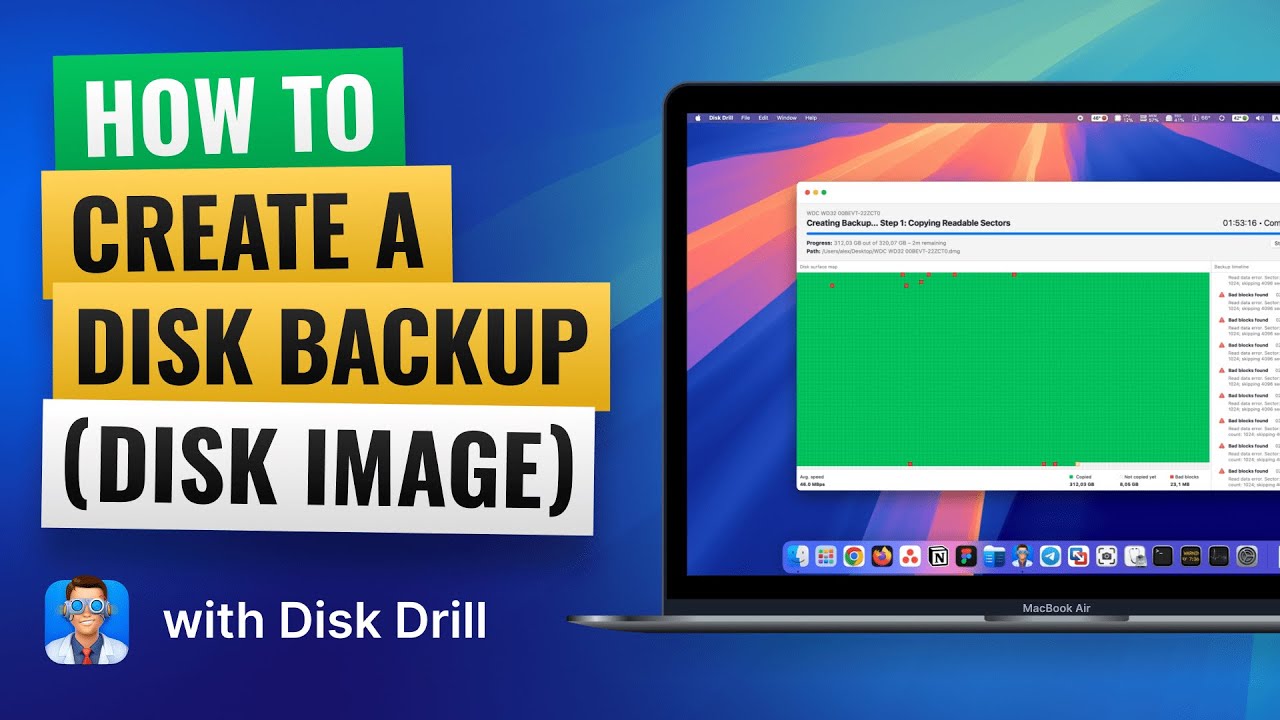
Once I started doing this, recovery got less stressful. If the scan crashes or I mess up a setting, I still have the image.
3. Scan the image, not the original drive
After the image is finished, disconnect the external drive if you want. Run recovery against the image file instead. Less wear on the hardware, less chance you’ll touch the source by mistake.
4. Recover files to a different device
When the scan finishes, filter by image type, check previews, and recover only to another location. Your internal SSD is fine. Another USB drive is fine too. Do not restore files back onto the same external drive you lost them from. People do this, and yeah, it ends badly.
A small thing people skip, preview the photos before recovery if the tool allows it. If you see the image properly, the file is usually intact. If preview is broken, recovery might still pull a file, but it could be corrupt.
What I would do in your spot
- Unplug the drive.
- Confirm it is not making weird noises.
- Try a different cable and port if detection is flaky.
- Use recovery software only if the drive looks physically fine.
- Image the drive first.
- Recover to a different disk.
And after this mess is over, set up backups. I didn’t bother until I lost family photos once, and tht was enough. A simple 3-2-1 setup saves a lot of pain later.
7 Likes
Emptying the recycle bin did not wipe the photos by itself. On many external drives, it removes the index first. The photo data stays until new writes replace it. So your best move is speed, not panic.
I agree with @mikeappsreviewer on stopping all use of the drive. I differ on one point, though. If the drive is stable and the photo batch was deleted recently, I would first check for file system level recovery before going straight to raw photo carving. Raw scans often bring back thousands of JPGs with no names, no folders, no dates. That gets messy fast.
What I’d do:
- Plug the drive into a Windows PC and look for hidden system folders like $RECYCLE.BIN or any backup/sync folders tied to photo apps.
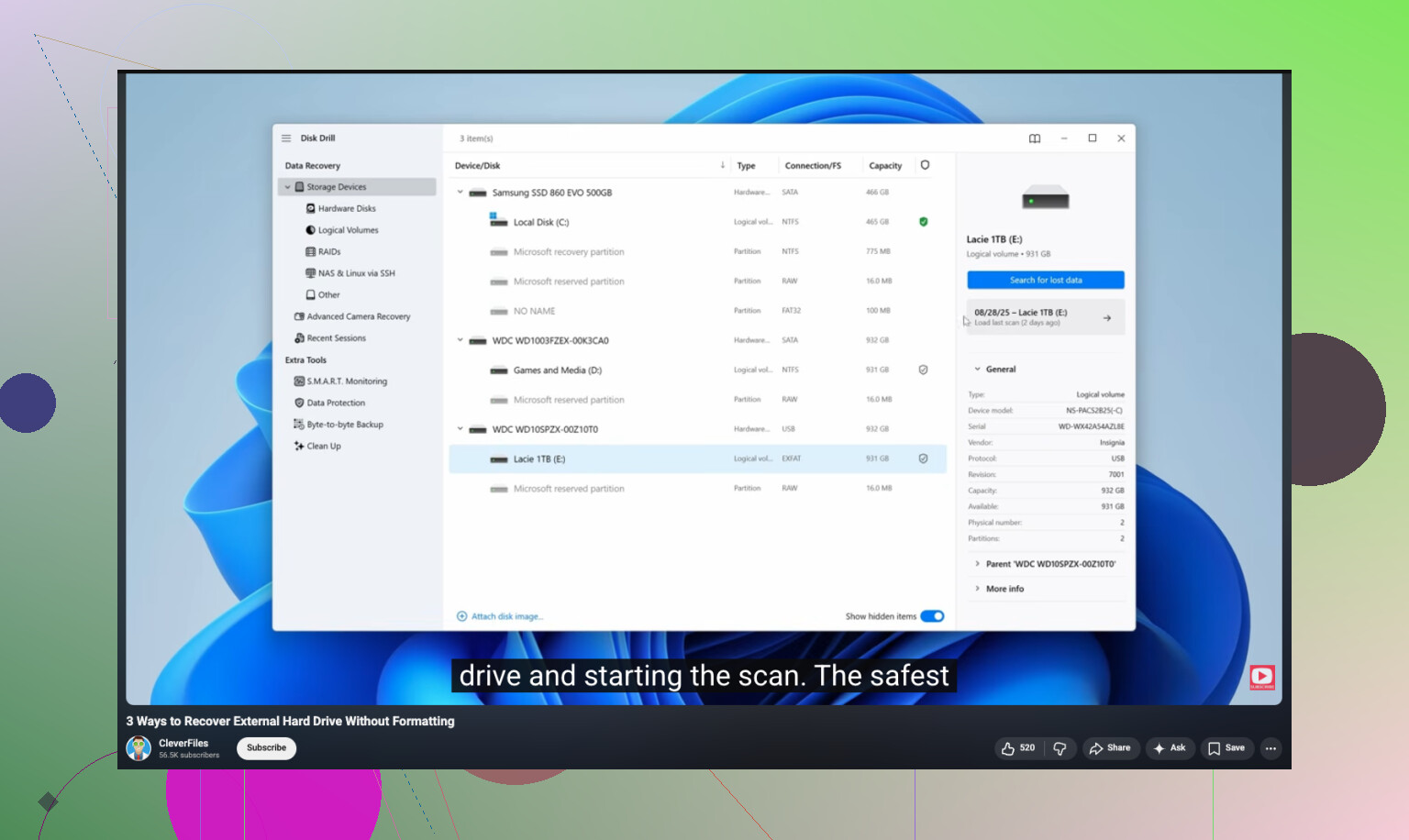
- Check whether the drive is exFAT, NTFS, or HFS+. NTFS volumes sometimes give better folder reconstruction in tools like Disk Drill.
- Run a quick scan first, then a deep scan only if the quick one misses stuff.
- Sort results by original path, created date, and preview status. This saves hours later.
- Recover to a different disk, never back to the same external.
Disk Drill is a solid pick here because it often preserves more structure than old free tools. For family photos, preview matters a lot. You want to verify the files open before spending time restoring a giant pile of junk. If you want a walk-through, this step by step external hard drive photo recovery guide is easier to follow than most.
One more thing people skip. Check SMART health first with CrystalDiskInfo or the drive maker’s tool. If health is bad, stop there. Scaning a failing drive for hours is how people turn recoverable loss into permanant loss.
Stop using that external drive, yeah, but I’d add one thing to what @mikeappsreviewer and @reveurdenuit said: if the photos matter a lot, don’t start by trying every recovery app under the sun. People burn hours doing “just one more scan” and end up with a mess of duplicates, partial JPGs, and extra wear on the drive.
If the drive is healthy and still mounts, I’d try Disk Drill first because it usually does a better job showing which files are actually previewable and worth recovering. My only slight disagreement with the others is that a deep scan is not always step one. Sometimes a simpler metadata-based pass gets back original names/folders, which is waaay easier for family photos than sorting 9,000 files named f123456.jpg.
Also, check whether those photos were ever imported through Photos, Lightroom, OneDrive, iCloud, or Google Photos. A lot of people think the external was the only copy, then find resized or even full-res versions in a cloud library or old laptop backup.
For anyone searching this later, this is basically how to recover permanently deleted files from a hard drive without making things worse.
If the drive starts clicking, vanishing, or freezing during scans, stop. At that point software recovery turns into gambling, and not the fun kind.
One angle missing from @reveurdenuit, @himmelsjager, and @mikeappsreviewer: check the drive’s connection mode before you scan. If it’s in a cheap USB hub or flaky enclosure, recovery results can look worse than they really are. Plug it directly into the PC, and if possible try another enclosure or SATA dock for a steadier read.
I slightly disagree with the “always image first” crowd only in one case: if the drive is perfectly healthy and you have very limited free space, a read-only scan for deleted entries can be fine before making a huge image. But if the drive shows any instability, imaging wins.
Disk Drill is a good first pick here.
Pros:
- easy preview for photos
- usually better file organization than raw-only tools
- cleaner interface, less sorting pain
Cons:
- deep scans can still return duplicates
- full recovery is not the cheapest route
- on badly damaged drives, software limits show fast
Also worth checking: Windows File History, old NAS backups, SD cards used in the camera, and messaging apps where family members may have shared copies. You might rebuild more than you expect without relying only on recovery.