I lost my ONN TV remote and need to control my TV from my iPhone. I tried a few remote apps, but none of them seem to connect or work with my ONN smart TV. I need help finding the right ONN TV remote app for iPhone and setting it up so I can use my TV again.
If you’re hunting for an ONN TV remote app on iPhone, I ran through the same mess a while back. Most of the App Store results looked identical, then half of them either failed to pair or started asking for money the second I tapped a button.
A lot of ONN TVs fall into two buckets. They’re either Roku TVs or they run Android TV / Google TV. That split matters. One remote app will connect fine to one model, then do nothing on another.
The few I’d keep on the list are below.
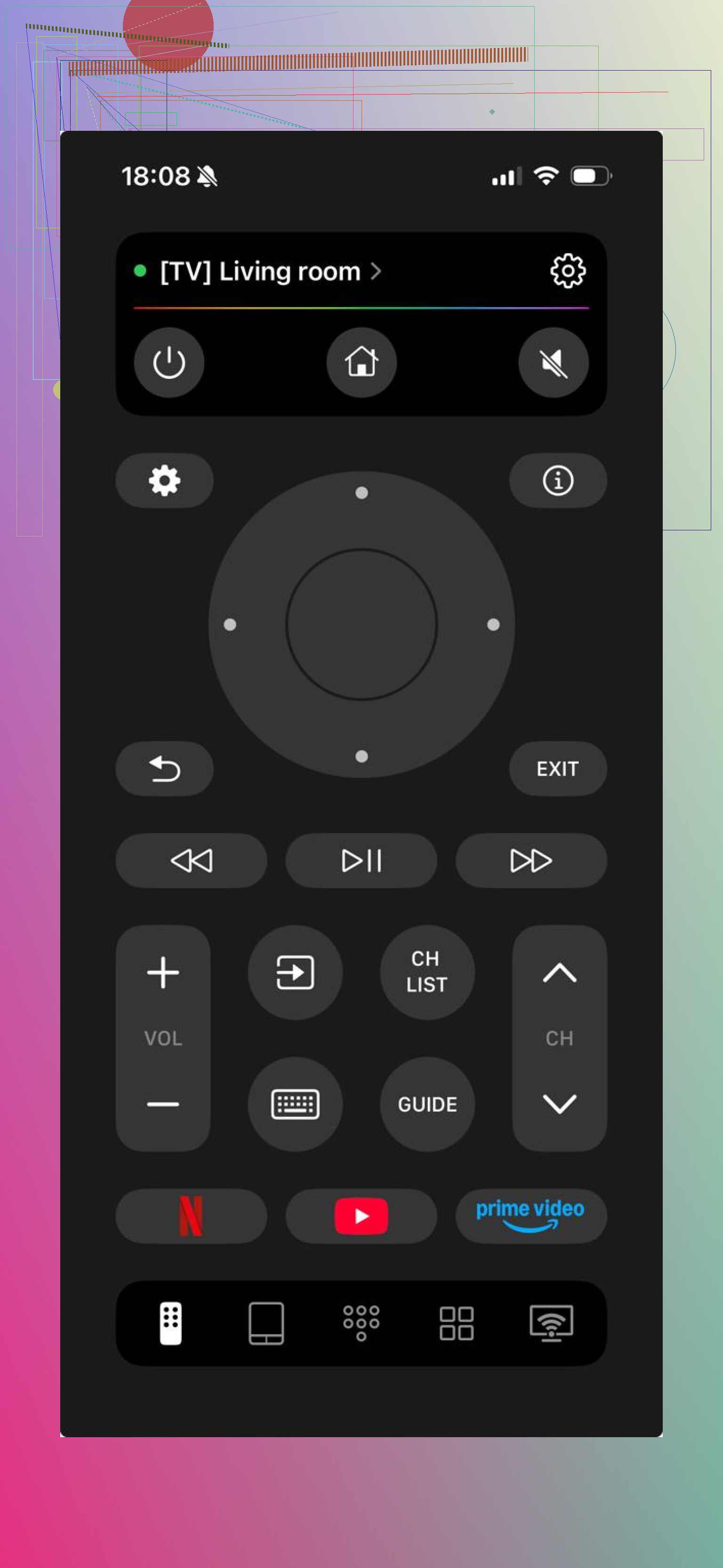
This was the best one I tried.
I installed it, let it find the TV, and it handled the stuff I needed right away. Volume. Direction pad. A keyboard, which saved me from pecking out passwords one letter at a time. There are app shortcuts too, which I didn’t think I cared about until I used them for a few days.
What stood out was the lack of friction. No weird setup loop. No locked buttons. No little trick where the app works for thirty seconds and then asks for a subscription.
Best fit if your goal is simple. You want your phone to replace the missing remote and move on.
- Universal Remote TV Smart
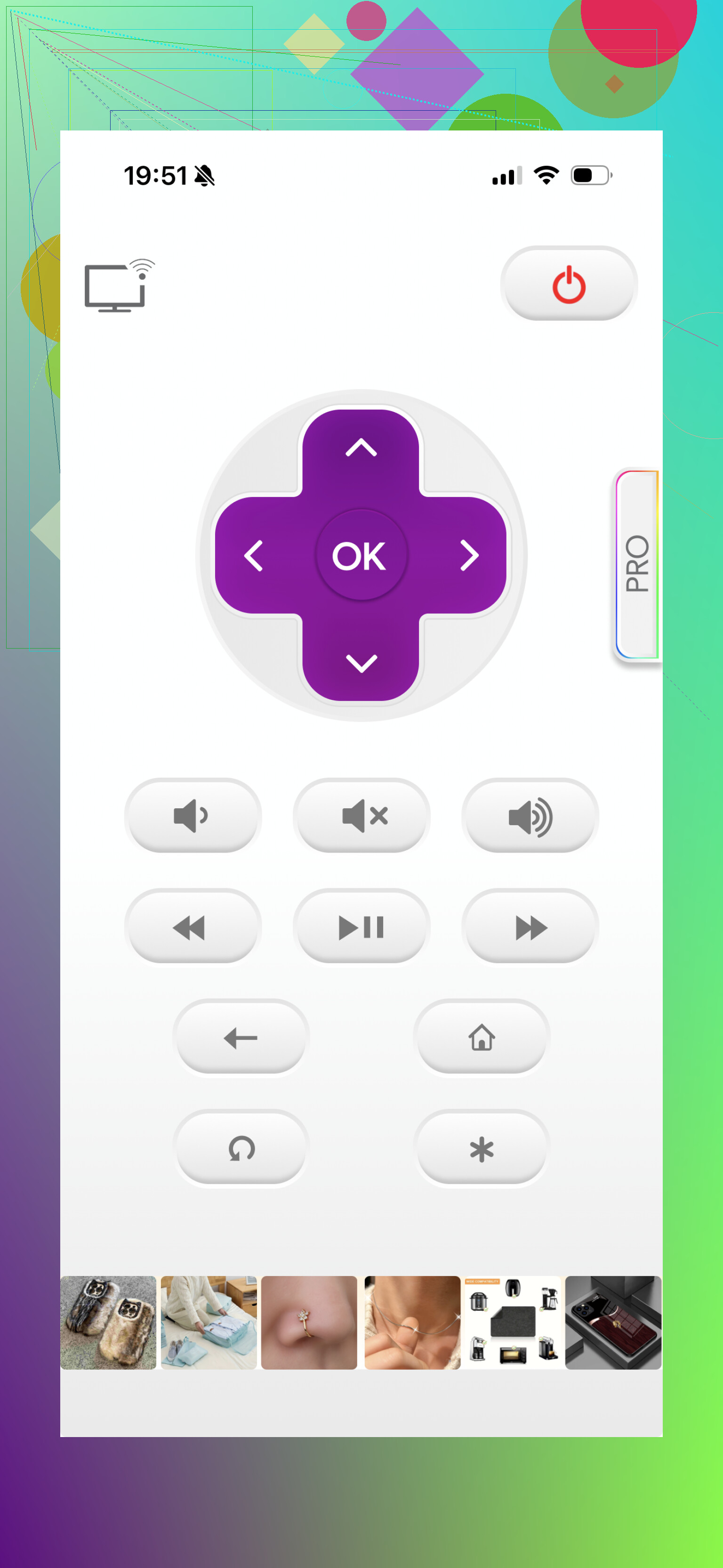
This one felt more old-school. It does the standard remote job and, on ONN TVs, it worked well enough in my testing. I didn’t like it as much as the first app, mostly because it felt less polished and a bit more rigid.
Still, if all you need is basic control, it gets through the job.
Best fit if you don’t care about extras and only want the core buttons.
- The Roku App, official
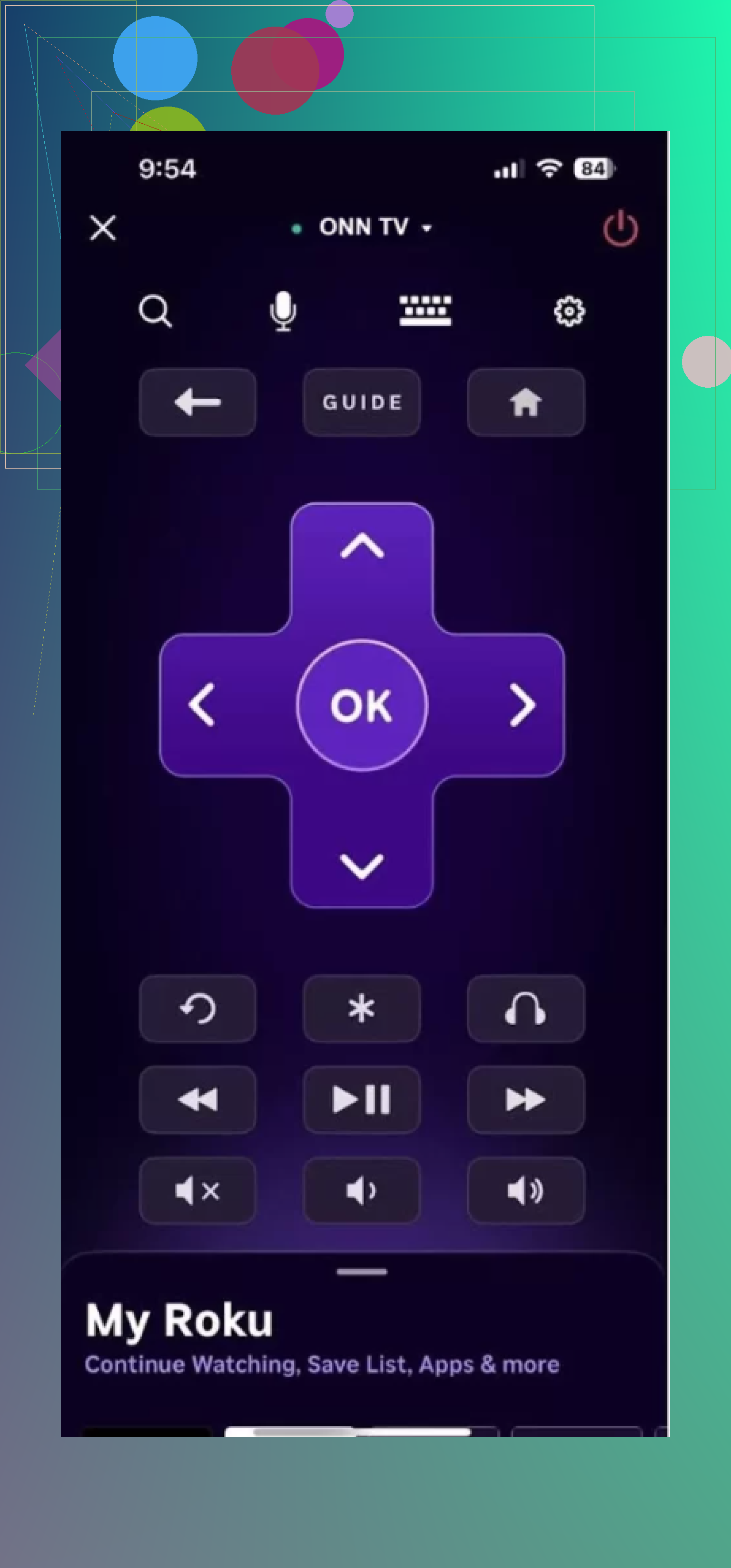
If your ONN TV is one of the Roku models, I’d start here before wasting time elsewhere.
This was the most stable option on Roku-based sets. Fast pairing. Fewer random disconnects. It also gives you some things third-party apps often mess up or hide, like voice search and private listening.
Best fit if your ONN TV runs Roku and you want the most dependable option.
A few things I noticed after trying these
A lot of remote apps look fine on the screenshots. Then you install them and the free version is chopped up. Volume is locked. Keyboard is locked. Pairing works once, then stops. It gets old fast.
With ONN TVs, the model matters more than people expect. If yours is Roku-based, the official Roku app is hard to beat. If you want one app for ONN plus other TVs around the house, TVRem – Universal TV Remote made more sense to me.
Why I’d lean toward TVRem
Mostly because it was usable without hoops. I didn’t run into a paywall for basic controls, and I wasn’t forced into setting up three extra things before it became useful. Navigation worked. Volume worked. Text input worked. Done.
It also helps if your place has a mix of devices. ONN in one room, maybe Samsung or LG somewhere else, maybe a Roku stick on an older TV. Using one app for all of it is easier than keeping a folder full of half-working remotes on your phone.
So if you want the shortest answer, here it is. For Roku ONN TVs, use the Roku app first. If you want one iPhone remote app that covers ONN and other TV brands without turning into a subscription trap, TVRem is the one I’d keep installed.
1 Like
First, check which ONN TV you own. This is where most iPhone remote apps fail.
Look at the TV home screen.
If you see Roku, use the official Roku app.
If you see Google TV or Android TV, use Google TV on iPhone. It has a built-in remote and it pairs fast when the phone and TV share the same Wi-Fi.
I disagree a bit with @mikeappsreviewer on one point. I would not start with third-party apps unless you know your ONN model is weird or the official app fails. Official apps tend to pair faster and break less after updates.
Two things trip people up a lot.
- Your iPhone and TV must be on the same Wi-Fi.
- Some ONN sets do not support power-on over Wi-Fi, so if the TV is fully off, no app will connect. You need the TV already on first. Thats a big one.
If your remote is gone and the TV is off, try:
- The power button under the TV.
- A USB keyboard or mouse.
- Ethernet to the TV, if Wi-Fi pairing keeps failing.
If you post your exact ONN model number, people here can point you to the right app fast.
I’d add one angle the others only touched on: some ONN TVs are picky about how they’re discovered, not just which app you use.
If @caminantenocturno says check whether it’s Roku or Google TV first, that part is dead on. But I slightly disagree with @mikeappsreviewer on universal remotes being the first thing to try. On iPhone, ONN sets usually behave best with the ecosystem app that matches the OS, and third-party apps are more of a fallback.
What I’d try that’s different:
- Open your router settings and make sure your iPhone is not on a guest Wi-Fi network
- Turn off VPN on the iPhone if you use one
- Enable Bluetooth on the iPhone too, because some apps use it during discovery
- On the TV, if you can reach settings with a button or mouse, make sure “control by mobile apps” or network standby is enabled
- Restart the router, not just the TV. Weirdly this fixes pairing a lot more than people think
Also, ONN has sold a bunch of budget models where volume control through apps is hit-or-miss. So if navigation works but volume doesn’t, that doesn’t always mean the app is broken. It can be the TV setup.
If none of the apps connect, post the exact model number off the sticker on the back. That’ll narrow it down way faster than testing ten apps and slowly losng your mind.