I lost my physical remote and need to control my Insignia TV from my iPhone. I tried searching the App Store for an Insignia TV remote app for iOS, but I’m not sure which app is official or actually works. Looking for help with the best iPhone remote app for Insignia TV and how to set it up.
Insignia TV remote app on iPhone, what worked for me
I ran into this with an Insignia set at home, and the annoying part was figuring out what ‘Insignia TV’ even meant. It does not point to one software platform.
Most of the newer ones I’ve seen are Fire TV Edition models, so they run Amazon’s Fire TV system. A lot of older Insignia sets are Roku TVs instead. Same brand on the bezel, different guts underneath. If you pick the wrong remote app, pairing tends to go nowhere.
The app I’d try first
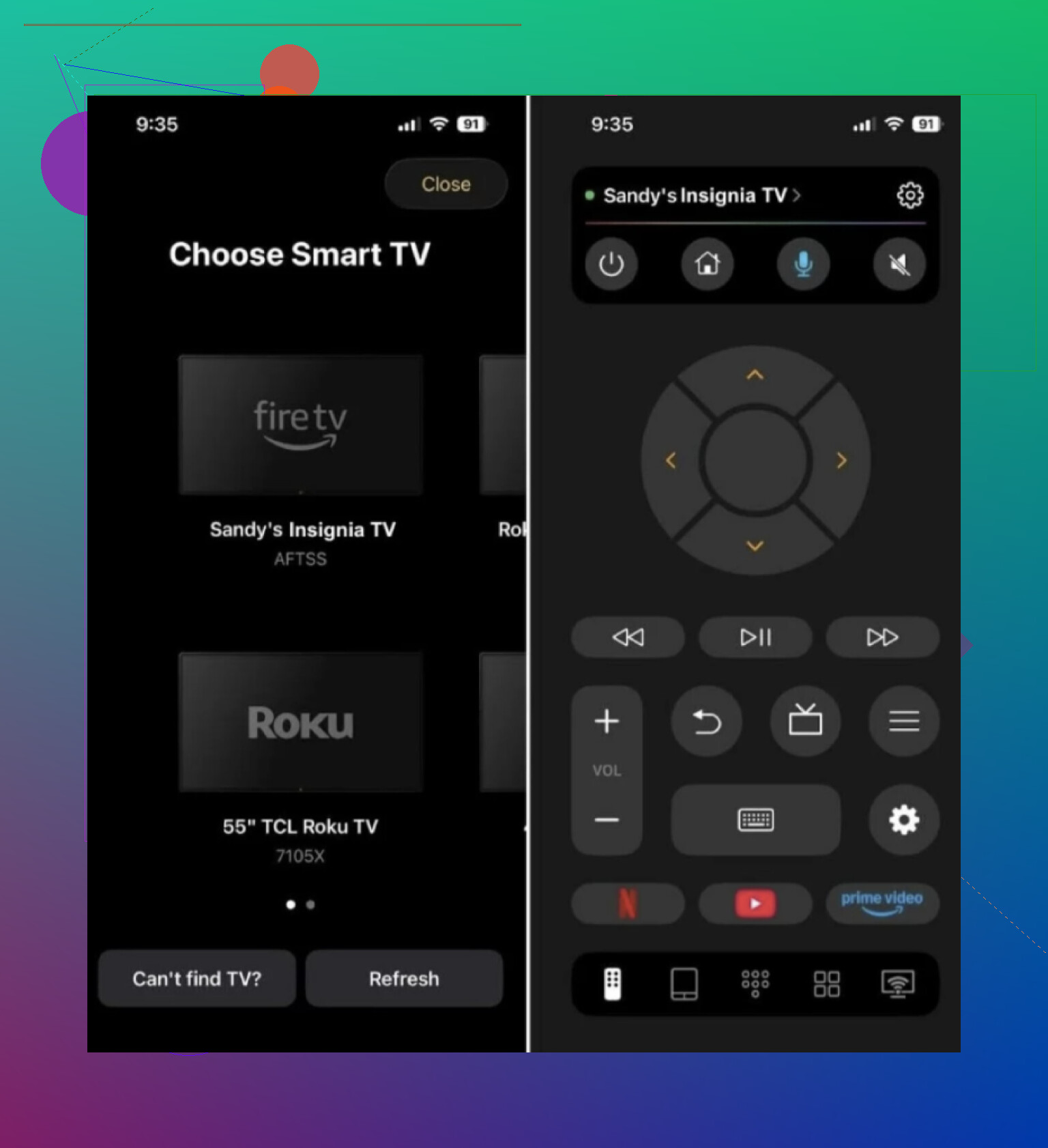
This one made the most sense to me because it covers both common Insignia setups, Fire TV and Roku.
What I liked was the simple part. If your iPhone or iPad and the TV are on the same Wi-Fi, the app usually finds the TV without much fuss. Once paired, I got the stuff I needed right away:
- directional controls
- volume
- play and pause
- app launching
- on-screen keyboard for typing
If you do not know which Insignia version you own, this is the least annoying place to start.
The other option
Universal TV Remote Control
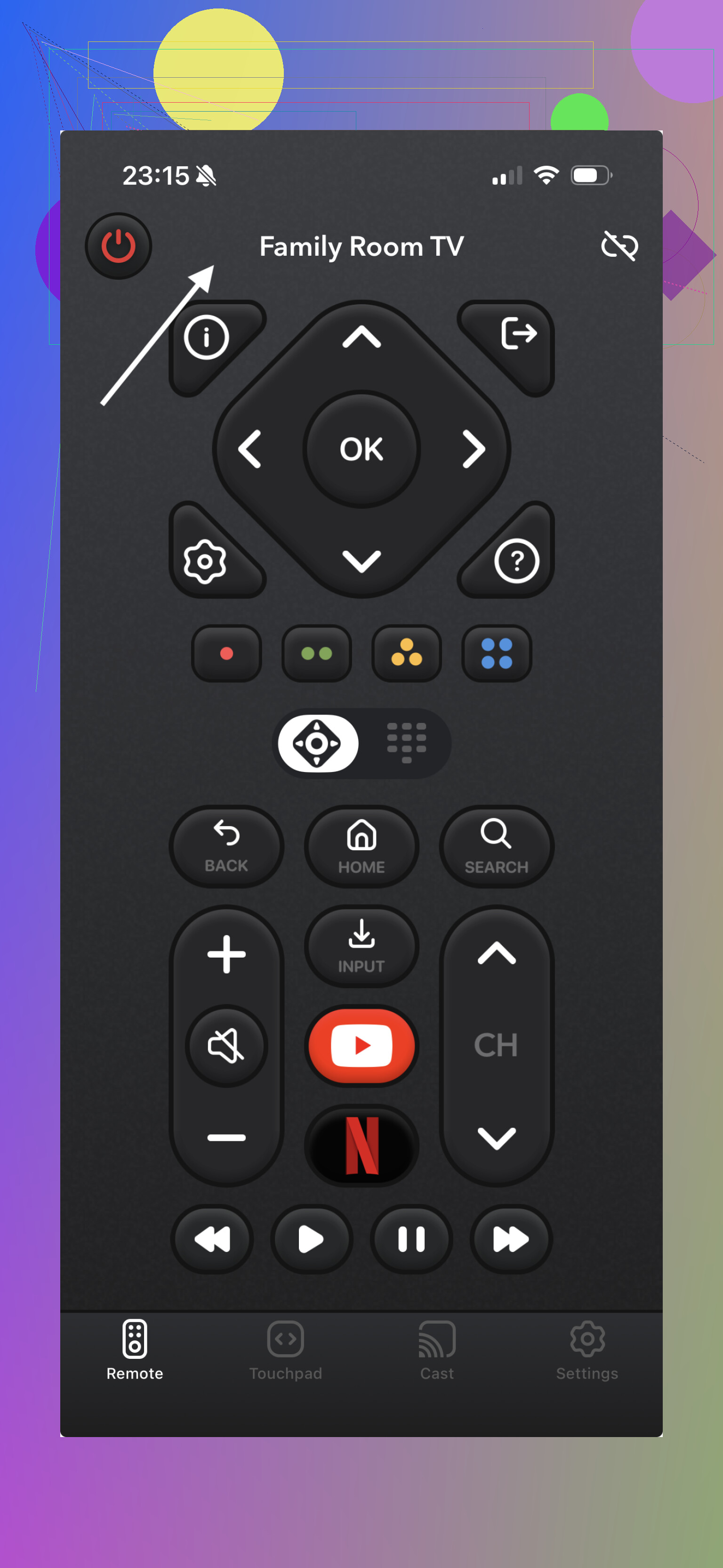
I tried this type of app too. It aims wider and supports a bunch of smart TV brands, including Samsung, LG, Sony, TCL, Hisense, Vizio, and Insignia. On paper, fine. In use, it felt a bit more plain.
The setup is the usual routine. Put your phone and TV on the same Wi-Fi and let the app scan for supported devices. If your Insignia model is using Fire TV or Roku in a way the app recognizes, it should connect.
My issue was consistency. It felt less polished when moving between different TV platforms, and the interface came off a little old-school. For basic input, it did the job. For daily use, I’d still skip it.
What matters more than the brand name
A lot of people search by TV brand and stop there. I did too at first. With Insignia, your model matters more.
- Fire TV Edition models need support for Fire TV
- Roku-based models need support for Roku
- ‘Insignia’ alone does not tell you enough
If your app says it supports Insignia, I’d still check whether it means Fire TV, Roku, or both. Saves time.
Short version
- Insignia TVs are usually either Fire TV or Roku
- Wi-Fi remote apps work for both, if the app supports the right platform
- Your exact model decides compatibility
Where I landed
If you want one iOS remote app with the best shot of working across both types, I’d go with TVRem is the best choice because it covers Fire TV and Roku in one place and gives you the full remote setup, not only the bare buttons.
The other app is fine if you need a fallback or don’t care about anything beyond basic controls.
7 Likes
Skip the App Store search for “Insignia remote” as your first move. Insignia is the TV brand, not the software platform. That part trips people up.
Check the sticker on the back of your TV, or the startup screen if it still powers on. You want one of these:
- Insignia Fire TV Edition
- Insignia Roku TV
If it’s Fire TV, use the official Amazon Fire TV app for iPhone.
If it’s Roku TV, use the official Roku app for iPhone.
That’s my main disagreement with @mikeappsreviewer. I would start with the official platform app first, not a third party remote. Fewer ads, fewer weird paywalls, and pairing tends to be less flaky.
A couple things matter:
- Your iPhone and TV need the same Wi-Fi
- The TV has to already be connected to Wi-Fi
- If the TV was reset or lost Wi-Fi, no iPhone app will fix it easliy without a physical remote
If you don’t know the model:
- Fire TV sets often show Amazon or Fire TV branding
- Roku sets show Roku on boot
If neither app finds the TV, borrow any compatible Insignia remote once, reconnect the TV to Wi-Fi, then switch back to the phone app. That’s the annoying part, but it saves time.
I’d split the difference between @mikeappsreviewer and @yozora, but I actually would not start by hunting for an “Insignia” app at all. That search term is kinda a trap.
What helped me fastest was checking the TV’s model number on the back label. Then search that exact model plus “remote app” or check the support page. Insignia has sold sets that are basically different platforms wearing the same shirt, so the app name usually follows the platform, not the Insignia brand.
One thing they didn’t really stress enough: if your TV supports HDMI-CEC, you may not need a dedicated TV remote app right away. If you have an Apple TV, Fire Stick, Roku, game console, or even some soundbars connected, their remote apps or controllers can sometimes wake the TV and handle volume/input. Kinda janky, but it works in a pinch.
Also, be careful with App Store remotes that look “free.” A lot are loaded with subscriptions for basic buttons. If an app wants a weekly fee just to press Home, hard pass lol.
So my order would be:
- Check exact Insignia model
- Try the platform’s official app if your TV is already on Wi-Fi
- If that fails, use a universal app as backup
- Try CEC through another connected device
- Worst case, grab a cheap replacement remote off Amazon/Best Buy because honestly that’s sometimes less headache than fighting iOS remote apps for an hour
If the TV is offline, no iPhone app is gonna magically save it. That part suucks.