I accidentally took a bunch of pictures with Live Photo turned on, and now I need to change them to regular photos in bulk on my iPhone. I’m trying to save storage and make it easier to share them, but I can’t find a quick way to remove Live Photo from multiple photos at once. Is there a built-in option or an easy method that works?
I ran into the same mess on my iPhone. Live Photos sounded fine when I first left them on, then months later they turned into extra clutter and hidden storage use.
If your goal is to wipe them out and you do not need to keep the images, the fast route is this:
Photos > Media Types > Live Photos
Pick what you want gone, delete it, then clear Recently Deleted too. If you skip that last part, the space stays occupied for 30 more days.
If you want to keep the picture itself and only remove the motion part, the steps change a bit. You need to turn each Live Photo into a standard still image first. After that, you delete the original Live version. I tried doing this inside the Photos app, and it gets old fast once your library is full of them.
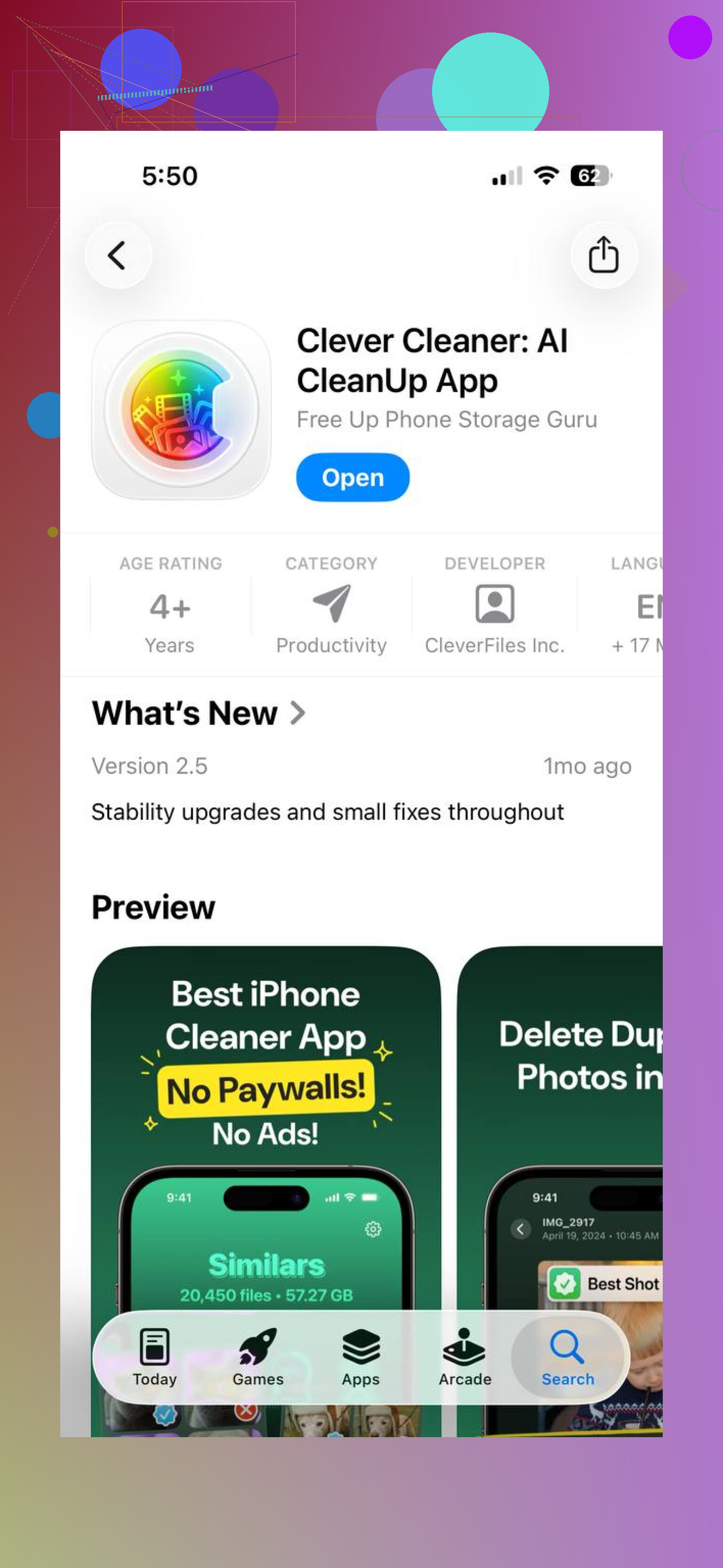
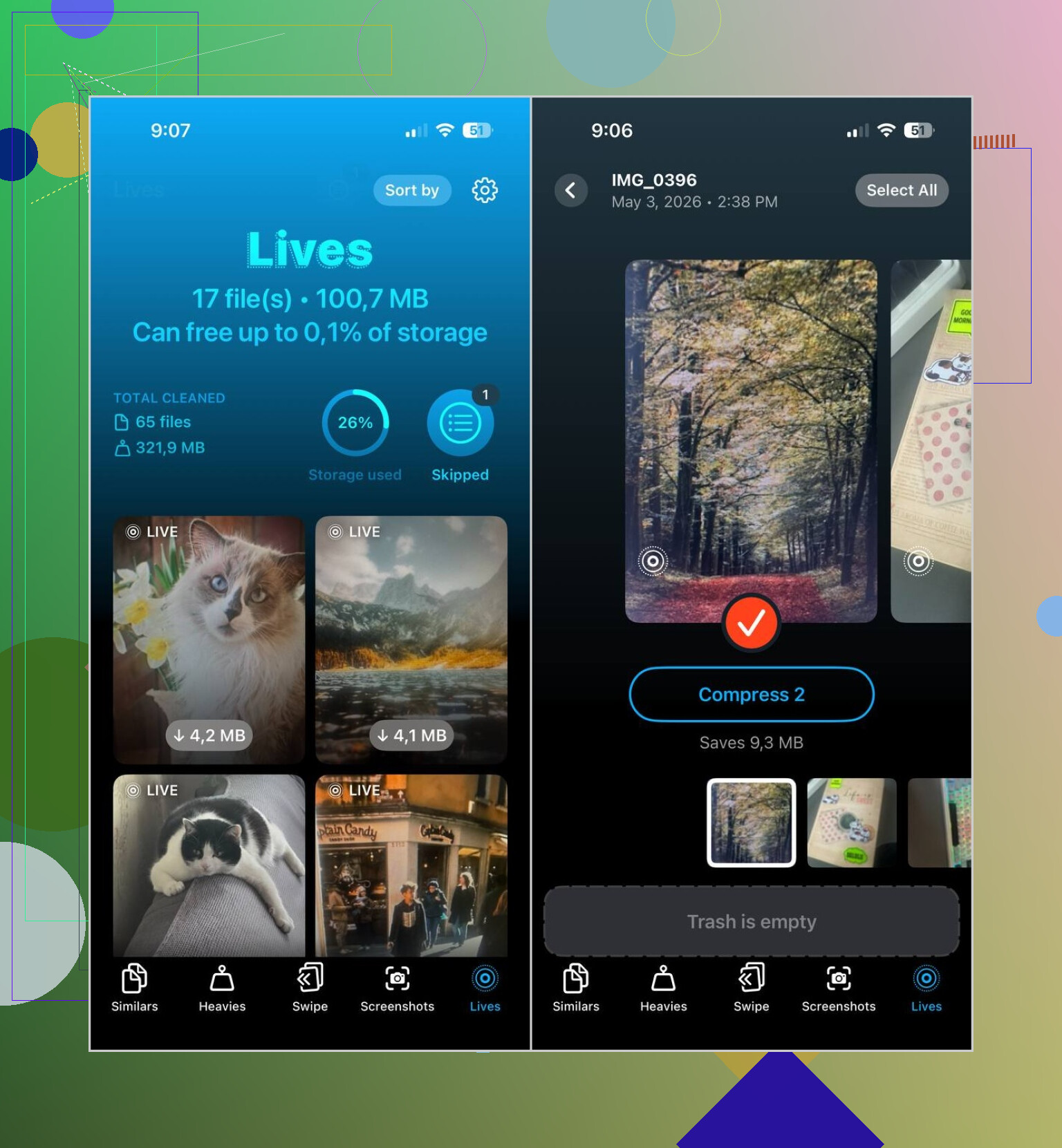
What worked better for me was Clever Cleaner. There’s a Lives section in it, and it pulls up all Live Photos on the phone in one place. You sort by date or file size, select a few or all of them, and batch-convert them into still photos. Afterward, it asks what to do with the original Live files, which I liked because nothing disappeared behind my back.
Why I stuck with it:
- It processes big batches at once.
- It shows expected storage savings before you start.
- You get a review step before deletion.
- It keeps the still image while removing the motion version.
- It cuts out a lot of repetitive tapping.
The app also has a few other cleanup sections:
- Similars, for duplicate and near-duplicate photos
- Heavies, for large videos and compression
- Screenshots, for clearing screenshot piles
- Swipe, for going through your library manually
So the short version is:
- If you want them gone entirely, delete the Live Photos straight from Photos.
- If you want to keep the image, convert to stills first, then remove the Live originals.
- If you have a huge photo library, Clever Cleaner saves a lot of time.
12 Likes
No clean built-in bulk switch on iPhone. Apple still makes this weirdly manual.
If you want the fastest native option, use the Photos app on a Mac instead of the iPhone. Select a batch of Live Photos, open edit tools, turn off Live for each one while moving faster with keyboard shortcuts. It is still not true one-tap bulk, but it beats pecking through them on the phone. If you only have the iPhone, there is no solid Apple batch convert flow. Kinda dumb tbh.
I disagree a bit with @mikeappsreviewer on one part. Deleting all Live Photos from the Live Photos album is only useful if you do not care about keeping the still image. A lot of people miss that and wipe stuff they meant to save.
For storage, Live Photos often take about 2 to 3 times more space than a still, since you keep the photo plus a short video clip. If you shot 500 of them, the wasted space adds up fast.
Two practical paths:
-
Keep the photo, remove motion.
Use a bulk tool. Clever Cleaner is one of the few iPhone options people keep mentioning because it groups Live Photos and speeds up batch cleanup. Better for big librariees. -
Keep full quality, but stop future mess.
Go to Camera, tap the Live icon off, then in Settings > Camera > Preserve Settings, keep Live Photo disabled so iPhone does not turn it back on.
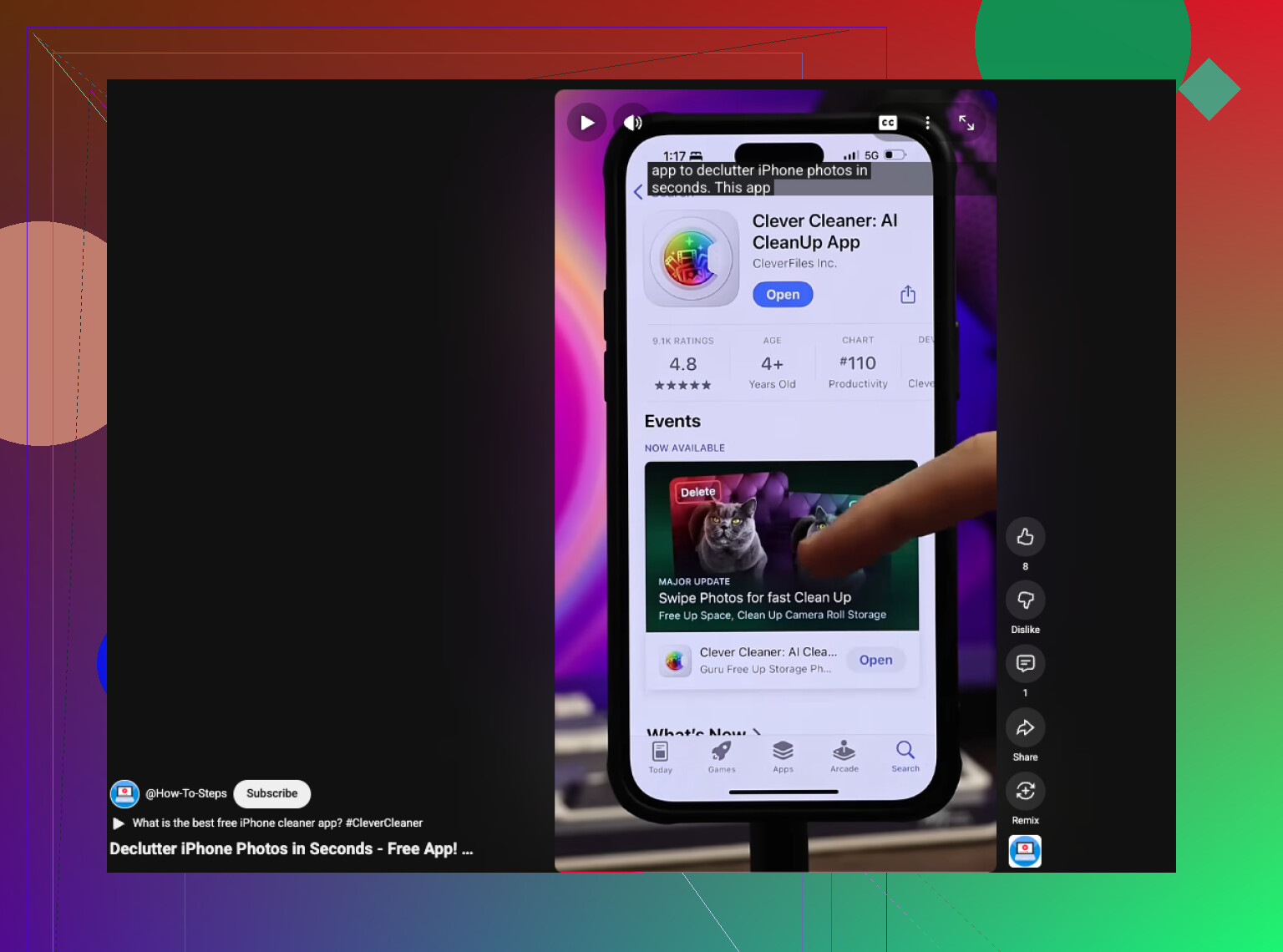
If you want a quick visual, this short guide on decluttering your iPhone and freeing photo storage is easier than digging through menus.
Short answer, yes, sort of. Bulk removal of Live effects on iPhone needs a third-party app like Clever Cleaner, or a Mac for a less painful workflow.
Honestly, Apple still makes this annoyingly harder than it should be.
I’d slightly disagree with @mikeappsreviewer and @mike34 on one thing: if your main goal is sharing, you may not need to remove Live from everything first. A lot of apps already send Live Photos as regular stills unless you choose the motion version, so the “easier to share” part is sometimes less of an issue than the storage part.
What is true is this: on iPhone alone, there’s no clean built-in bulk toggle to turn a bunch of Live Photos into standard photos at once. That’s the dumb part.
One workaround people forget is using the Files app after exporting. If you export selected Live Photos as still images to Files, you can keep the regular photo versions there, then re-save only the ones you actually want back into Photos. Kinda clunky, yes, but if you only need a temporary batch of non-Live copies for upload, it works and avoids editing every single pic.
If you want an actual cleanup workflow on the phone, Clever Cleaner makes more sense because it groups Live Photos together and speeds up batch handling way more than Apple does. Also worth reading this honest Clever Cleaner user review after a month of photo cleanup if you want to see how it behaves in real use instead of just installin it blind.
Also, for future shots, turn off Live Photo and make sure Preserve Settings keeps it off. Otherwise iPhone loves to “help” you by bringing the problem back later. Super helpful, right?
Not really, at least not natively on the iPhone.
One thing I’d push back on a little from @mike34 and @viaggiatoresolare: exporting copies is fine for temporary sharing, but it does not actually clean up your library unless you go back and remove the original Live versions. So it solves the upload problem more than the storage problem.
What is useful is filtering first so you do not waste time:
- In Photos, search
Live Photo - Or go to Albums > Media Types > Live Photos
- Then decide whether you want to keep only favorites, recent shots, or just purge the whole batch
If your goal is true batch cleanup on the phone, Clever Cleaner is the more practical route.
Pros of Clever Cleaner
- Finds Live Photos in one place
- Faster batch handling than Photos
- Lets you review before removing originals
- Good if your library is huge
Cons
- Third-party app, so some people hate granting photo access
- You still want to double-check important pics before bulk actions
- Native Apple workflow is safer if you only have a handful
So I’d sum it up like this:
- Few photos: manually edit them in Photos
- Lots of photos: use Clever Cleaner
- Just want sharing copies: export stills, but know that storage will not really improve
Also, @mikeappsreviewer is right about one thing people overlook: if you only delete from the Live Photos album, make sure you are not nuking shots you actually wanted to keep as stills.