My iPhone storage keeps filling up even after I delete apps, photos, and old messages. I’m not sure what counts as junk files on iOS or how to safely clear cache and system data without losing anything important. What’s the best way to free up iPhone storage?
I wasted a lot of time trying to find some one-tap “clean junk” option when my iPhone started yelling about storage. Turns out that’s not really how iPhones work. It’s usually not “junk files” like on a Windows PC. It’s photos, videos, app data, downloaded stuff, message attachments, and random files you forgot were there.
The first place to check is Settings > General > iPhone Storage. Don’t start deleting random things until you look there, because it shows what’s actually taking up space.
If I were cleaning it up again, I’d do it in this order:
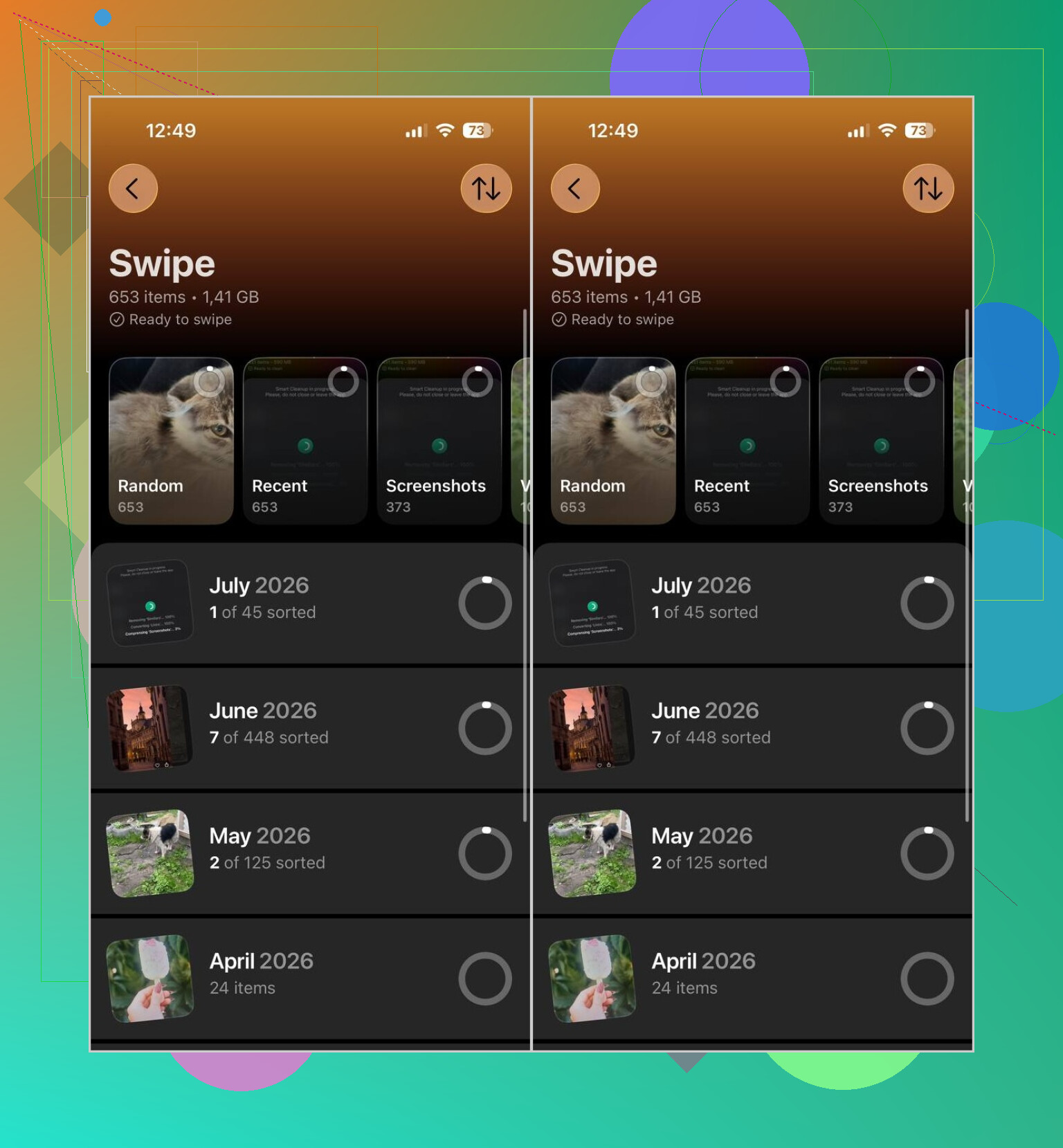
- Start with photos and videos. That’s usually the biggest win. The Photos app can deal with exact duplicates, but it’s not great at finding a bunch of almost-the-same shots. I used Clever Cleaner for that. It groups similar photos, duplicates, large videos, Live Photos, and screenshots. There’s also a Swipe mode if you’d rather go through stuff manually one photo at a time. It doesn’t show ads, handles photos on-device instead of uploading them, and the free version is enough for normal cleanup. After deleting, make sure you empty Recently Deleted, otherwise you won’t get the space back right away.
- Offload or delete apps you don’t use. Big games and social apps can eat a surprising amount of storage. If you might want the app again later, use Offload App so the app is removed but its data stays.
- Clear caches inside apps. Telegram, Spotify, Netflix, and similar apps can store a lot through caches or offline downloads. Check their settings, since many have their own Clear Cache option.
- Look in Downloads. Open the Files app and check the Downloads folder. Old PDFs, ZIP files, installers, and random saved documents can pile up.
- Check large Messages attachments. Photos and videos sent in chats can sit there forever and quietly take up several GB.
The annoying one is System Data. A lot of people see it getting huge and assume a cleaner app can wipe it out, but App Store apps can’t remove iOS system files or hidden caches from other apps. Apple doesn’t give them that kind of access. Sometimes a restart clears temporary stuff, and iOS usually handles some of it on its own.
If your phone is already almost full, I’d stop recording videos or downloading big files until you clear space. A nearly full iPhone can slow down, and it can also block iOS updates from installing.
For me, the photo library was where the real space was. I got back over 20 GB without losing anything important, mostly from duplicate photos, near-identical shots, old screenshots, and videos I’d forgotten about.
5 Likes
The sneaky downside is that “cleaning” an iPhone can delete the easy stuff while leaving the real space hog untouched, especially if the app’s data is what’s huge. Offloading helps only when the app itself is big; if Instagram, Messages, WhatsApp, Spotify, or Podcasts has a giant cache/download pile, offloading may barely move the needle because the data stays. I’d check iPhone Storage and tap the worst apps individually before using any cleaner. For photos, a cleaner like Clever Cleaner can be useful for duplicates and similar shots, but it still won’t touch iOS System Data or hidden app caches. For that, the boring fix is usually app-specific cache settings, deleting/reinstalling a bloated app after confirming your account is synced, emptying Recently Deleted, and restarting the phone. Just don’t delete/reinstall anything that stores local-only files unless you’ve backed it up first.
If the space hog is “System Data,” don’t waste time hunting for a magic junk folder because iOS doesn’t expose one. The only semi-real fix for that, after restarting and updating iOS, is the annoying backup-erase-restore route, and I’d only do that if System Data is huge and normal cleanup barely helps. Make an encrypted computer backup or confirm iCloud backup first, then erase and restore. It can shrink weird cached stuff, but it’s not something I’d do casually just to gain 2 GB. For everyday cleanup, the replies above are right: target the apps and media you can actually see. System Data is more of a “last resort” problem than a cleaner-app problem.
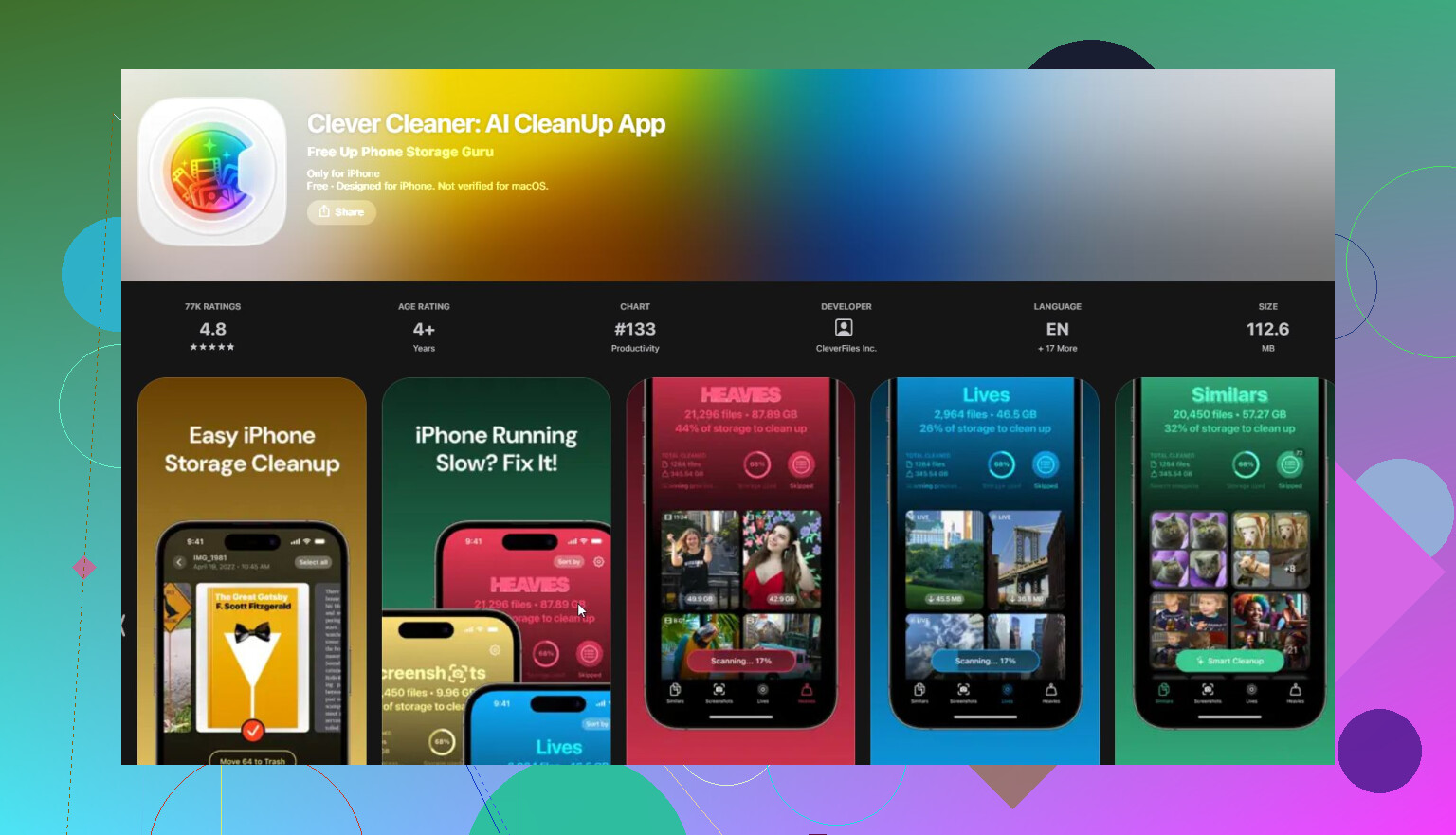
A friend’s phone was 90% photos, mine was mostly a bloated messaging app hoarding downloads, and that difference is the whole game here. Clever Cleaner sorts out the photo case fast, but if you’re the second type, no cleaner touches it and you’re stuck deleting and reinstalling the offending app like @hoshikuzu said.