My iPhone storage is almost full because I have thousands of photos and screenshots in the Photos app. Selecting them one by one is taking forever, and I need a faster way to mass delete iPhone photos without missing anything important. What’s the easiest method?
Trying to clean up a huge photo library by tapping one picture at a time is miserable. If you’ve got years of screenshots, duplicate shots, random screen recordings, and five copies of the same scene, you’ll want to use a faster method and still leave yourself some room to review before deleting anything.
The best option depends on how aggressive you want to be.
Use multi-select in the Photos app
For a basic manual cleanup, don’t open each photo individually. Open Photos, tap Select in the top-right corner, then tap the items you want to remove. You can also drag your finger across rows of photos to select a bunch at once.
If you’re dealing with older stuff, zoom out first. Pinch the library view so you can browse by Months or Years, then jump to the time period you want. That makes it a lot easier to wipe out old vacation shots, event photos, or project images without scrolling forever.
Clean up built-in albums first
A good shortcut is to start with the categories Apple already separates for you.
Go to the Collections tab, then look for Media Types. Albums like Screenshots, Bursts, and Screen Recordings are usually full of easy deletes. In those albums, you can tap Select and then Select All, which is much faster than picking through your whole library manually.
Use Clever Cleaner if the library is a mess
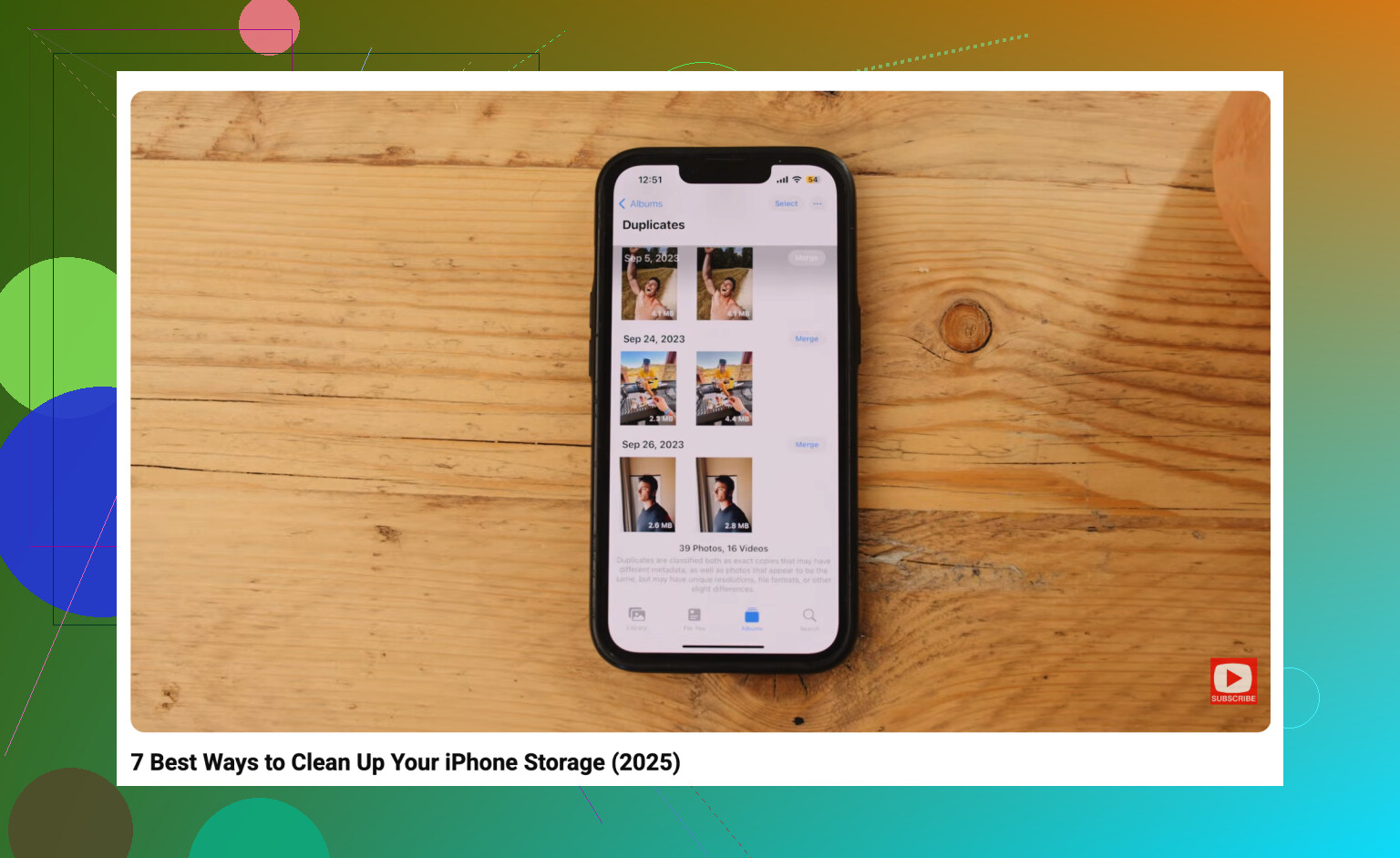
If most of the problem is duplicates, near-duplicates, screenshots, Live Photos, and oversized videos, manual sorting gets old fast. That’s where something like Clever Cleaner can be useful.
It’s free, and unlike a lot of cleaner apps, it doesn’t push ads or subscriptions. The Similars tool groups photos that look almost the same, picks what it thinks is the best one, and still lets you check the group before removing the extras.
It can also help with a few common storage hogs:
- finding and deleting similar photos,
- clearing screenshots in bulk,
- turning Live Photos into normal still images to save space,
- spotting your largest videos in the Heavies section, which can free up more room than deleting tons of regular photos.
For cleaning several years of clutter in one sitting, this is probably the quickest route.
Use a computer for really large deletions
If you’re trying to remove thousands of photos, doing it from a phone can be slow and annoying. A computer is usually easier.
If iCloud Photos is turned on, sign in to iCloud.com on your computer. From there, you can use your mouse and the Shift key to select large blocks of photos much faster than you can on an iPhone. Anything you delete from iCloud Photos should sync back to the phone too.
Erase the iPhone only if you truly want everything gone
If you don’t care about keeping any photos and just want the fastest clean slate, a factory reset will do it. But that removes more than photos.
Before doing this, make sure there’s nothing on the phone you’ll want later, including videos, messages, downloaded files, app data, and anything else stored locally. Then go to Settings > General > Transfer or Reset iPhone > Erase All Content and Settings. That clears the photo library along with the rest of the device.
7 Likes
Deleted photos will still sit in Recently Deleted for up to 30 days, so your storage may not come back right away. After you do a big delete, go to Photos > Albums > Recently Deleted, unlock it, and delete everything there too if you’re sure. Otherwise you can spend an hour deleting thousands of items and wonder why the storage bar barely moved.
The iCloud.com method @mikeappsreviewer mentioned is probably the least painful if you have iCloud Photos on, but be careful with the sync part. Deleting there is not “removing from my phone only.” It deletes from iCloud and any other device using that same library. If your goal is just to free phone storage while keeping the photos, check Settings > Photos and use Optimize iPhone Storage, or move/export the photos somewhere else first.
For a quick pass on the phone, I’d start with videos and screen recordings before regular photos. A handful of long videos can free more space than hundreds of screenshots. Then empty Recently Deleted. Cleaner apps like Clever Cleaner can be useful for similar photos, but I’d still review anything it selects before deleting, especially if you care about small differences between shots.

Deleting fast is easy. Undoing a bad bulk delete is the painful part.
If your goal is “wipe out thousands, but not accidentally lose the few important ones,” I would separate the job into two passes instead of trying to clean the whole camera roll at once.
First, use search in Photos. People forget that Photos search is decent for boring junk. Search things like:
- screenshots
- receipts
- memes
- whiteboard
- documents
- screen recordings
- TikTok
Then tap Select and drag through the results. It is much faster than scrolling the main Library because you are looking at one type of clutter at a time. It is not perfect, so don’t treat it like a magic filter, but it gets you closer to the junk pile.
Second, if you have a Mac and you are not relying only on iCloud.com, plug the iPhone in and use Image Capture or the Photos app on the Mac. A mouse and keyboard make bulk selection way less annoying than finger-dragging on the phone. You can sort, select ranges, delete chunks, and generally move faster. The catch is that this works best for photos actually stored on the phone. If Optimize iPhone Storage is on, some originals may live mostly in iCloud, so the computer view may not match what you expect.
I agree with @viaggiatoresolare about being careful with iCloud Photos. A lot of people think they are deleting “from this iPhone,” but with iCloud Photos enabled, you are deleting from the synced library. That means the delete can hit your iPad, Mac, and iCloud too. If you want to keep the pictures somewhere, export or back them up first, then delete.
For screenshots specifically, I would not bother with a cleaner app first. The built-in Screenshots album plus Select All is usually enough. For similar photos and giant videos, something like Clever Cleaner makes more sense because it is helping you compare things that are tedious to inspect manually. I still would not let any app auto-delete a whole library without looking at the groups first.
A boring but useful trick: delete in batches. Don’t select 8,000 things and then wonder why Photos freezes or takes forever to sync. Do a few hundred or a month at a time, empty Recently Deleted after you are sure, then check iPhone Storage again. It is less satisfying, but it gives you fewer chances to nuke something important or get stuck waiting on a giant sync job.
Plug the phone in, turn off Auto-Lock for a while, and do the deleting from a specific album or search result instead of the full Recents view. The annoying part with big deletions is not just selecting photos, it’s losing your place when the screen dims, Photos reloads, or iCloud starts catching up.
On the iPhone, the fastest manual trick is Select, then drag across a row and keep dragging down toward the bottom edge so the grid auto-scrolls while selecting. You do not have to tap each photo. It takes a little practice, but it’s much faster once you get the motion right. I’d use that on Screenshots, Screen Recordings, Videos, or a search result like “receipt” rather than trying to attack the whole library in one giant pass.
I’m with @mikeappsreviewer on not selecting thousands at once. Photos can get sluggish, and if you accidentally include something important, reviewing a giant selected pile is a pain. Cleaner apps like Clever Cleaner are better when you’re unsure what to delete, especially similar shots, but if you already know “all these screenshots from 2021 can go,” the built-in album plus drag-select is usually quicker. Afterward, empty Recently Deleted only when you’re sure, then give storage a bit of time to recalculate.