My hard drive suddenly became unreadable and now Windows says it needs to be formatted. It has important files on it, so I don’t want to make the damage worse. Is there a safe way to recover data from a corrupted hard drive or repair it without losing everything?
A corrupted drive isn’t automatically a lost cause. If Windows still sees it in Disk Management and the size looks right, there’s a fair chance the drive is suffering from file system damage rather than total hardware failure. In that case, the files may still be sitting there, even if Windows can’t read them normally.
The main thing is to stop doing anything that writes to the drive.
- Don’t format it when Windows prompts you.
- Don’t copy new files onto it.
- Don’t run CHKDSK as your first move.
- Don’t keep reconnecting it over and over if it keeps dropping out.
Those things can change what’s on the disk, and that can make recovery worse.
Drives can get corrupted for a bunch of boring reasons: a power cut, forced shutdown, unsafe removal, system crash, bad sectors, malware, or just age. A lot of the time the data itself isn’t gone. The file system is just damaged enough that Windows doesn’t know how to deal with it.
If the drive is still detected, I’d start with the basic checks first. Look in Disk Management and confirm it shows the correct capacity. If it’s an external drive, try a different USB cable, another port, or another computer before assuming the disk itself is dead. After that, focus on getting the important files off before trying to repair anything.
For the recovery part, Disk Drill is a good option here because it can create a full image of the drive first. That matters if the disk is unstable, since you can scan the image instead of repeatedly stressing the original drive.
A safer workflow would be:
- Install Disk Drill on a separate healthy drive.
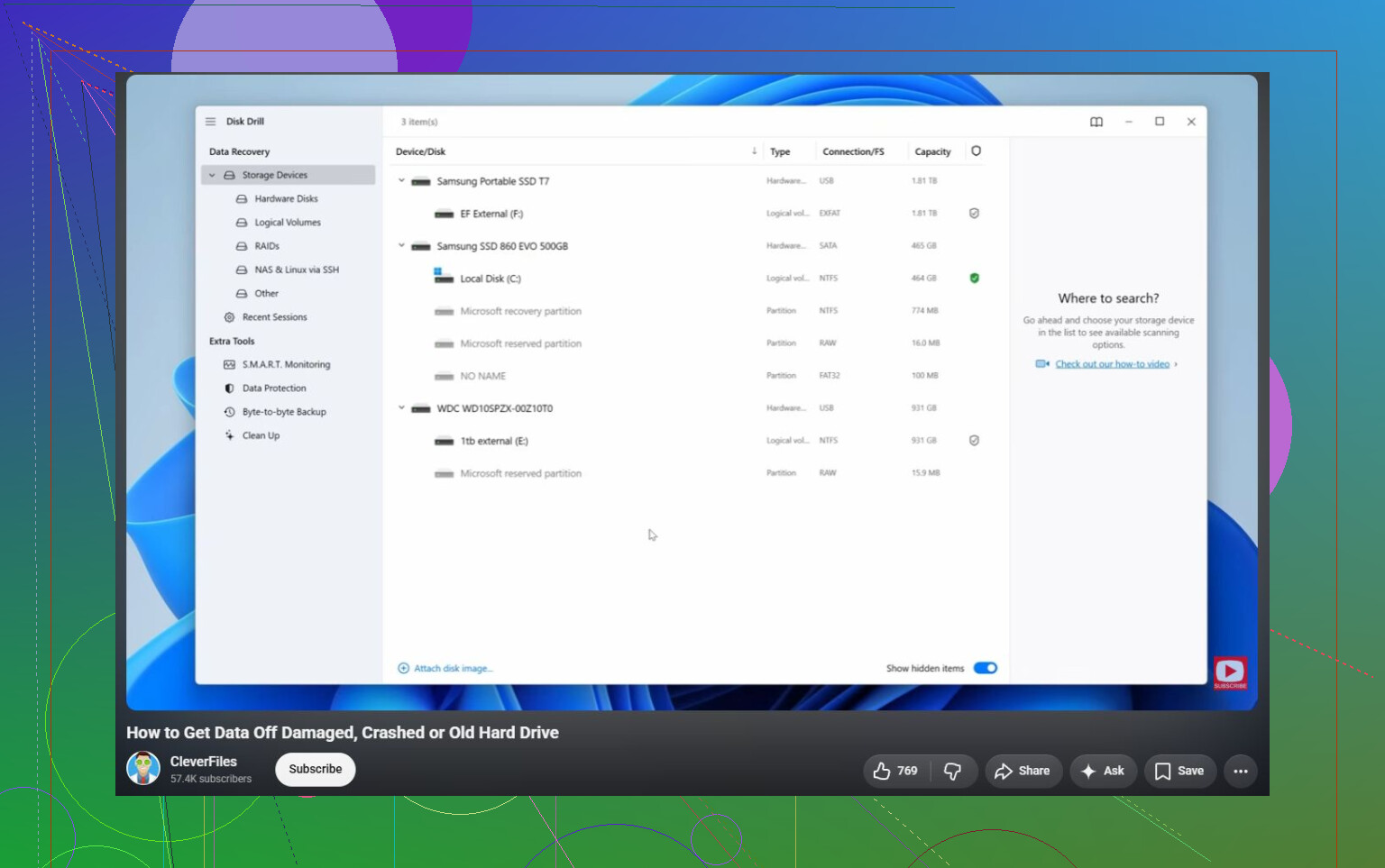
- If possible, make a complete image of the corrupted drive.
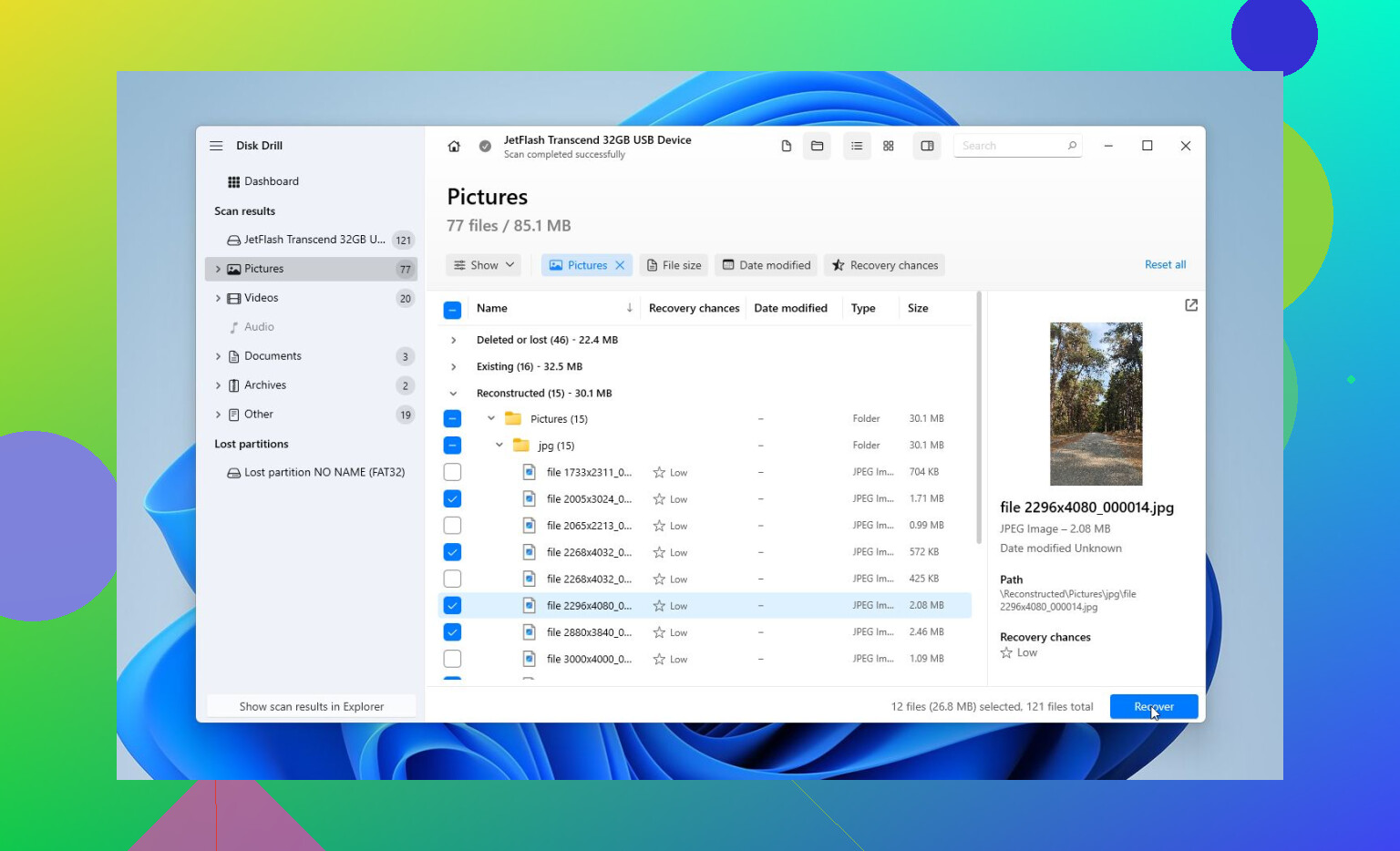
- Open that image in Disk Drill.
- Run Universal Scan.
- Preview what it finds.
- Recover the files to a different healthy drive.
The preview step is worth using. It lets you check whether your photos, videos, documents, and other files are actually intact before you spend time recovering everything. You can also scan and preview results before buying the full version, which gives you a better idea of whether recovery is likely to work.
After your files are safe, then it makes sense to try fixing the drive.
- CHKDSK can help if the file system is still readable, but it changes the drive, so it’s better to run it after recovery.
- TestDisk is worth trying if the partition shows as RAW or the partition table is damaged. Sometimes it can restore access without formatting.
- Formatting is the last step if the other repair options don’t work. A quick format can clear logical corruption by creating a fresh file system. If the drive corrupts again after that, don’t trust it with anything important.
Watch how the drive behaves, too. Clicking sounds, random disconnects, wrong capacity, or disappearing from Disk Management are bad signs. That usually points more toward hardware failure than simple corruption, and DIY attempts can make things worse.
If you see those symptoms, stop and consider a professional recovery lab. They can diagnose the drive, deal with damaged parts if needed, make a proper clone with specialized tools, and recover from that copy instead of working directly on the failing disk. Many good labs also work on a “no data, no fee” basis, so you usually only pay if they recover your files.
So yes, a corrupted hard drive can often be fixed. Just don’t start with the fix. Get the files copied out first, then repair or format the drive once the data is no longer at risk.
11 Likes
The drive’s connection type matters here. If this is an external USB drive, the problem might be the enclosure, cable, or power supply rather than the disk itself. Before touching recovery software, I’d try the safest non-writing checks: another USB port, another cable, and if it is a desktop-size external drive, make sure the power brick is good. If Windows shows the right capacity but asks to format it, do not format it. That prompt just means Windows can’t mount the file system cleanly.
I agree with the “image it first” advice, but I’d be careful about pulling the drive out of its external case too quickly. Some external drives use USB bridge boards that handle encryption or sector translation, and removing the bare drive can make it look even more unreadable. If it is a normal SATA drive in a simple dock, fine. If it is a branded external drive, check that before shucking it.
Yes, data recovery may be possible. “Fixing” the drive is the wrong first goal though. Treat it like a box of papers with a broken lock: get the papers copied somewhere else, then worry about repairing the box. Disk Drill or similar tools can be useful if the drive is stable enough to image and scan, but if it clicks, vanishes, reports the wrong size, or takes forever just to appear, stop testing it. At that point every extra scan is gambling with the only copy of the data.
Do not recover files back onto the same drive, even if the software lets you pick it as the destination. That is an easy way to overwrite the very data you are trying to rescue. You need a second healthy drive with enough free space for either a full disk image or the recovered files, preferably both if the data matters.
I agree with the earlier advice about imaging first, but there is a practical catch people forget: if this is a 2 TB drive, the image may need close to 2 TB of free space, even if only 300 GB of files were actually used. If you don’t have that space, at least recover only the most important folders first and save them elsewhere. Disk Drill or similar tools can work for that, but don’t treat a successful preview as permission to keep scanning the bad drive for days. Get the important stuff out first.
A corrupted drive can be “fixed” sometimes, but I’d separate “recoverable” from “trustworthy.” If the problem was just a damaged file system, you may be able to recover the files and later reformat the drive. If it has bad sectors or keeps disconnecting, formatting it may make it appear usable again for a while, but I would not put anything important on it afterward. Once a drive has pulled the “Windows needs to format this” trick without a clear reason, I’d consider it suspect until proven otherwise.
A full scan can be the thing that finishes off a dying drive if the problem is mechanical, so don’t treat recovery software like a harmless first step. If the drive sounds normal and shows the right size, image it or pull the most important files first; if it clicks, stalls, or vanishes, stop and price out a lab before you turn a recoverable case into a worse one.