My iPhone storage suddenly became full right after an iOS update, even though I had space before. Now I can’t install apps, take photos, or finish the update properly. I need help figuring out what caused the storage issue and how to free up space without losing important data.
That iPhone storage warning hits like something is on fire, even when the phone still has room. I’ve seen people start deleting random apps first, which usually makes the whole thing messier. The first move is simpler.
Start with the storage screen
Open Settings > General > iPhone Storage. Then wait. Don’t tap around too fast. The colored bar takes a bit to finish loading, and until it does, you’re looking at half-baked numbers.
This screen is the only place I trust for a real breakdown. You’ll see whether the space is going to Photos, Apps, Messages, System Data, or some other bucket. If you skip this and start guessing, you’re deleting blind.
The fake alert people fall for
If you saw the warning while browsing the web, and it had loud wording about viruses, SIM failure, device damage, or some timer counting down, ignore it. That is not iOS. It’s a browser scam trying to scare you into tapping.
Apple’s own storage alerts are plain. No drama. They show up as system notices or inside Settings. If the message came from a webpage, close the tab and move on.
Why deleting stuff sometimes changes nothing
This one gets people a lot. When you delete photos or videos on iPhone, they do not leave the phone right away. They go into Recently Deleted and sit there for 30 days, still taking up space the whole time.
So if you cleaned out 500 photos and the warning stayed, yep, that tracks.
To remove them for real:
- Open Photos
- Go to Albums
- Scroll down to Recently Deleted under Utilities
- Tap Select
- Tap Delete All
Do the same check in Files. Look in Downloads, then empty Recently Deleted there too. Photos and Files keep their own trash bins, which is annoyng but true.
If it started after an iOS update
I’ve had this happen right after updating. iOS downloads update files, unpacks them, stores temp junk, then sometimes fails to clear all of it right away.
First thing I’d do is restart the phone. A reboot often forces storage to recalculate and clears leftover update files.
If the warning is still there, go back to Settings > General > iPhone Storage and look at System Data. If that section jumped up after the update, the extra space is often coming from temp install files and app cache buildup.
Places storage piles up quietly
Messages is a big one. People keep years of videos, memes, screenshots, voice notes, and random attachments in old threads without noticing. I checked one family member’s phone once and Messages alone was chewing through multiple gigabytes.
For long-term cleanup:
Settings > Messages > Keep Messages
Change it from Forever to 1 Year or 30 Days.
For faster results:
Settings > General > iPhone Storage > Messages
Then use Review Large Attachments and remove the biggest stuff first.
Safari is another easy target. Cached site data stacks up over time.
Go to:
Settings > Safari > Clear History and Website Data
Apps like Instagram and TikTok are worse because they hoard cache and usually don’t give you a clean button for it. In those cases, deleting the app and reinstalling it is often the only solid fix I’ve found.
When the built-in tools stop being enough
The iPhone storage menu gives totals, but not much detail. You won’t get a clean list of your biggest videos. You won’t get grouped near-duplicate photos. You won’t get a useful way to spot screenshots from two summers ago wasting space.
That’s where Clever Cleaner helps. The link mentioned was a YouTube short, so here it is as plain text:
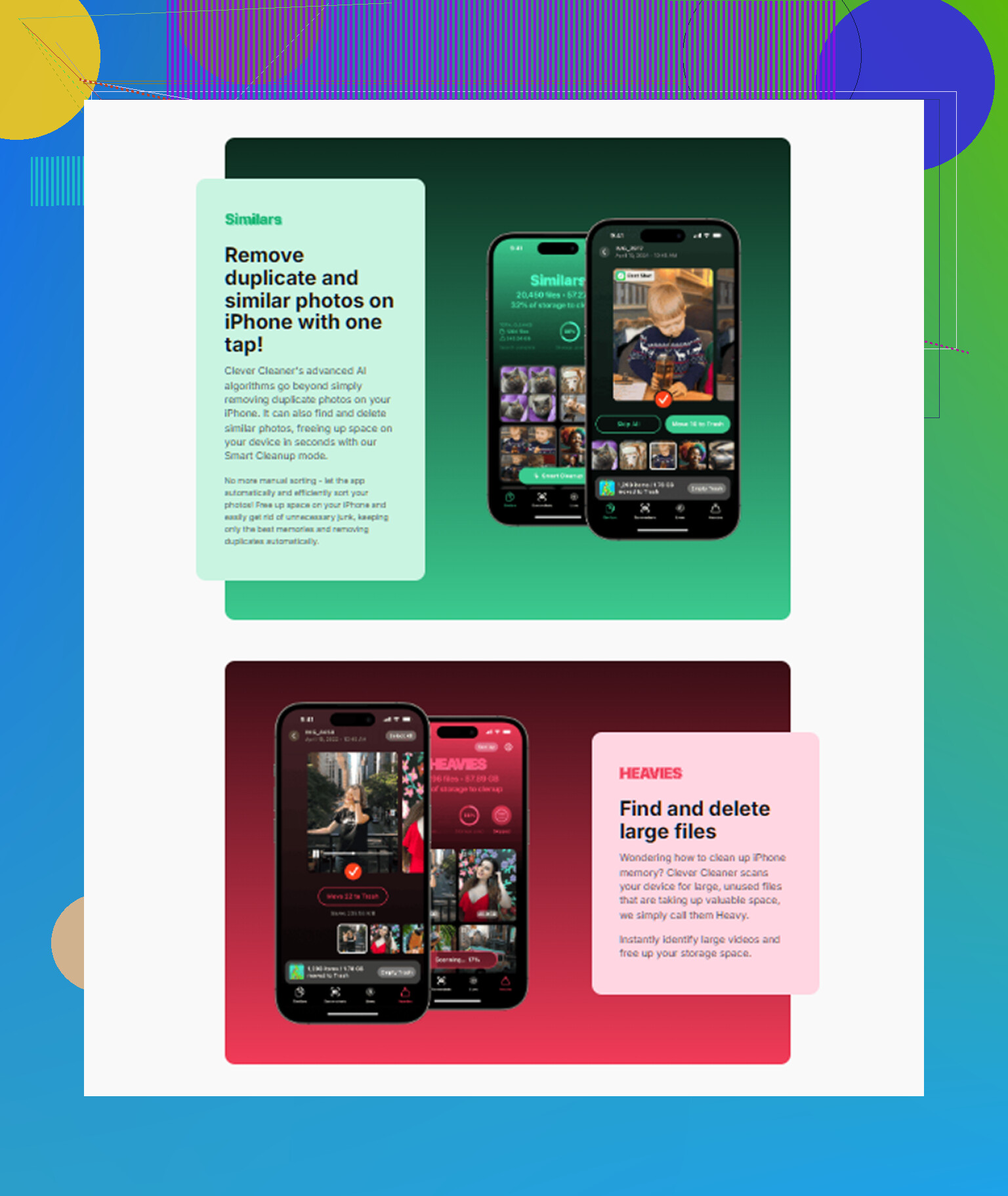
What stood out to me was the file sorting. The Heavies section puts the biggest items first, so the huge 4K clips and old screen recordings show up fast instead of being buried in thousands of photos. The Similars section groups near-matching photos and picks a best shot, which saves a ton of tapping if your camera roll is full of burst tries and repeat shots.
It runs on-device, too. I care about that more than most people do.
In one cleanup pass, I cleared around 12 GB, emptied Recently Deleted after, and the warning stopped showing up. The phone also felt less sluggish after that, which I did not expect but I noticed.
If the warning keeps showing even with free space
Sometimes the phone lies. Or more politely, iOS miscounts.
If Settings shows open storage but the alert keeps returning, restart the phone first. That forces a fresh storage count and fixes phantom warnings more often than people think.
If a restart doesn’t do it, back up the phone to iCloud or a computer, then do a factory reset. It’s a pain, yes. Still, when the issue comes from deep system garbage or broken storage indexing, manual cleanup won’t touch it. A reset usually does.
11 Likes
This happened to me after 17.x and the cause was not photos or apps. It was the update itself plus failed re-indexing. iPhone keeps a lot of temporary stuff after an iOS install. Spotlight rebuilds. Photos re-scans faces. Messages re-indexes attachments. If you were already close to full, it tips over fast.
I’d do two things people skip.
First, check for a half-downloaded iOS package.
Settings > General > iPhone Storage.
Look for an iOS update file in the app list. If you see it, delete it. Then restart. This frees a few GB on some phones.
Second, sync offload targets before deleting local data.
If Photos is set to Download and Keep Originals, switch to Optimize iPhone Storage.
If Messages in iCloud is off, turn it on and leave the phone on Wi-Fi and power for a while.
Same idea for Voice Memos and Files tied to iCloud Drive.
I disagree a bit with @mikeappsreviewer on jumping to a reset early. I’d save taht for last. A forced restart plus removing the stuck update file fixed it for me twice.
If you want faster cleanup, Clever Cleaner helps surface huge videos and duplicate shots quicker than Apple’s menu. Also useful if the phone is too full to hunt manually. This vid covers how to clear iPhone storage for free.
One more thing. If System Data stays huge for 24 to 48 hours after the update, plug into a Mac or PC and finish the iOS update through Finder or iTunes. That route fails less often when storage is tight. It’s annoyng, but it works.
Had this happen once and the annoying part is the update itself can trigger a bunch of background stuff that looks like missing storage when it’s really indexing chaos. So I mostly agree with @mikeappsreviewer and @cacadordeestrelas, but I would not start mass-deleting apps unless one app is obviously gigantic.
What I’d check that they didn’t really lean on enough:
- Mail app attachments. If you use the built-in Mail app with multiple accounts, old downloaded attachments can bloat local storage hard.
- Podcast downloads. The Podcasts app loves hanging onto old episodes.
- Music downloads. Same deal if you use Apple Music offline.
- WhatsApp or Telegram. Those apps can quietly store tons of media and docs, way more than people expect.
- Voice memos. People forget these exist until they find 8 GB of random recordings.
Also, after an update, plug the phone in, connect to Wi-Fi, lock it, and leave it alone for a while. Seriously. A few hours, sometimes overnight. iOS does cleanup and reindexing better when charging. If you keep using it nonstop while it’s trying to finish post-update tasks, storage numbers can stay wonky longer.
One thing I mildly disagree on: clearing Safari is fine, but it usually won’t rescue that much space unless you browse like an absolute maniac.
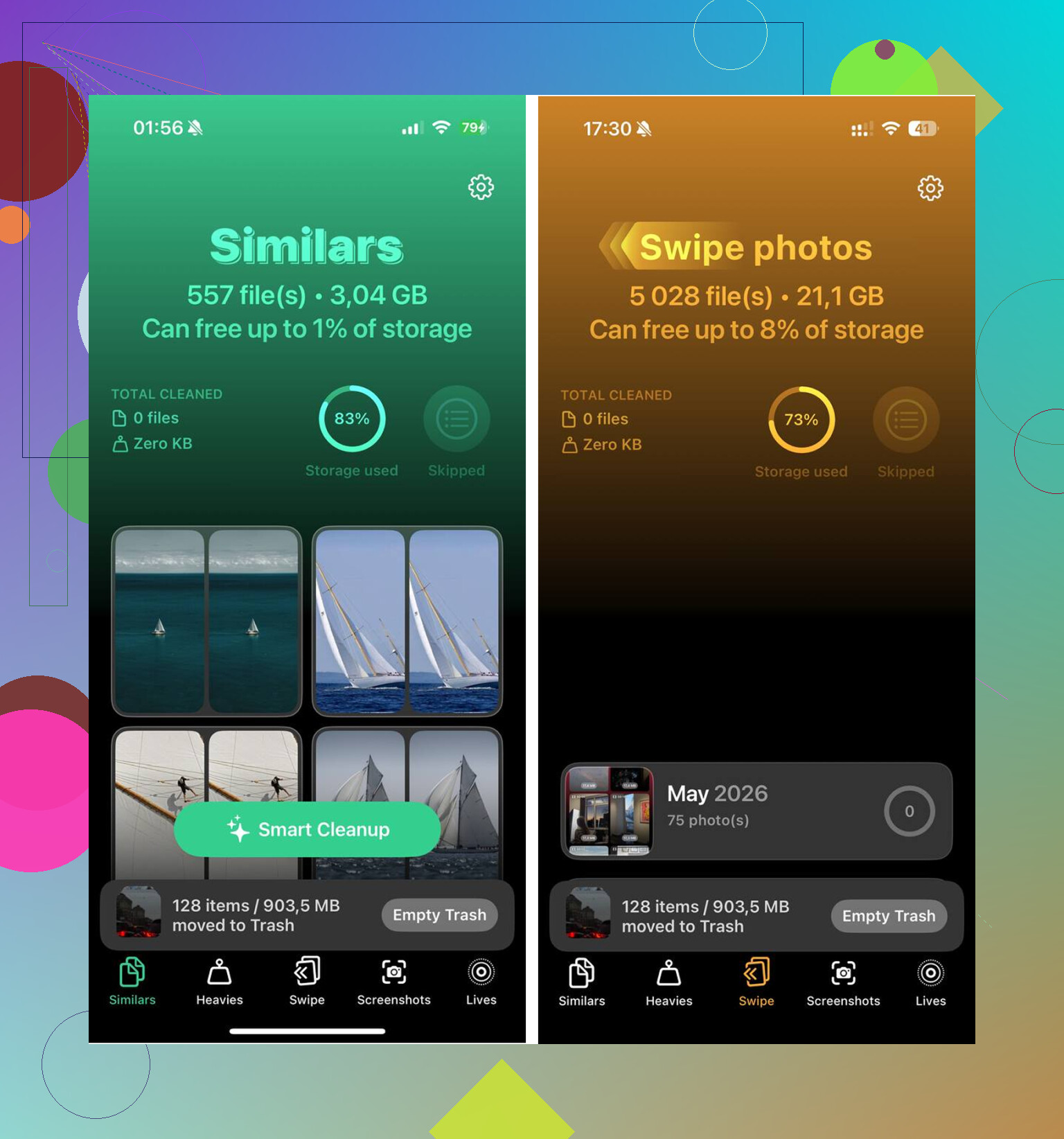
If you need faster triage, Clever Cleaner is actually useful for surfacing huge videos, duplicates, and junk screenshots when the native storage menu is being vague. If you care about safety before installing cleanup apps, this breakdown on whether AI cleaner apps are safe and verified by security researchers is worth a look.
If the phone is still stuck after all that, update through a computer. That fixes a lot of weird half-finished iOS messes tbh.
I’m with @cacadordeestrelas and @ombrasilente on not panic-deleting half your phone, but I’m a little less sold on the “just wait overnight” advice if the device is already choking. When free space gets critically low, iOS can get stuck in a dumb loop where background cleanup needs space to create temp files first.
A few things I’d check that weren’t really covered:
- App-specific downloads inside streaming apps. Netflix, YouTube, Spotify, Prime Video, Audible, Kindle all store offline files that sometimes do not show clearly in the main storage categories.
- Keyboard dictionaries and offline language packs. Rare, but after updates I’ve seen extra language data hang around.
- Shared albums and synced media from editing apps like CapCut, Lightroom, iMovie. Those cache exports hard.
- Mail “Recently Deleted” and giant attachment threads. Mail can be sneakier than Photos.
One trick that has helped me: change the date forward by a month, restart, then switch it back. Sounds weird, but it can force some expired caches and pending cleanup to recalculate. Not guaranteed, but safer than a reset.
Also check Analytics logs:
Settings > Privacy & Security > Analytics & Improvements > Analytics Data
If you see tons of repeated panic or storage-related logs, the phone may be failing cleanup repeatedly, which points more to a buggy update state than your actual files.
If you want fast triage, Clever Cleaner is decent for finding huge videos and duplicate clutter.
Pros:
- faster than hunting manually
- good for big photo/video libraries
- useful when Settings is vague
Cons:
- won’t fix broken iOS indexing
- still requires you to review before deleting
- less useful if the bloat is pure System Data
So yeah, I’d combine the practical checks from @mikeappsreviewer with targeted cleanup, not jump straight to wipe/reset unless storage stays broken for days.