I accidentally formatted my SD card in my camera before backing up the photos, and now I’m trying to figure out if there’s any way to recover them. The card has important pictures and videos on it, and I haven’t used it since the format. I need help with the best SD card recovery options, what software is safe to use, and what steps I should avoid so I don’t make things worse.
I had almost the same screwup last summer with a drone shoot. I was rushing to get one more flight in before sunset, saw some odd storage warning in the app, and tapped Format SD Card without thinking. A few seconds later it hit me. I had not copied over any of the footage from earlier in the day. Felt sick right away.
The good part, if there is one, is this: a format usually does not wipe everything off the card in the way people think.
Most of the time, unless you ran a full format on a computer or used one of the small number of cameras with a hardware erase feature, the device did a quick format. What changed was the file table, not all the raw data blocks.
The simple version is this. Your phone, camera, or computer stops seeing the old files and marks the card as free space. The photos and videos often still sit on the card until new data gets written over them. So after formatting, you are on a timer. The files are still there, but they are exposed.
If you want the best shot at recovery, do these things now.
-
Stop using the card.
Take it out right away. Do not shoot more video. Do not take test photos. If the SD card has a lock switch, slide it over. I did this the second I realized what happened, and it kept me from making it worse. -
Skip the old command prompt fixes.
A lot of old posts tell you to run CHKDSK or use attrib in Windows. I would not touch either one for this. Those tools deal with file system problems and hidden files. They do not reverse a format, and they might write changes to the card. -
Use a proper card reader.
Plug the SD card into your computer with a USB card reader. Do not leave it in the camera and connect the camera by cable. Some cameras do not expose the card cleanly enough for recovery software to scan it well. -
Use recovery software made for this job.
Doing it by hand is not realistic. You need software that reads the card at the raw sector level. This matters even more for video, since video files often end up split into chunks across the card. -
Save recovered files somewhere else.
This one trips people up. If the app finds your missing files, restore them to your computer drive or an external SSD. Do not write them back to the same SD card. If you do, you start overwriting other missing files.
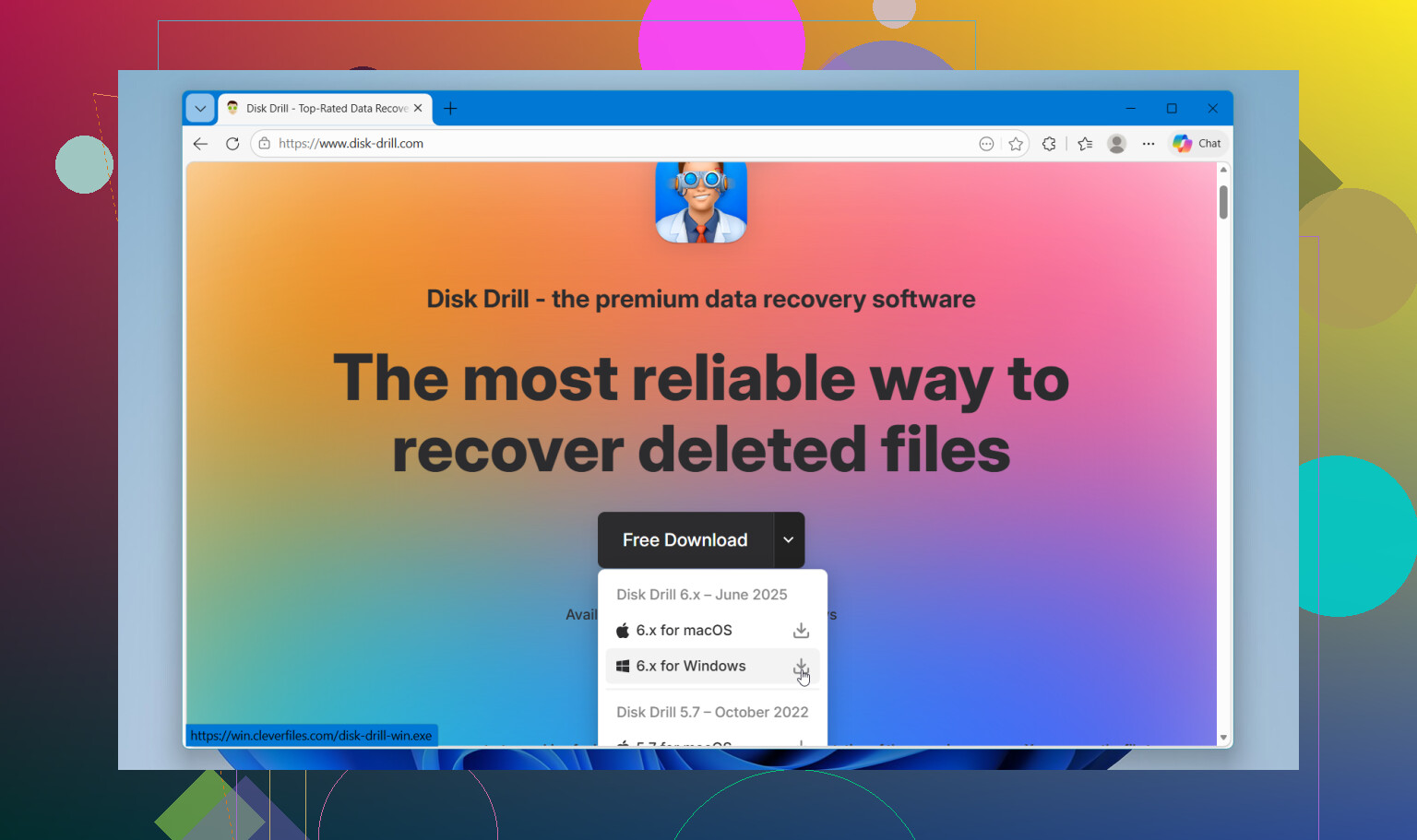
For software, I had the best result with Disk Drill.
I tried a couple of cheaper tools first. They pulled back some stills, but the video clips were a mess. Broken playback, partial files, weird lengths, some clips not opening at all. Drone footage and camera video are often fragmented, so weak recovery apps tend to grab pieces out of order.
What helped in my case was Disk Drill’s camera-focused recovery mode. It did a better job with split-up video files, and I could preview what it found before restoring anything. On Windows, there is also a small free recovery allowance, 100MB last time I checked, which was enough for me to test whether the recovered clips were intact before going further.
So, the order I would follow is pretty plain:
Take the card out.
Lock it.
Use a card reader.
Scan it with Disk Drill.
Recover files to a different drive.
Then wait. Deep scans take a while. Mine did. Still, seeing old clips show up one by one was a huge relief.
If you have not written anything new to the card yet, your odds are still decent.
23 Likes
If you stopped using the card, your odds are still decent. Formatting in-camera is often a quick reset of the file system, but I would not assume all files are intact either. Videos fail more often than photos, esp if the camera recorded in chunks.
I agree with @mikeappsreviewer on one big point, do not write anything new to the card. I slightly disagree on the lock switch part being a huge safeguard. On a lot of SD adapters it helps, on many devices it is only a write-protect flag, not true hardware protection. Still worth doing.
My advice, make a byte-for-byte image of the SD card first, then work from the image. That keeps the original card untouched if one scan tool misses files or corrupts previews. On Windows, HDD Raw Copy Tool works. On Mac or Linux, dd or ddrescue. Then run recovery software against the image, not the card. It takes longer, but it is safer.
If the photos were JPG, RAW, MP4, MOV, AVCHD, those are common signatures and tools often pick them up after format. File names and folder structure might be gone. Date stamps are hit or miss. Keep expectations realistic.
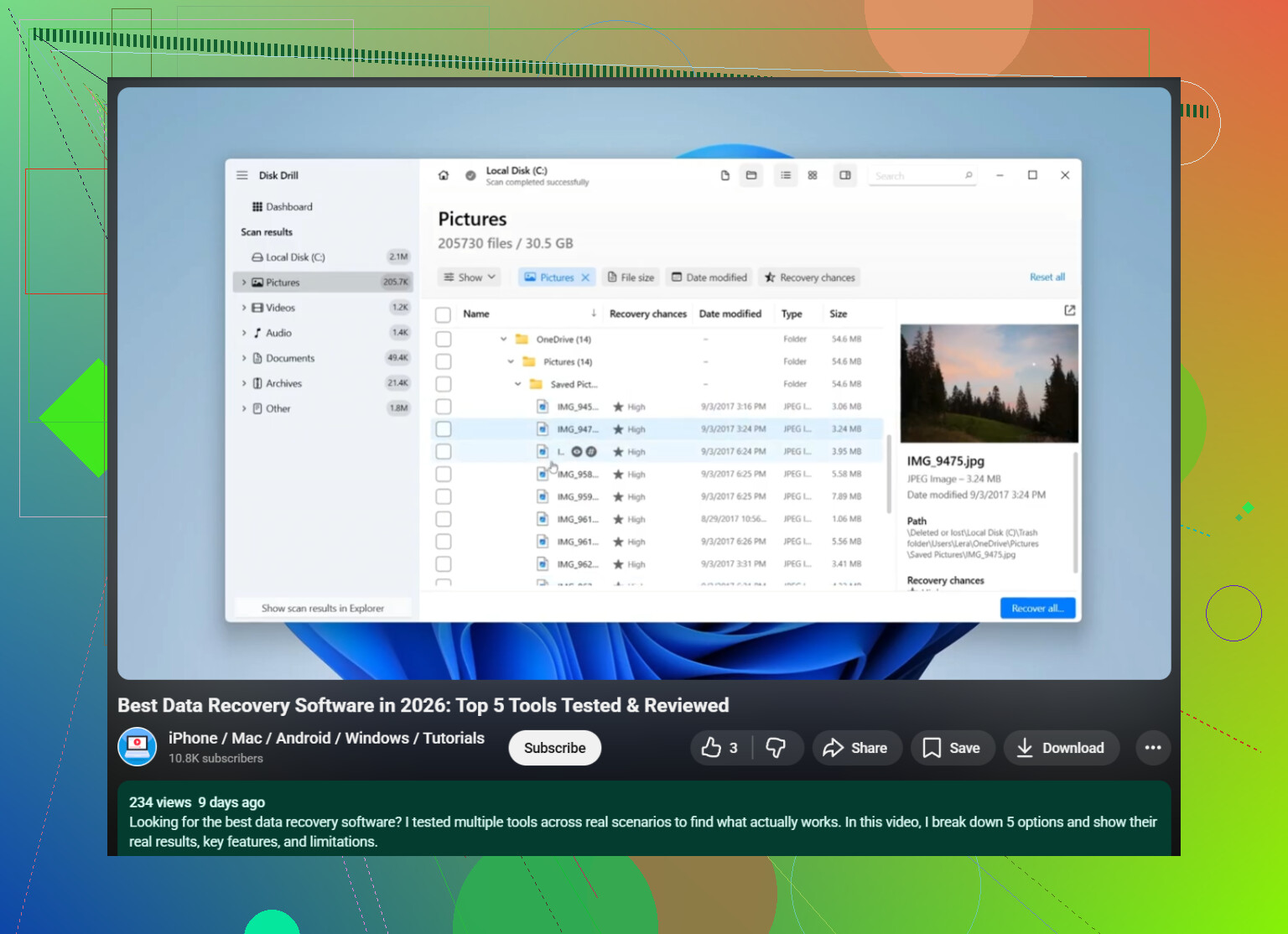
Disk Drill is a solid pick for this because it handles photo and video recovery well and is easy to sort through after a deep scan. Best way to phrase it, recover deleted photos and videos from an SD card with Disk Drill on your computer, then save the restored files to a different drive. That part matters a lot.
One more thing people skip. If the card starts disconnecting, reads slow, or throws I/O errors, stop scans and clone it first. Failing flash media gets worse fast. This lil detail saves people.
If you want a quick visual explainer, this SD card photo and video recovery walkthrough covers the basic flow.
If you really have not used the card since the in-camera format, your chances are still decent. I agree with @mikeappsreviewer and @reveurdenuit on the big stuff, but I would add one thing people under-rate: check what kind of format your camera actually does. Some cameras just rebuild the folder structure. Others do a more aggressive cleanup, and a few newer models can trim flash storage in a way that hurts recovery a lot.
So before running 5 diff recovery apps back to back, look up your exact camera model plus “format type” or “quick format.” That can save time and set expectations. Photos usually come back easier than videos. RAW files often recover fine but names may be gone. Video is where things get ugly fast.
Also, I would not obsess over getting the original folder tree back. Focus on recoverable content first. Metadata and neat organization are kinda a luxury at this stage.
If you want the simple route, Disk Drill is one of the better options for SD card photo and video recovery, especially when you need to sort through a mess of found files. I’d start there before going down a rabbit hole of sketchy freeware.
Also worth reading if you’re comparing tools: best data recovery software for photos, videos, and SD cards
One small disagreement with the usual advice: if the files are insanely important, don’t keep rescanning the original card over and over “just to see if another mode finds more.” That’s how people get sloppy and make mistakes. One careful pass, or clone first if you can. Tiny diff, big payoff.
One angle I’d add to what @reveurdenuit, @andarilhonoturno, and @mikeappsreviewer already covered: check whether the card is SD, SDHC, or SDXC and what file system the camera used. exFAT cards, especially larger SDXC ones used for long video clips, can be more annoying after an in-camera format because recovery may find giant raw chunks with missing metadata. That does not mean the footage is gone, just that some players will refuse to open it until it is repaired.
I slightly disagree with the “lock switch = safety” advice being very useful in every case. It’s fine as a habit, but the real protection is not mounting it in anything that might write thumbnails, logs, or indexing data.
If the files matter a lot, I’d actually avoid trying a pile of free tools first. Every extra mount, preview, and rescan is another chance for user error. Pick one decent tool, test carefully, and stick with it. Disk Drill is a reasonable choice here because it tends to do well with camera cards and gives a cleaner interface for sorting recovered JPG, RAW, MP4, and MOV files.
Disk Drill pros:
- Good support for common photo/video formats
- Preview helps filter junk before recovery
- Easier for non-tech users than many recovery apps
Disk Drill cons:
- Full recovery usually requires paid version
- Deep scan results can be messy and lose original names
- Video recovery is still hit-or-miss if clips were fragmented badly
One more practical tip: after recovery, verify videos by scrubbing through the middle, not just opening the first second. A lot of “recovered” clips are only partially intact.