My drive’s GPT partition table seems to be damaged after a failed partition change, and Windows no longer shows the partitions correctly. I need help restoring the GPT partition table while keeping the data intact, if possible. What’s the safest way to recover the partitions without formatting the disk?
First thing: don’t let Windows “fix” anything yet. If it says the drive needs to be formatted, cancel it. If the disk shows as Unallocated, RAW, or a GPT Protective Partition, that does not automatically mean the files are gone. A lot of the time the data is still there, but the partition info Windows needs to read it is damaged or being interpreted wrong.
The safest move is to stop using that drive right now. Don’t copy anything to it, don’t format it, don’t run random repair commands, and don’t keep booting from it if it’s your system drive. Any write to the disk can overwrite files you’re trying to recover. If it’s the main PC drive, boot from a recovery USB or connect the drive to another machine as a secondary disk.
I’d try to recover the files before trying to rebuild the partition table in place. Rebuilding can work, but it’s also where people make one bad choice and turn a recoverable problem into a much worse one. A recovery app is usually the lower-risk path because it scans the physical disk and copies found files somewhere else.
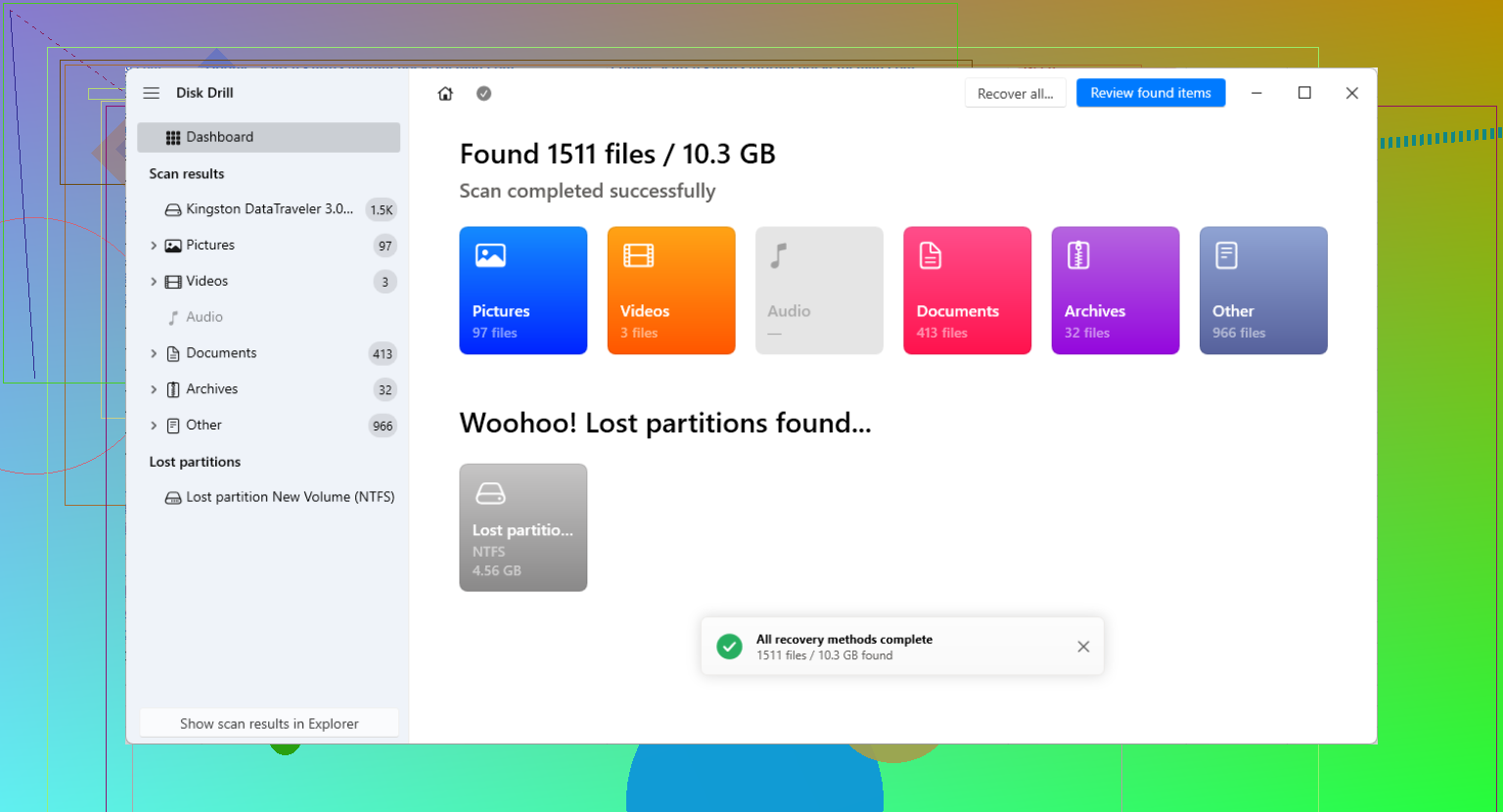
One option for that is Disk Drill. It’s made for this kind of situation, where the partition table might be missing or corrupted. You’d scan the whole physical drive, not the missing partition, then check what it finds before recovering anything.
The basic process is:
- Select the actual physical disk in the recovery software.
- Run a deep scan so it can look for lost partitions and file signatures.
- Use preview to check whether the files look intact.
- Recover the files to a different physical drive, never back onto the damaged one.
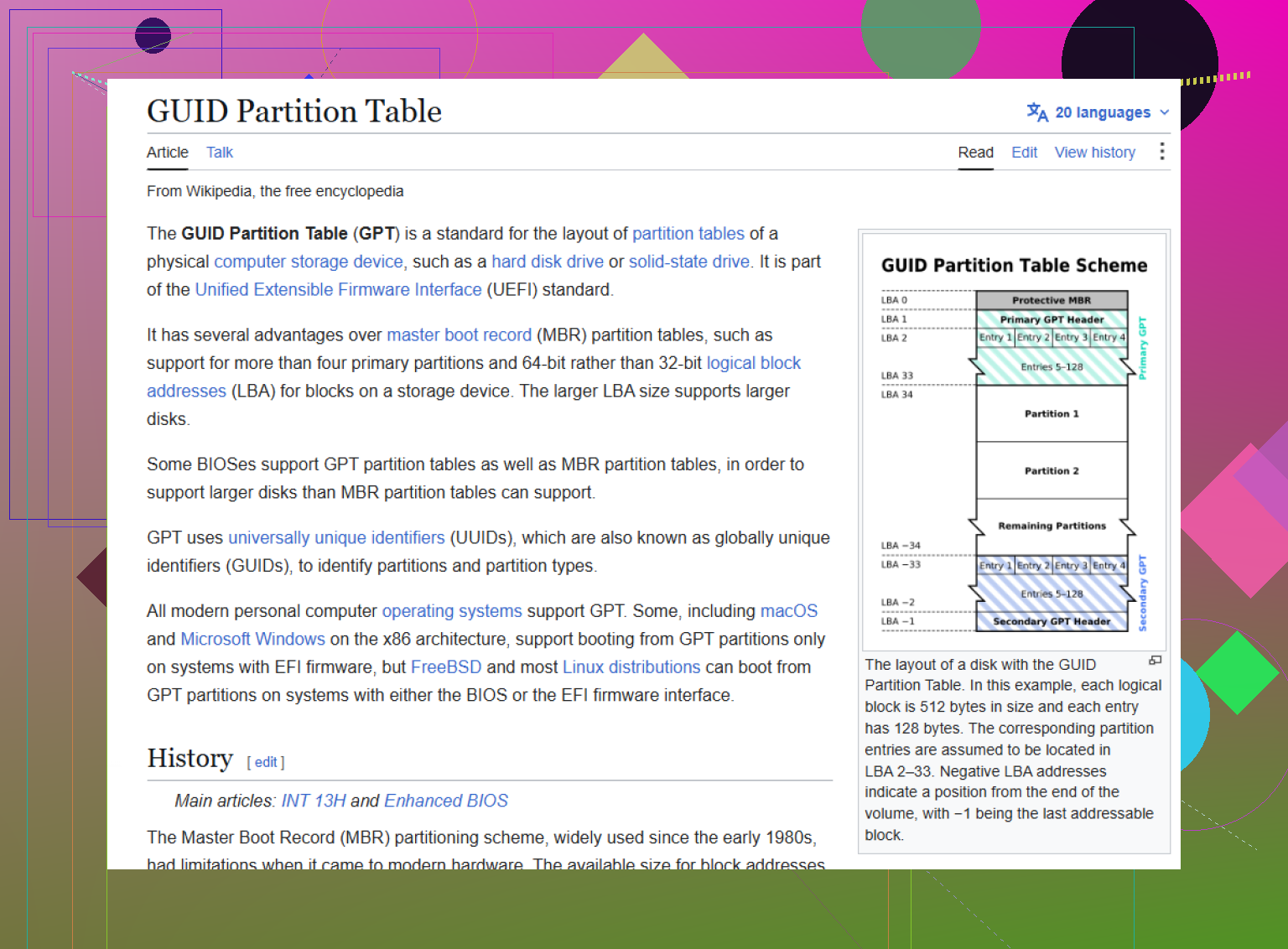
If you’re comfortable with command-line tools, TestDisk is also worth knowing about. It’s free and open-source, and it can sometimes rebuild a GPT layout by finding the backup GPT header at the end of the disk. GPT keeps a main header near the beginning and a backup at the end, so if only the main one is damaged, tools like TestDisk or gdisk may be able to reconstruct it.
That said, TestDisk is not very beginner-friendly. If you choose the wrong disk or write the wrong structure, you can make recovery harder. I’d only go that route after you’ve copied off the important files, or if you’re confident you understand what it’s asking.
One more thing to check, especially with external drives: the “GPT Protective Partition” message can happen when a drive is moved between an enclosure, USB dock, and direct SATA connection. Some docks/enclosures present the drive with a different sector size, like 512-byte versus 4096-byte blocks. If the drive was partitioned while inside one of those devices, Windows may not read it correctly when it’s connected another way.
So if this started after moving the drive, try putting it back into the original dock or enclosure first. Do not run Diskpart’s clean command. That wipes the partition table and gives you one more problem to deal with.
12 Likes
If the data is worth more than the cost of another drive, make a sector-by-sector image before trying to “restore” anything. That is the missing safety net here. Tools like TestDisk/gdisk can rebuild a GPT, but the write step is the risky part, especially after a failed resize or move. Work from a clone or image, then try partition recovery on that copy first. If the rebuilt table looks wrong, you can throw away the attempt and start again instead of damaging the only copy. I agree with not letting Windows format or repair it, but I would not make the damaged disk the experiment.
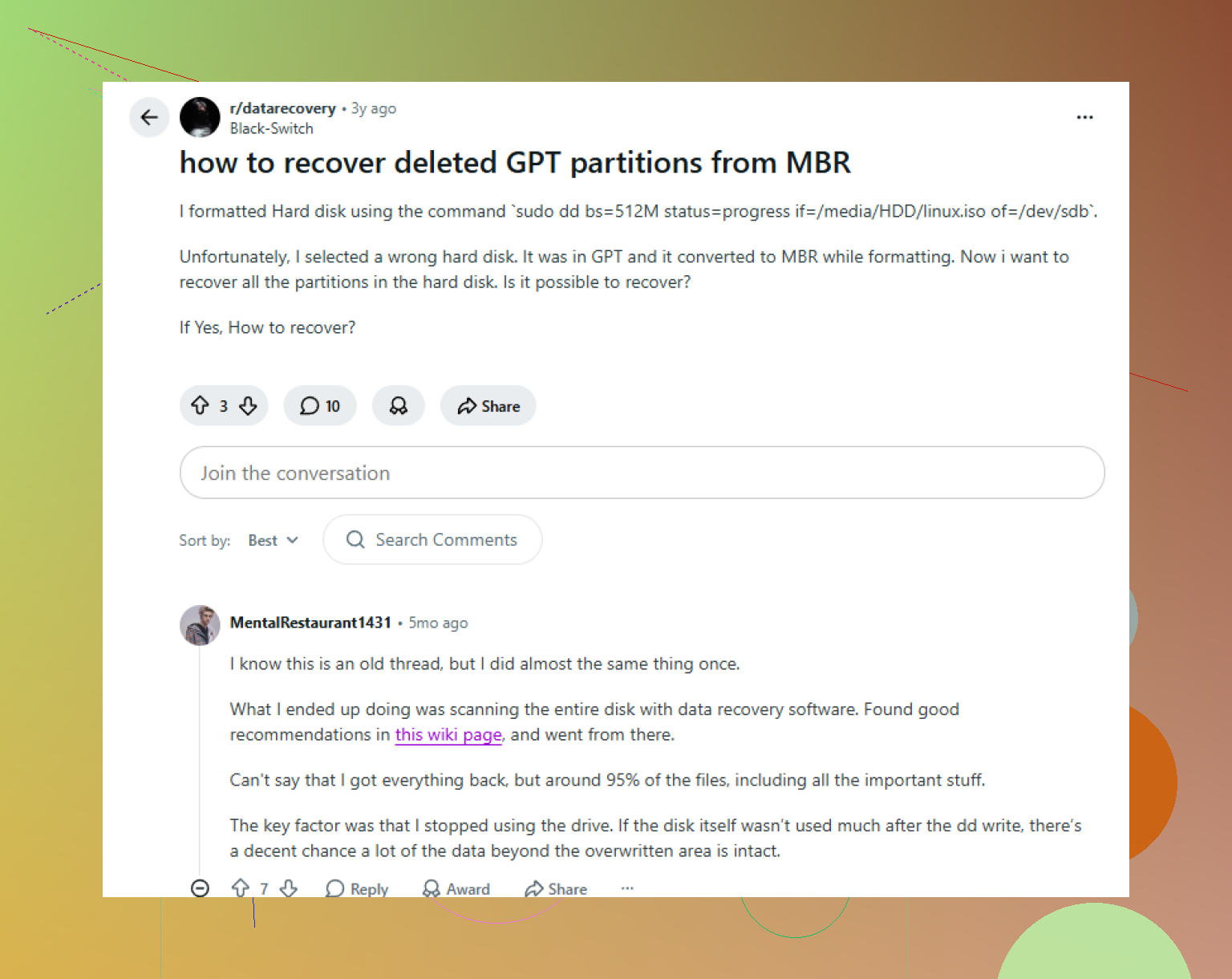
You may not be able to “restore the GPT” cleanly if the failed partition change had already started moving or resizing data. The partition table is only the map. If the map got erased, that is usually fixable. If the road underneath was being rebuilt and the job stopped halfway through, recreating the map may still leave you with a broken filesystem.
That is why I would not treat “rebuild GPT” as the first goal. The first goal is to identify the old partition start and end points without writing anything. If those can be found, then restoring the table is mostly putting the same coordinates back. If they cannot be found with confidence, writing a new GPT is guesswork.
@nachtschatten is right about imaging the disk first. Not glamorous, but it changes the whole situation. A raw clone gives you permission to make mistakes. Without it, every “try this” tool becomes a little scary because the final step is usually a write to the damaged drive.
The thing I’d be strict about is this: do not write a recovered partition layout just because a tool found something that looks close. A lot of recovery tools will show several possible NTFS/exFAT/Linux partitions from old layouts, previous installs, backup metadata, or partial moves. Some of those will even have believable sizes. Before writing anything, check that the found partition can actually list your expected folders and files. In TestDisk, for example, listing files from the found partition is more important than just seeing a green line in the partition list.
If you use gdisk, pay attention to whether it says the backup GPT is valid. GPT normally has a primary table near the front of the disk and a backup at the end, so a damaged primary GPT is often recoverable from the backup. But that only helps if the backup still matches the disk’s real layout. After a failed resize, the backup header may describe the old layout while the filesystem may have been partly changed. That mismatch is where people get fooled.
A rough safe order would be:
- Stop using the disk.
- Clone or image it sector by sector to another drive of equal or larger size.
- Work only on the clone.
- Scan the physical disk image, not a drive letter.
- Confirm the found partitions by browsing file names inside them.
- Only then consider writing the recovered GPT to the clone.
- If the clone mounts correctly and the files open, copy the data elsewhere before touching the original.
If this is a Windows system disk, expect several partitions, not just C:. There may be an EFI System Partition, Microsoft Reserved partition, the main Windows partition, and a recovery partition. Losing the small ones is annoying but usually not the same as losing your data. The main partition start sector is the critical part. If you recreate C: starting at the wrong sector, Windows may see it as RAW even though the data is still sitting there.
Another easy trap is creating a new partition in Disk Management “with the same size.” Don’t do that. Creating a new partition writes new metadata. Even if you choose not to format it, you are still changing the disk. Partition recovery is about finding the old boundaries, not making new ones that look similar.
If BitLocker was enabled, that changes what “recovered” looks like. A scanner may find the partition but the contents will not preview normally unless the BitLocker metadata is intact and you have the recovery key. In that case, random repair attempts can make things worse because the encryption header matters.
So yes, GPT can often be restored while keeping the data, but only when the recovered layout is verified before writing. If you mainly need the files back, recover them to another disk first and worry about making the original bootable later. If you mainly need the disk structure restored, do it on a clone and be very picky about accepting any proposed partition table.
Do not run chkdsk /f, bootrec, diskpart clean, or any “initialize disk” prompt against that drive. Those tools are for different problems. CHKDSK needs a filesystem it can understand, and if Windows is already confused about the partition boundaries, it may “repair” the wrong thing or write changes into places you still need untouched.
The missing detail I’d check before rebuilding anything is whether the drive is actually healthy. A failed partition resize can be just a software interruption, but it can also be the first sign of bad sectors or a flaky USB adapter. If the disk is clicking, disconnecting, throwing I/O errors, or taking forever to scan, stop treating this as a partition-table job. Image it with something that tolerates read errors, then work from the image. A normal clone tool may get stuck on one bad area and waste hours.
For GPT specifically, there are two different “recoveries” people mix together. Restoring the GPT means putting partition entries back with the right start sectors, end sectors, and partition types. Recovering files means scanning the contents and copying files out. If you need the data more than you need the disk to boot again, file recovery first is usually the saner route. If you need the partition table restored, then yes, TestDisk/gdisk can work, but only if what they find matches the real old layout.
A small gotcha: don’t trust partition size alone. Two NTFS partitions can look similar in size, especially if the disk has had Windows installed more than once. The start sector is the important number. If a tool finds a candidate partition, browse inside it before writing anything. Seeing familiar top-level folders is better than seeing “NTFS found.” Seeing actual recent file names is better still. If it only finds generic old folders or garbage names, don’t write that layout.
If you use Disk Drill, TestDisk, R-Studio, DMDE, or anything similar, scan the physical disk or image, not whatever broken drive letter Windows invented. Recover to another drive. After the files are safe, then you can afford to experiment with writing a repaired GPT to the clone. Trying to make the original drive mount again as the first move is tempting, but it puts the riskiest step before the backup step.