Messenger is taking up a lot of space on my phone, but clearing the cache doesn’t seem to lower the storage usage much. I’m trying to figure out how to actually reduce Messenger storage without losing important chats, photos, or settings. Any tips for Android or iPhone would help.
If Messenger is taking up a few gigabytes on your iPhone, the annoying part is that there isn’t a simple “clear cache” button like there is on Android. You can reduce it, but only one method actually wipes the stored junk properly.
Deleting Messenger does not erase your chats
Your Messenger conversations are stored on Facebook’s servers, not only on your phone. When you remove the local app data, you’re mainly getting rid of cached stuff like thumbnails, bits of videos, temporary media files, and other data Messenger saved so things would load faster.
After you reinstall and log back in, your messages and contacts sync back.
The one thing to be aware of is locally downloaded media. If you saved certain photos or videos inside Messenger for offline access, deleting the app removes those local copies. They should still be available in the conversation, but they won’t automatically come back as downloaded files.
The two iPhone options are not the same
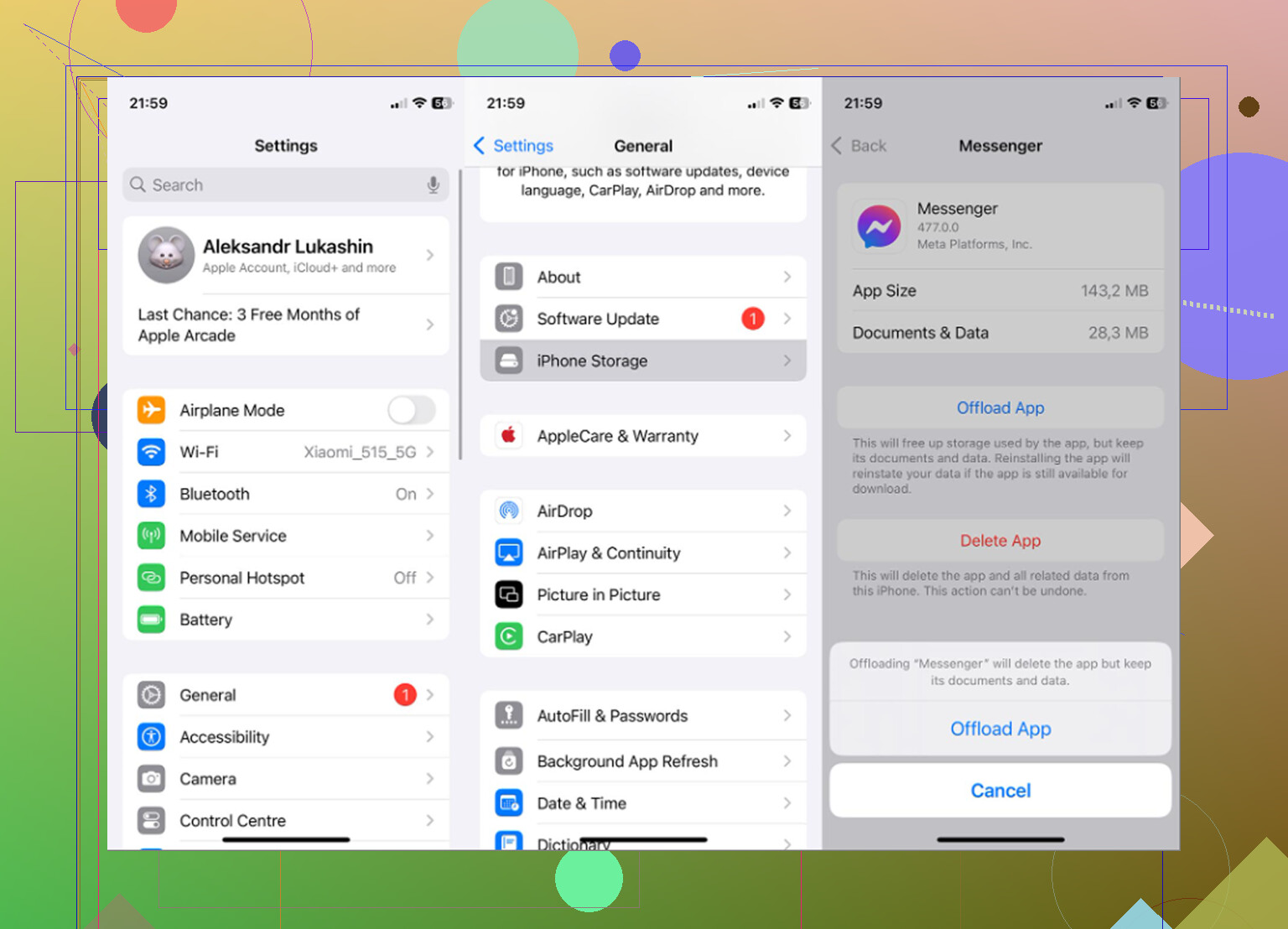
Go to Settings - General - iPhone Storage - Messenger. From there you’ll usually see two choices:
Offload App
This removes the Messenger app itself but keeps its Documents and Data on the phone. It can help if the app is glitching or crashing, and you may stay logged in after reinstalling. But if the problem is Messenger taking up a ton of storage, offloading usually won’t do much because the cached data stays behind.
Delete App
This is the one that actually clears the local Messenger data. It removes the app, cache, temporary files, and any downloaded media stored by Messenger. After reinstalling, you’ll need to log in again, but your chat history should come back from the server.
So if the goal is to clear several gigabytes of Messenger cache, delete and reinstall is the real fix.
If the storage number still looks weird afterward, restart the iPhone. Sometimes iOS just needs to recalculate what’s actually being used.
Messenger cache may not be the real reason your iPhone feels slow
Clearing Messenger can free up space, but it usually isn’t the biggest storage problem on the phone. iOS starts acting sluggish when storage is almost full because it needs free space for temporary files and background tasks.
If you clear 2GB from Messenger and the phone still feels cramped, check Photos next. That’s usually where the bigger mess is hiding: duplicate-looking burst shots, old screenshots, huge videos, and random clips nobody remembers saving.
What helped with the bigger storage issue
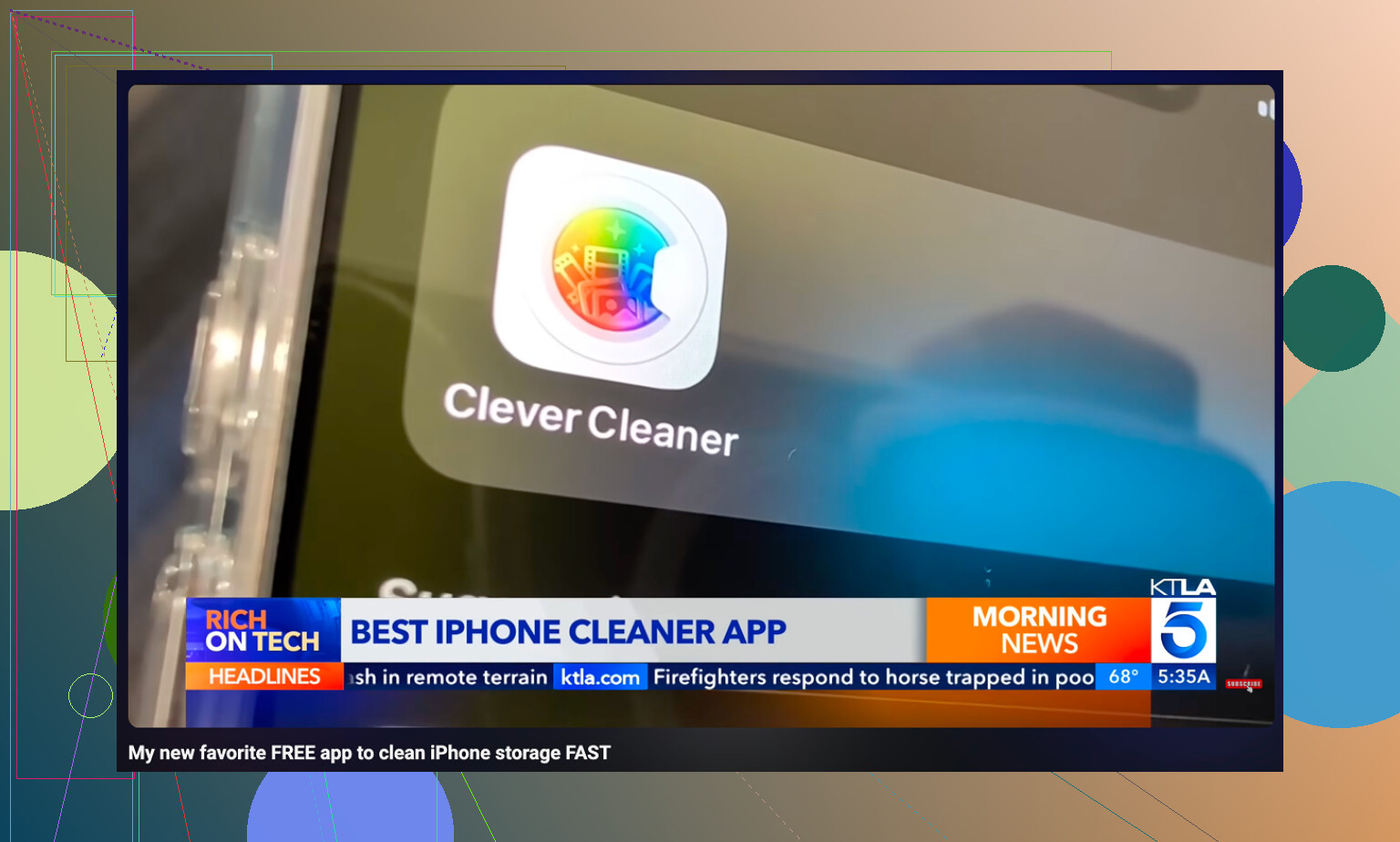
After Messenger was cleared, the photo library was still eating most of the space. Clever Cleaner was useful for that part. It does not clear Messenger cache or touch Messenger data, so you still need to delete and reinstall Messenger manually. Its job is cleaning up the Photos app.
It’s free, with no ads and no subscription.
The Heavies tab sorts files by size, largest first, and shows the exact file sizes. A few old 4K videos can easily take up more room than Messenger cache ever did.
The Similars tab groups near-identical photos and chooses a Best Shot, so you can clear multiple versions of the same picture without checking every single one by hand.
It also shows file sizes on screenshots before you delete them, which makes it easier to decide what is actually worth removing.
All processing happens on the iPhone, with nothing uploaded to outside servers.
The practical order is: delete and reinstall Messenger first, then clean up the photo library if the phone is still low on space. After deleting photos or videos, go to Photos - Recently Deleted - Delete All. Otherwise, the storage won’t really be freed yet.
3 Likes
The storage number you’re watching has to include the Messenger app itself, so it may never drop as much as you expect. If Messenger is 250MB as an app and 3GB in Documents/Data, deleting and reinstalling should mainly attack that 3GB part, not make Messenger look tiny forever. I agree with @mikeappsreviewer that Offload App is the wrong button for this problem. I’d just add that after reinstalling, don’t immediately scroll through years of chats and videos while checking storage, because Messenger will start rebuilding thumbnails and media cache again. Delete app, restart the phone, reinstall, log in, then check iPhone Storage after a few minutes. If it only drops a little, the “Messenger problem” may really be attachments still being pulled back into active conversations, not a cache you can permanently empty.
Don’t delete the app until you’re sure you can log back into the Facebook account, including two-factor codes, password manager access, or whatever recovery method you use. The storage fix is pretty simple, but getting locked out afterward is a much worse problem than a bloated cache.
I agree with the general point above that Offload App is usually useless for this specific issue. The missing bit is that iPhone Storage is not a live meter. After deleting Messenger, iOS may still show a stale number for a while, or the freed space may appear under System Data temporarily while it recalculates. So if you delete Messenger, immediately reinstall it, open a bunch of chats, and then check storage 30 seconds later, you can fool yourself into thinking nothing worked.
For a cleaner check, note your available storage first, delete Messenger, restart the phone, then check available storage before reinstalling. That tells you whether the phone actually got space back. After reinstalling, expect Messenger to grow again as soon as you open threads with lots of photos, voice messages, stickers, and videos. That part is normal. You can reduce the local junk, but you can’t make Messenger keep years of media-heavy conversations at zero storage while still browsing them normally.
Honest question before anyone deletes anything: how often are you willing to redo this? Because the delete-and-reinstall trick works, but it’s a treadmill. Open your busy threads for a week and that cache creeps right back up. If Messenger is your main chat app, you’ll be reinstalling every month, and that gets old fast.
So I’d fix the source instead of mopping up after it. Messenger on iPhone has a setting to stop saving photos and videos to your camera roll automatically. If that’s on, every media-heavy chat is dumping copies into Photos, which then shows up as Photos storage, not Messenger storage. That’s part of why @waldgeist and @vrijheidsvogel are right that the number never drops the way you’d expect. You’re partly chasing files that already jumped to a different bucket. Turn that off and the cache grows slower after each reinstall.
The Clever Cleaner mention earlier is fair for the Photos side, and honestly that’s where the auto-saved Messenger media ends up anyway, so it fits better than it might sound. Just don’t treat it as a Messenger fix, it isn’t one. My actual order would be: turn off auto-save first, then decide if you even need the reinstall. Half the time people clear 3GB, feel good for a day, and never touch the setting that refills it.