My iPhone keeps sending constant notifications, and I can’t figure out how to turn them off without missing important settings. I recently changed something by accident, and now alerts keep popping up all day. I need help finding the right notification settings so I can stop the distractions and use my phone normally again.
I ended up fixing this in pieces, not all at once. If your iPhone keeps chirping, buzzing, or throwing banners you do not want, there are a few clean ways to shut it down without wrecking the alerts you still need.
Turn off notifications for one app at a time
This is what I used first, because usually the problem is two or three apps acting dumb, not the whole phone.
- Open Settings.
- Tap Notifications.
- Scroll to Notification Style, then pick the app you want to quiet down.
- Switch Allow Notifications off.
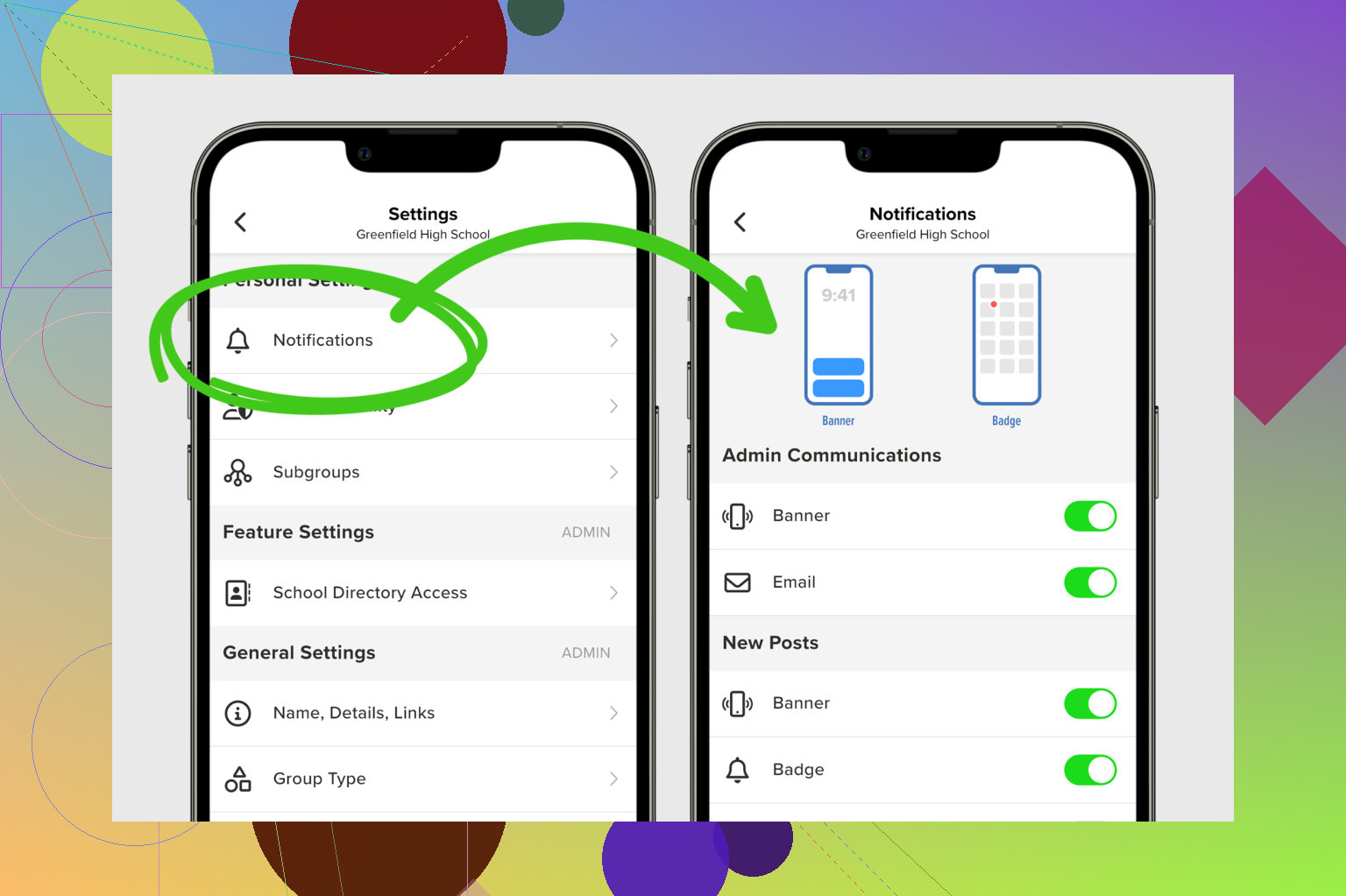
I did this for a shopping app and a game, and it cut most of the junk instantly. My texts still came through. Calendar reminders stayed on too. If your phone is noisy from one social app, this is the fastest fix.
Use Focus when you only want quiet for a while
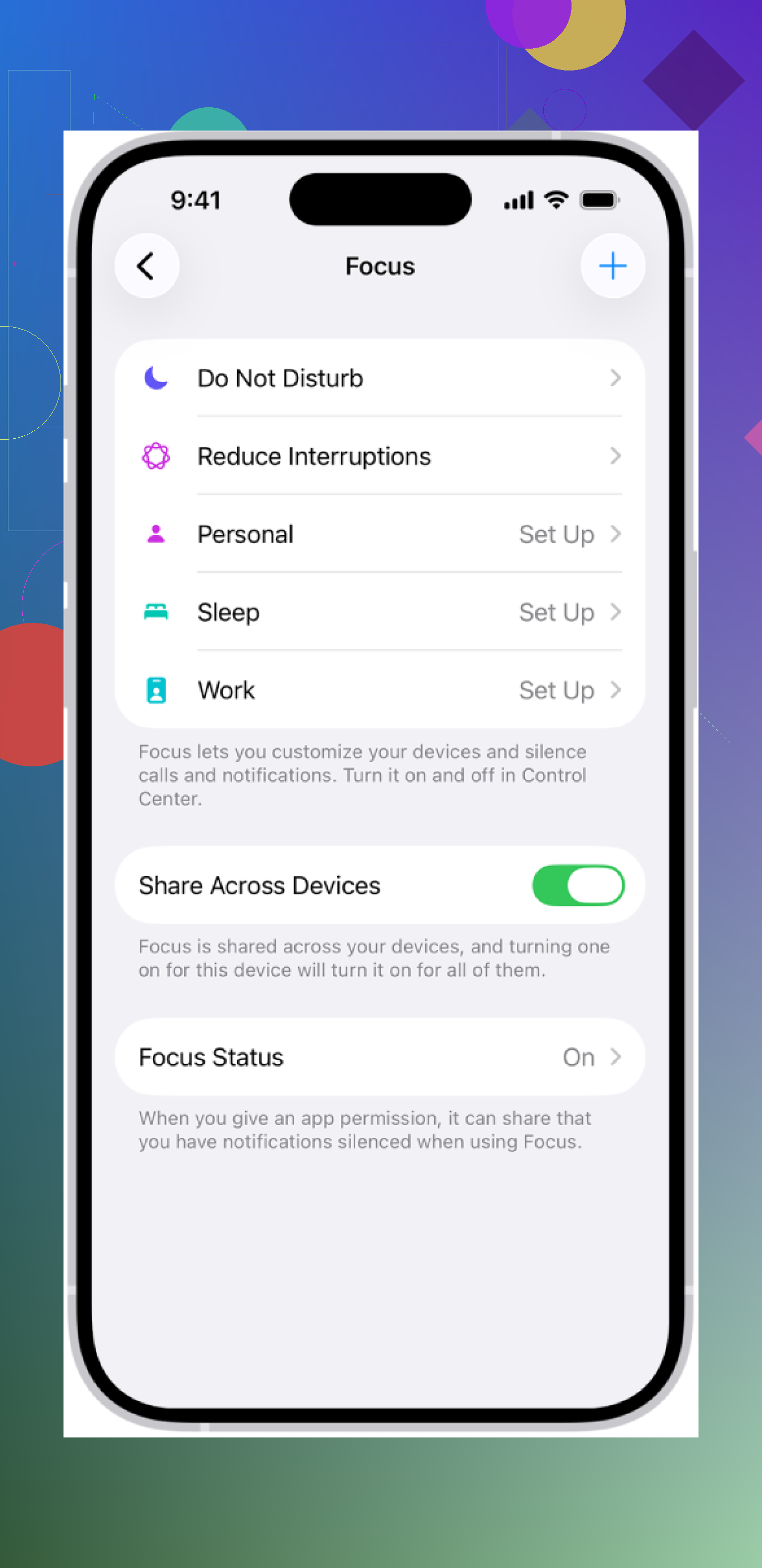
Sometimes I do not want to disable stuff for good. I only want the phone to stop bothering me while I sleep, work, or try to read something longer than two lines. Focus handles this better than nuking every notification setting.
Swipe down from the top right corner to open Control Center. Tap Focus, usually shown with a crescent moon. Once it is on, your iPhone silences alerts and calls based on the rules you picked earlier.
If you want to fine tune it, go to Settings > Focus. You can choose which people get through and which apps still show alerts. I kept calls from family on, blocked everything else, and it felt a lot less chaotic.
Mute the phone if the sound is the only problem
If you do not care about banners on screen and only want the noise gone, use the side switch. This is the blunt tool, but it works.
On most iPhones, flip the switch until you see the orange mark. That puts the phone in Silent Mode. On iPhone 15 Pro and newer, you might have the Action Button instead, so press and hold it if it is set up for silent mode. You can also change this from Control Center.
I used this when I still needed to see incoming stuff, but I did not want sounds going off on my desk every ten minutes. Different problem, simpler fix.
If you want more edge cases and random real-world workarounds, this thread has a bunch of useful replies: user experiences and solutions
16 Likes
If this started after you changed one setting by accident, I’d check summary and lock screen settings first. @mikeappsreviewer covered the app-by-app route, but I don’t think that’s always the fastest fix.
Try this.
Go to Settings, Notifications, Scheduled Summary. If it got turned on or changed, your phone starts bunching alerts and throwing them at odd times. Turn it off, or remove noisy apps from the summary.
Then check Settings, Notifications, Show Previews. Set it to When Unlocked or Never if the constant popups are the part driving you nuts.
Also open Settings, Notifications, and look at these:
- Screen Sharing. Turn it off if enabled.
- Announce Notifications. Turn it off if Siri keeps reading stuff in AirPods.
- Repeated alerts under Messages. Set it to Never if texts keep pinging twice.
One more thing people miss. Go to Settings, Mail, Notifications. Mail is often the spam factory. Same for Calendar if shared calendars got added by mistake.
If the issue is brand new, restart the phone after changing this stuff. iOS gets wierd sometimes.
If this started after you changed one thing by accident, I’d also check whether Back Tap or some weird accessibility setting got tied to notification behavior. @mikeappsreviewer and @jeff covered the obvious notification menus already, so I’d look a little sideways.
Try these spots:
- Settings > Sounds & Haptics
Turn down or change the alert volume if the issue is more noise than popups. - Settings > Accessibility > Touch > Back Tap
Sometimes people enable shortcuts by accident and trigger stuff without realizing it. - Settings > Cellular or Wi-Fi
If a bunch of apps suddenly reconnected and started syncing, that can look like “constant notifications” when really they’re all catching up. - Settings > General > VPN & Device Management
If you installed a profile for work, school, or some random app, it can push extra prompts/settings.
Also, and I kinda disagree with going app-by-app first, because that takes forever if the real problem is one system toggle. Check whether you accidentally enabled persistent banners:
Settings > Notifications > pick the annoying app > Banner Style
Set it to Temporary instead of Persistent.
That one gets missed a lot. It makes alerts feel nonstop becasue they just sit there. If the phone is still acting dumb after that, reset only notification-related behavior by doing a normal restart, then recheck the apps that are worst offenders. Sometimes iOS just gets a little wonky.
I’d skip the nuclear option and use Notification Center cleanup first. Slight disagreement with @mikeappsreviewer here: app-by-app is precise, but if everything suddenly feels noisy, the faster fix is often clearing how alerts are displayed, not disabling them all.
Try these:
- Swipe down from the top of the screen, then clear old stacked notifications. Sometimes it just looks like the phone is constantly alerting when the pile never got cleared.
- Go to Settings > Notifications > Sort By and switch it to By App. Easier to spot the real offender fast.
- Open the worst app and turn off only Sounds or Badges instead of killing all notifications.
- For social apps, check the app’s own internal notification settings too. Instagram, Facebook, Gmail, Slack, etc. often ignore your expectations unless you mute categories inside the app itself.
- Go to Settings > Battery and see what app has been hyperactive in the background. That often points straight at the spam source.
@jeff’s Summary check is smart, and @techchizkid is right about persistent banners being sneaky. But if this started after one accidental change, I’d also check whether you enabled notifications from inside one app, not iOS itself.
Pros for ': clean readability, easy to scan.
Cons for ': no real value if it’s empty or undefined.