I’m trying to figure out the best way to clear cache on my iPhone to free up storage and speed it up. I’ve deleted a few apps and photos, but my storage is still almost full and some apps feel slow or glitchy. What’s the proper way to clear cache on iPhone without losing important data or messing up my settings
iOS does not have a one-tap “clear all cache” button, so you need to hit it from a few angles. Here is what usually works best.
- Check what eats storage
Settings > General > iPhone Storage.
Wait a bit for it to load.
Look at:
- Top apps in the list
- System Data size
This tells you where to focus.
-
Offload heavy apps
For apps you use sometimes but not daily:
Settings > General > iPhone Storage > tap an app > Offload App.
This removes the app but keeps its documents.
Icon stays on the Home Screen. Tap to reinstall later.
Good for big games or social apps. -
Hard reset large cache apps
For apps like Instagram, TikTok, Facebook, Chrome, Reddit etc:
There is usually no “clear cache” button in iOS.
The reliable method:
- Open the app, log out if needed
- Delete the app
- Restart iPhone
- Reinstall from App Store
You lose temp cache, not your account data.
This often frees a few GB if the app was bloated.
-
Clear Safari cache
Settings > Safari > Clear History and Website Data.
If you want more control, scroll down: Advanced > Website Data > Remove All Website Data.
This helps if Safari feels slow or stuck. -
Remove old Messages junk
Messages uses lots of space with photos, videos, stickers.
Settings > Messages:
- Under Message History set Keep Messages to 1 Year or 30 Days, not Forever.
Then: Settings > General > iPhone Storage > Messages.
Check: - Top Conversations
- Photos
- Videos
- GIFs and Stickers
Delete large threads and big attachments you do not need.
- Clean photos and videos more deeply
- Delete big videos you do not need.
- Open Photos > Albums > Recently Deleted and empty it.
- Use “Duplicate” cleanup inside Photos if you have iOS 16 or newer. It merges duplicates so you save space.
- System Data too big
If System Data in iPhone Storage is huge (like 10+ GB):
- Restart iPhone.
- Make sure iOS is updated.
If it stays huge and phone feels laggy, a backup and restore helps: - Backup to iCloud or computer.
- Erase all content.
- Restore from backup.
Takes time, but often cuts System Data a lot.
-
Use an app to speed up manual cleanup
If you do not want to dig through everything by hand, try a cleanup helper.
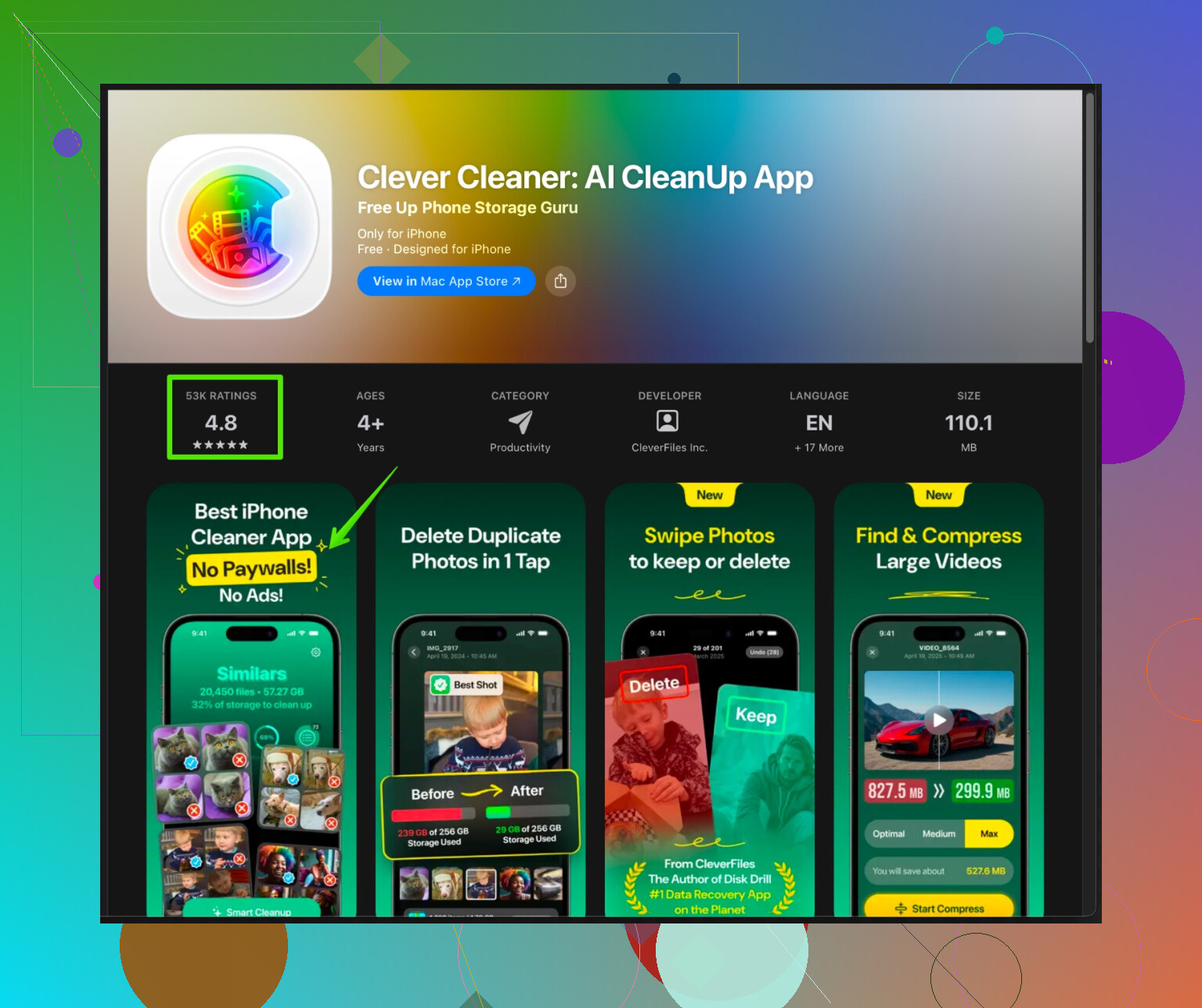
The Clever Cleaner App for iPhone focuses on junk photos, duplicates, similar shots, screenshots and large media files so you clear space without guessing.
You can find it here:
smart iPhone cleanup with Clever Cleaner
Good if your gallery is a mess and you do not want to scroll for an hour. -
Basic performance tips
- Restart the iPhone once in a while.
- Keep at least 5 to 10 GB free if possible. iOS runs smoother with some free space.
- Avoid letting storage sit at 1 or 2 GB free for long.
Do those steps in this order: check iPhone Storage, clear Safari, clean Messages, delete and reinstall heavy social apps, clean Photos, then use something like Clever Cleaner App for the leftover junk. That usually fixes both the “almost full” problem and random slowdowns.
19 Likes
You’re already on the right track, and @himmelsjager covered a lot, but I’d tweak a few things and add some stuff they didn’t mention.
First, quick reality check: “clearing cache” on iPhone is messy. iOS is very “I know better than you,” so there’s no single nuke button. Also, deleting and reinstalling every heavy app all the time is overkill and kind of annoying, so I treat that as a last resort, not the default.
Here’s what I’d do that adds to what was already said:
-
Look at Other hidden hogs in iPhone Storage
In Settings > General > iPhone Storage, scroll past the obvious big apps and tap:-
Podcasts
-
WhatsApp / Telegram / Signal
-
Mail
These are notorious storage gremlins that feel like “cache” but are actually “data.” -
Podcasts: Delete old downloaded episodes in the Podcasts app. Turn off “Automatically Download” for shows you barely listen to.
-
WhatsApp / similar: In WhatsApp > Settings > Storage and Data > Manage Storage, purge giant videos and GIFs from group chats. This can free multiple GB by itself.
-
Mail: If Mail is huge, try removing your account in Settings > Mail > Accounts, then re-adding it. That effectively clears its cached mail and attachments.
-
-
Tame background stuff that causes slowdowns
It’s not just storage. Some slowness is from apps constantly doing background work. That eats RAM and can make the system feel laggy even with storage cleared.Go to Settings > General > Background App Refresh and:
- Turn it off for social apps you don’t need running 24/7.
- Kill it for anything you rarely open.
Also in Settings > Privacy & Security > Location Services:
- Switch most apps from “Always” to “While Using” or “Never.”
That doesn’t clear cache, but it absolutely helps with general smoothness.
-
Photos optimization instead of constant manual deleting
Instead of just deleting random photos forever, use iCloud the way Apple actually wants you to:- Settings > Photos > turn on iCloud Photos
- Turn on “Optimize iPhone Storage”
Your full‑res photos live in iCloud; the phone keeps smaller versions. This is often a bigger win than micromanaging individual photos, and it feels less like playing storage whack‑a‑mole.
-
Don’t go crazy reinstalling every app
This is where I slightly disagree with @himmelsjager. Deleting and reinstalling every “big” app works, but it can be a pain if you constantly have to log in, redo settings, etc. I’d target it:Only fully delete and reinstall apps that:
- Are huge in iPhone Storage AND
- You know are loaded with temp data (social, browsers, streaming, etc) AND
- Actually feel slow or buggy
For stuff like banking apps, authenticator apps, or apps with weird login flows, I’d avoid the nuke unless you’re desperate.
-
Clear in‑app caches where possible
Some apps do have their own cache settings, just hidden:- YouTube: Settings in the app → sometimes clearing watch history / offline data helps.
- Netflix / Prime / etc: Remove “Downloads” inside the app. Those are massive.
- Some browsers like Firefox / Chrome on iOS: Settings inside the app → Clear browsing data.
This is “safer” than uninstalling because your app settings usually stay intact.
-
iCloud Drive, Files, and Voice Memos
People forget these exist:- Open the Files app → On My iPhone → delete any old downloads, offline files, random PDFs.
- Voice Memos: audio files can be huge. Delete old recordings and empty their Recently Deleted.
- Check apps like GarageBand, CapCut, VN, etc. Video projects and music projects take insane space and are often basically cache or work files you’re done with.
-
When System Data is bloated and nothing helps
System Data is Apple’s mysterious junk drawer. @himmelsjager already mentioned backup / restore. I’ll just add two things:- Before the nuclear restore option, try:
- Settings > General > Transfer or Reset iPhone > Reset > Reset All Settings.
This does NOT erase your data, but it resets preferences. Sometimes System Data shrinks after a couple reboots.
- Settings > General > Transfer or Reset iPhone > Reset > Reset All Settings.
- If you’re constantly under 2–3 GB free, iOS gets weird and System Data tends to swell more. Try to stay above ~5 GB free. I know, easier said than done.
- Before the nuclear restore option, try:
-
Use a smart cleaner specifically for photos & media
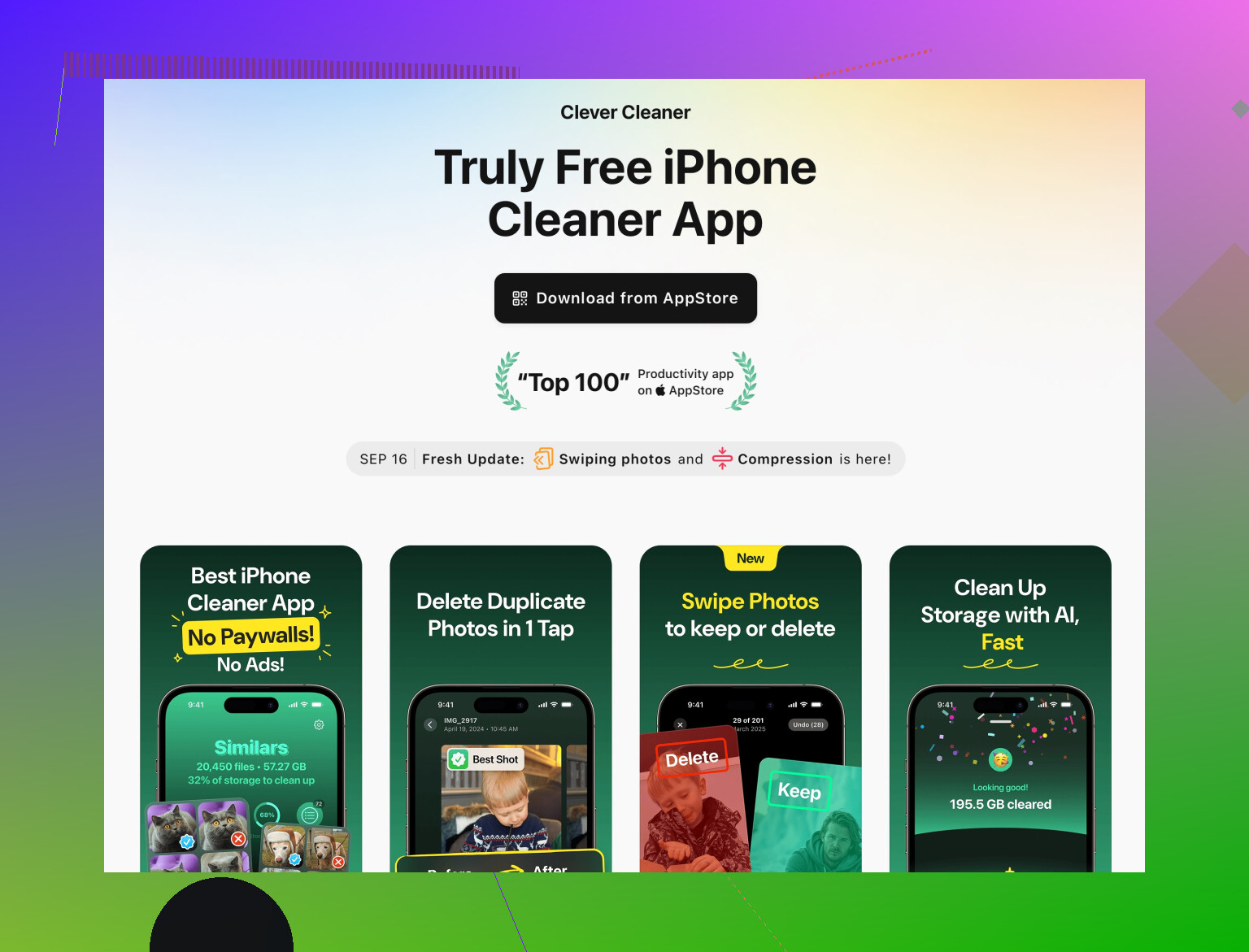
Since a lot of “cache-like” junk is actually bad or duplicate photos, screenshots, or similar shots, a focused cleaner can save some sanity if you don’t want to scroll for hours.That’s where something like the Clever Cleaner App actually makes sense. It’s not magic, but it does a good job of:
- Finding duplicate / similar photos
- Surfacing useless screenshots and blurred shots
- Highlighting giant media files you forgot existed
If you go this route, check this out:
smart iPhone photo and storage cleanup toolJust don’t blindly auto‑delete everything it suggests. Review before confirming, especially with “similar” photos where it might pick your favorite angle as “junk.”
-
Quick checklist order I’d use
- Settings > General > iPhone Storage: identify the worst offenders.
- Clean up Messages, WhatsApp, Podcasts, Mail, Photos.
- Turn on iCloud Photos + Optimize iPhone Storage if you’re okay with cloud.
- Clear Safari + in‑app caches for browsers / streaming apps.
- Disable Background App Refresh for non‑essential apps.
- Only then delete & reinstall truly bloated, glitchy apps.
- If System Data is still massive and phone is laggy, consider Reset All Settings, and as a last resort, backup → erase → restore.
Do a couple of these in one sitting, reboot the phone, then check iPhone Storage again after a while. It usually takes iOS a bit to recalc space, so don’t panic if it doesn’t drop instantly.
Short version: you have already hit the obvious stuff, and @viaggiatoresolare and @himmelsjager covered most of the standard iOS levers. Let me fill in a few gaps, disagree on one thing, and give you a practical angle that focuses on effort vs. payoff.
1. Do not obsess over “cache” alone
Both replies lean on the idea of cache as the main villain. On iOS, space hogs are more often persistent data:
- Offline downloads in media apps
- Chat media in messengers
- Old “On My iPhone” files
- Multiple local photo libraries from editing apps
So instead of hunting an imaginary “clear all cache” button, aim for “where is data I will never care about again.”
2. Triage the worst offenders that look small
A detail that often gets missed: some apps look modest in Settings > General > iPhone Storage but hide big extras:
- Video editors (CapCut, VN, InShot, etc.): tap into them in iPhone Storage and check “Documents & Data.” Old drafts and exports pile up. Usually safe to delete old projects inside the app.
- Scanners / PDF apps: large multi‑page scans with images are sneaky. Export anything important to cloud, then nuke old scans.
- Navigation apps: offline maps from Google Maps or Maps.me can take gigabytes. Keeping only your region instead of the whole country helps.
This gives you more payoff per minute than micro‑managing system “Other.”
3. Where I slightly disagree with the others: restore vs. lifestyle fixes
Both @viaggiatoresolare and @himmelsjager eventually point toward backup → erase → restore when System Data is bloated. It definitely works, but I would treat that as a once every year or two move, not something you reach for whenever storage feels tight.
What usually works longer-term:
- Decide which apps are allowed to keep big offline content: maybe your podcast app and one streaming app, nothing else.
- Make a rule: no permanent offline videos in two different places. If Netflix gets to keep some, YouTube does not, or vice versa.
- Lightly audit your heaviest 5 apps once a month instead of doing a full cleanse every 6 to 12 months.
Less dramatic, more sustainable.
4. Hidden cleanup spots neither of them really leaned on
A few areas that often free hundreds of MB to a few GB with minimal downside:
-
Keyboard and dictionaries
Third‑party keyboards, translation apps and offline dictionaries can add up. If you tried a keyboard for a week and abandoned it, delete it outright. -
Shortcuts and automation junk
If you experiment with Shortcuts, some workflows keep local files. Remove old, complex shortcuts you never use. It is small, but zero harm. -
Downloaded documents in “Open in…” graveyards
Lots of “open in GoodNotes / Notability / PDF Expert” tests turn into orphaned files. Open those apps and remove demo notebooks, sample PDFs and anything you know you never reread. -
Old device backups in Finder / iTunes (on your computer)
Not storage on the phone, but if you sync or restore, ancient backups can bring clutter back. Worth pruning on the computer side so your next restore is cleaner.
5. About cleaners and specifically the Clever Cleaner App
You already got it suggested. Here is the non‑marketing, pros-and-cons view:
-
Pros of Clever Cleaner App
- Actually useful for photo bloat: finds duplicates, near-duplicates, screenshots and large videos you forgot about.
- Faster than scrolling manually if you have tens of thousands of photos.
- Better “visual” decision making: you see clusters of similar shots so you keep one and delete the rest.
- Nice for people who do not want to think about file paths or iCloud management.
-
Cons of Clever Cleaner App
- It cannot touch true system cache or “System Data” in iOS. No third‑party app can.
- “Similar” detection is not perfect: it might flag a series of photos where you actually care about several angles, so you must review carefully.
- If you already have iCloud Photos with Optimize Storage on and a small library, gains are smaller.
- It adds another app to your phone; if you never use it after the first cleanup, it becomes its own tiny source of clutter.
I see it as a strong option specifically for cleaning up your Photos mess and large media files, not as an all‑purpose cache eraser. Compared with what @viaggiatoresolare and @himmelsjager discussed, it is less about system tuning and more about visual junk removal.
6. Complementing their advice in one pass
If I were in your place, knowing what has already been suggested, I would do just this in order:
- iPhone Storage: identify top 5 data hogs, including non‑obvious ones like video editors or scanner apps.
- Inside those apps, delete old projects / drafts / downloads rather than uninstalling everything.
- Run a focused gallery cleanup with something like the Clever Cleaner App to deal with duplicate and bad photos in bulk, double‑checking its suggestions.
- Turn off auto‑downloads in podcast / streaming / chat apps so you do not refill the phone in a week.
- Only if System Data is still huge and the phone remains sluggish after a couple of days and reboots would I jump to backup → erase → restore.
That way you are not just freeing space once, you are also changing the habits that caused the storage crunch so it does not bounce back immediately.