I accidentally deleted important photos and documents from my USB flash drive, then realized deleted USB files do not go to the Recycle Bin. I need help finding the best way to recover files from a USB drive before they get overwritten. Are there any safe recovery steps or tools that actually work?
I ran into this with flash drives before. Deleting from a USB is not the same as deleting from your main drive. A lot of the time it bypasses the Recycle Bin, so it looks final right away. Still, deleted does not always mean erased.
The first thing I’d do is stop touching the USB stick. No copying files onto it. No renaming stuff. No format attempt. No cleanup pass. When a file gets deleted, the space usually gets marked as free, and new data writes over it later. On a small thumb drive, this happens fast. I lost a set of photos once because I copied one folder back onto the same stick. Dumb move, and I knew better.
What I’d do first
- Unplug the USB and leave it alone until you're ready to scan it.
- Download tools only to your computer or another drive.
- Save recovered files somewhere else, never back to the same USB.
- Skip repair tools for now unless the drive has trouble mounting or reading.
Before running recovery software, I’d check one simple thing. Open the drive and make hidden files visible. I’ve seen cases where files were not deleted at all, they were hidden after a glitch, bad attributes, or malware junk. Also look for hidden trash-style folders like $RECYCLE.BIN, RECYCLER, RECYCLED, or .Trashes if the stick was used on a Mac. This won’t save the day most times, but it takes a minute and costs nothing.
Recovery tool I’d start with
If the files matter, I’d go straight to Disk Drill. I’m not saying it fixes every mess. I’m saying the workflow is easier to deal with when you’re trying not to make things worse. The preview feature helps a lot, too. I hate digging through a pile of unnamed junk only to find half of it is broken.
The steps are simple enough:
- Install Disk Drill on your computer, not on the USB stick.
- Plug in the USB and pick it from the list of drives.
- Run a normal lost data scan.
- Let it finish. Don’t stop early if the files matter.
- Use search, file-type filters, and preview to narrow things down.
- Recover to your computer, another USB, or an external drive.
The preview part matters more than people think. If a file opens in preview, your odds are usually better. If the original filename and folder path show up, even better. If all you get are names like recovered_file_001, you still might get your data back, but sorting it later is a pain. Been there. It sucks, but it beats losing the lot.
Why this tool tends to work well on USB drives
Most flash drives are using FAT32, exFAT, or NTFS. Disk Drill handles those fine. It reads normal file system records when those are still intact. If the records are damaged, it also scans by file signatures. That helps when the drive was pulled out wrong, started acting flaky, or picked up some corruption before the deletion happened.
What about Recuva?
You can try Recuva too. I’d treat it as a backup option, not my first choice. It’s older, Windows-only, and I’ve had mixed results with anything outside common file types. For a few deleted JPGs, PDFs, or Word docs, sure, worth a try. For a messier USB with mixed file types, I’d still start with Disk Drill because it’s easier to sort through what it finds.
What I would not do
I would not run CHKDSK right away because somebody on a forum said 'run chkdsk.' CHKDSK is for file system repair. It is not an undelete tool. Sometimes it changes the structure of the drive enough to make recovery harder after the fact. My rule stays the same every time, recover first, repair later.
When software is no longer the answer
If the USB does not show up at all, reads as 0 bytes, keeps disconnecting, or the connector is bent, stop messing with software. That starts looking like hardware failure. At that stage, a recovery lab makes more sense if the files matter. Recovery apps need the drive to stay readable. If the hardware is failing, they won’t do much.

11 Likes
USB deletes skip the Recycle Bin most of the time, so don’t waste time looking there. Your best shot is to treat the drive like evidence.
First, stop using the USB. Every new write lowers recovery odds. On flash storage, overwrite happens fast.
A few things I’d check before scanning:
- Try the USB on another PC and another USB port.
- Open Command Prompt and run attrib -h -r -s /s /d X:*.* with X as your USB letter. I’ve seen files come back from hidden/system flags after malware or a bad eject.
- Check File History, OneDrive, Google Drive, Photos sync, or old email attachments. Docs and photos often exist in more than one place.
I slightly disagree with @mikeappsreviewer on one point. Recuva is fine for simple accidental deletion on healthy FAT32 or exFAT sticks. It’s old, yeah, but for plain JPG, DOCX, PDF stuff, it still pulls its weight. If it finds nothing useful, move on fast.
If you want the smoother option, use Disk Drill. It tends to sort results better, and preview saves time when filenames are gone or messed up. Install it on your PC, scan the USB, then restore files to another drive. Not back to the same stick. People do that, then wonder why recovrey failed.
If the USB asks to format, shows RAW, or drops connection mid-scan, make an image of the drive first if your tool supports it. Scan the image, not the flaky stick. That reduces wear and random disconnect issues.
If the drive is corrupt rather than deleted, this helps too:
watch this quick guide to recover data from a corrupted USB drive
If the USB shows 0 bytes or gets hot, stop. Software won’t fix dying hardware.
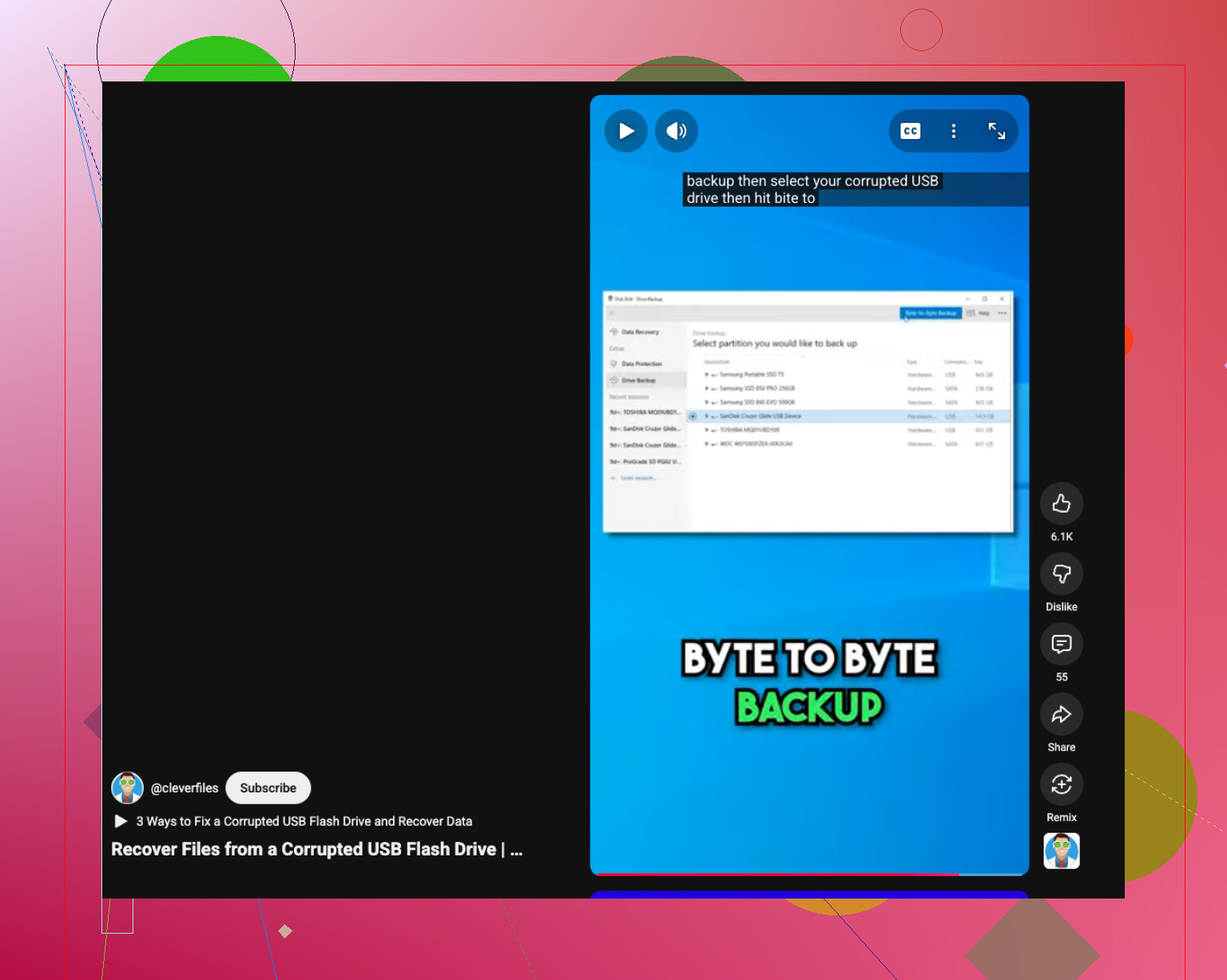
USB deletions are weird because the file usually skips the Recycle Bin, but I’d push back a little on jumping straight into every recovery app people mention. Sometimes the quickest win is checking whether the files were deleted by the camera/phone app and still exist on the source device or in cloud sync. That gets overlooked a lot.
If the files are truly gone, my order would be:
- Make a byte-for-byte image of the USB first if the data is really important.
- Run recovery on the image, not the original stick.
- Recover to another drive only.
That’s the part both @mikeappsreviewer and @kakeru touched on indirectly, but I think imaging first is the safer move when possible. USB flash drives can get flaky fast, and rescanning the original over and over is how people make a bad day worse.
For software, Disk Drill is a solid choice because it handles USB file systems well and makes it easier to sort photos/docs without total chaos. If you want a cleaner overview of features and workflow, this Disk Drill review and USB recovery walkthrough is worth a look.
One more thing: if your photos were from a camera, check whether the drive was exFAT and whether the camera created sidecar or database files. Recovering those can help rebuild context. Kinda nerdy, but it matters. Also, don’t run format/repair tools yet. Thats how stuff goes from recoverable to nope real fast.

One thing I’d add that @kakeru, @mike34, and @mikeappsreviewer only partly touched on: check whether the files were deleted through an app that keeps its own cache or export folder history. Photo editors, Office autosave, WhatsApp desktop imports, and camera transfer tools sometimes leave copies on the PC even when the USB version is gone. Search your computer by file extension and sort by date modified before you go deep into recovery.
I also slightly disagree with the “scan immediately no matter what” approach. If the USB is still healthy and the files are just logically deleted, yes, scan soon. But if Windows freezes when opening the stick, every reconnect can make things worse. In that case, image first or use a tool that can work more gently.
About Disk Drill since it keeps coming up:
Pros
- easy to filter photos, docs, videos
- preview is useful before restoring
- handles common USB formats well
- decent for messy mixed-file recoveries
Cons
- deep scans can return lots of clutter
- free recovery limits depend on platform
- not magic if the flash memory itself is failing
If you want a practical order, mine would be:
- Search the computer for duplicate/local copies.
- Check hidden partitions in Disk Management.
- If the drive is stable, scan with Disk Drill.
- Recover to another drive only.
- If results are bad, try a second opinion tool like Recuva or PhotoRec.
If the USB shows RAW, 0 bytes, or disconnects randomly, stop chasing software fixes and think hardware problem. That’s the point where recovery success drops hard.