I’ve ended up with a ton of duplicate photos on my iPhone after years of backups, imports, and switching devices. I’m worried about accidentally deleting important pictures or messing up iCloud Photos. What’s the safest, step-by-step way to find and remove duplicates without risking losing any originals or breaking albums and shared libraries?
Short version. Back everything up. Test on a few photos. Then scale up.
Here is a safe step by step you can follow.
- Make sure iCloud Photos is synced
- On iPhone go to Settings > Your name > iCloud > Photos.
- Check that iCloud Photos is on and “Sync this iPhone” is on.
- Plug in, connect to Wi‑Fi, leave Photos open for a while so it finishes syncing.
- If you use a Mac with Photos, open Photos on the Mac and let it sync too.
- Make a second backup outside iCloud
Do not rely only on iCloud if you are scared of losing stuff.
Pick at least one of these:
-
Mac with Photos
- Connect iPhone with cable.
- Open Photos on Mac.
- In the sidebar, pick the iPhone and import everything that is not imported.
- Then go to Photos > Settings > General and check “Copy items to the Photos library” so the Mac keeps its own copy.
- After import finishes, your Mac holds a full copy, independent of iCloud.
-
Windows PC
- Use the Photos app in Windows or the Windows iCloud app.
- Import all photos to a folder or library.
- Confirm the folder size is big and dates go back as far as your oldest photos.
-
External archive
- Export everything from Photos on Mac to an external drive.
- In Mac Photos, select all, then File > Export > Export Unmodified Originals.
- Save to an external SSD or HDD labeled with the date.
Now you have iCloud plus at least one offline copy.
- Learn how delete and sync work
- Anything you delete in iPhone Photos goes into “Recently Deleted” for 30 days by default.
- With iCloud Photos on, delete on iPhone deletes the same photo on all iCloud devices after it leaves Recently Deleted.
- You can restore from Recently Deleted inside those 30 days.
- After 30 days, the deletion is permanent from iCloud.
- Use the built in Duplicates folder first
On iOS 16 and later:
- Open Photos app.
- Go to Albums > scroll to “Utilities” > Duplicates.
- Photos groups similar items.
- Use “Merge” instead of delete.
What Merge does: - Keeps one copy in the library.
- Combines metadata like favorites and albums.
- Removes the extra copies.
Safe way to test:
- Pick 5–10 obvious duplicate screenshots or nonsense pics.
- Tap Merge on those only.
- Check All Photos, Favorites, albums, and iCloud on another device after a few minutes.
If everything looks ok, do more batches.
- Clean in small batches
Avoid selecting everything at once. Use a phased approach. For example:
- Day 1: Merge duplicates for screenshots only.
- Day 2: Merge obvious bursts and nearly identical pictures.
- Day 3: Old imports from WhatsApp, Facebook, etc.
Each time:
- Check Recently Deleted to confirm only unwanted stuff went in.
- If you see something important, restore it instantly.
- Use a cleaner app, but with discipline
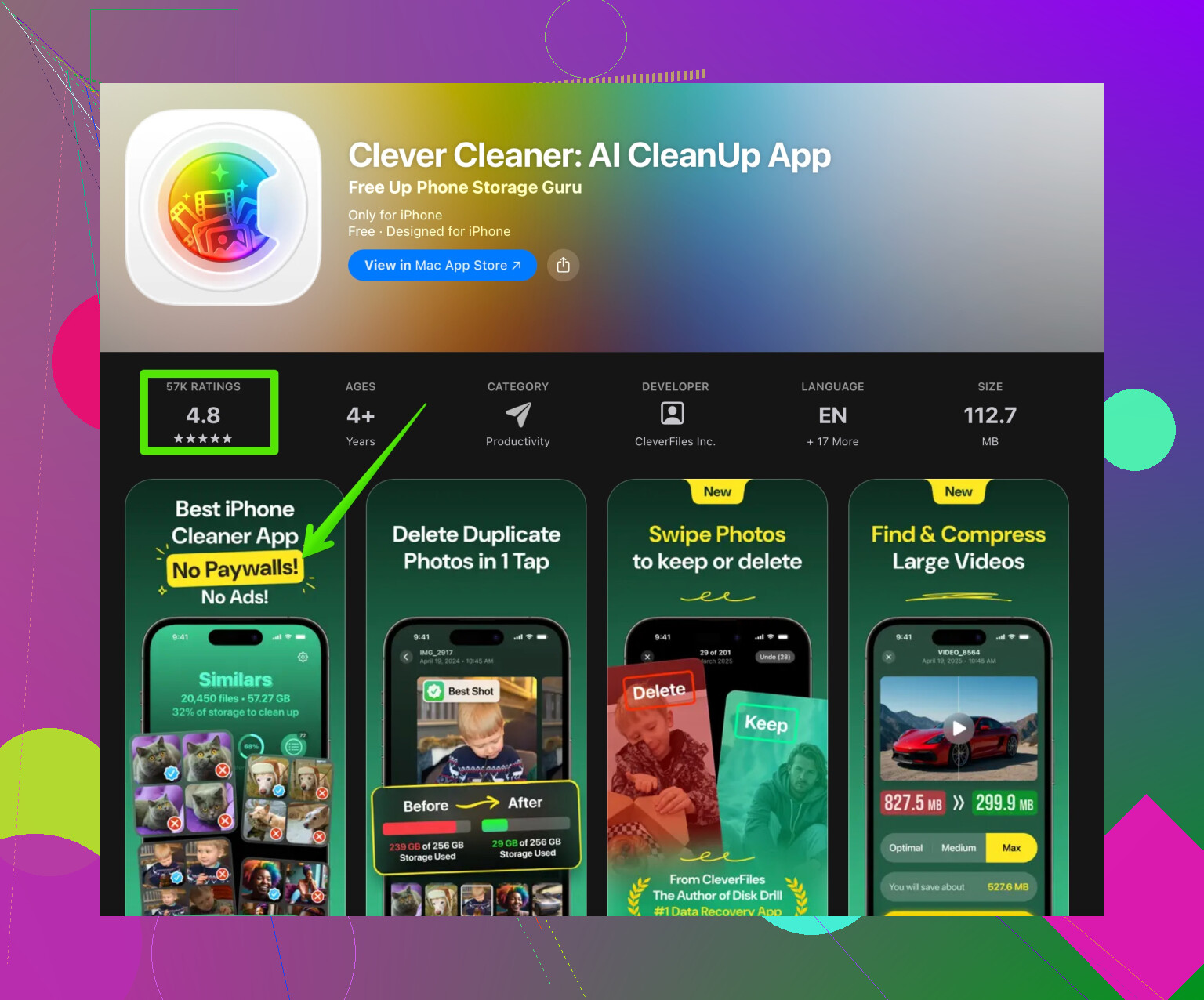
If you want more automation, something like the Clever Cleaner App helps.
It uses AI to group similar photos and suggest deletions.
Good for people with tens of thousands of pics, multiple years of backups, lots of junk.
If you try it:
- Start with screenshots and similar photos, not family events.
- Review every batch it suggests. Do not trust “select all” on the first run.
- After each large clean, open Photos on all your devices and let them sync.
Here is a link if you want to check it out on iOS:
Smart photo cleanup with Clever Cleaner App
- Extra safety tips
- Before any big delete session, take screenshots of important albums or write down key ones, like “Wedding 2018” or “Baby year 1”. Then double check those albums after cleaning.
- Keep at least one full backup that you never touch again, for example a drive in a drawer. Update it only once in a while.
- Do one serious cleanup, then set a small routine. For example, every month remove junk screenshots and accidental photos. That keeps duplicates from piling up again.
If you do those steps in order, the risk of losing important photos stays low and iCloud Photos stays stable.
17 Likes
Safest way to kill duplicates without nuking something precious is to think in “layers of safety” instead of just “what button do I tap”.
1. Clarify what “safe” means for you
For most people it’s a combo of:
- I can undo mistakes for a while
- I have at least one copy that iCloud can’t auto‑sync or auto‑delete
- I know which photos I’m OK to lose (screenshots, receipts, random memes)
Actually write this down:
- Must‑keep: family, trips, events
- Don’t‑care: screenshots, WhatsApp forwards, junk
You’ll be way less paranoid once you’re cleaning in the “don’t‑care” bucket only.
2. Don’t rely only on Recently Deleted
@viajantedoceu is right about backups and Recently Deleted, but I’d argue 30 days is not enough if you’re really anxious. People clean in bursts, then remember “oh wait, where’s that pic?” two months later.
What I’d do in addition:
- Export everything “important” once to an external SSD or a big folder on a computer
- Treat that like an archive: you never delete from it, you only add
That way, even if you mess up iCloud and blow past 30 days, you still have a cold backup somewhere.
3. Create a “Do Not Touch” safety net inside Photos
Super low‑tech trick that saves headaches:
- In Photos on iPhone, create an album named something like
DO NOT DELETE – CORE MEMORIES. - Spend 15–30 minutes going through your camera roll and just add anything you absolutely cannot lose.
- When you’re doing duplicate cleanups later, quickly check that album occasionally to make sure nothing suddenly disappeared.
It’s not bulletproof, but it gives you a mental safe zone.
4. Tackle types of duplicates, not everything at once
Instead of “delete duplicates”, think in categories:
- Screenshots: easiest to delete, often tons of duplicates
- Burst photos & near‑identical shots: same pose, 15 versions
- Imported social media pics: same image saved multiple times from apps
- Old device imports: long strings of the same vacation copied twice
Start with 1 and 2. Leave old family events and baby pics for last. That way, your early mistakes are on stuff you genuinely don’t care about.
5. Turn off auto‑saving from chat apps before cleaning
Otherwise they’ll just keep re‑polluting your library:
- In WhatsApp, Telegram, Messenger etc, disable “Save to Camera Roll” or similar
- This stops new junk from showing up while you are still cleaning the old junk
You’d be surprised how many “duplicates” are actually just re‑saves from chats.
6. When using third‑party apps, be picky
Cleaner apps are useful, but the dangerous part is when people tap “Select all” on day one like they’re speed‑running data loss.
If you try something like Clever Cleaner App:
- Use it only on low‑risk categories at first
- For example, let it suggest duplicate screenshots, blurry pics, or obvious near‑identicals
- Manually review its suggestions for a while until you trust how it “thinks”
This one’s actually pretty good at grouping similar photos and helping you batch delete the trash. Here’s a link if you want it:
smart iPhone photo cleanup with Clever Cleaner App
Where I slightly disagree with relying too heavily on the built‑in Duplicates view (or any tool) is that they’re still algorithms. They don’t know that one slightly less sharp, but emotionally important photo matters more to you than the technically perfect one.
So for very old or emotional albums, I’d always eyeball it instead of trusting automation.
7. Watch iCloud behavior while you clean
To avoid “messing up” iCloud Photos:
- Clean while you’re on Wi‑Fi and charging so sync is predictable
- After a big delete, open Photos on another device and check that it matches
- If you see something weird like albums missing or counts suddenly jumping, pause and let everything fully sync before continuing
Most sync “disasters” are really just partial syncs that people interrupt.
8. Make your question easier for others with a clear description
If you ever post this elsewhere or search for tips again, describe it more like:
“How can I safely delete duplicate photos on my iPhone without risking my important pictures or breaking iCloud Photos? After years of backups, device changes, and imports, my library is full of duplicate and similar photos. I want a step‑by‑step, low‑risk way to clean them up, keep my favorite memories intact, and avoid any sync problems with iCloud.”
That phrasing helps you get more targeted answers and also works nicely for search engines.
TL;DR:
- Make a cold backup that iCloud can’t touch
- Mark your “do not delete” memories in a special album
- Start with low‑risk junk: screenshots, bursts, chat app saves
- Use tools like the Duplicates view and Clever Cleaner App, but never blindly trust “select all”
- Move slowly, in sessions, and let iCloud fully sync between big changes
If you feel even a tiny bit unsure, assume it’s important and leave it for the next cleanup round.
Short version: think like a paranoid IT admin, not a “tap to clean” user.
1. Use Apple’s tools as the spine, not third‑party apps
I’d flip the priority a bit from what @viajantedoceu suggested:
- Start with the Photos app “Duplicates” section (Albums → Utilities → Duplicates).
- Only merge exact duplicates there.
- Skip anything that looks emotionally important or slightly different (different edit, crop, Live Photo, etc.).
Apple’s merge keeps the highest quality / most data version, which is usually what you want, and it stays inside the iCloud Photos ecosystem, so fewer sync weirdnesses.
2. Make a frozen backup that ignores iCloud
Instead of just an export of “important” photos, I’d actually:
- Plug iPhone into a Mac or PC.
- Use the system Photos / Photos app / Image Capture or a photo importer.
- Dump everything into a dated folder:
iPhoneLibrary_2026-03-03. - Do not reorganize, do not prune, just store.
- Back that folder up to a second drive or cloud that is not iCloud Photos.
Reason: you are a terrible judge of what is “important” right before a cleanup. Future you will disagree.
3. Turn off iCloud Photos temporarily only in a very specific scenario
Here I partly disagree with the “always let iCloud run while you clean” idea. If your internet is flaky or you have multiple devices that are out of sync, you can create chaos.
Safer workflow in that edge case:
- Let all devices finish syncing first.
- Pick one “master” device (ideally a Mac).
- Temporarily put the others away and do all cleanup on the master while iCloud Photos is on.
- Only after it finishes syncing, wake the other devices.
Turning iCloud Photos off device‑by‑device to “protect” things tends to create version conflicts and confusion.
4. Be very careful with Live Photos and edits
Where people silently lose stuff:
- Two versions of the same moment: one is Live, one is a still.
- One is original, one has edits / filters / markup.
Apple and third‑party cleaners sometimes prefer the technically “better” file, not the one you edited. When you review duplicates, always check:
- Does one have the “LIVE” icon?
- Does one show “Revert” (meaning it has edits)?
If yes, keep the Live or the edited one unless you consciously want the original.
5. Clever Cleaner App: actually useful, but treat it like a chainsaw
You can safely bring in the Clever Cleaner App, but only after you’ve done the following:
- Backup created.
- Must‑keep album (like @viajantedoceu described) is set.
- Apple “Duplicates” tab has been manually pruned for obvious stuff.
Then use Clever Cleaner App for what it is good at:
Pros
- Groups similar images nicely (bursts, 10 angles of the same coffee, etc.).
- Offers quick mass selection for low‑value sets like receipts, memes, bad selfies.
- Interface is clearer than some “cleaner” competitors and less ad‑spammed.
- Can surface junk that the built‑in Duplicates section ignores because they are not identical files.
Cons
- Algorithm is still blind to emotional value. It may flag the only photo of a moment just because you shot three angles.
- Easy to tap “select all” and nuke near‑duplicates you actually wanted to keep.
- Needs access to your photo library, which some people are not comfortable with from a privacy standpoint.
- If you clean too aggressively and then keep using iCloud Photos, mistakes propagate to all devices.
To reduce risk:
- Limit it to specific categories like screenshots, blurred photos, and very recent junk.
- Avoid wholesale cleanup of anything older than, say, 1 year without manual eyes on it.
6. Do a small “pilot cleanup” before committing
Before you trust any method, do this:
- Choose a small date range, like “last 3 months.”
- Run through:
- Apple Duplicates
- Manual review of bursts & Live Photos
- Clever Cleaner App on screenshots / obvious trash only
- Wait 48 hours.
- See if you miss anything or spot sync oddities in iCloud Photos.
If everything feels fine, expand to a larger range. If you get even one “oh no, I deleted X,” then you tighten your rules, not your aggression.
7. Keep mental rules simple
When you are unsure:
- Old + family + only 1 or 2 shots of that moment → never delete in bulk.
- New + disposable (screenshots, memes, receipts) + many copies → safe to let automation handle.
- Anything edited or Live → no auto‑delete; review manually.
Combining a frozen pre‑cleanup backup, Apple’s Duplicates as the backbone, and a cautious, targeted use of Clever Cleaner App gives you a lot of room to screw up without losing real memories.