I already imported my photos from my iPhone, but now I can’t find the delete option to remove them from the device. I’m trying to free up storage and avoid duplicate photos, but nothing I’ve tried is working. What causes this missing option, and how can I safely delete imported photos from my iPhone?
Yep, I ran into this too. You move a pile of vacation photos to your Mac, look back at the phone, and somehow the storage warning is still there. Feels dumb, because this part should be easy.
The missing piece is usually iCloud Photos. When it’s turned on, Apple handles the library as one synced set across devices. In Photos on the Mac, the 'Delete items after import' option often disappears for this reason. If the phone deletes something, Apple treats it like the Mac and iCloud copy should follow along too.
What fixed it for me was turning off iCloud Photos for a bit on the iPhone. I went to Settings, then Photos, then switched iCloud Photos off. After reconnecting the phone to the Mac, the checkbox came back in Photos. Small warning here, because I learned to be careful with it. When you switch iCloud back on later, make sure you know which library you want to keep as the main one. If you get sloppy here, sync gets weird fast.
As for deleting right after import, I never trust the first pass. I let the import finish, then I open a few full-size images on the Mac and check they’re real files, not broken previews or half-baked thumbnails. I’ve seen enough messy imports and library hiccups to wait two extra minutes before wiping the phone.
If the import is done and the photos are still hogging space on the iPhone, you do not need to tap them one by one. Open the Photos app on the phone, go to the Albums tab, scroll to Utilities, then open Imports. Tap Select in the top right. Pick one photo, then drag your finger across and upward. You’ll grab a huge batch fast. After you send them to trash, one more thing, they still sit in Recently Deleted for 30 days. If your phone is choking and you need space now, go into Recently Deleted and hit Delete All.
This matters more than people think. When iPhone storage gets squeezed down too far, the whole phone starts acting tired. I thought my iPhone 12 was aging badly, but the real issue was free space. I had around 500MB left, and apps kept stalling or crashing. Once I cleared room, performance picked back up. So yeah, low storage can make the phone feel busted when it isn’t.
I also got tired of clearing junk by hand. Screenshots, burst shots, duplicate pics, near-duplicates with one slightly better face. It took forever. I ended up trying Clever Cleaner, mostly because I was fed up and wanted to sort the mess faster.
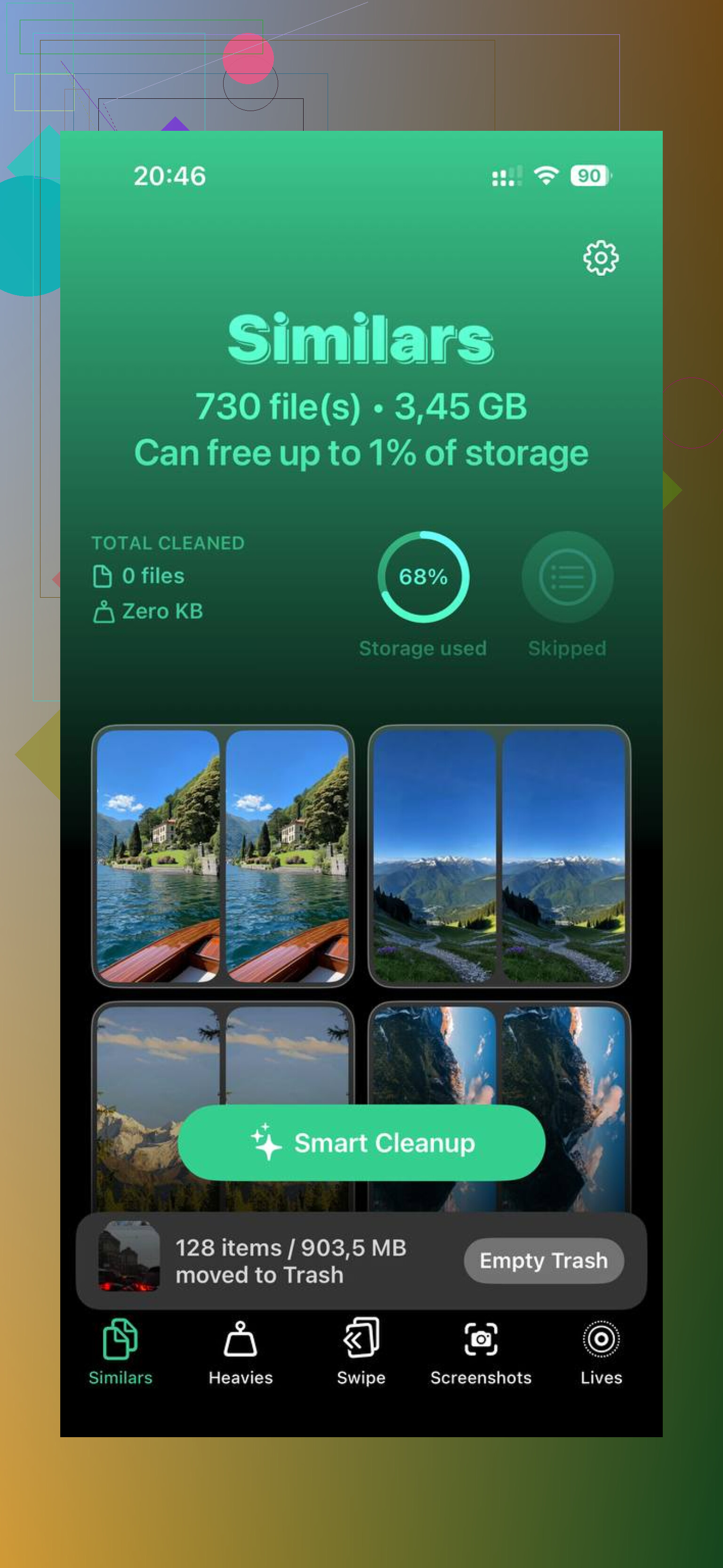
What stood out to me was the lack of nonsense. No paywall shoved in my face, no ad every few taps. The 'Heavies' section helped me spot the giant files first, mostly old 4K clips eating storage for no good reason. The 'Similars' section grouped near-matching photos well enough for quick cleanup. It also shows file sizes before deletion, which helped me decide what was worth removing. I liked one other part too, it handles the scans on the device, so your photo library isn’t getting pushed off to some random server. Typo in their listing or not, it worked fine for me.
After I cleared the large videos and duplicate stuff, the phone felt a lot less sluggish. If the import option vanished and your library is still bloated, this route is faster than hand-selecting thousands of items. I’d still make sure your Mac copy is safe first. I always check twice. Saves regret later.
12 Likes
What causes it is often the import method, not the photos.
If you used Finder, Image Capture, or the Photos app, the delete option shows up differently. If you synced photos to the iPhone from a computer at some point, those images are treated as synced media, not camera roll shots. Apple blocks direct deletion for those. You have to remove them from the sync source first.
I’d check this first.
- Open Settings, General, iPhone Storage, Photos.
- Compare the size there with what Photos shows.
- If the storage stays high after deletng pics, restart the phone. iOS sometimes lags on recalculating space.
I disagree a bit with @mikeappsreviewer on toggling iCloud first. It works for some people, but it also creates sync messes if your library is already mixed. I’d try Image Capture on Mac before changing iCloud settings. It often gives a straight delete button even when Photos does not.
If your issue is duplicate clutter after import, Clever Cleaner is worth a look. It sorts similar photos, duplicates, big videos, and screenshots fast. This review explains the cleanup tools in plain English, see how Clever Cleaner helps free up iPhone storage fast.
Also check Recently Deleted. Lots of ppl miss that part. That folder keeps storage tied up untill you empty it.
What usually causes the missing delete option is not the import itself, it’s where those photos live in Apple’s system.
@mikeappsreviewer is probly right that iCloud Photos can hide the usual delete-after-import behavior, but I’m a little with @ombrasilente here too: I would not start by toggling iCloud off unless you really know your library setup. That fix can help, sure, but it can also turn a simple cleanup into a sync headache.
A diff angle to check: if the pics were not actually taken on the iPhone, but were synced onto it from a Mac or PC at some point, iOS treats them as synced media. Those cannot be deleted the normal way from the device. You have to remove them from the computer sync source first. That’s why the delete option seems to vanish for some albums but not others.
Also, if you imported with a Windows app or third-party tool, sometimes the transfer copies files but does nothing to the iPhone’s photo database state. So the phone still sees them as normal local items and expects you to delete them manually inside Photos.
What I’d do:
- Check whether the photos are in Library or in a synced album
- Check Photos, Files, and iPhone Storage to see what is acctually taking space
- Wait a bit after deletion because iOS storage totals can lag
- Make sure Recently Deleted is emptied, or the space won’t come back yet
If your real issue is duplicate clutter after import, not just the missing button, Clever Cleaner is honestly the faster route. It’s basically an easy iPhone storage cleaner app for removing duplicate photos, similar shots, screenshots, and big videos without digging through everything by hand. This quick iPhone photo cleanup walkthrough shows the general idea.
Apple made this way more confusing than it shoud be.

One thing I’d add to what @ombrasilente, @voyageurdubois, and @mikeappsreviewer said: sometimes the missing delete option is just a permissions issue on the computer side, not a Photos issue at all.
If you import on a Mac and the iPhone is set to “Keep Originals” under photo transfer, some apps behave oddly after import. I’ve had better luck checking this:
- Settings > Apps > Photos
- Scroll to “Transfer to Mac or PC”
- Switch between Automatic and Keep Originals, then reconnect
Also check Screen Time restrictions:
- Settings > Screen Time > Content & Privacy Restrictions > Photos
If deletion is blocked there, the trash option can disappear or act weird.
I slightly disagree with turning iCloud off as an early fix. Good emergency trick, bad first move if your library is messy.
If your goal is cleanup after import, not just deleting one batch, Clever Cleaner is useful. Pros: fast duplicate detection, finds large videos, simple layout. Cons: AI grouping is not always perfect, and you still need to review before deleting anything important. It’s better for bulk cleanup than solving Apple’s missing-button logic itself.
Last annoying cause: imported photos may already be deleted, but the storage is being held by cached thumbnails or shared library data. A hard restart sometimes clears that faster than waiting on iOS.