I found a lot of photos in my iPhone Hidden album and want to clear them out, but I’m worried about accidentally deleting pictures from iCloud, shared albums, or other devices. What’s the safest way to delete hidden photos without losing anything important?
The Hidden album on iPhone is a little weird, and some of the “missing photo” problems are usually just settings or indexing issues.
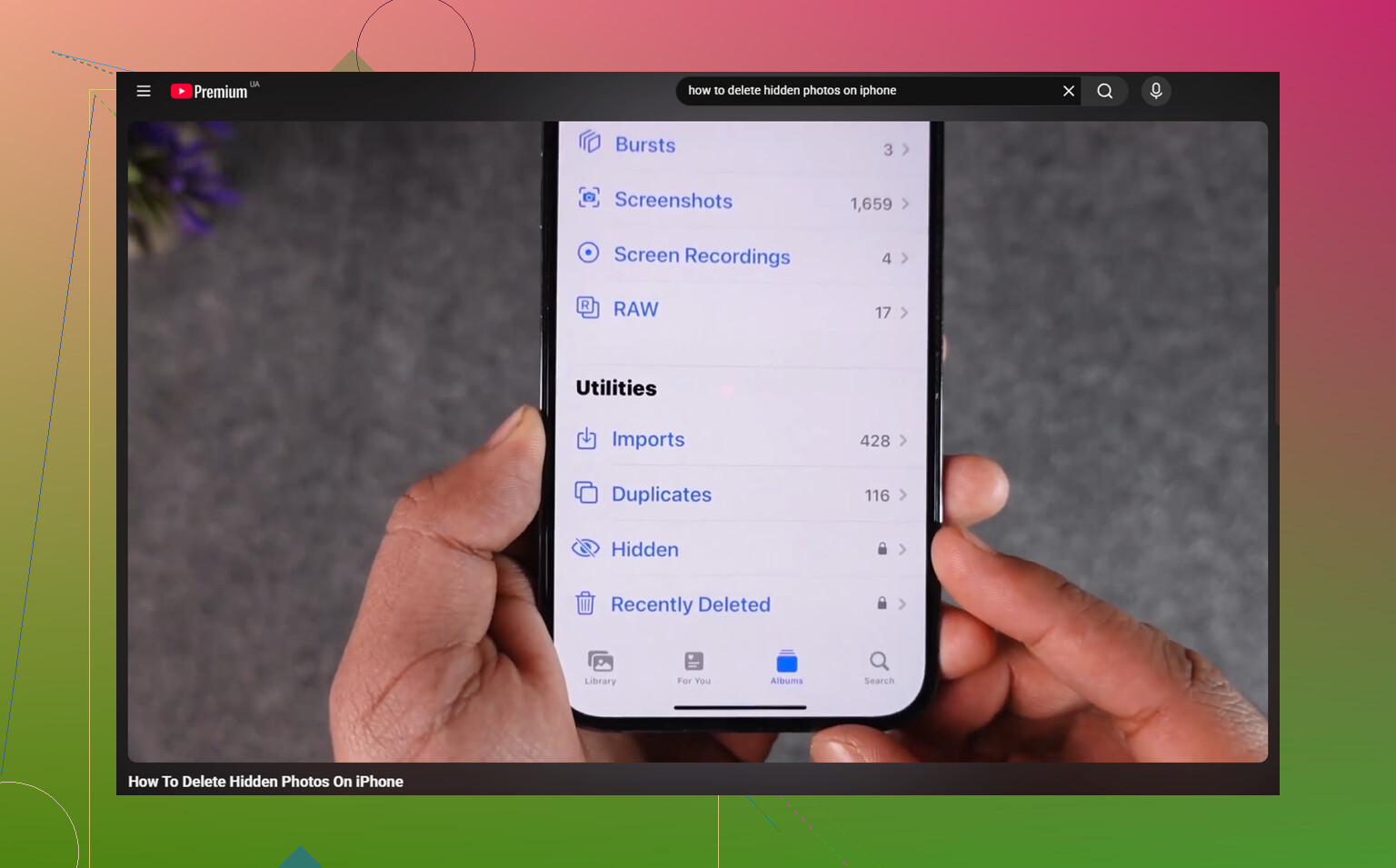
If the Hidden album is gone completely, check this first: Settings > Photos > Show Hidden Album. Sometimes an iOS update or settings change can turn that off. Your photos usually have not been deleted. The album is just hidden from the Photos app. Turn that setting back on, then look near the bottom of the Albums tab under Utilities.
If the Hidden album is visible but says there are no photos in it, check Recently Deleted before doing anything else. If the photos are there, you can recover them. If Recently Deleted is empty but your iCloud storage still looks the same, it may just be the Photos app not indexing the library correctly. Turning iCloud Photos off and back on in Settings can force the library to refresh and may bring the view back in line.
To delete hidden photos:
- Open the Hidden album and unlock it with Face ID, Touch ID, or your passcode.
- Tap Select.
- Choose individual items, or tap Select All.
- Tap the trash icon.
If Face ID or Touch ID does not pop up when opening the album, restart the phone. That usually fixes the prompt.
One thing people miss: deleting from Hidden does not immediately free the space. The items go to Recently Deleted for 30 days and still count against storage during that time. If you want them gone for privacy or storage reasons, go to Recently Deleted > Select > Delete All after deleting them from Hidden.
Also, Hidden is not separate storage. It is still part of your normal photo library. If iCloud Photos is enabled, deleting something from the Hidden album on your iPhone also deletes it from your iPad, Mac, and any other device using the same iCloud Photos library.
The bigger issue is that a huge Hidden album is often only part of the mess. If you have hundreds of hidden screenshots or old saved images, the main library probably has the same kind of buildup too: duplicate-looking photos, giant videos, screen recordings, and random junk that has been sitting there for years. When storage gets close to full, iPhones can start feeling slower because the system has less room for background work.
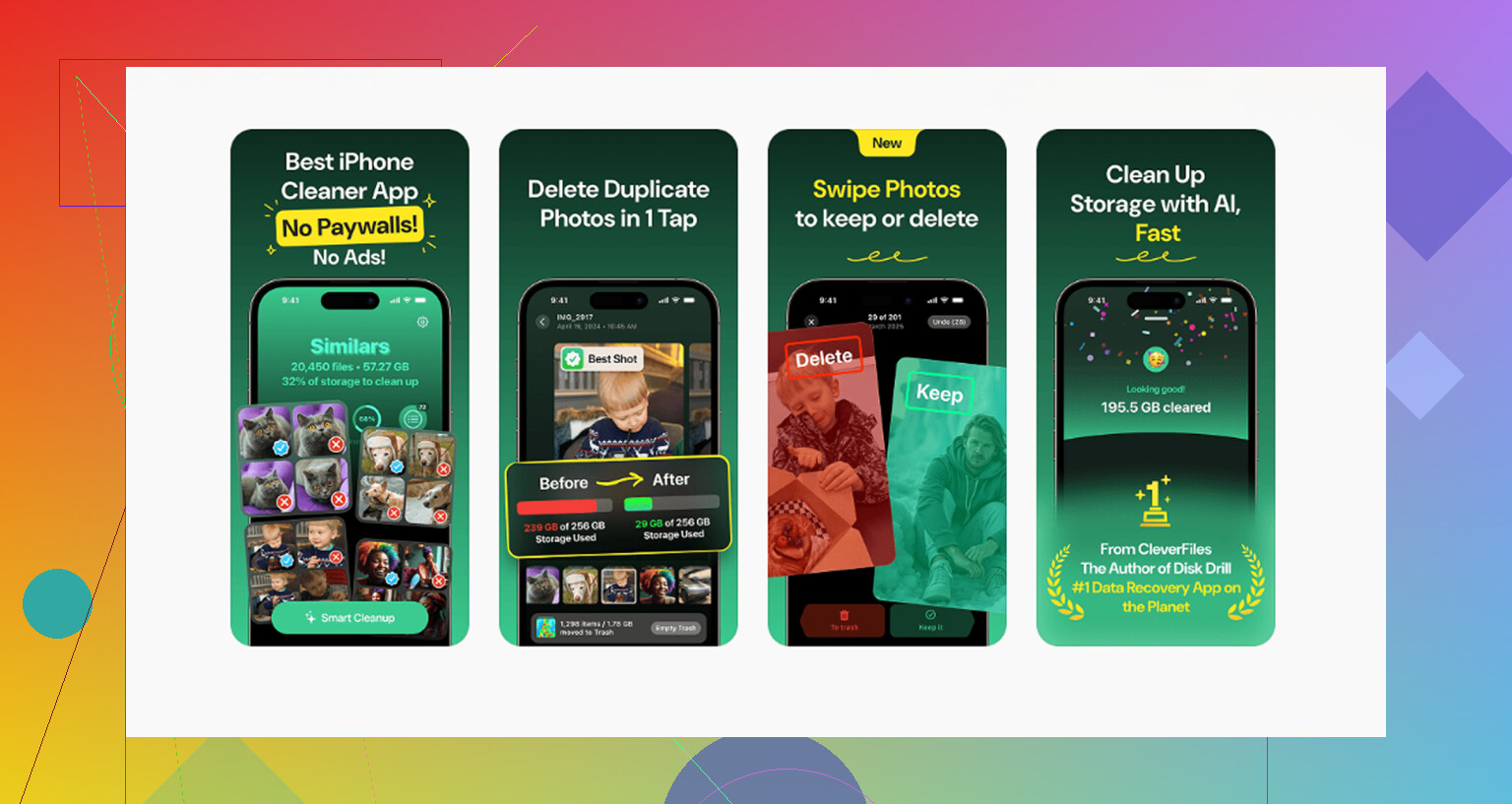
Clever Cleaner will not clean the Hidden album because Apple blocks third-party apps from accessing it. That part has to be done manually. But for the regular photo library, Clever Cleaner is free, with no ads or subscription.
The Similars tab groups near-duplicate photos and picks a Best Shot, which is useful for bursts, vacation photos, and repeated attempts at the same picture. The Heavies tab sorts files by size, so the biggest 4K videos and screen recordings show up first. It also shows file sizes on screenshots before you delete them, which makes cleanup less of a guessing game.
Everything runs on the device, with nothing uploaded to an external server.
Best order: clear the Hidden album manually, clean the main library with Clever Cleaner, then empty Recently Deleted. Otherwise the storage number may not change much right away.
14 Likes
A separate backup matters more than the Hidden setting here. The Hidden album is still your real Photos library, so if iCloud Photos is on, deleting there is a synced delete, not a local cleanup. Before doing a mass delete, I’d export anything even slightly important to a computer, external drive, or Files folder that is not syncing back to Photos. Then delete a small test batch from Hidden and check iCloud.com or another device before doing the rest. I agree with @mikeappsreviewer about Recently Deleted, but I would not empty that right away unless you are 100% sure. Treat it like your safety net for a few days. Shared albums are a separate area, so don’t use them as your backup plan. They are compressed/shared copies and not a reliable archive of your originals.
There isn’t a safe “delete only from Hidden” button, because Hidden is just a view of the same originals. The extra gotcha is that those photos may still belong to regular albums, memories, searches, or an iCloud Shared Photo Library, so trashing them from Hidden removes the actual item, not just its hidden status. If you only want them out of Hidden, select them and choose Unhide instead of Delete. If you truly want them gone, first check whether iCloud Photos or Shared Library is enabled, save anything important somewhere outside Photos, then delete a small batch and wait for it to sync before doing the rest. I’d leave Recently Deleted alone for a while unless privacy is the urgent reason.
Expect this to be slower than it looks if iCloud Photos is involved. The dangerous part is not the Hidden album itself, it is assuming those are separate copies. They are not. If you press delete there, you are deleting the real library item, and iCloud will treat it like any other delete.
The missing check for me would be Optimize iPhone Storage. If that is turned on, your phone may only have smaller local versions of some photos while the originals live in iCloud. Before doing a big cleanup, I would make the backup from somewhere that can actually pull the originals, like Photos on a Mac, Image Capture, iCloud.com download, or a Windows iCloud Photos setup. A quick “share to Files” from the phone is fine for a few items, but I would not trust it as the only archive for hundreds of photos unless I checked the files afterward.
My safe order would be: unhide anything you are unsure about, export/download the keepers outside the Photos library, delete only a small batch from Hidden, then check another device after sync finishes. If the same photos disappear everywhere, that confirms you are working in the synced library. Leave Recently Deleted alone for a while unless you need them gone immediately for privacy. It is annoying, but that 30-day folder is the only easy undo button Apple gives you.
Watch out for the privacy hole in Recently Deleted. When you delete something from the Hidden album, it drops into Recently Deleted and it is no longer hidden there. So if the whole reason you hid those photos was privacy, deleting them from Hidden actually exposes them for 30 days to anyone who opens that folder, unless you go straight in and clear them out. That flips the usual advice about leaving Recently Deleted as a safety net. If the pictures are sensitive, the safety net and the privacy goal pull in opposite directions, and you have to pick one.
@shizuka nailed the point I’d stress hardest: Hidden is a view, not a folder. If you only want them out of sight, Unhide is the button, not the trash. People delete when they meant to declutter, and those are very different actions once iCloud is in the mix.
The one bit I’d push back on gently is the Select All approach for a big album. On a Hidden album with hundreds or thousands of items, tapping Select All and trashing in one shot can hang or feel like it froze, especially with Optimize Storage on and originals still living in iCloud. I’d do it in chunks. Less dramatic, but you actually see it work instead of staring at a spinner and wondering if you nuked everything.
On the cleaner that came up earlier, it makes sense for the regular library since Apple walls off Hidden from third-party apps anyway. So treat it as the tool for the boring bulk in your main photos, not anything to do with the Hidden problem you’re asking about. That part stays fully manual no matter what app you install.
Quick practical order for you: unhide anything you’re unsure about first, pull the real keepers to a computer or drive that isn’t syncing back into Photos, delete a small test batch, confirm on another device or iCloud.com after it syncs, then decide about Recently Deleted based on whether privacy or recovery matters more to you.