I accidentally took a lot of pictures with Live Photos turned on, and now my iPhone storage is filling up fast. I need a quick way to batch convert all Live Photos to still photos at once without losing the images. Is there an easy built-in method or app that can help?
I get why you want this gone. Live Photos are nice when you catch the one frame where nobody blinked, but they eat space fast. Each one is a photo plus a short video and audio clip, so the file size ends up around 2 to 3 times bigger than a normal still. If your library is packed with them, you’re giving up gigabytes for motion you might never watch.
If you need to deal with a big batch, I’d break it down like this, from fastest to most annoying.
Cleaner app route
If your library is huge, doing it inside Apple’s own menus gets old fast. I tried the manual route. It drags. Apple’s tools were not built for mass convert-and-remove jobs.
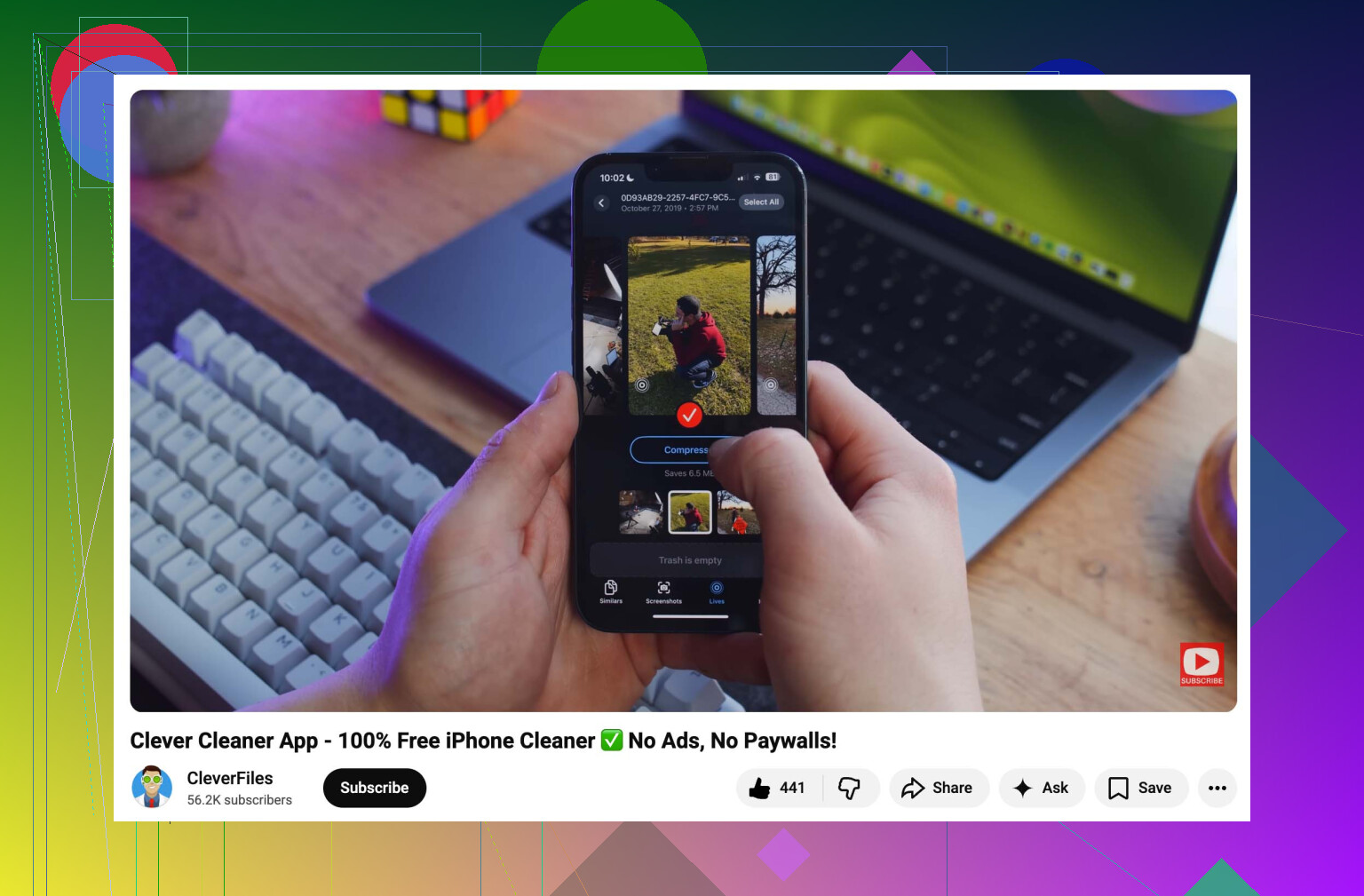
After testing a bunch of these apps, Clever Cleaner stood out for one simple reason. It’s free. No ads popping up, no paid wall halfway through, no weird limits. It focuses on the photo storage mess Apple leaves sitting there.
What I did:
- Install the app and allow Photos access.
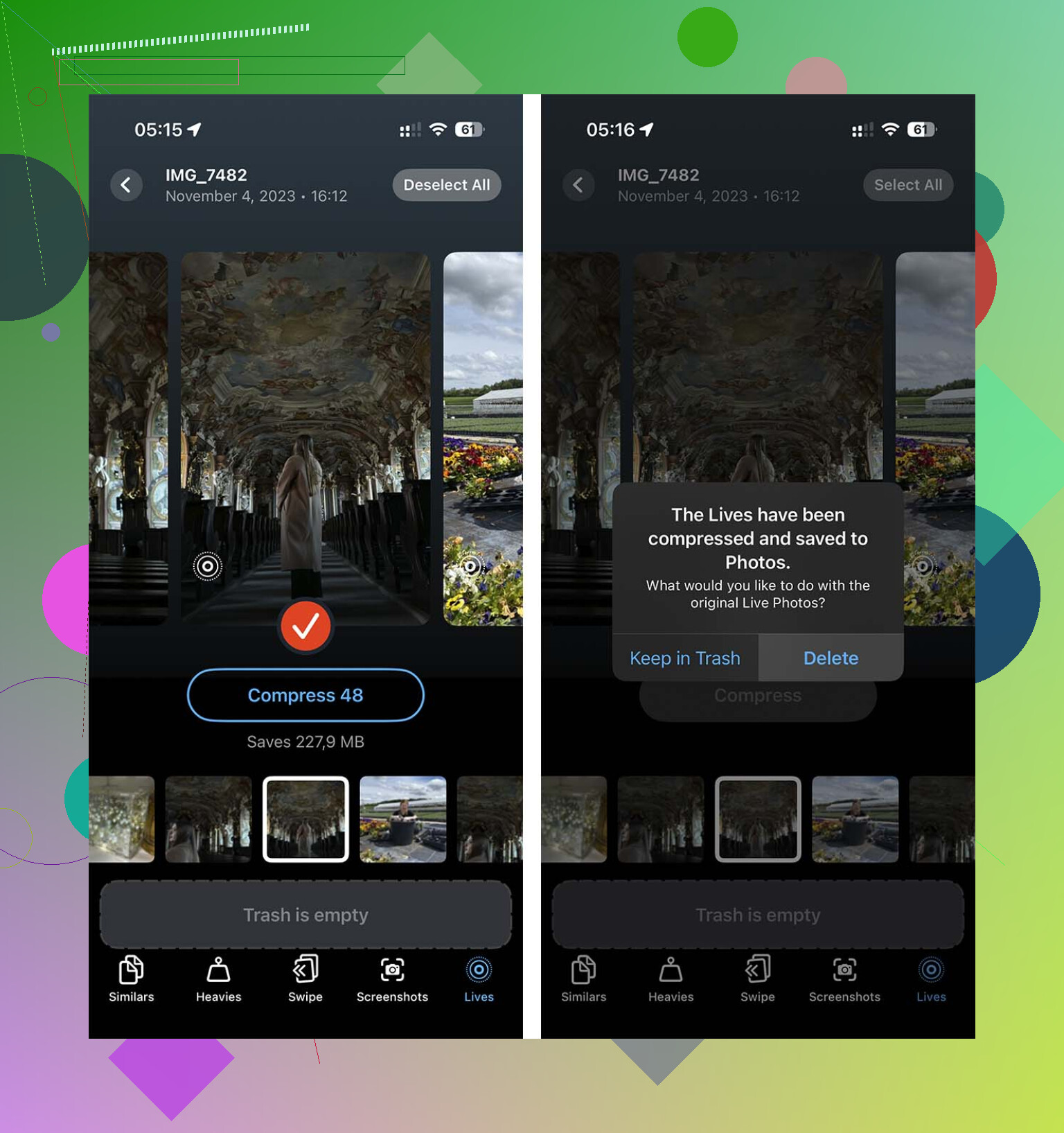
- Open the Lives section. You sort by date or file size, which helps if you want to hit the biggest space hogs first.
- Use Select All, or pick a batch, then tap Compress. The label says compress, though what it’s doing here is removing the motion part and keeping a high-quality still.
- When it finishes, it asks whether you want to remove the original Live versions. This part matters, because otherwise you end up cleaning duplicates by hand later.
Shortcuts app route
If you don’t want a third-party app and you’re fine tinkering a bit, Shortcuts works. I liked this more than the screenshot trick people keep posting, since screenshots throw away the original image quality.
Setup is pretty straightfoward:
- Open Shortcuts and make a new shortcut with the + button.
- Add Find Photos, then filter it so Photo Type is Live Photo.
- Add Repeat with Each.
- Inside the loop, add Convert Image. Pick JPEG or PNG.
- Add Save to Photo Album so the still copies get saved.
- Run it and let the phone work through the batch.
The catch is annoying. Shortcuts saves the new stills, but it won’t clean out the original Live Photos for you. So after it finishes, you still need to open the Live Photos album, select the old files, and delete them yourself if your goal is freeing storage.
Duplicate as Still Photo
Apple does include a built-in option. I used it once. It works, though it feels clunky.
- Open Photos and go to the Live Photos album.
- Tap Select and choose the images you want.
- Tap the three-dot menu.
- Choose Duplicate.
- Pick Duplicate as Still Photo.
One thing to watch: this makes new files first. So for a while, storage use goes up, not down. You’ll have both versions sitting there until you remove the original Live Photos by hand.
After you finish cleaning up, there’s one setting worth changing so your camera stops going back to Live Photo mode. Go to Settings > Camera > Preserve Settings and turn the Live Photo option on. Then open the Camera app and switch off the Live Photo icon one more time. Your iPhone should remember it from then on.
12 Likes
If you want the fastest true batch option on iPhone, skip the one-by-one edits in Photos. They take forever.
I partly disagree with @mikeappsreviewer on one thing. Shortcuts is neat, but for a huge library it gets flaky. Mine stalled on a few hundred files and left me cleaning up the mess manualy.
What worked better for me was Clever Cleaner. It scans your library, finds Live Photos, and turns them into stills in bulk so you keep the image and drop the motion part. That is the part eating storage. On many iPhones, Live Photos take about 2x the space of a normal JPEG, sometimes more.
If you want to see how people use it, this video is decent:
see how Clever Cleaner clears Live Photo storage fast
Quick version:
- Install Clever Cleaner.
- Give Photos access.
- Open the Live Photos section.
- Select all, or sort by size first.
- Convert or compress them to stills.
- Delete the original Live versions.
- Empty Recently Deleted, or your storage number wont change right away.
Also do this after:
Settings, Camera, Preserve Settings, turn on Live Photo.
Then open Camera and switch Live off once. Your iPhone should remember it.
If you want zero third-party apps, use a Mac. Export the Live Photos as still images from Photos on Mac, import them back, then remove the originals. More annoying, but more stable for giant batches.
Honestly, there still is no great built-in “convert all Live Photos to stills” button on iPhone. That’s the annoying part Apple never really fixed.
I’d actually push back a little on @mikeappsreviewer and @chasseurdetoiles here: the issue is not just converting them, it’s doing it without creating a messy duplicate library first. Apple’s own Photos options tend to duplicate, which means storage can spike before it drops. Kinda defeats the point if your phone is already choking.
What I’d do instead:
- use Clever Cleaner if you want the fastest on-device bulk cleanup
- let it identify Live Photos and strip the motion portion while keeping the still image
- then make sure you remove the original Live versions and clear Recently Deleted, or the storage savings won’t show up right away
That last part gets missed a lot.
Also, before deleting anything, check whether some of those Live Photos matter. Sometimes the key photo Apple picked is weird, and the motion clip has a better frame. I found a few where converting blind was a bad idea, so maybe preview the important albums first. Not every shot, just the ones you care about.
If you want a visual walkthrough, this is a decent TikTok showing how to convert Live Photos to stills and free up iPhone storage.
And yeah, after you clean up, disable Live Photo for future shots:
Settings > Camera > Preserve Settings
then enable preserving Live Photo, and turn it off once in Camera. Otherwise iPhone loves turning it back on for no reason. Super annyoing.
I’d split this into two goals: convert, and actually reclaim storage. A lot of suggestions only solve the first part.
I slightly disagree with @mikeappsreviewer here. Shortcuts is clever, but on a very full library it can be slow, inconsistent, and it still leaves you with cleanup afterward. And @chasseurdetoiles / @waldgeist are right to focus on bulk handling, because manual Photos edits are a slog.
If you want the least annoying iPhone-only route, Clever Cleaner is probably the most practical.
Pros
- bulk finds Live Photos fast
- keeps the still image while removing the motion part
- easier than Photos or Shortcuts for big libraries
- useful if you want to sort by size and hit the worst offenders first
Cons
- third-party app, so some people won’t like granting Photos access
- always double-check a few important Live Photos before batch processing
- storage savings usually do not appear fully until Recently Deleted is emptied
One thing I would add that others did not stress enough: if your photos are synced with iCloud Photos, changes propagate across devices. Great if that’s what you want, bad if you expected your Mac or iPad to keep the Live versions.
Also, before mass converting, make a small test batch first. Convert 20 to 50, confirm the still quality looks right, then do the rest. That avoids a huge rollback headache.
And after you finish, remember:
- delete the original Live versions
- empty Recently Deleted
- turn off Live Photo in Camera and preserve that setting
That last part is what stops this from happening again.