I lost my TV remote and want to use my smartphone as a TV remote with voice control instead. I’m not sure which app or setup works best for a smart TV, or if I need Wi-Fi, Bluetooth, or an IR blaster. What’s the easiest way to set this up?
The easiest way to do this is usually the official remote app for whatever device or TV you already use. Once it’s paired, look for the mic button in the app and speak the title, actor, app, or channel instead of slowly typing with the TV remote.
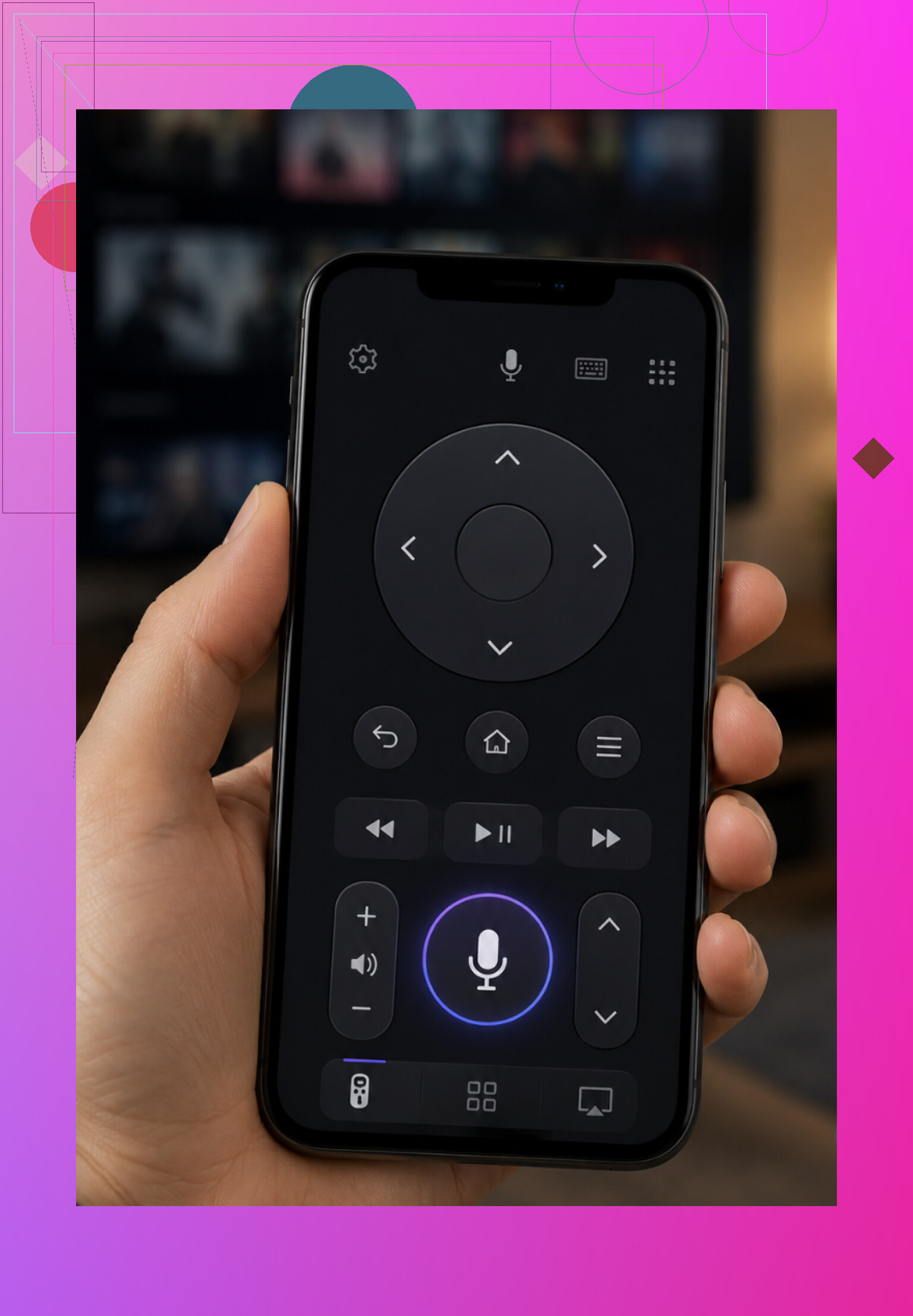
A few common setups:
Roku’s mobile app has voice search built in. Tap the mic and say what you want to find, like a show name, actor, or channel.
The Fire TV app uses Alexa voice search, so you can say something like “play [title]” or search without typing.
On iPhone, the Apple TV Remote in Control Center works with Siri for voice commands.
Samsung SmartThings and LG ThinQ can also do voice input after the TV is linked. Samsung uses Bixby, and newer LG TVs use LG’s assistant.
The main catch is that your phone and TV need to be on the same Wi-Fi network. If they’re not, the remote app usually won’t see the TV.
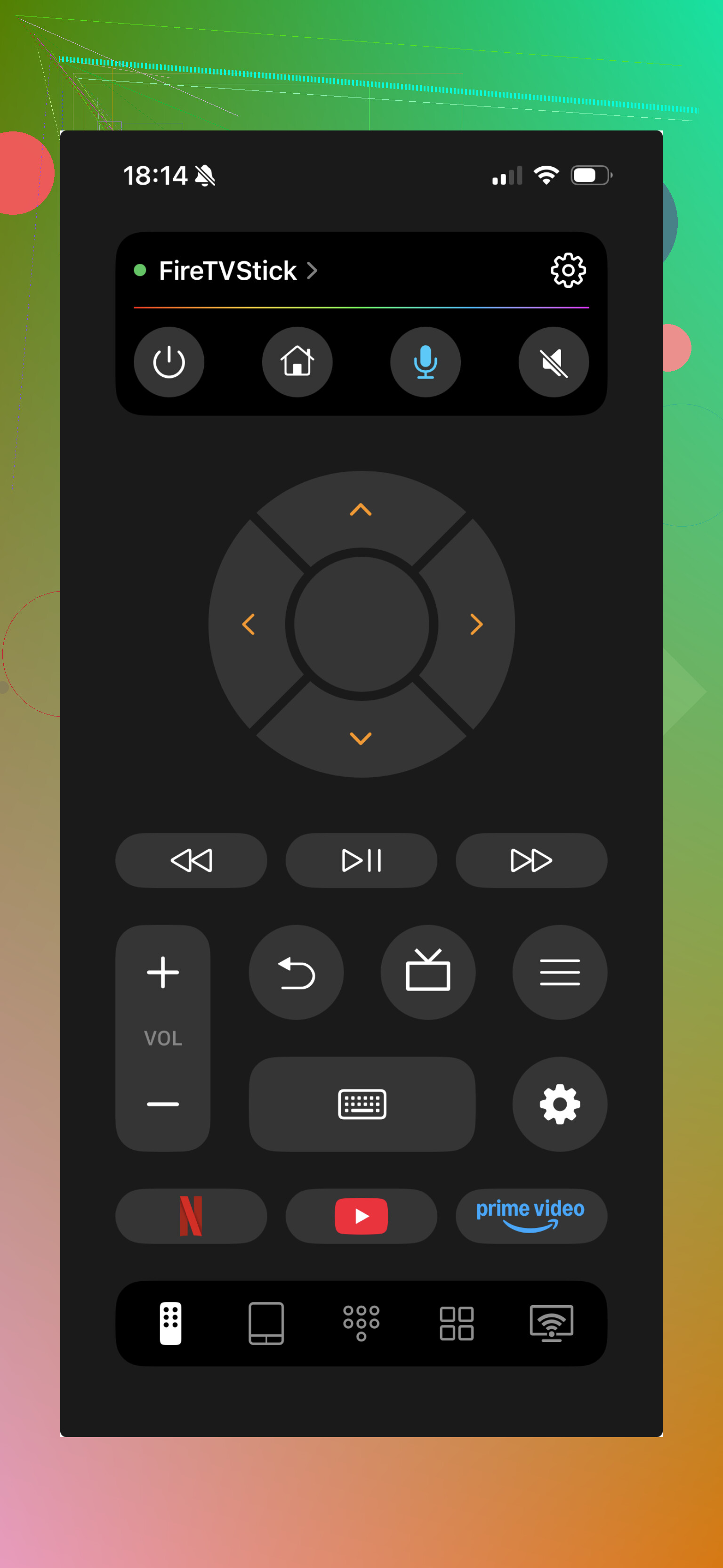
If you’re dealing with more than one TV brand, TVRem is worth looking at. It supports Samsung, LG, Roku, Fire TV, Android/Google TV, and Apple TV. On supported models, you can use Google Assistant or Alexa for hands-free control. And even when full voice control isn’t available, you can still use your phone’s voice input instead of the TV’s on-screen keyboard, which is way less annoying for searches and logins.
It has no subscription and is rated 4.8 from a couple thousand reviews.
If you want voice control without picking up the phone, that depends more on your TV or streaming device:
Google Assistant / Google Home works well with Android TV, Google TV, and Chromecast. You can say something like “Hey Google, play [show] on the TV” from your phone or a smart speaker.
Alexa works with Fire TV and Alexa-compatible TVs. Commands like “Alexa, turn on the TV” or “Alexa, play [title]” can run from an Echo or the Alexa app.
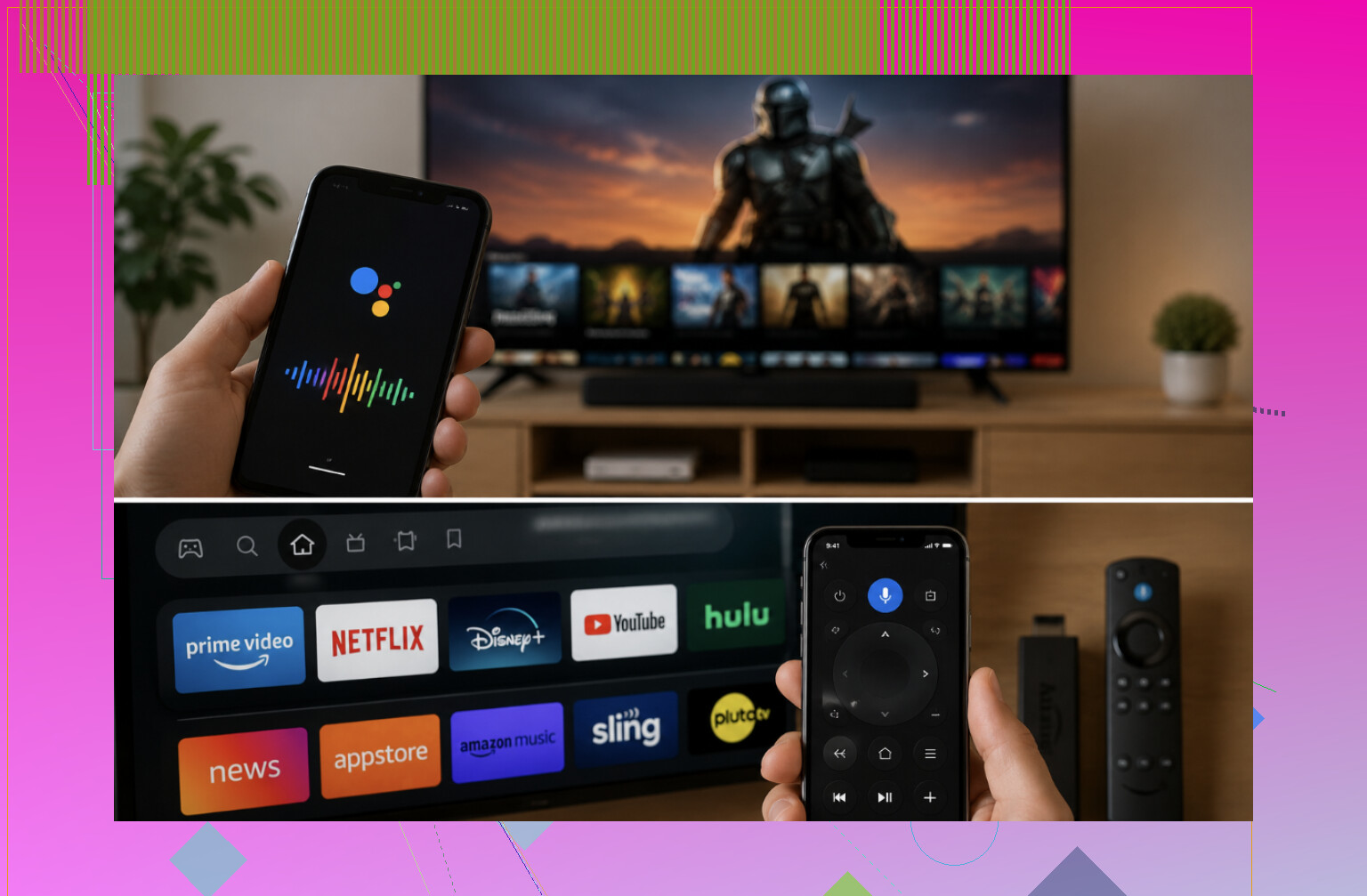
One thing to check before spending time on setup: voice control needs a smart TV or a streaming device that supports it and is connected to Wi-Fi. If it’s an older non-smart TV, your phone won’t magically add voice control by itself. In that case, you’d need a regular remote or a streaming stick like Roku, Fire TV, or Chromecast plugged into the TV.
If you know the exact TV model or streaming device you’re using, it’s easier to point you to the right setup steps.
3 Likes
Don’t waste time installing random “universal remote” apps until you know how your TV can actually be controlled. If the phone app works over Wi-Fi, the TV usually has to already be on the same network, which is annoying if the lost remote was the only way you could get into the network settings. Bluetooth pairing can also require confirming something on the TV screen. IR apps only help if your phone has an IR blaster, and most iPhones and many newer Android phones don’t. So the fastest path is: use the physical buttons on the TV to get it online, then install the official app for your TV or streaming box. Voice control is the bonus after pairing, not the thing that magically gets you paired in the first place.
Check the back or side of the TV for a USB port and plug in a cheap keyboard first. A lot of smart TVs will let you use a USB keyboard, and sometimes a mouse, well enough to get through menus, enter the Wi-Fi password, or accept a pairing prompt. It is not glamorous, but it can save you from the classic problem @voyageurdubois mentioned: the remote app can’t find the TV because the TV is not on the network yet.
Once the TV is online, I’d avoid the random “universal remote” apps unless you have a reason to use one. The official app for the TV brand or the streaming device is usually less annoying. If your TV is mostly used through Roku, Fire TV, Apple TV, Google TV, or a cable box, control that device instead of the TV. That is often easier than fighting the TV manufacturer’s app.
The voice control part is where people expect too much. In many phone remote apps, the mic button is mostly for search and text entry. It may let you say “YouTube” or a movie title, but it may not behave like a full hands-free remote where you can control every menu, input, and setting by voice. For full voice control, the TV or streaming box has to support that system already, such as Alexa, Google Assistant, Siri, Bixby, or LG’s voice features.
There is another annoying catch: turning the TV on. Some apps work fine after the TV is awake but cannot wake it from fully off unless the TV supports wake over network, HDMI-CEC, Bluetooth wake, or some brand-specific standby mode. So if your phone app works only after you press the physical power button on the TV, that may not mean you set it up wrong. It may just be how that TV handles standby.
If you have a streaming stick plugged into HDMI, check HDMI-CEC in the TV settings after you get access. Different brands call it different things, but it is the setting that lets a streaming remote or app turn the TV on, change inputs, and control volume through HDMI. That can make the phone feel much closer to a real remote.
For IR, assume your phone does not have it unless you know it does. Some older Android phones and a few specific models have an IR blaster. iPhones do not. If your phone has no IR blaster, an IR remote app is not going to control an older non-smart TV by magic. You would need a separate IR accessory, a replacement remote, or a smart streaming device.
My practical order would be:
Use the TV’s physical buttons or a USB keyboard to get into settings.
Connect the TV to the same Wi-Fi as your phone.
Install the official app for the TV or the device you actually watch through.
Pair it while you can see the TV screen.
Then set up voice search or assistant control.
If the TV is older or the apps are flaky, a replacement remote may honestly be the least painful option. Phone remotes are convenient once they are configured, but they are not always a good emergency remote when the TV is offline, unpaired, or stuck on the wrong input.
Expect the phone to be a decent temporary remote, not a perfect replacement for the lost one. The cleanest setup is still the official app for your TV or streaming box, but don’t overlook casting as a quick workaround. If the TV is already on Wi-Fi, apps like YouTube, Netflix, Hulu, Spotify, etc. may show the Cast or AirPlay button even before you have a proper remote app paired. That can get something playing while you sort out the real control problem.
I agree with the warning about random universal remote apps. A lot of them ask for too many permissions, throw ads at you, or only work after you pay. If you try one, check whether it controls your exact TV type over Wi-Fi or whether it expects IR. If your phone has no IR blaster, an “IR remote” app is basically useless by itself.
For voice, think “voice search” more than “voice remote.” Saying a movie title into the Roku, Fire TV, Google TV, or Apple TV app is realistic. Saying “open settings, switch to HDMI 2, lower brightness, turn on captions” may or may not work depending on the device. If you want the least annoying setup, I’d use the app for the streaming device you watch most, turn on HDMI-CEC later, and buy a cheap replacement remote if you still need reliable power/input/volume control. Phone remotes are handy, but they’re bad at being the only remote in the house.