My iPhone storage is almost full and it’s slowing everything down. I’ve already deleted some apps and photos, but the “Other” or system data still takes up a lot of space. I’m worried I’ll run out of room for updates and new photos. What are the most effective, safe ways to free up iPhone storage without losing important data?
First thing, check what eats space.
-
Check storage breakdown
Settings > General > iPhone Storage.
Wait a minute for it to load fully.
Look at: Apps, Photos, Media, iOS, System Data. -
Clear Safari and message junk
Settings > Safari > Clear History and Website Data.
Then Settings > Messages.
Set “Keep Messages” to 30 Days.
Under Messages > Photos, Videos, etc, delete big threads and attachments. -
Offload, do not delete, big apps
On the iPhone Storage screen, tap big apps you rarely use.
Hit “Offload App”.
This removes the app but keeps documents and data.
You get back space and keep your stuff.
You can reinstall from the Home Screen icon. -
Optimize Photos
Settings > Photos.
Turn on “iCloud Photos” if you use iCloud.
Turn on “Optimize iPhone Storage”.
This replaces full‑res files with smaller versions on the phone.
Keep an eye on “Recently Deleted” in Photos and empty it. -
Clean up downloaded media
Open TV, Netflix, Spotify, YouTube, Podcasts.
Go into Downloads in each app and remove anything you finished.
Some streaming apps store several GB of offline content. -
Reduce “Other” or System Data
This stuff comes from caches, logs, updates, etc.
Fast steps first:
• Restart the phone. Small but sometimes helps.
• Offload and reinstall heavy social apps like TikTok, Instagram, Facebook, Telegram. They cache a lot.
• In each app, look for “Clear cache” or “Storage” in its in‑app settings.
• Delete and reinstall apps with absurd size, like 3+ GB for chat or social apps.
If System Data is still huge, like 15–20 GB or more, the most effective fix is:
• Back up with iCloud or to a computer.
• Settings > General > Transfer or Reset iPhone > Erase All Content and Settings.
• Restore from backup.
This often drops System Data by several GB.
-
Offload large files from Files app
Open Files > On My iPhone.
Delete large offline files or move them to iCloud Drive or another cloud.
Empty “Recently Deleted” in Files. -
Use a helper tool
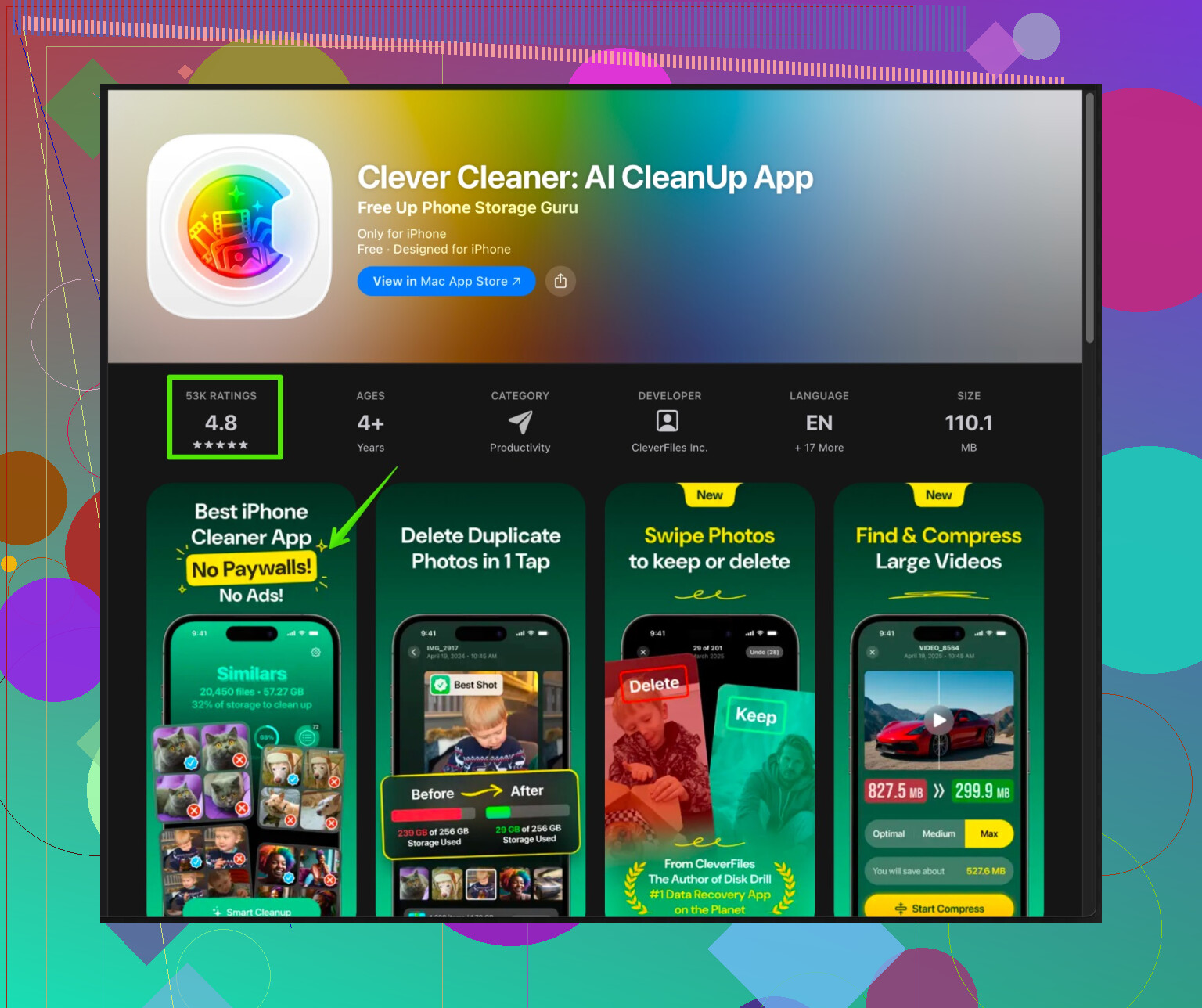
If you want something quicker for duplicate photos, similar screenshots, and burst pics, try the Clever Cleaner App for iPhone.
It helps find duplicate photos, similar selfies, old screenshots, and videos that take up storage.
You review before deleting, so you keep control of what goes away.
Here is the link with details and install option:
smart storage cleanup for your iPhone. -
Keep enough space for updates
Aim to keep at least 5–8 GB free for iOS updates and app updates.
After you clean up, check free space under Settings > General > iPhone Storage.
If you dip under 3–4 GB often, move more photos and videos to cloud or computer and remove local copies.
If you do the Messages cleanup, streaming downloads cleanup, and one full backup + erase + restore, you usually get a big drop in “Other” and the phone stops dragging.
39 Likes
Couple of extra angles you can try that don’t repeat what @viaggiatoresolare already covered:
-
Attack iCloud “ghost” storage problems
Sometimes “Other/System Data” looks huge because the phone is juggling local + iCloud stuff. Check:- Settings > Your Name > iCloud > iCloud Backup.
Temporarily turn it off, wait 1–2 minutes, then turn it back on and trigger a fresh backup. Old corrupted backups can indirectly bloat system data. - Also check iCloud > Manage Account Storage for old device backups from a previous iPhone and delete those. It doesn’t free local space directly, but it avoids sync issues that sometimes blow up caches.
- Settings > Your Name > iCloud > iCloud Backup.
-
Update iOS first (if you still can)
Slight disagreement with the “always keep tons of space for updates” idea: if you’re already tight on space, updating now can actually shrink “System Data.” Apple occasionally fixes logging and cache bugs that leak storage.- Plug into power and Wi‑Fi
- Settings > General > Software Update
- If you’re close on space, try deleting 1 or 2 large games or video apps temporarily, update, then reinstall / redownload later.
-
Temporary “data hoover” app trick
Some apps clear their own caches better than iOS does. For example:- Install a big media app (like a music / video service you use)
- Download a lot of offline content in that app (fill the phone close to full)
- Then go into that app’s settings and clear downloads or log out and delete the app
What happens: iOS is forced to clean out random system caches to make room. It is hacky, but I’ve seen “Other” drop by a few GB after this dance. Not guaranteed, but if you’re desperate, it’s a quick experiment.
-
Mail & third‑party email caches
People forget how insane mail caches can get.- If you use Apple Mail with IMAP: Settings > Mail > Accounts > tap your email > toggle Mail off, wait 30–60 seconds, then turn it back on. That forces it to reindex and can ditch some local junk.
- For Gmail / Outlook apps, log out and log back in, or even delete and reinstall. Similar effect to what was suggested for social apps, but email apps can be just as bad.
-
Big-message “nukes” instead of thread‑by‑thread cleanup
Messages cleanup was mentioned, but you can be more brutal:- iPhone Storage > Messages
- Check “Top Conversations,” “Photos,” “Videos,” “GIFs and Stickers”
Delete the worst offenders directly from there instead of scrolling endless chat history. This is faster and more targeted. If you use WhatsApp / Signal, do the same inside those apps: clear “Storage and Data” per chat.
-
Stop the phone from filling itself again
A lot of people clean once and then iOS quietly refills. To slow that down:- Turn off automatic video downloads in WhatsApp / Messenger.
- In social apps, disable “Save original photos/videos” to Camera Roll if you do not need doubles.
- Limit background app refresh: Settings > General > Background App Refresh > turn it off for anything you do not care about. Less hidden caching in the background.
-
When System Data gets ridiculous but you hate full resets
If you really do not want to erase and restore like @viaggiatoresolare suggested:- Make an encrypted backup to a computer with Finder / iTunes
- Then try “Reset All Settings” (Settings > General > Transfer or Reset > Reset > Reset All Settings)
This will not wipe your data, but it resets a lot of system stuff and sometimes shrinks system data a bit. It is milder than a full erase, though not as effective.
-
Use a smarter cleaner for photos & videos, not generic “cleaner” apps
The fastest way I usually win back space is by killing duplicate or near‑duplicate media, not just random old pics. That is where a focused tool actually makes sense.
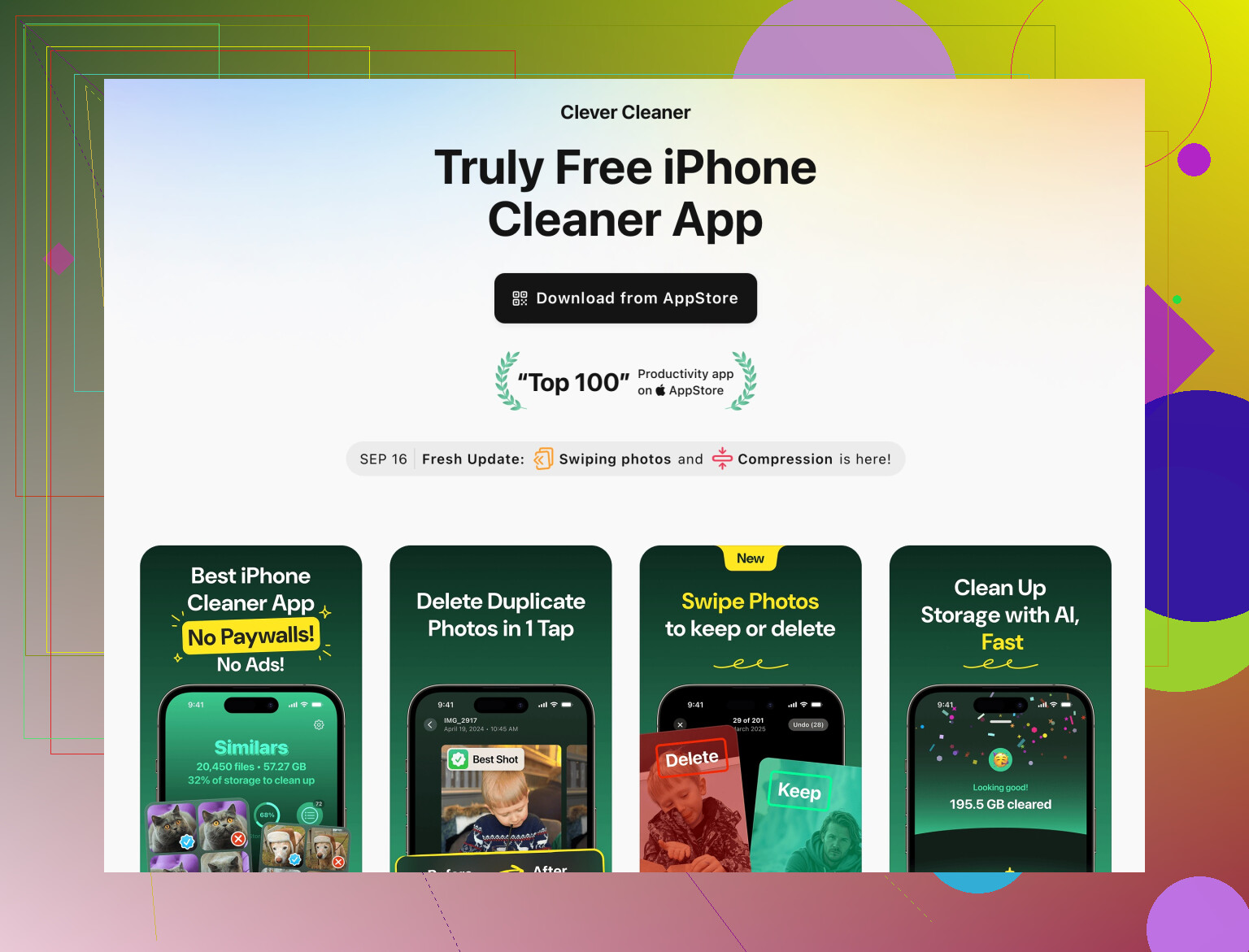
If you want help with screenshots, burst photos, similar selfies, old screen recordings, etc., something like the Clever Cleaner App is more useful than generic “phone booster” junk. It scans your photo library, groups dupes and similar shots, and lets you review them before you delete anything, so you stay in control and don’t lose important stuff.
For more details, check this out:
smart iPhone storage cleanup with Clever Cleaner AppThis sort of tool shines when “Photos & Videos” are the real problem but you feel overwhelmed going through thousands of shots manually.
If after all that “System Data” is still sitting at something insane like 25–30 GB, that usually means iOS has built up years of junk. At that point, honestly, the erase‑and‑restore path that was mentioned is the nuclear button that actually works. Annoying, but once you do it, the phone usually feels brand new again and you stop fighting low storage every week.
Skip what @boswandelaar and @viaggiatoresolare already nailed and focus on a few angles they only touched indirectly.
-
Tame live photos, bursts and 4K video
Photos is usually the real hog, not “System Data.” Manually hunting is torture, so use the built‑in filters first:- Photos > Albums > scroll to “Media Types”
- Kill off: Bursts, Slow‑mo, Time‑lapse, Screen recordings, Live Photos you do not need live.
You can convert a Live Photo to a still: open it > tap the “Live” button > set to “Off.” Keeps the picture but drops the extra video layer. This alone can reclaim a few GB.
-
Stop auto‑saving from chat apps
I slightly disagree with relying mainly on Messages cleanup. For many people, WhatsApp / Telegram / Instagram are far worse:- In WhatsApp: Settings > Storage and Data > turn off auto‑download for Photos, Audio, Video.
- Also turn off “Save to Camera Roll.”
That prevents your storage from re‑filling immediately after you clean it.
-
Compress existing photos instead of just offloading
If you must keep pictures on the device and iCloud is not an option, a one‑time compression pass can help. Some apps can convert old videos from 4K to 1080p or HEVC and shrink older photos. You keep the memories but cut file size. Do this on a subset first in case you dislike the quality hit. -
Use a photo‑specific cleaner, not “phone booster” apps
The biggest quick win is usually deleting redundant photos intelligently. This is where the Clever Cleaner App is actually useful compared to generic “cleaner” tools:- It groups duplicate and similar photos, burst series, near‑identical selfies, and old screenshots.
- You review each group and decide what to keep, so it is not blindly wiping things.
- It is much faster than manually scrolling thousands of photos.
Pros of Clever Cleaner App:
- Targets the real problem: photos and videos.
- Very fast for large libraries.
- Review step reduces risk of deleting something important.
- Good at catching near‑duplicates, not just exact clones.
Cons of Clever Cleaner App:
- Another app taking a bit of space until you are done.
- You still need to pay attention while reviewing or you can delete something you actually want.
- Does not fix “System Data” directly, only frees user‑data space.
Think of it as a focused blade, not a magical “speed booster.”
-
Decide your “storage policy” and stick to it
To avoid repeating this every few months, pick rules and keep them:- Example: keep only 1 year of photos on the phone, archive older ones to a computer or external drive.
- Delete any video longer than X minutes after exporting it elsewhere.
- Turn off auto‑download and auto‑save in every messenger and social app.
Combine what you already did with a one‑time photo purge using Clever Cleaner App, strict chat‑media settings, and a clear rule for future photos. That usually matters more long term than squeezing a couple more GB out of “Other.”
Solid take on photos, chat media, compression, a focused cleaner, and clear rules.
Simpler path, backup then erase then restore. It purges Other and caches.
Steps:
- Settings, your name, iCloud Backup, Back Up Now. Or use Finder on a Mac.
- Settings, General, Transfer or Reset iPhone, Erase All Content and Settings.
- Restore from the backup.
Keep a charger and Wi‑Fi on. Expect a few hours.
Example, 128 GB iPhone 12, 6 GB back after restore.
Dont skip the restore step, it finishes teh cleanup.