I need help accessing and managing my WordPress files through FTP after I ran into a site issue and can’t fix it from the dashboard. I’m trying to understand the right way to connect, edit files safely, and avoid breaking anything else. Looking for simple guidance on WordPress FTP access, file management, and basic troubleshooting.
I’ve spent enough time inside WordPress to know the admin area doesn’t fix everything. Sometimes you’re locked out. Sometimes an update wrecks the site. Sometimes you need to dump a pile of files onto the server fast and move on. That’s where FTP starts earning its keep.
Why FTP matters for WordPress
FTP (File Transfer Protocol) gives you direct access to the files on your server. No WordPress dashboard, no waiting for the backend to load, no trying to click around a broken site. You connect and work with the files the same way you handle folders on your own computer. Upload, download, rename, move, delete. Simple stuff, but it saves you when wp-admin is dead.
On most hosts, your WordPress install sits in public_html or sometimes www. The layout usually looks like this:
public_html/
├── wp-admin/
├── wp-content/
│ ├── themes/
│ ├── plugins/
│ └── uploads/
├── wp-includes/
├── wp-config.php
└── .htaccess
If you’re fixing stuff by hand, you’ll end up in wp-content most of the time. Themes live there. Plugins too. When the problem gets deeper, you’ll often need wp-config.php or .htaccess.
What you need before connecting
Your host usually gives you four things:
Server address, often something like
ftp.yourdomain.comor a raw IPUsername
Password
Port number, usually 21 for FTP and 22 for SFTP
I stopped using plain FTP years ago when SFTP is available. Plain FTP sends login details in a way I don’t trust. SFTP is the safer pick, so if your hosting account supports it, use it.
Stuff you’ll end up doing with FTP
The common one is manual installs. You grab a plugin or theme as a .zip, extract it on your computer, then upload the folder into wp-content/plugins/ or wp-content/themes/. A lot of people only learn FTP after WordPress refuses an upload in the dashboard. Been there.
The more useful move is damage control. A plugin update throws a fatal error, your site goes white, and wp-admin won’t open. Connect through FTP, go to wp-content/plugins/, then rename the plugin folder. So if the folder is bad-plugin, rename it to bad-plugin-disabled. WordPress sees it as missing and deactivates it. Crude, but it works.
You’ll also run into times where editing wp-config.php or .htaccess is faster than hunting for a plugin setting. Memory limit changes, redirect cleanup, permalink fixes, weird config issues. Not daily work, still common enough.
FTP clients I’d keep on the list
FileZilla
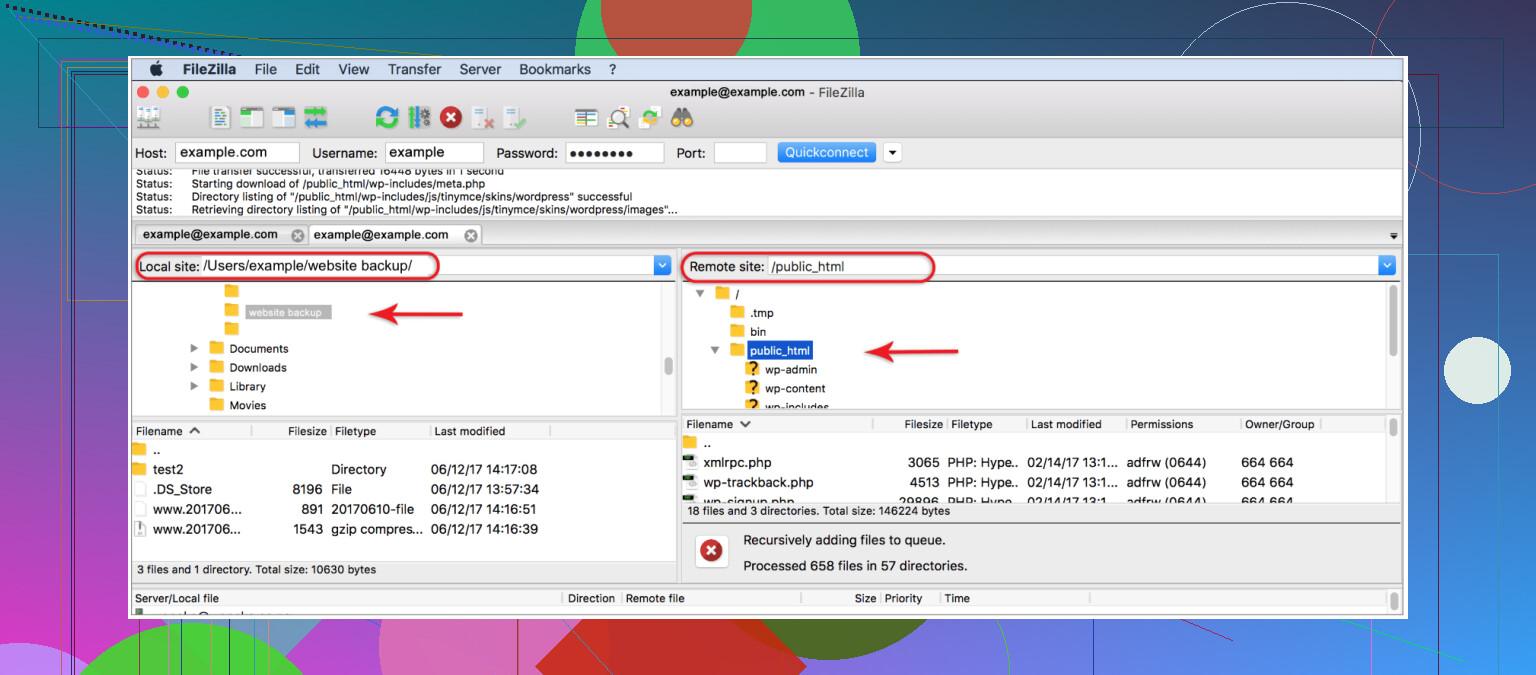
FileZilla is the one almost everybody tries first. Free, cross-platform, no drama getting started. Local files on one side, server files on the other. Drag and drop. Done.
My issue with it was speed. Small jobs were fine. Big uploads or folders packed with tiny files felt slow and clunky. If you only log in once in a while to fix a plugin or upload a theme, it gets the job done. If you move lots of data often, it starts to feel old fast.
Commander One
Commander One is Mac-only, and yeah, it costs money. I didn’t love paying for an FTP client at first, but if you work on a Mac all day, it starts making sense. It handles FTP and SFTP well, and the archive support is one of those things you miss once you go back to a simpler app. Packing files into a .zip and pushing them up in one shot saved me time more than once.
If you only touch server files once every few months, skip it. If this is part of your weekly routine, I get why people stick with it.
Cyberduck
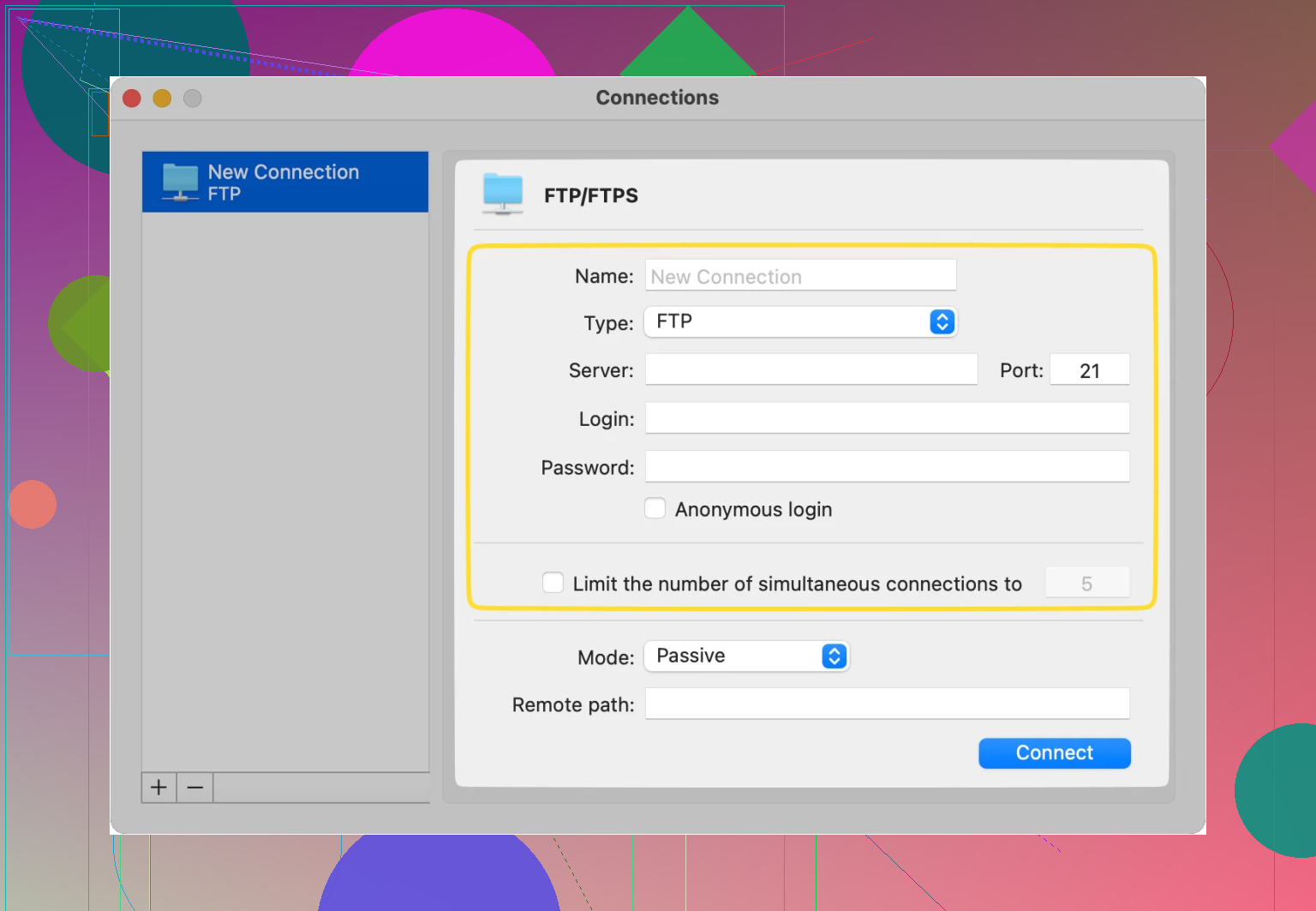
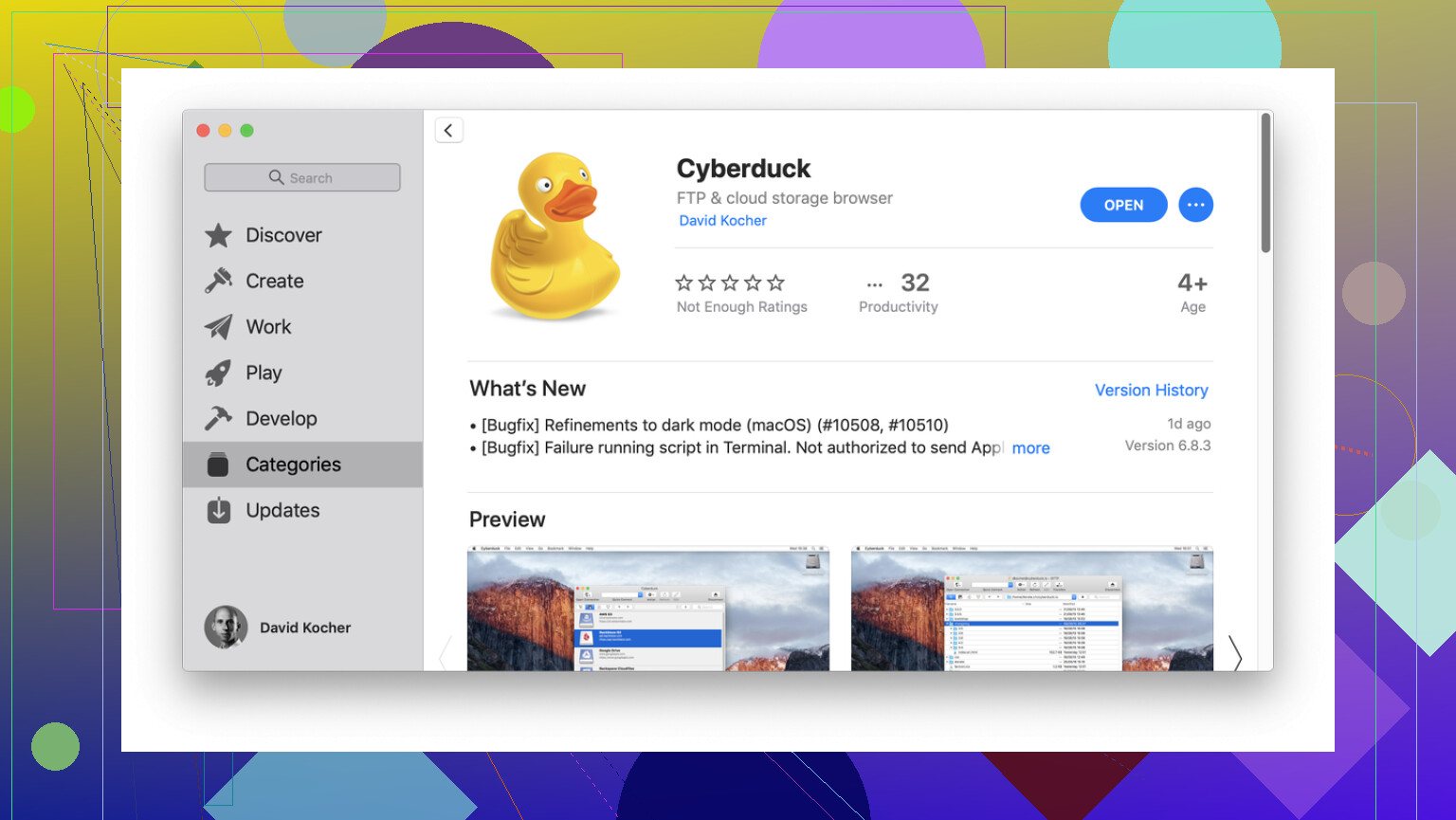
Cyberduck is free, open-source, and available on Mac and Windows. The interface is cleaner than some older FTP tools, and it supports more than plain server connections, including cloud services.
I’ve had mixed results with it. Some sessions were smooth. Other times transfers hung for no clear reason, or simple file actions got weird. Enough people have run into the same thing where I wouldn’t rely on it as my only option. Keep a second client installed. Saves you from annoying nights.
CloudMounter
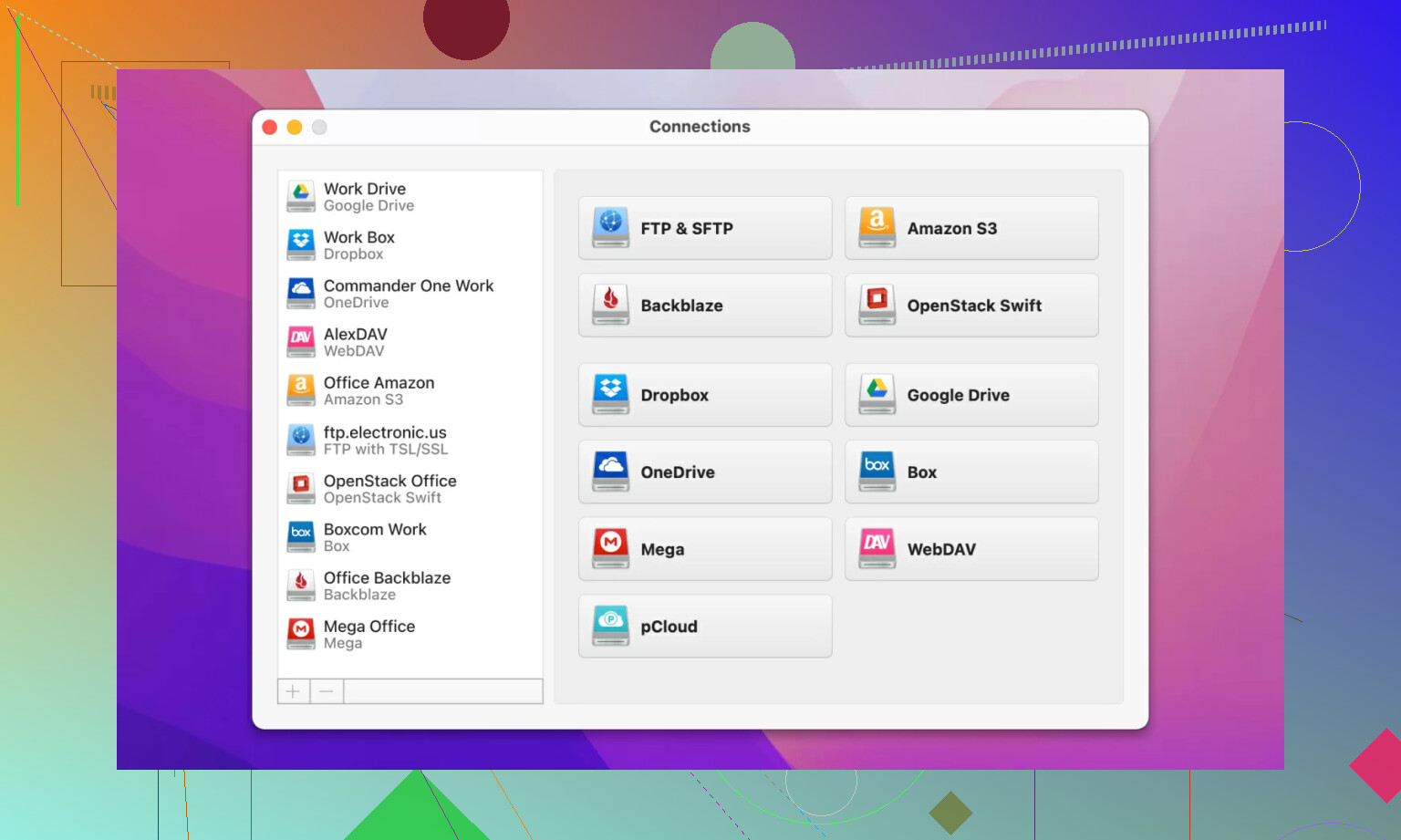
CloudMounter goes a different route. Instead of giving you a separate FTP window, it mounts the server like a drive inside Finder on Mac or File Explorer on Windows. For a lot of people, this feels easier right away because you’re working in a file manager you already know.
I’d point beginners here before handing them something cluttered. If normal FTP apps make your eyes glaze over, this setup feels less awkward. Browse folders, copy files, move stuff around, same habit as local storage.
After a few file transfers and one or two plugin disasters, FTP stops feeling like some admin-only tool. It turns into your fallback plan. One thing I learned the hard way, keep a local backup before editing server files. Renaming the wrong folder is easy. Overwriting the wrong file is easier. You want a way back when, not after.
4 Likes
Skip live editing on the server if you want fewer problems. Download the file first, keep a backup copy, edit locally, then upload it back. If the edit fails, restore the old file fast. That is safer than opening files in a host panel editor and hoping for the best.
Use SFTP, not plain FTP. I disagree a bit with @mikeappsreviewer on one thing, FTP itself is not where I’d start now. SFTP over port 22 is the better default. Same job, less risk.
Safe workflow:
- Connect with your host, username, password, port 22.
- Confirm you are in the right WordPress folder.
- Download wp-config.php, .htaccess, or the plugin file before changing anything.
- Rename broken items first, edit second. Renaming is lower risk.
- Test after each single change. Do not batch 8 edits at once.
Best recovery moves:
- Set a plugin off by renaming its folder.
- Switch themes by renaming the active theme folder, WordPress often falls back.
- Replace corrupted core files with fresh copies from the same WordPress version.
- Check file permissions if uploads fail, folders 755, files 644 is common.
If you are on Mac, Commander One is a solid pick for managing WordPress files via FTP or SFTP. The dual-pane view makes it harder to drag files into the wrong place. Small thing, big diffrenece.
One more tip. Keep a plain text log of what you changed and when. Sounds boring, saves hours.
Big thing I’d add to what @mikeappsreviewer and @espritlibre said: if your host offers File Manager in cPanel/Plesk, use that first for tiny emergency fixes. I know, hot take, because everyone jumps straight to FTP/SFTP. But for renaming one plugin folder or restoring a single file, browser-based access is sometimes faster and less error-prone than setting up a client when your site is already on fire.
That said, for actual file management, SFTP wins. Not plain FTP.
A few practical rules that save people from making the problem worse:
- Do not edit files inside
wp-adminorwp-includesunless you know exactly why
Most site issues come from plugins, themes, or config, not core hacks. - Check hidden files are visible
If you can’t see.htaccess, your client may be hiding dotfiles. - Watch line endings and file encoding
Sounds nerdy, but uploading a badly savedwp-config.phpcan break the site fast. - Be careful with drag-and-drop
Accidentally dropping a local folder into the wrong remote directory is super common.
Best folders to know:
wp-content/plugins/wp-content/themes/wp-content/uploads/- site root for
wp-config.phpand.htaccess
One thing I sorta disagree on: renaming the active theme as a first move is not always clean. On some setups it falls back, on others it just throws a diff error because there’s no valid default theme installed. Better move is to make sure a default WordPress theme exists first.
If you’re on Mac, Commander One is honestly pretty handy for WordPress file management over FTP/SFTP. Dual-pane makes it easier to compare local vs server files, which helps prevent dumb mistakes. FileZilla is fine too, just uglier than sin.
Also, before uploading a replacement file, compare timestamp and file size. Sounds minor, but it helps catch wrong-version uploads. Ask me how I know lol.