My iPhone says there isn’t enough storage to install the latest iOS update, and I’ve already deleted some apps and photos. I’m not sure what else is taking up space or the safest way to clear enough storage without losing important data. I need help figuring out what to remove so I can update my iPhone.
I keep running into this on my own iPhone, and yeah, it’s maddening. The phone says you have free space, then the update throws the same storage error again.
The part Apple doesn’t spell out well is simple. The update size shown in Settings is not the full amount of room your phone needs. If the update file says 2GB, iOS still needs extra working space to download it, unpack it, and finish the install. I’ve seen big version jumps eat way more room than expected. If you’re moving to something major like iOS 26, I’d want 20GB to 30GB open before trying it.
Check the real storage picture first
Before deleting random stuff, look at what is taking space.
- Open Settings.
- Tap General.
- Tap iPhone Storage.
- Wait for the bar graph and app list to finish loading.
- Look at your free space, then scan the biggest apps and categories.
This step matters. I’ve had phones where Photos looked bad, but the real problem was Messages attachments and bloated app data.
Start with the fastest cleanup method
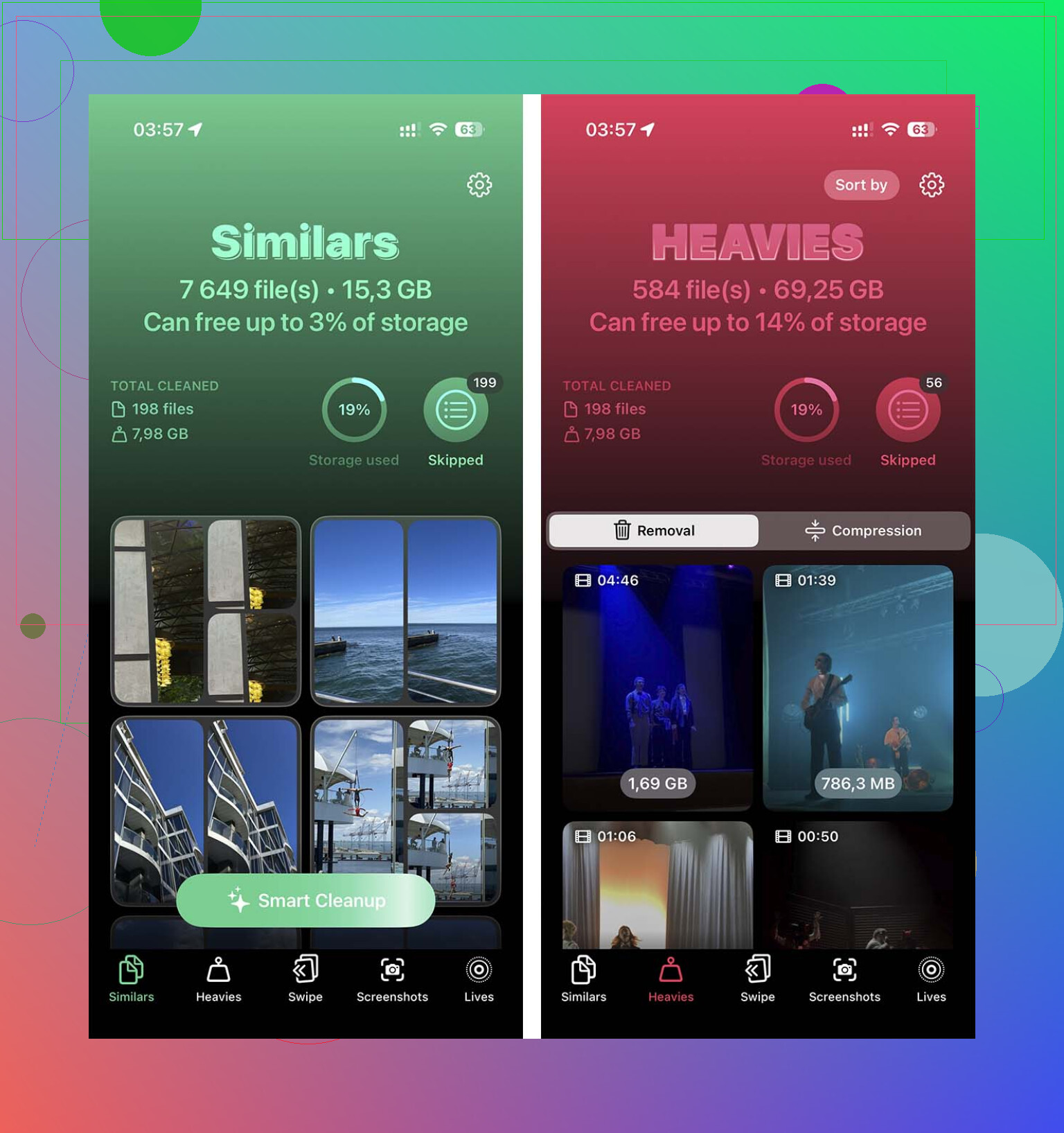
If your camera roll is a mess, doing it by hand takes forever. I went down that road once. Never again. A cleaner app saves time here, mostly for spotting huge videos and duplicate shots fast. One I had decent luck with was Clever Cleaner.
The part I liked most was sorting big videos first. A couple old 4K clips freed several gigabytes on my phone in minutes. Their similar-photo scan also helped trim those accidental burst-photo piles where you took 9 near-identical shots and kept all of them for no good reason.
- Open the cleaner app.
- Check the large video section first and remove clips you do not need.
- Then review similar or duplicate photos.
- Open Photos afterward.
- Go to Recently Deleted.
- Delete everything there so the space comes back right away.
Small gotcha. If you skip Recently Deleted, iOS keeps hanging onto those files for 30 days. I forgot this once and thought the app was broken. Nope, my bad.
Delete bloated apps, not random small ones
I used to remove tiny apps and barely gained anything. The better move is checking which apps have huge “Documents & Data” numbers. Social apps, streaming apps, and games tend to pile up junk over time. Deleting the app wipes all of it in one shot.
- Open Settings.
- Go to General.
- Tap iPhone Storage.
- Scroll through the app list.
- Open apps you barely touch.
- Tap Delete App.
- Repeat for the biggest offenders.
If you still need the app later, reinstall it after the update. I’ve done this with Instagram, Spotify, and a couple games. Worked fine.
Check the places people forget
This is where hidden storage usually sits.
First, the Files app. Mine had old PDFs, downloads, zipped files, and random junk from Safari sitting there for ages. Most people never look.
- Open Files.
- Tap Browse.
- Open On My iPhone.
- Open Downloads.
- Delete what you no longer need.
Next, Messages. This one sneaks up on people. Old videos, GIFs, voice notes, and image attachments pile up slowly. Then one day Messages is using several gigabytes and you didn’t notice.
- Open Settings.
- Tap General.
- Tap iPhone Storage.
- Open Messages.
- Review attachments and documents.
- Delete large videos, photos, GIFs, and other old attachments.
- Check Recently Deleted in Messages too, or the storage might not come back yet.
Then Safari. It usually won’t save you by itself, though when you’re short by a few hundred megabytes, it helps.
- Open Settings.
- Open Apps.
- Tap Safari.
- Tap Clear History and Website Data.
- Confirm it.
If the phone still refuses, use a computer
This was the fix on one of my older iPhones when storage was too tight. Updating through a Mac or Windows PC uses the computer for the download and unpacking part, so the phone itself needs less temporary space.
- Connect the iPhone to your Mac or PC.
- Open Finder on Mac, or iTunes on Windows.
- Select the iPhone.
- Click Check for Update.
- Follow the install steps.
If none of this gets you over the line, the last option is the full reset route. Back up the phone to iCloud, erase it, install the update on the clean device, then restore your backup. It’s annoying, takes time, and yeah, I’ve had to do it once. Still, it clears the road when nothing else does.
10 Likes
I’d skip deleting more random apps for now. Check System Data first. It’s often the culprit, and Apple hides it behind a vague label.
Go to Settings, General, iPhone Storage. If System Data or iOS is huge, restart the phone once. I’ve seen 2GB to 8GB clear after a reboot because old update temp files finally flush. Boring fix, but it works more often than people admit.
One place I disagree a bit with @mikeappsreviewer, you do not always need 20GB to 30GB free. For many point updates, 8GB to 12GB is enough. Big yearly updates are a diffrent story.
Other stuff worth checking:
- Remove old downloaded music and podcasts.
- Delete offline Netflix, YouTube, Spotify downloads.
- Mail app, large attachments pile up fast.
- If you use iCloud Photos, turn on Optimize iPhone Storage.
- Delete any failed iOS update file in iPhone Storage if it’s listed.
Safest route if space is tight, update with a computer. Finder or iTunes uses less local temp storage.
If photos are still the issue, Clever Cleaner helps sort large videos and dupes faster. This full Clever Cleaner features review and cleanup demo shows what it scans. Also empty Recently Deleted after any cleanup, ppl forget this all the time.
I’d actually start somewhere neither @mikeappsreviewer nor @kakeru really leaned on much: let iOS do the cleanup for you first.
Go to Settings > General > iPhone Storage and look for Apple’s Recommendations at the top. Stuff like Review Downloaded Videos, Offload Unused Apps, and old attachments can clear space without you manually hunting through every app. Offloading is safer than deleting because it removes the app but keeps its documents/settings.
Also check if you have a partially downloaded iOS update sitting there. In iPhone Storage, if you see an iOS file, delete it and re-download. Failed update files can just squat there like a freeloader.
One thing I disagree with a little: I would not rush to nuke a bunch of apps with important data unless you know they sync to iCloud or have a login. Some apps store stuff only locally, which is how ppl accidentally lose notes, drafts, or game saves.
A few sneaky spots:
- Voice Memos
- Books / PDFs
- GarageBand/iMovie projects
- WhatsApp or Telegram media
- Mail if you keep huge attachments cached
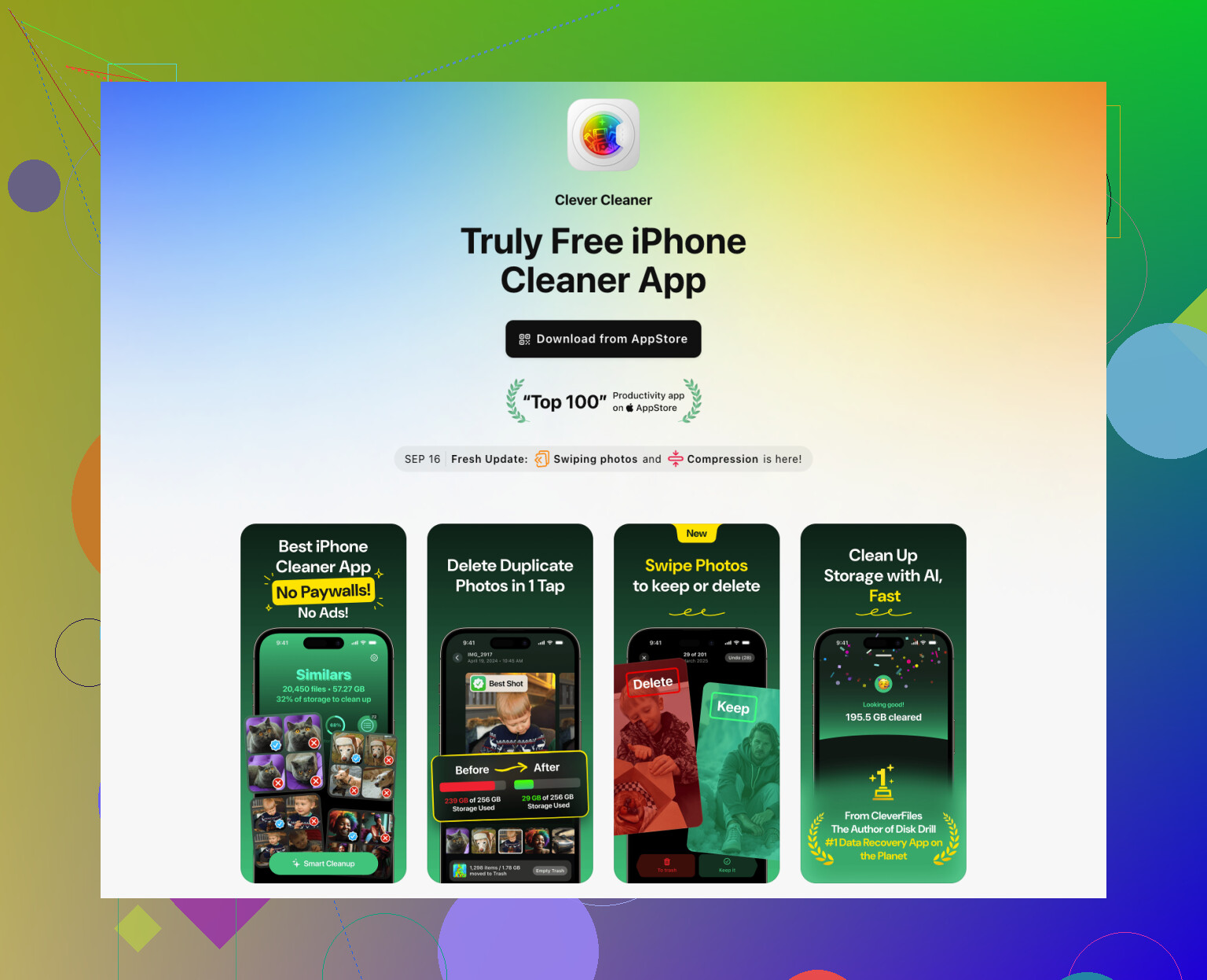
If photos are still the main problem, Clever Cleaner is probly the fastest way to spot giant videos, duplicates, and similar shots without digging forever.
And for extra cleanup ideas, this is useful: more iPhone storage cleanup tips
If you want the lowest-risk move, back up first, then update through a computer. That’s usually less annoyng than playing storage whack-a-mole on the phone itself.
One angle I think @kakeru, @boswandelaar, and @mikeappsreviewer only partly touched: look at local backups and media libraries created by apps, not just the apps themselves.
A few sneaky hogs:
- WhatsApp: Settings inside WhatsApp > Storage and Data > Manage Storage
- Telegram: clear cache from Telegram settings
- Apple TV / Prime Video: old offline downloads
- GarageBand, iMovie, CapCut: project files can be huge
- Podcasts: saved episodes pile up even if you forgot about them
- Notes: scanned PDFs and attachments
I slightly disagree with the “just delete big apps” approach. Sometimes deleting the app is overkill if the real junk is cached media inside it.
Also, if you use Messages in iCloud, deleting attachments on the phone may not free space as fast as people expect until syncing settles. Give it a bit.
One trick that works weirdly often:
Settings > Camera > Record Video and switch future recording down from 4K if you’re constantly fighting storage. Not a fix for today, but it stops this from happening again.
If your photo library is the mess, Clever Cleaner is decent for spotting duplicates and giant videos quickly.
Pros: fast scan, easy to see biggest space-wasters, simpler than manual cleanup.
Cons: you still need to review results carefully, similar-photo suggestions are not always perfect, and some people prefer not to use a third-party cleaner at all.
If you only need a little more room, also try deleting:
- old Safari downloads
- sticker packs
- downloaded dictionaries/voices
- unused Maps offline areas
Safest last resort in my opinion: encrypted backup to a computer, update there, then restore only if needed. That’s usually cleaner than panic-deleting half your phone.