My iPhone storage is completely full because my Photos app is packed with thousands of pictures, including a lot of duplicate shots. I want to delete all photos from my iPhone and remove duplicates at the same time, but I’m worried about missing something or deleting the wrong images. What’s the fastest and safest way to clear my photo library and free up storage?
I hit this mess with a library pushing 30,000 photos, and the red storage bar stayed pinned like it owned the phone. Apple still doesn’t give you a plain “delete everything” button in the main Photos library, which is kind of absurd. If you go at it the wrong way, you waste a ton of time and the phone starts choking.
Stop and check iCloud first
This part matters more than people think. If iCloud Photos is on, it syncs your library across your Apple stuff. It is not a separate archive. So if you delete a photo on your iPhone, it disappears from iCloud and from your other Apple devices tied to the same account.
If your goal is to keep the photos but get space back on the phone, go to Settings > Photos and turn on Optimize iPhone Storage. I used this on a nearly full device and it helped fast. Your phone keeps smaller preview versions, while the full files stay in iCloud.
If you already copied everything somewhere else and want the phone cleared out, then go ahead.
Method 1, using the Photos app on the iPhone
I tried this. It works okay when the library is small. Once you get into huge photo counts, it gets shaky.
- Open Photos.
- Tap Select in the top right.
- Press and hold the photo in the bottom right of the grid.
- Drag upward slowly so the screen keeps scrolling and selecting.
- When you’ve got everything selected, tap the trash.
- Open Albums.
- Scroll down to Recently Deleted under Utilities.
- Tap Select, then Delete All.
Where it falls apart is scale. Around 20,000 photos or more, the app starts lagging hard. If your finger slips, selection breaks and you get to start over. On a phone with almost no free storage left, iOS sometimes freezes during the database update. I had this happen once and the app sat there doing nothing for way too long.
Method 2, using a computer
This felt less annoying.
Platform: Mac
Tool: Image Capture or the Photos app
Notes: Select all, delete once, usually stable
Platform: Windows
Tool: File Explorer, DCIM folder
Notes: It works, though large batches sometimes throw “Device Not Responding” errors
If you have a Mac nearby, I’d pick this over drag-selecting on glass. Less fiddly. Fewer weird failures.
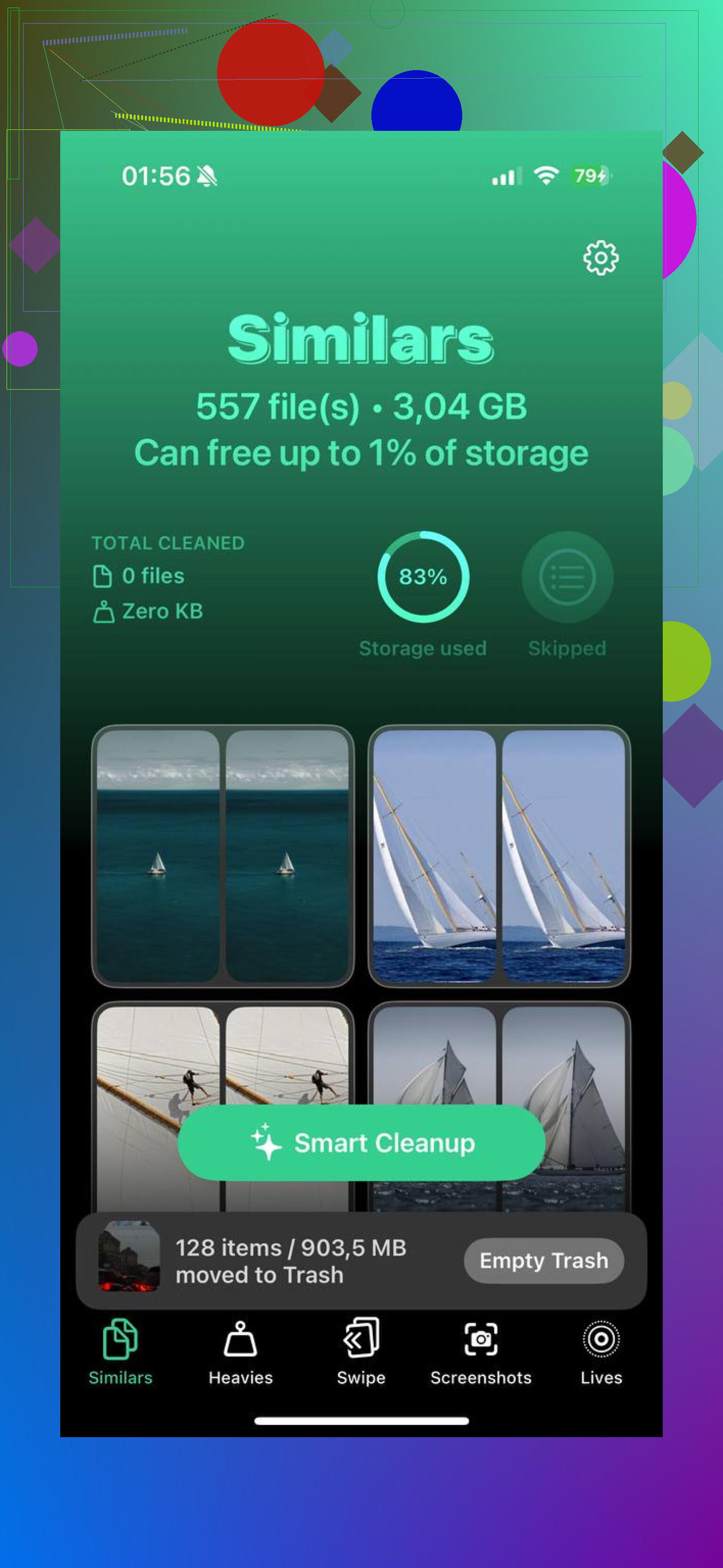
Method 3, Clever Cleaner
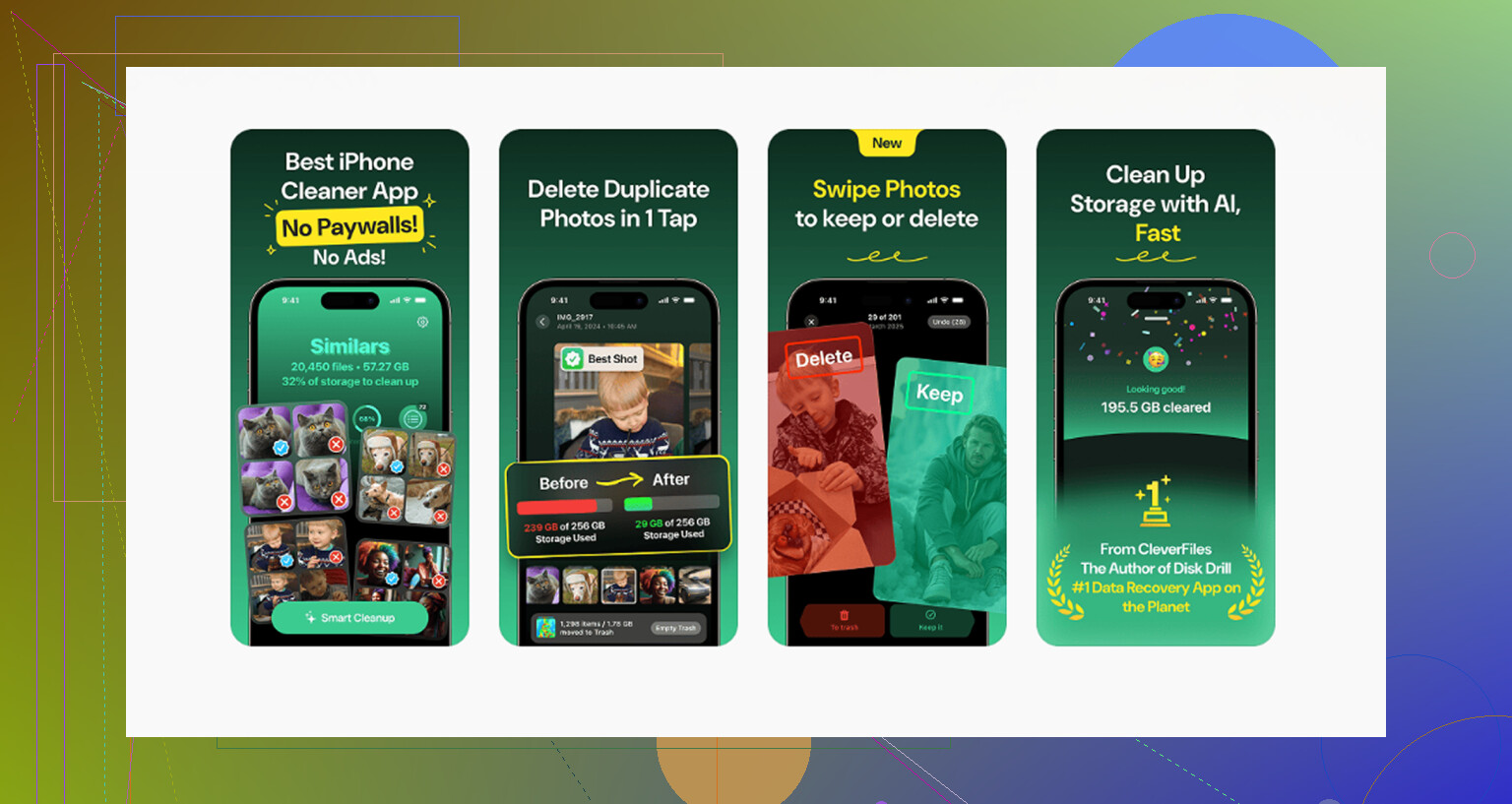
I’ve seen a lot of cleanup apps pull the same stunt. Free install, then you hit a paywall right before deletion. This one doesn’t do that. No ads, no subscription wall inside the app.
What I’d do inside it:
- Open the Heavies tab first. It sorts your media by file size.
- Start at the top. Big 4K videos usually eat storage faster than people expect.
- Open the Similars tab. It groups near-duplicate shots so you keep one and dump the rest.
- Check the Screenshots tab. Each thumbnail shows file size, which helps when you want quick wins.
- The scanning stays on-device, which I cared about because some stuff in my library wasn’t meant for cloud processing.
The part people miss, and then wonder why storage didn’t change
Deleting isn’t the last step. iOS moves files into Recently Deleted and leaves them there for up to 40 days. Until you clear that folder, the space is still tied up.
Go to Albums > Recently Deleted > Select > Delete All.
That’s the step that frees the storage for real.
One more thing from painful experience. If your phone is so full it’s lagging or refusing to finish deletions, remove one or two large apps first. Games are usually easy targets. Streaming apps too. Even a little free space gave my phone enough room to finish the cleanup instead of freezing mid-process.
12 Likes
If your goal is wipe the iPhone photo library fast and kill duplicates in the same pass, I would not start inside Photos. @mikeappsreviewer is right about iCloud being the first thing to check, but I disagree a bit on manual drag-select. On huge libraries, it’s a pain and too easy to screw up.
Better route.
-
Turn off sync first if you do not want deletions hitting other Apple devices.
Go to Settings, tap your name, iCloud, Photos. Check what’s enabled. This part matters more than the delete step. -
Remove duplicates before the full purge if you want cleaner results and less database lag.
On iOS 16 and newer, Photos has a Duplicates album under Utilities. Merge those first. It cuts clutter without extra taps all over the place. -
If the phone is choking, use Clever Cleaner.
It’s better for bulk review than the stock app. It groups similar shots, large files, screenshots. That helps you clear junk fast before the full delete. Fewer crashes, less fiddling. I’d do this first if storage is down to scraps. -
Then erase the rest from a computer or through iCloud web if sync is on.
icloud.com/photos is often smoother than doing 10,000 taps on the phone screen. Select all, delete, then empty Recently Deleted. Same rule as @mikeappsreviewer said, space does not come back until Recently Deleted is cleared.
Also worth reading this thread on the best free iPhone cleaner apps for clearing duplicate photos and storage: best free iPhone cleaner app discussion for photo and duplicate cleanup
Short version, sort duplicates first, then nuke the library, then empty Recently Deleted. If your phone is freezing, free up 2 to 5 GB first. iOS gets weird when storage hits zero, ask me how I know lol.
Honestly, I would not focus on finding some magical “delete all photos and duplicates in one tap” option, because iPhone doesn’t really do that cleanly. @mikeappsreviewer and @cacadordeestrelas already covered the obvious deletion routes, so here’s the part I think matters more: separate cleanup from wipeout.
If your storage is completely toast, deleting duplicates first can actually make the final mass-delete less buggy. iOS photo libraries get weird when they’re bloated. The built-in Duplicates album helps a little, but it only catches exact-ish matches. For near-dupes, bursts, screenshots, and giant videos, a cleaner app is faster. I’d use Clever Cleaner for that triage step, then wipe the rest after. Kinda backwards maybe, but in practice it causes fewer headaches.
Also, if you just want a true reset, the nuclear option is: back up what you want, then Erase All Content and Settings. That removes the whole photo mess in one shot, not just the visible library. Obviously only do that if you’re okay starting fresh. People forget this is often faster than babysitting Photos for an hour while it pretends not to crash lol.
One more thing people miss: after huge deletions, storage sometimes doesn’t update right away. A reboot can help force iOS to recalculate. Annoying, but real.
If you want a breakdown of whether Clever Cleaner is actually worth using, this review is pretty solid: see this detailed Clever Cleaner iPhone cleanup app review
So yeah, my order would be:
- Backup anything important
- Check iCloud sync status
- Use Clever Cleaner to remove dupes / large junk first
- Delete the rest
- Empty Recently Deleted
- Reboot if storage still looks stuck
Not elegant, but it works. Apple somehow made managing 20,000 photos feel harder than it should be.
I’d actually push back a little on the “delete duplicates first” idea if your phone is at absolute zero storage. When iOS is gasping, the fastest path is often to free space with the biggest junk first, not the most organized cleanup.
My order would be:
- Delete the largest videos first
- Empty Recently Deleted
- Then deal with duplicates and similars
- Then wipe the rest if that’s still the plan
Why: duplicate scans can take time and memory. If the phone is freezing, triage beats perfection.
That’s where Clever Cleaner makes sense.
Pros: groups similar photos, surfaces heavy files fast, easier than fighting the Photos app.
Cons: you still need to review results, “similar” is not always “safe to delete,” and if you plan to erase everything anyway, part of the duplicate pass can feel unnecessary.
So I partly agree with @cacadordeestrelas, @viaggiatoresolare, and @mikeappsreviewer, but I’d treat duplicate cleanup as phase two, not phase one, when storage is critically full.
Also, underrated option: if your real goal is a totally clean phone and you already backed up what matters, a full device reset is often quicker than wrestling the photo library database. Not elegant, but brutally effective.