My iPad photo library has thousands of pictures, and I’m seeing a lot of duplicates taking up storage. I’m not sure if the Photos app can safely find and remove duplicate photos in bulk, or if there’s a better way to clean them up without deleting the wrong images. Any advice?
The fastest way to deal with this is to separate “true duplicates” from “photos that are basically the same.” Apple can help with the first one, but it usually misses the second, which is where most of the clutter comes from.
I had the same issue with an iPad photo library full of trip photos, screenshots, random videos, and five versions of the same shot. Doing it by hand was way too slow, so I’d start with a cleaner app if you’re trying to free up space without spending hours tapping through everything.
Use a cleaner app first if you want the quickest cleanup
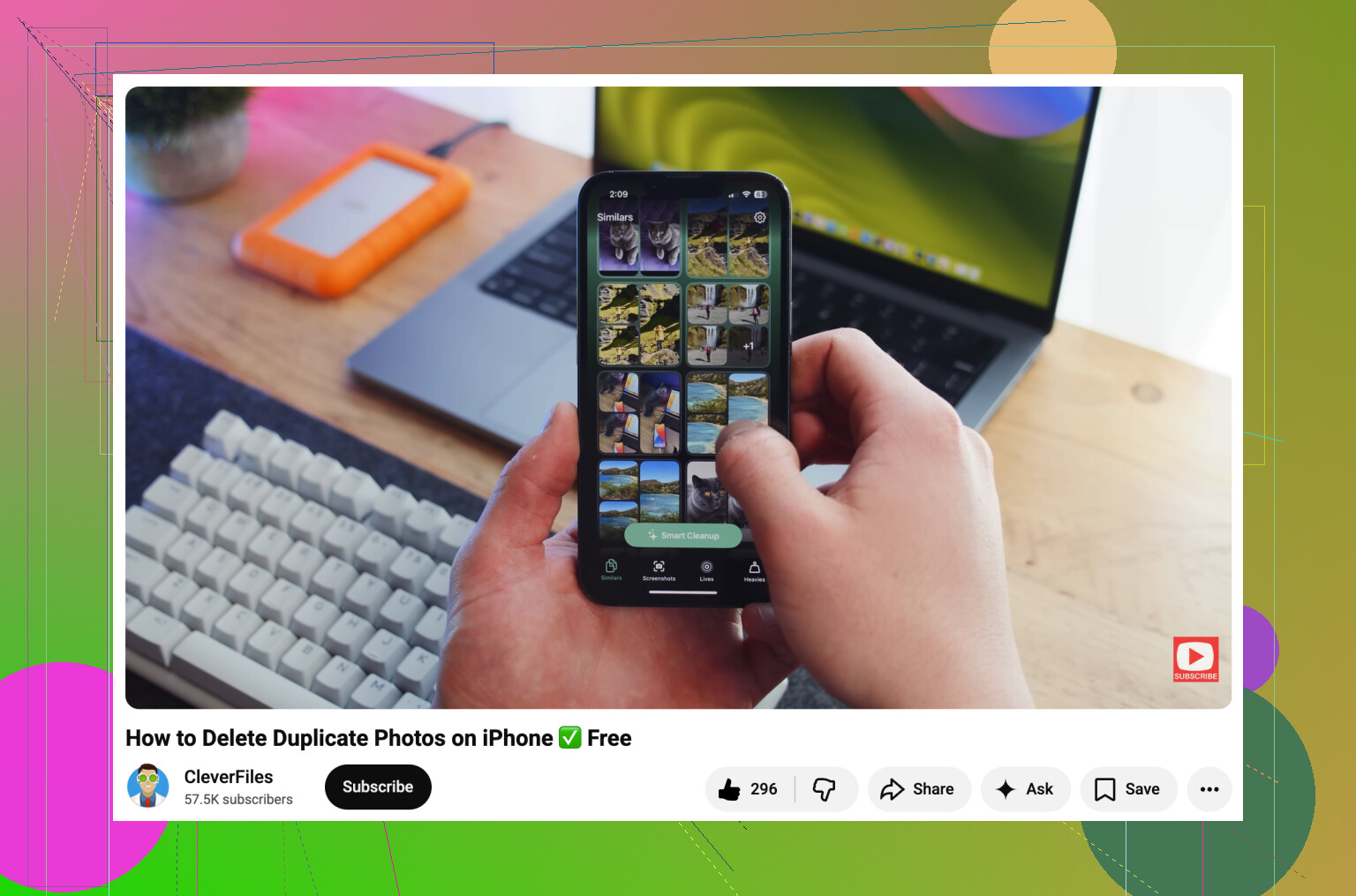
I used Clever Cleaner. It’s free to use, and the useful part is that it doesn’t only look for exact duplicate files.
The Similars feature groups photos that look almost the same, like the kind you take back-to-back on a trip. It also picks a Best Shot from each group, so you’re not sitting there comparing ten tiny variations yourself. You can usually keep the best one and remove the rest pretty quickly.
It also finds other stuff that quietly eats storage over time, like screenshots, large videos, and Live Photos. Those categories can add up more than you’d expect.
Apple’s Duplicates album is worth checking too
If you don’t want to install anything, open the Photos app and look under Utilities for the Duplicates album. This is available on iPadOS 16 and newer.
When Apple finds identical copies, you’ll see a Merge option. It doesn’t just delete one at random. Photos keeps the version with the best quality and metadata, then sends the extra copies to Recently Deleted.
The catch is that Apple is pretty strict here. If you took several similar photos a second apart, changed the angle a little, cropped one, or edited one, Apple usually treats those as separate photos. So the built-in tool works fine for exact duplicates, but it won’t clean up a big pile of “almost the same” pictures.
If the Duplicates album doesn’t show up, it’s probably one of these:
- Your iPad hasn’t finished analyzing the library yet. Leave it locked and plugged in for a while.
- You’re on iPadOS 15 or older, so the feature isn’t available.
- There just aren’t any exact duplicates for Apple to show.
You can also search manually
Photos search is better than scrolling endlessly. Try searching for things like Screenshots, Receipts, Dog, Beach, or a city name. Browsing by Months or Years can also help if you know certain vacations or events created a lot of clutter.
It’s slower than using a cleaner app, but still much better than going through the whole library from top to bottom.
Empty Recently Deleted when you’re done
Deleting photos doesn’t free the space right away. They go to Recently Deleted and can stay there for up to 30 days. If you want the storage back now, you need to empty that album too.
Also, if iCloud Photos is turned on, deleting photos from your iPad deletes them from your iPhone, Mac, and anything else using the same Apple Account. That may be what you want, but check before you permanently remove a bunch of stuff.
After the big cleanup, it’s much easier to stay on top of it. A few minutes every month is way less painful than sorting through years of photos all at once.
10 Likes
You probably won’t get this down to one safe “delete everything duplicate-ish” button. I’d treat Apple’s Duplicates album as the low-risk pass, then slow down before using any app on similar photos, because burst shots, edited copies, and resized versions can look disposable when they aren’t. Before a big cleanup, make sure iCloud Photos is synced and consider exporting the library or at least the important albums somewhere else first. The annoying part people forget is that with Optimize iPad Storage on, some originals may live in iCloud, so deleting from the iPad is still deleting from the whole iCloud library, not just clearing local storage.
The Duplicates album is not a storage-cleanup tool for everything that looks repeated. It is more like a cautious matching tool, so if you are expecting it to find every set of “three photos of the same kid/dog/sunset,” you’ll be disappointed.
I’d push back a little on starting with a cleaner app as the first move if the library matters to you. Apps like Clever Cleaner can be useful for grouping similar shots, especially when the clutter is from near-identical photos, but I would not let any app delete hundreds or thousands of items without reviewing the groups. “Similar” is where mistakes happen. A screenshot of a receipt, two edited versions of the same photo, or a Live Photo still can all look like junk until you need the exact one later.
The safer order, in my opinion, is:
- Make sure you have a real backup or export first.
- Run Apple’s Duplicates album and merge the obvious exact duplicates.
- Sort by large videos, screenshots, and screen recordings.
- Then use a cleaner app for similar photos if there is still a mess.
- Leave Recently Deleted alone for a few days before emptying it, unless you are absolutely sure.
That third step is the one people skip. If the goal is freeing storage, deleting 600 duplicate photos may not save as much as deleting five old videos. On an iPad, videos, screen recordings, downloaded edits, and big Live Photos can be the real storage hogs. Photos makes this annoying because it does not always show “largest files first” in a helpful way, but checking Videos, Screen Recordings, Bursts, Live Photos, and Screenshots can clear more space than hunting duplicates all afternoon.
If you use iCloud Photos, be very careful with the wording in your own head. You are not “deleting from the iPad.” You are deleting from the library. That means it syncs to your iPhone, Mac, iCloud.com, etc. Turning on Optimize iPad Storage only changes what is stored locally. It does not make deletion local-only.
If you have a Mac, I’d honestly do the cleanup there instead of on the iPad. Bigger screen, easier comparisons, keyboard shortcuts, and less chance of fat-fingering the wrong photo. You can still use Apple Photos with the same iCloud library, wait for it to sync, and do the boring decisions there. If you only have the iPad, go in smaller batches. Do one month or one trip at a time, not the whole library in one sitting.
For bulk deleting on the iPad itself, the trick is to use Select, drag across rows, then keep dragging down the screen to select lots of photos. It is not elegant, but it is much faster than tapping each image. I would use that for obvious categories like blurry screenshots, old memes, accidental floor pictures, and duplicate downloads, not for family photos or anything you might care about.
Clever Cleaner is fine as a second-pass tool if you want help finding near-matches, but I’d treat its “best” pick as a suggestion, not a verdict. Apple’s merge feature is safer for true duplicates. A cleaner app is faster for almost-duplicates. Neither knows which photo has sentimental value.
And don’t empty Recently Deleted immediately after a huge cleanup unless storage is urgent. Give it a day or two. The moment you permanently clear that album is usually when you realize you deleted the wrong version of something.
No, “Optimize iPad Storage” is not the same as cleaning duplicates, and it can make the library look smaller on the iPad while the clutter still exists in iCloud.
If your goal is actual storage back across the library, merge true duplicates in Photos, but if your goal is only more free space on the iPad, check Settings > General > iPad Storage first because photos may not even be the biggest problem.