One of my drive partitions suddenly shows as RAW in Disk Management, and I can’t open it or access my files. I’m not sure if this happened after a restart, update, or an unsafe disconnect, but I need help figuring out the safest way to repair the RAW partition and recover data without making things worse.
I hit this once on an old NTFS drive, and I would pull the data off first. I would not try to repair the RAW volume before doing recovery.
RAW does not mean the files are gone. Most of the time, Windows lost the ability to read the file system. I saw this after a bad shutdown, yanking a USB drive too fast, sector damage, and one time after nothing obvious at all. If the partition used to be NTFS, then something broke in the file system or partition info, and Windows stopped understanding it.
Also, CHKDSK refusing to run is normal here. When Windows labels a partition as RAW, it often throws this message: 'The type of the file system is RAW. CHKDSK is not available for RAW drives.' I would take that as a stop sign. No forced fixes, no format yet. Both of those have burned people before and made recovery messier.
This is the order I would stick to:
- Stop writing anything to the drive.
- Recover the files to another disk.
- Repair the partition, or wipe and rebuild it.
- Copy your data back after you test it.
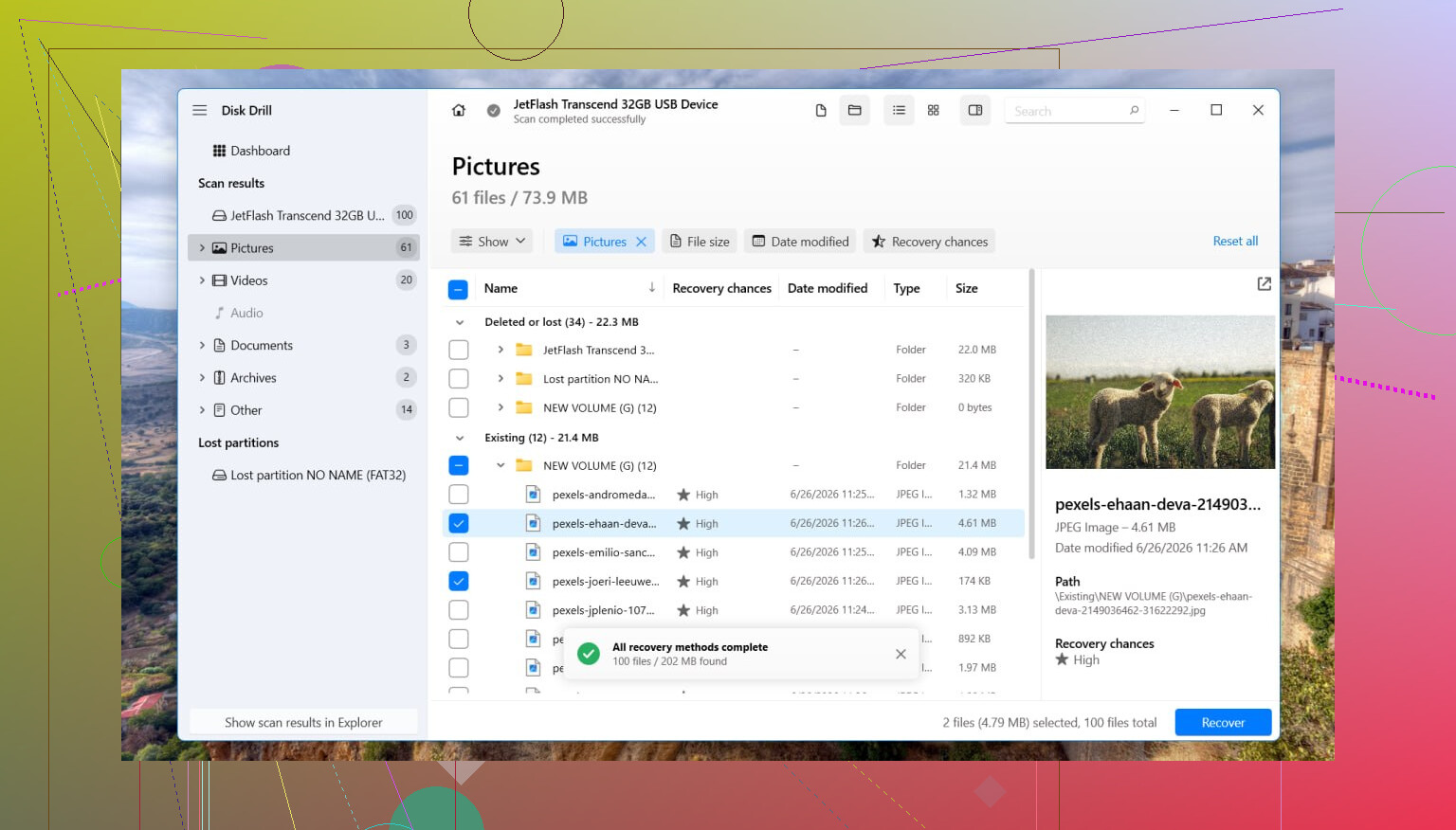
For recovery, I had decent luck with Disk Drill. The reason I used it was simple, it scans the disk itself instead of depending on the broken file system.
What I did looked like this:
- Install Disk Drill on a different drive. Do not put it on the RAW one.
- Launch it and pick the affected disk or partition.
- Hit Search for Lost Data. If it is an external drive and it asks for scan type, I would use Universal Scan in almost every case. I only switch to Advanced Camera Recovery for stuff like broken-up video files from a camera or drone.
- Let the scan finish. Takes a while on large drives.
- Open Review found items and preview some files first. I always do this, saved me a headache once.
- Select what you need, then click Recover.
- Save everything to another drive, not the damaged one.
After you confirm the recovered files open fine, then deal with the partition.
If you want to try restoring the original layout, TestDisk is worth trying. It fixes partition tables in a lot of cases. If it does not work, or if you do not care about preserving the old partition structure, open Disk Management, remove the RAW partition if needed, create a New Simple Volume, do a quick format, then copy the recovered files back over.
One thing people miss with SSDs, time matters. SSDs use TRIM. Over time, deleted data gets wiped in a way software recovery will not undo. A RAW volume does not always trigger TRIM right away, but extra writes and extra messing around with the drive are still a bad idea. I waited too long once, not fun.
If the drive keeps vanishing, disconnects during scans, makes clicking sounds, grinds, or shows up only sometimes, I would stop with software. At that point it starts looking like hardware failure. For important files, a recovery shop is usually the safer move. Pricey, yeah, but better than pushing a dying drive until it quits for good.
16 Likes
Start with diagnosis, not repair.
If the partition flipped to RAW, your first job is to figure out if this is file system damage, partition table damage, or a dying drive. Those are different problms, and the wrong fix makes recovery harder.
What I’d do first:
-
Check SMART health.
Use CrystalDiskInfo or the drive maker’s tool. If health is bad, or you see reallocated sectors, pending sectors, CRC errors, stop pushing the drive. -
Check how the disk appears in Disk Management.
Look at:
- correct size or wrong size
- RAW partition still has its old letter
- disk shows Healthy, Unallocated, or Not Initialized
-
Check Event Viewer.
Windows Logs, System. Filter for Disk, Ntfs, volmgr, storahci. If you see I/O errors or resets, think hardware or cable before file system. -
If it is an external drive, swap the easy stuff.
New USB cable. Different port. Different PC. External enclosures fail more often than people think.
I partly agree with @mikeappsreviewer on holding off repairs first. For important files, yes, recovery first is the safe move. Where I differ a bit, if SMART is clean and the issue is only a damaged partition entry, TestDisk is sometimes worth trying before a full file recovery, since it might restore access fast. Still, don’t write to the disk until you know what you’re dealing with.
For file recovery, Disk Drill is a solid option because it scans past the RAW file system state and pulls data by reading the disk directly. Install it on another drive, recover to another drive, then decide whether to rebuild the partition.
For search traffic and plain English, the issue is this:
CHKDSK not available for RAW drives, how to recover files and fix a RAW partition in Windows.
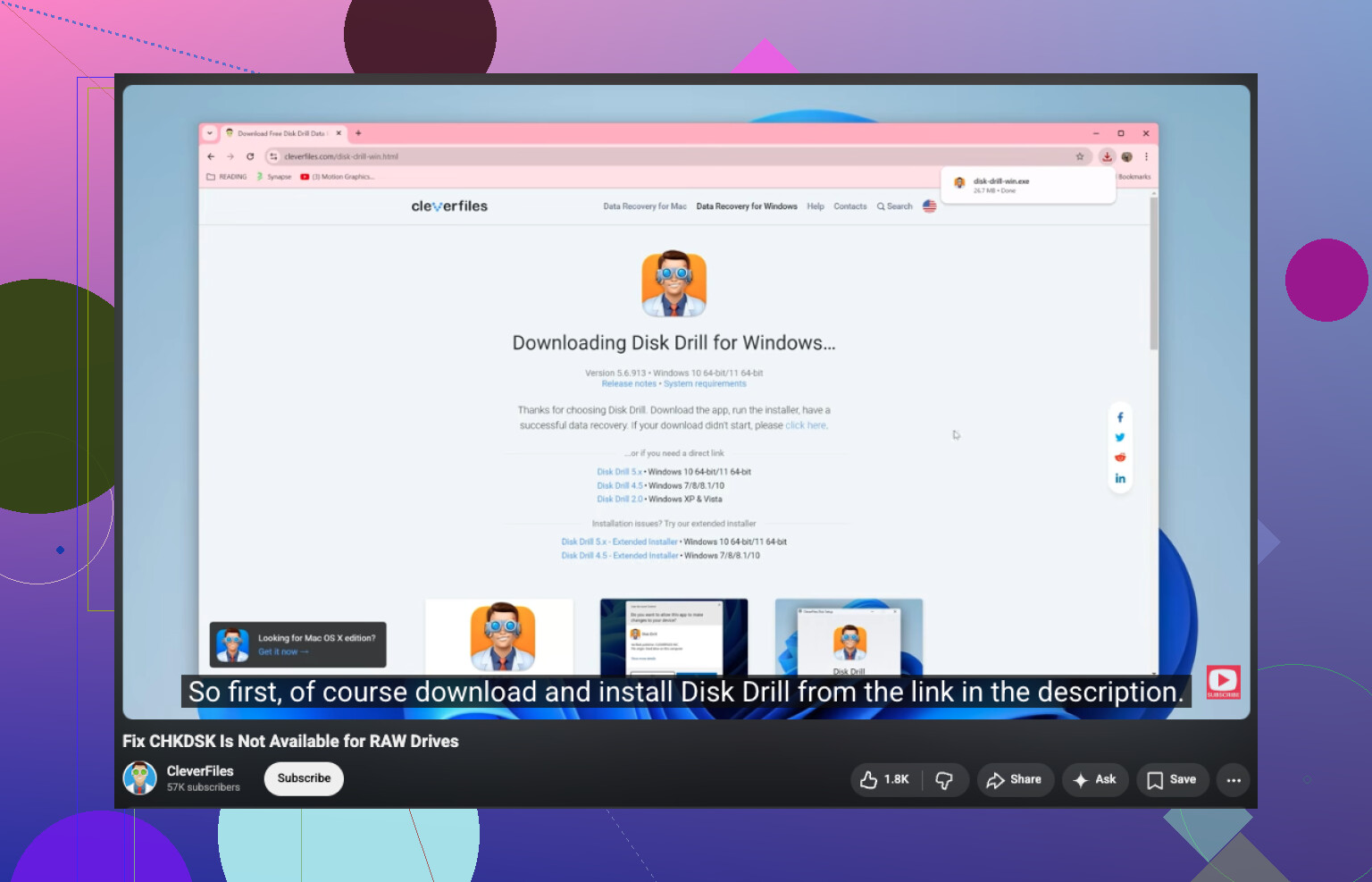
If you want a walkthrough, this video is relevent:
watch how to fix CHKDSK not available for RAW drives
After your files are safe, wipe the RAW volume, create a new partition, format NTFS or exFAT, then test it before moving data back. If the drive drops offline, clicks, or freezes scans, stop. That points to failing hardware.
I’d start even before repair or recovery software: make a sector-by-sector image of the drive if the data matters and the disk is acting even a little weird.
That’s where I slightly differ from @mikeappsreviewer and @ombrasilente. They’re right about not formatting and not writing to it, but if the drive is unstable, scanning the original disk over and over is rolling dice. If you can, clone/image it first with something like ddrescue or another imaging tool, then do recovery work on the clone. Safer, less stress on the original hardware.
A few practical checks:
- Run
diskpartthenlist diskandlist volumejust to confirm Windows sees the expected size. - In Device Manager, check if the drive/controller is throwing warnings.
- If it’s an external HDD, try removing it from the enclosure and connecting by SATA directly. USB bridge boards fail allll the time.
- If the partition was BitLocker-protected at some point, verify it didn’t lose metadata and get misread as RAW.
If the disk is stable and you need files, Disk Drill makes sense because it can scan a RAW partition and recover data to another drive. I’d still avoid using CHKDSK as a first move. CHKDSK on the wrong problem can turn “recoverable” into “whoops.”
After data is safe, delete the RAW volume, recreate it, and format NTFS or exFAT depending on use.
Also, this thread may help if you want more real-world cases: see how people handled an external hard drive showing as RAW
Short version: diagnose, image if possible, recover files, then rebuild. Not the other way arond.
I’d add one check nobody’s stressed enough yet: verify whether the partition is actually there but unreadable, or whether Windows is showing a fake RAW state because of a driver/encryption issue.
Quick examples:
- If it was ever BitLocker, VeraCrypt, or vendor-encrypted, RAW can just mean Windows sees encrypted bytes without the unlock layer.
- If it’s a Linux-formatted partition, Windows may label it RAW even though it’s fine.
- If the partition type ID got mangled, Windows can misreport it.
So before repair, I’d boot a Linux live USB and see if the volume mounts there. That’s a low-risk sanity check. I disagree slightly with jumping straight into recovery software every time, because sometimes the data is fully accessible from another OS and you can just copy it off normally.
That said, @ombrasilente, @byteguru, and @mikeappsreviewer are right on the big rule: don’t format it yet.
If Linux also can’t read it, then recovery path makes sense. Disk Drill is fine for that.
Disk Drill pros
- Easy to use on RAW partitions
- Good previews
- Works well when the file system is busted but sectors are readable
Disk Drill cons
- Best results often require the paid version
- Deep scans can lose original folder structure
- Not my first pick if the drive is physically failing hard
My order would be:
- Confirm it’s not encryption/OS compatibility.
- Try another machine or Linux live boot.
- If still RAW, recover files to another disk with Disk Drill.
- Only after that, wipe and recreate the partition.
If the drive is slow, disconnecting, or making noise, stop testing and image it first. That part I’m 100 percent with @byteguru on.