I unplugged my external hard drive, reconnected it later, and now a bunch of files are missing. The drive still shows up, but the folders I need either disappeared or look empty. I’m trying to figure out if this is a connection issue, file system problem, or possible data loss, and I need help recovering the missing files safely.
I had almost the same mess with an external drive a while ago. Plugged it in, opened it, and a pile of folders had vanished. My first thought was, great, I wiped my own stuff somehow. Turned out the files were still on the disk, the file system had gone sideways. I recovered most of it, so I would not treat missing folders as a death sentence right away.
First thing, stop using the drive.
Do not format it. Do not move new files onto it. Do not run repair tools first. If your data is still sitting there, writing anything new to the disk makes recovery harder.
A few quick checks helped me before I touched recovery software:
- Turn on Hidden items in File Explorer.
- Look at used space on the drive. If your folders are missing but it still says something like 800 GB is used, I’d take it as a good sign.
- Swap the USB cable or port if the drive is acting weird.
- If it disconnects, crawls, or throws file system errors, stop poking around in folders again and again. I did this once and it only made me more nervous.
If you do not have a backup, I’d go to recovery first instead of trying to repair the drive. That was the safer route for me.
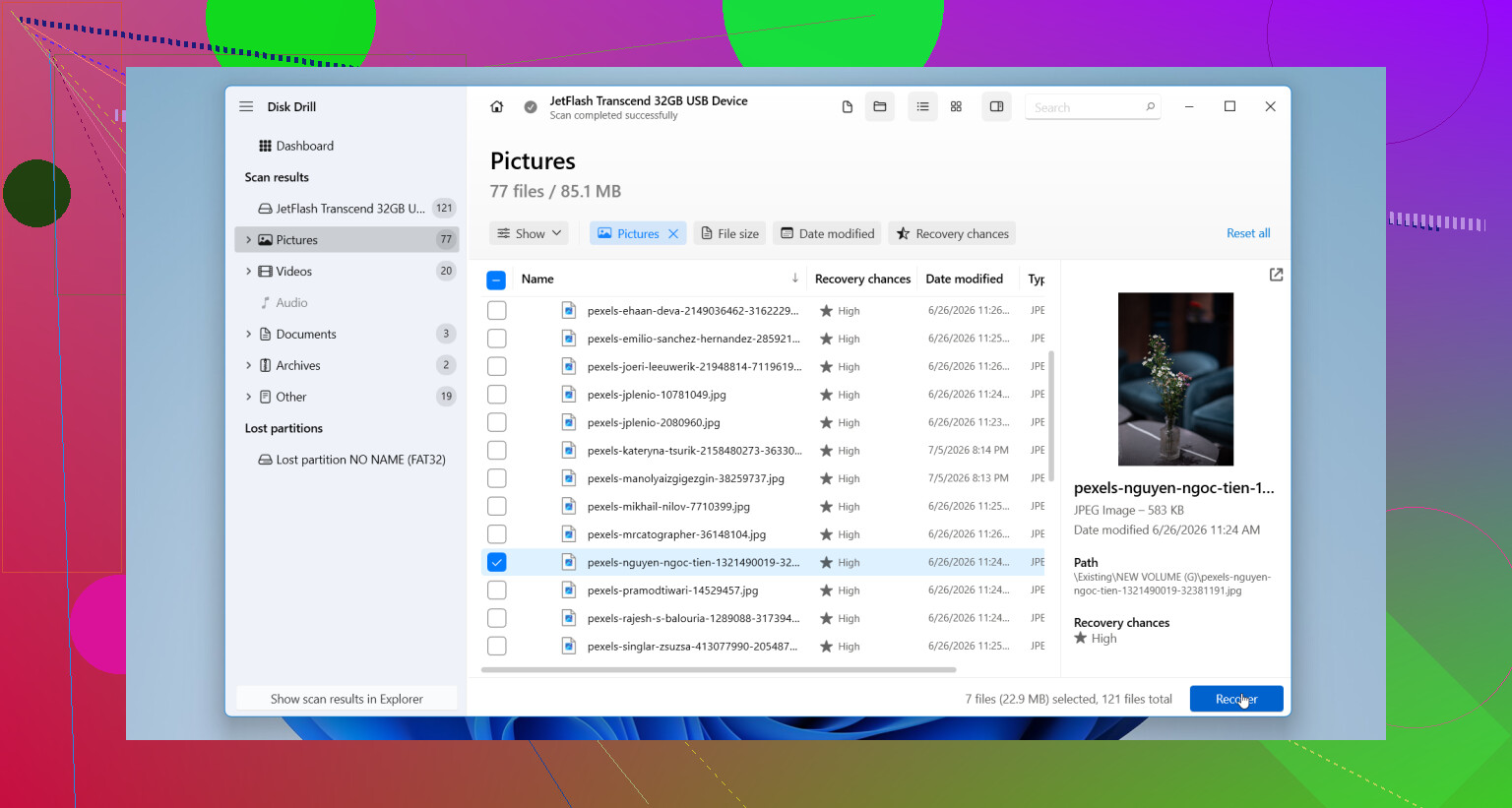
I used Disk Drill. My steps were simple:
- Install it on your computer’s internal drive, not on the damaged external one.
- Connect the external drive and open the app.
- Pick the problem drive and hit Search for lost data.
- If the drive looks unstable, make a disk image first and scan the image instead. I’d do this if the drive keeps flaking out. Less wear on the original disk.
- Let the scan finish. Preview a few files. Recover them to a different drive, never back to the same one.
Only after your important files are copied somewhere safe would I even touch repair or formatting.
There are also cases where I would skip home recovery and hand it off to a pro:
- The drive clicks, grinds, or beeps.
- It disconnects every few seconds.
- No computer detects it anymore.
- Scans keep freezing because the drive drops offline.
- The files matter too much for trial and error.
Those signs point more toward hardware failure than file system damage. Software won’t save a dying mechanism.
If you get your files back, I’d retire the drive. I know some people keep using them after one bad scare. I don’t. Once a drive starts losing folders, going unreadable, or corrupting its file system for no clear reason, my trust in it is gone.
You can check SMART diagnostics and see if the drive reports health issues. Even if the report looks clean, I’d keep it for throwaway storage at most. Old backups, temp transfers, stuff you do not mind losing. Drives are cheaper than re-collecting years of photos, docs, or work files. Learned tha the annoying way.
Mine still spun up fine after recovery. I replaced it anyway. Now I keep another backup on a second drive. Cost me some cash, sure, but it cut out a lot of stress later.
12 Likes
This sounds more like file system damage or a bad mount than instant file deletion. If the drive letter shows up and total used space still looks high, your data is often still there, it’s the index that got messed up.
I agree with @mikeappsreviewer on one part, stop writing to the drive. Where I differ a bit is repair tools. A read-only check of SMART health first is worth doing. CrystalDiskInfo on Windows is fast and free. If you see reallocated sectors, pending sectors, or CRC errors, treat the drive as unstable. CRC in particular often points to a bad cable or enclosure, so swap those before you assume the disk is dead.
Also check this stuff:
- Open Disk Management. See if the partition size looks normal.
- Run chkdsk only after recovery, not before.
- Check another PC. Sometimes Windows caches weird drive state.
- If folders look empty, test file search from Everything or Windows search for known filenames.
- If this is exFAT, corruption after unsafe unplugging is pretty common. Seen it more than once tbh.
For recovery, Disk Drill is a solid pick because it does a decent job rebuilding lost directory structure, not only raw file carving. If the folder names matter, this matters a lot. Recover to a different disk, not back onto the external.
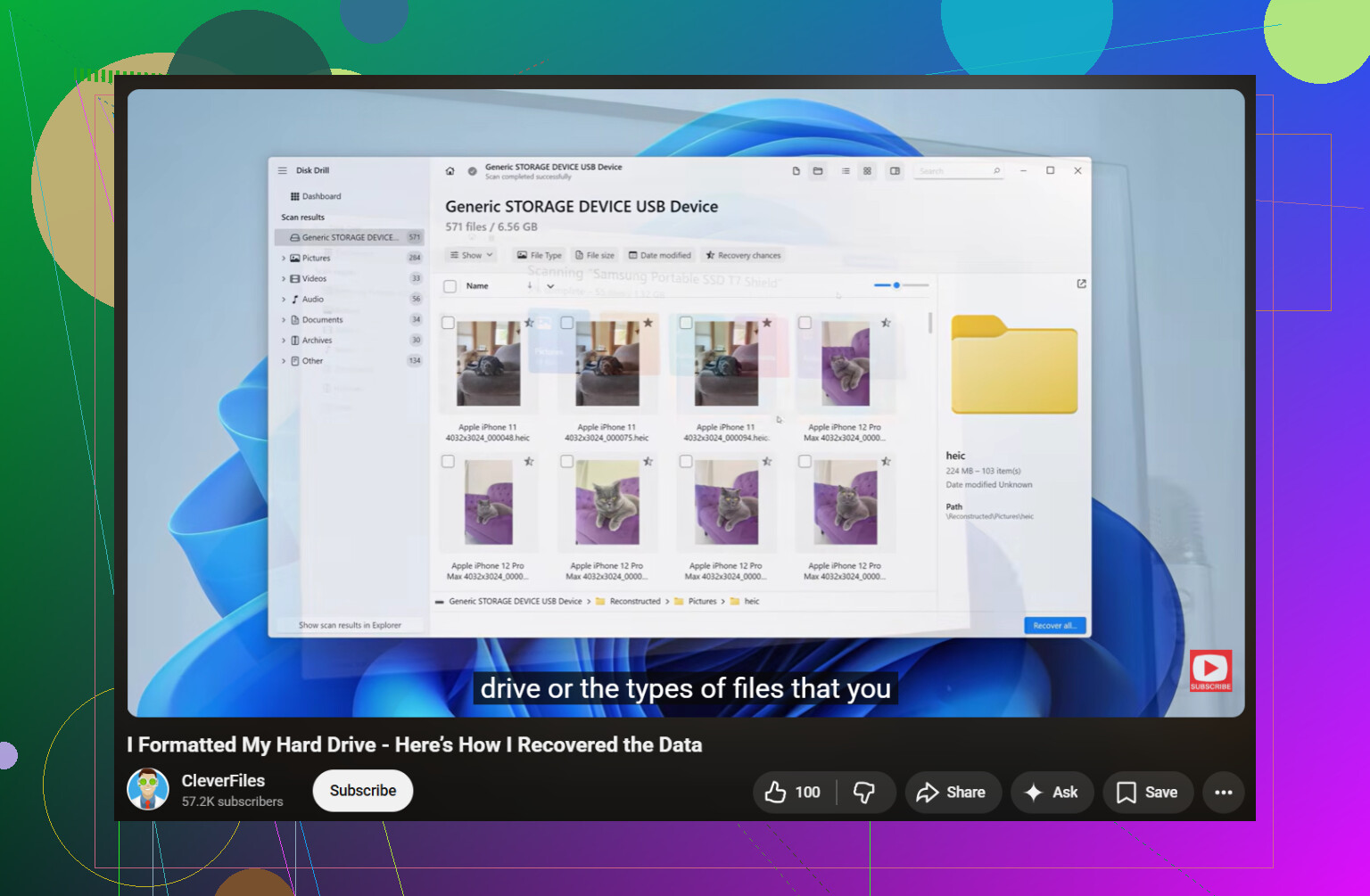
If you want a plain guide on recovering files after a format or damaged drive, this is useful too:
watch how to recover files from a formatted hard drive
If the drive starts clicking, drops offline, or reads at like 0 to 5 MB/s with freezes, stop. Software steps get riskier fast. At tht point, copy what you still can or go pro.
One thing I’d add to what @mikeappsreviewer and @vrijheidsvogel said: check whether you’re looking at the same partition/volume as before. External drives sometimes reconnect with a weird mount state, especially if they’ve got more than one partition or some enclosure/controller glitch. I’ve seen ppl think files vanished, but Windows was showing the wrong volume label or a half-broken directory view.
Also, I would not keep reopening random folders over and over “just to see if they come back.” That can get sketchy if the enclosure is flaky. If the drive has an LED, listen/watch for spin-downs or reconnect sounds while browsing.
A couple extra checks:
- Compare the drive capacity shown in This PC vs Disk Management.
- See if the folder permissions got messed up. Right-click folder, Properties, Security.
- Try accessing it from another OS if possible. Linux live USB can sometimes read a drive that Windows acts dumb about.
- If it’s an external SSD, enclosure failure is way more common than people think. The disk may be fine, the USB bridge may not.
If you do need recovery, Disk Drill is a sensible option, mostly because it’s easy to preview what’s actually there before you commit to anything. I’d still recover to another disk only, obviosly.
For more opinions on hard drive recovery software and storage drive file recovery, this thread is worth skimming:
best hard drive recovery software recommendations from Reddit
If the data matters a lot, I’d actually disagree a little with the usual DIY urge. Sometimes the cheapest move is to stop early before turning a readable problem into a dead one. That part gets ignored way too often.