I accidentally deleted my vacation pictures from an SD card while moving files to my computer, and now I can’t find them anywhere. These photos are really important and I haven’t taken any new pictures on the card yet. Is there a safe way to recover deleted photos from an SD card before they’re gone for good?
I did this to myself once with a full SD card from a trip, photos, short clips, the lot. The first few minutes were bad. The fix was less dramatic than the panic.
The first move matters most. Stop using the card. Take it out of the camera, phone, drone, whatever it is in, and leave it alone.
When files get deleted from an SD card, the card usually does not erase the photo or video data right away. What gets removed first is the file map, the part telling the device where each file sits. The card then treats those spots as free space. Your data often still sits there until new files land on top of it. If you keep shooting, you raise the odds of permanent loss.

Skip repair tools from the OS. I would not run CHKDSK on Windows or First Aid on macOS for this. Those tools aim to repair file system issues, not recover deleted media. In this situation, they tend to make things worse by cleaning up entries you still need for recovery.
What I would do instead:
- Use a proper card reader
Plug the SD card into your computer with a dedicated reader. I had better luck with this than using the camera over USB. It gives the recovery app cleaner access to the card.
- Run recovery software built for SD cards
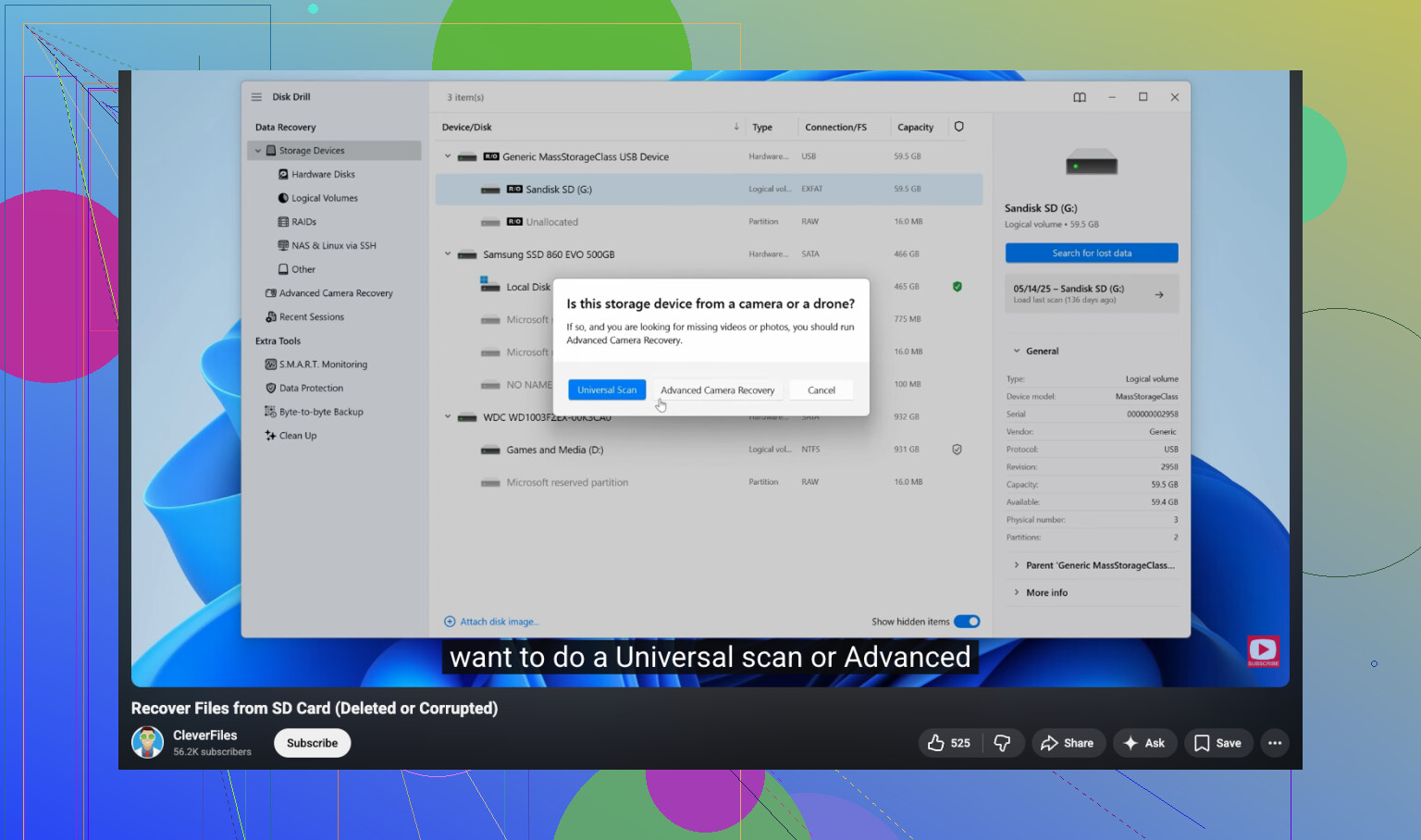
Out of the stuff I tried, Disk Drill was the one I kept coming back to for memory cards. The scan is thorough, and the preview tool saves time. You get to check whether the photos and videos it found are usable before you recover them. I liked ths part more than I expected, because it stopped me from restoring a pile of broken files.
If your missing files are videos from a GoPro, Canon, or a drone, there is one extra wrinkle. Those devices often store video in chunks across the card. Some recovery apps pull those chunks back in the wrong order, so the file opens but plays like garbage, or does not play at all. Disk Drill has Advanced Camera Recovery for this kind of case. It is meant to rebuild those fragmented video pieces into working files. On Windows, the free tier lets you recover up to 100MB, which is enough for a test run.
- If you need free, there is a tradeoff
PhotoRec is the no-cost option people bring up for a reason. It works. It is also rough to use.
It runs in a command-line interface. No previews. No original filenames. No folder structure. It dumps recovered files into big piles with generic names, so you end up sorting through a mess by hand. If your card had a few family photos, fine. If it had years of mixed RAWs, JPEGs, and clips, prepare for a long night.
People also mention Recuva and Windows File Recovery a lot. My take:
Recuva is okay for simple deletes, though I saw it stumble on RAW formats from cameras.
Windows File Recovery feels sparse, and on FAT32 or exFAT, which most SD cards use, it was not my favorite at all.
- Recover to a different drive
This part is non-negotiable. Do not save restored files back onto the same SD card.
When the app asks where to put recovered files, pick your computer drive or an external drive. If you write recovered data onto the card you are scanning, you risk overwriting the missing files before recovery finishes. I know it sounds obvious now, but people do it in a rush.
Short version:
Stop using the card.
Use a card reader.
Run recovery software.
Avoid CHKDSK and First Aid.
Save recovered files somewhere else.
If you have not recorded new stuff over the deleted files, your odds are pretty decent. Run the scan first, then see what previews show. That usually tells you fast whether the card is still recoverable.
16 Likes
Yes, your photos still have a solid shot at recovery since you did not write new data to the SD card.
One thing I’d add to what @mikeappsreviewer said, check your computer first before scanning the card. If you deleted during a move, some files end up in odd places:
Search by file type, .jpg, .png, .cr2, .nef, .mp4.
Check the Recycle Bin or Trash.
Look in the import folder your photo app uses.
On Windows, search This PC by date taken.
On Mac, check Photos imports and Recently Deleted.
If they are not there, make a full image backup of the SD card first, then work from the copy. I prefer this over scanning the original card right away. Tools like USB Image Tool or dd do this. If recovery software messes up, you still have the raw card image. A lot of peple skip this step.
For recovery, Disk Drill is a solid pick because it handles common SD card photo formats well and previews files fast. If the card starts disconnecting or reads slow, stop and clone it first.
This guide helped me with the process:
step by step SD card photo recovery tutorial
Small disagreement with the blanket “don’t use system tools” advice. I would not run repair first, true. But after you recover your files, checking the card for errors before trusting it agian makes sense.
Yes, probably.
Since you have not taken new photos on the SD card, your chances are still pretty decent. That part matters more than anything. Deletion on SD cards usually just removes the index entry first, not the actual image data right away.
A couple things I’d do a little differently from @mikeappsreviewer and @hoshikuzu:
- If this happened during a move, check whether the files were copied but hidden in some weird import/cache folder on the computer. Sometimes the transfer app half-finishes and leaves stuff in temp storage.
- Also check any cloud photo app on the computer. Lightroom, Photos, OneDrive, iCloud, Dropbox, Google Photos, they all love quietly making duplicates or temp imports nobody remembers.
If the files are truly gone, then yeah, use recovery software. Disk Drill is a sensible choice for deleted vacation photos from an SD card because it handles common camera formats well and lets you preview before restoring. That preview part is huge, becuase it tells you fast whether the recovery is real or just junk thumbnails. Recover everything to your computer, not back to the SD card.
One tiny disagreement with the “image the card first no matter what” crowd: if the card is healthy and mounts fine, a normal read-only style scan is often enough for home users. Cloning is smart, but not always mandatory unless the card is acting flaky.
This might help too: SD card photo recovery steps for deleted pictures and videos
If the card starts disconnecting, gets hot, or asks to be formatted, stop messing with it and consider pro recovery before you make it worse.
One extra angle: check whether the SD card has a DCIM/.Trashes/lost+found style leftover folder that your file browser is hiding. On macOS and some cameras, deleted items can linger in odd places that normal views skip. Enabling hidden files is worth 30 seconds before deeper recovery.
I slightly disagree with the “clone first every time” advice. Great idea if the card is flaky. If it reads perfectly, I’d first do a quick non-writing scan and see what turns up. Less friction for most people.
If you do scan, Disk Drill makes sense here.
Pros
- good preview support for photos and many RAW formats
- easy for non-technical users
- can sort results by file type
Cons
- free recovery is limited depending on platform
- deep scans can return lots of duplicates
- not the cheapest option if you only need it once
@hoshikuzu, @waldgeist, and @mikeappsreviewer already covered the big safety rules well. My add-on is this: after recovery, compare file counts and timestamps against your trip dates so you do not miss partially recovered batches. That catches gaps fast.