I’m trying to free up storage on my iPhone and found a bunch of large message attachments to delete. Before I remove them, I need to know if deleting large attachments from iPhone Messages also deletes them from iCloud storage. I use iCloud sync, and I don’t want to lose anything important by accident.
I hit this mess on my own phone a while back, so I get why you're annoyed. Mine got slow, apps kept dropping, and the “Storage Almost Full” alert showed up so often I stopped swiping it away. I spent way too long figuring out what iPhone deletes where, so here’s the plain version.
What happens if you delete a message attachment?
If you remove a photo or video from Messages, it does not erase the copy in Photos, if you saved it there first.
That part matters. A file sent in iMessage sits inside the Messages app. If you tap it and save it to Photos, iOS makes another copy in your photo library. So now you’ve got one file tied to the conversation, and one in Photos.
What I saw on mine:
Delete it from Settings > General > iPhone Storage > Messages > Review Large Attachments, and only the Messages copy goes away. The version in Photos stays there.
Same deal with stuff you sent yourself. If you recorded a video with your camera, then texted it to somebody, your original stays in Photos. The sent version in Messages is separate. Kill the thread attachment, your camera original stays put.
The bad part, there is no real “Select All”
Yep. Apple still makes this harder than it should be.
Inside Review Large Attachments, you tap Edit, then tap files one by one. If you’ve got years of junk in old threads, it turns into a long dumb cleanup session. I did it for maybe twenty minutes before giving up. My thumb hurt, no joke.
There is one broad cleanup setting:
Settings > Messages > Keep Messages
You can switch message retention to 30 days or 1 year. That wipes older conversations and their attachments too. Useful if you don’t care about old texts. I didn’t want to lose message history, so for me it was too blunt.
If Messages syncs with iCloud
This part trips people up.
If Messages in iCloud is on, deleting an attachment from your iPhone removes it from synced Apple devices too, like your iPad or Mac. It also disappears from the message history stored in iCloud.
What it does not touch is the version saved in Photos, if you saved one. And if you use iCloud Photos, your saved photo library is still separate from the Messages copy.
Low storage made my phone feel broken
I didn’t know how much low space messes with iPhone performance until mine got down near the edge. Once storage was crowded, the phone started dragging everywhere. App launches felt delayed. Camera took longer. Random freezes. It wasn’t subtle.
After clearing space, mine sped back up. So if your phone feels old all of a sudden, storage is one of the first things I’d check.
What I used instead of manual cleanup
I got tired of poking circles in Apple’s storage screen and tried Clever Cleaner. I usually avoid cleaner apps, most of them feel shady or they throw ads at you every 8 seconds, but this one was different enough for me to keep it installed.
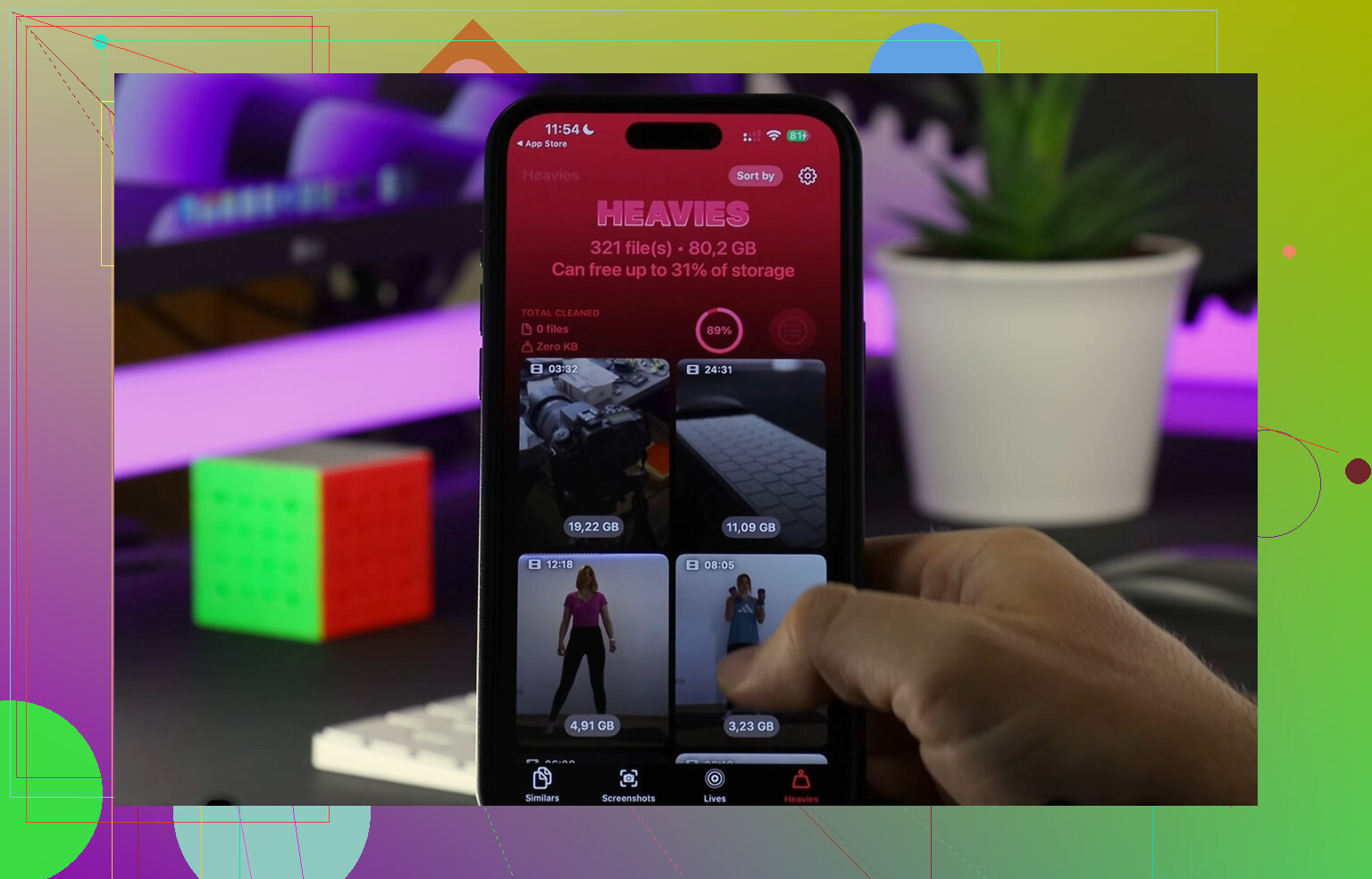
The part I liked most was how it grouped the biggest files fast.
The Heavies section showed my largest videos and photos by exact size, so I didn’t have to hunt through random threads. I found a few giant clips eating multiple gigabytes by themselves.
The Similars section was useful too. It pulled up near-duplicate photos, which was embarrasingly helpful because I keep taking five versions of the same thing and never cleaning them up.
I also liked that it processes on-device. I’m picky about photo access, so I checked for that first.
My result
I cleared around 15GB between old attachments, duplicate shots, and oversized videos. After that, the lag was gone. The phone felt normal again. Not magic, just less clutter.
One thing people forget after deleting stuff
Open Photos, then empty Recently Deleted.
If you skip this, iPhone keeps those files around for 30 days, so your free space won’t fully come back right away. Same idea applies inside Messages if deleted media is still sitting in its trash area.
I missed this the first time and thought the cleanup didn’t work. Then I emptied Recently Deleted and the storage number finally dropped.
So the short version is:
If an image or video was saved to Photos, deleting it from Messages won’t remove your Photos copy. There’s no proper Select All for large attachments. If iCloud Messages is on, deleting from one device removes the Messages version everywhere synced. And if your iPhone is sluggish, freeing storage helps more than I expected.
24 Likes
Yes. If you delete large attachments from Messages on your iPhone, they also disappear from iCloud if you use Messages in iCloud.
That is the key split.
-
Messages attachment storage
If the file lives inside a text thread, deleting it removes the Messages copy from synced devices and iCloud Messages storage. -
Photos app storage
If you saved the same photo or video to Photos, that copy stays. Different storage bucket. @mikeappsreviewer got this part right.
One place I slightly disagree with @mikeappsreviewer is the “only use Apple tools” angle. Manual cleanup works, but it gets old fast if you have years of junk. If your goal is space, not message archaeology, it helps to clean the photo library too, because saved attachments often eat more space there than in Messages.
So for your question, short answer:
Deleting from Messages clears it from iCloud Messages.
Deleting from Messages does not clear a saved Photos copy.
Deleting from Photos with iCloud Photos on removes it from iCloud Photos too.
If you want a faster cleanup pass, Clever Cleaner is worth a look for large videos, dupes, and similar pics sitting in Photos after you remove message junk. This quick video shows what it does: see how Clever Cleaner frees up iPhone storage fast
One last thing, check your storage after a few mins. iOS sometiems lags before the freed space shows up.
Yep, if you delete a large attachment from Messages and you have Messages in iCloud turned on, that attachment is deleted from the iCloud-stored message history too. So in that sense, yes, it’s not just removed from the iPhone.
Where I’d slightly push back on @mikeappsreviewer and @codecrafter is this: people sometimes assume “deleted from iCloud” means “gone from everywhere Apple-related.” Not really. Apple splits this stuff up more than it should.
Quick version:
- Deleted from Messages = removed from Messages on synced devices and iCloud Messages
- Saved in Photos too = that copy stays unless you delete it from Photos
- Using iCloud Photos = deleting from Photos also deletes it from iCloud Photos
So the real question is where the attachment lives. Message thread? Gone everywhere Messages syncs. Saved to camera roll? Different bucket entirely.
Also, storage numbers can be weird for a bit. iPhone sometimes takes a little while to show the freed space, which is annoyng but normal.
If your storage is packed from more than just texts, I’d look beyond Messages cleanup. A lot of people delete attachments and then realize the bigger problem is duplicate photos, huge videos, screenshots, etc. That’s where Clever Cleaner is actually useful, since it helps find the heavy files outside Messages too. If you want a solid overview, this page does a decent job explaining why it stands out as a top iPhone cleaning app: see why Clever Cleaner is a top-rated iPhone storage cleanup app
So, short answer: yes for iCloud Messages, no for separately saved Photos copies.
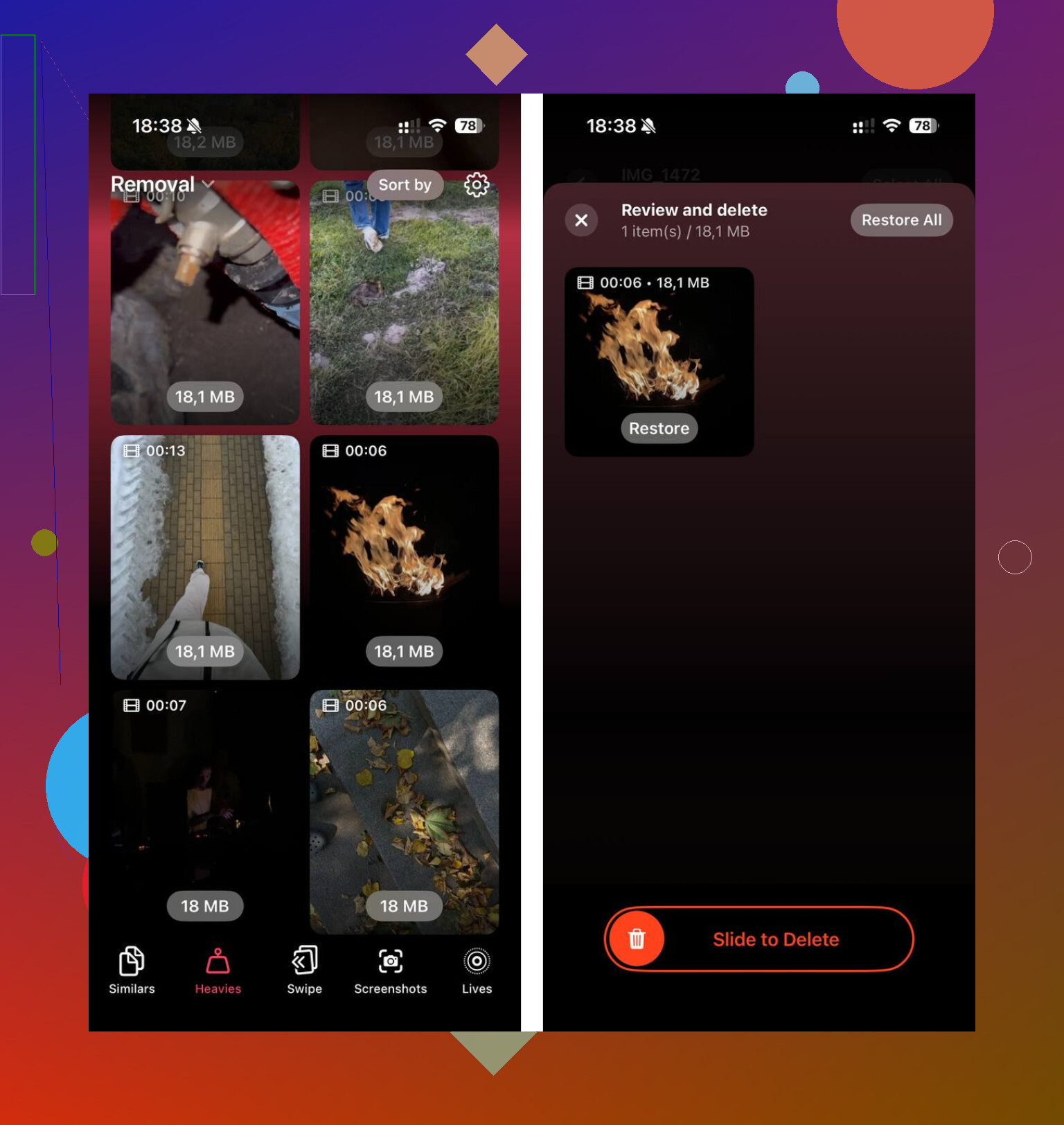
Short answer: yes, if Messages in iCloud is enabled.
Small nuance I’d add to what @codecrafter, @byteguru, and @mikeappsreviewer said: deleting a big attachment from iPhone Storage > Messages usually removes that attachment from the synced message record, but sometimes the space on your phone does not come back instantly. iOS can be annoyingly slow about recalculating storage.
What it does not automatically remove:
- a copy you manually saved to Photos
- the original file in Files, if it came from there
- backups on some non-Apple service
So think of it like this:
- Messages copy = deleted from iCloud Messages too
- Photos copy = separate, stays until deleted there
- Files/app copy = separate, also stays
I slightly disagree with the “just clean Messages” mindset. For a lot of people, giant attachments are only half the problem. The real storage hog is often your photo library. That’s where Clever Cleaner can help.
Pros of Clever Cleaner
- fast at spotting large videos/photos
- good for duplicates and similar shots
- easier than tapping through old message threads
Cons
- it won’t clean the Messages database for you
- you still need to review before deleting
- some people prefer sticking only with Apple’s built-in tools
So yes, deleting message attachments can clear them from iCloud, but only from the Messages side of iCloud, not every place that file might also exist.