I just imported a batch of photos from my iPhone to my computer and need to free up storage. Is it safe to delete the already imported photos from my iPhone right away, or should I verify backups/iCloud Photos first to avoid losing anything?
Importing photos from an iPhone to a Mac only copies them. It does not remove them from the phone. So if you import everything and then wonder why the iPhone storage looks exactly the same, that is why. The originals are still sitting on the iPhone until you delete them yourself.
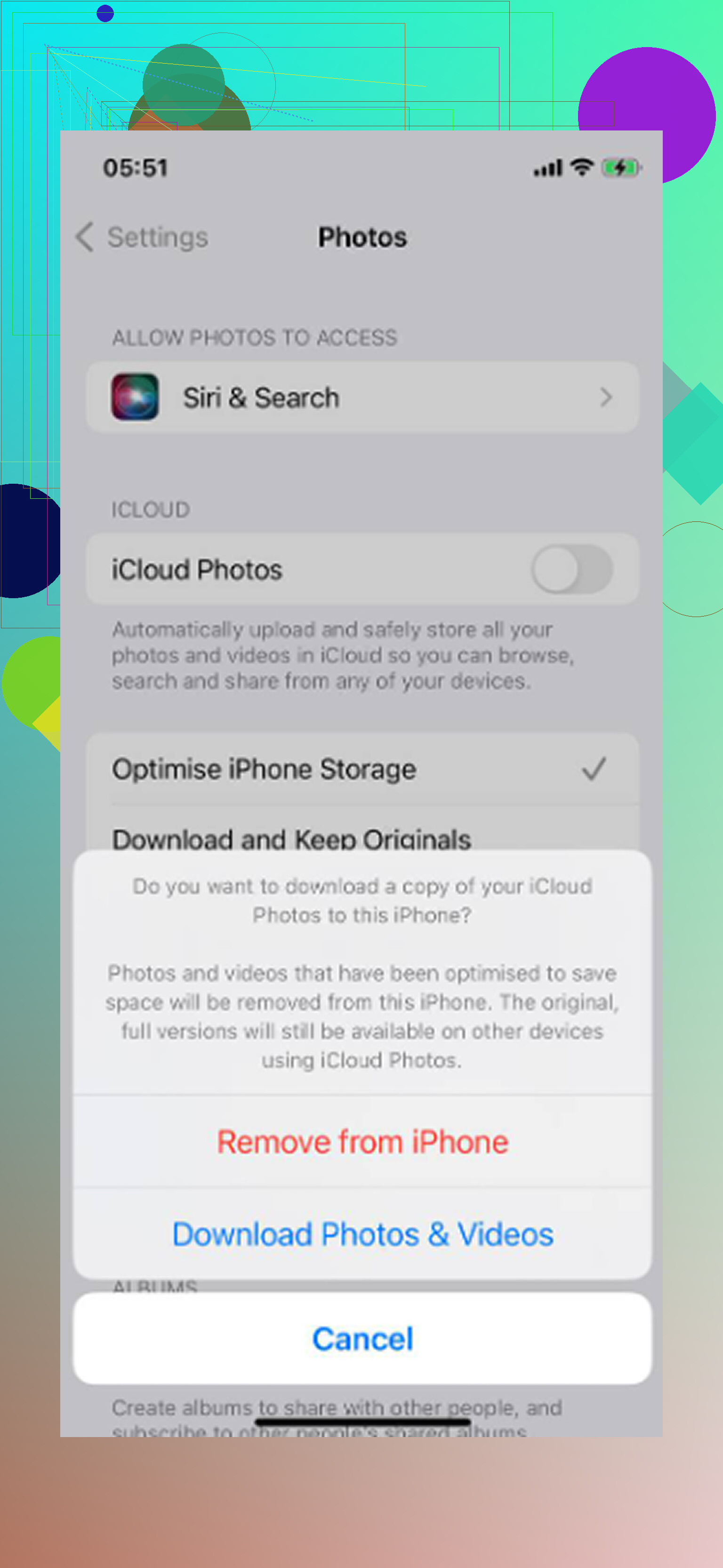
Why the delete option disappears with iCloud Photos
If iCloud Photos is enabled, Photos on the Mac hides the “Delete items after import” checkbox. Apple does this because your phone and Mac are being treated like one synced photo library. If you delete something from the iPhone while iCloud Photos is active, that deletion can sync back to the Mac too.
You have two practical options:
- Go to Settings - Photos on the iPhone and turn off iCloud Photos before plugging it into the Mac. Once syncing is paused, the delete-after-import option should come back. Turn iCloud Photos back on after you finish cleaning up.
- Use Image Capture instead of the Photos app.
Image Capture is usually the simpler way
Image Capture comes with macOS and is already in the Applications folder, even though a lot of people never use it.
- Connect the iPhone with a USB cable
- Open Image Capture
- Choose the iPhone in the sidebar
- Press Command A to select everything
- Click the delete icon at the bottom
The nice thing about Image Capture is that it handles the iPhone more like a regular connected device, not a synced Photos library. So you can delete files directly from the phone without having to fight the Photos app’s iCloud behavior first.
Check the Mac copies before deleting anything
Do not skip this part. Open a mix of the imported photos and videos on the Mac before clearing the phone. Make sure videos actually play and are not just showing thumbnails. Also compare the photo count on the phone against the folder or library on the Mac.
Bad imports and half-finished transfers are not rare enough to ignore. If you delete first and verify later, you may find out too late that something did not copy correctly.
Deleting imported photos from the iPhone itself
You can also clean them up from the iPhone Photos app. Go to Photos - Albums - Utilities, then open Imports.
- Tap Select in the upper-right corner
- Tap the first photo, then drag upward without lifting your finger to select a big batch quickly
- Delete the selected items
One catch: storage still will not free up right away. Deleted photos and videos go into Recently Deleted and stay there for 30 days, still taking up space. Go to Albums - Recently Deleted and tap Delete All if you want the storage back immediately.
Will deleting from the iPhone also delete from the Mac?
If iCloud Photos is on, yes. Deleting on the iPhone syncs to the Mac and any other device using that same iCloud Photos library. If you want the Mac to keep the files while removing them from the phone, pause iCloud Photos first or make sure the Mac copies are stored in a normal local folder outside iCloud Drive before deleting.
If the phone still feels slow afterward
Clearing imported photos only fixes part of the problem. It does not deal with old burst shots, duplicate-looking photos, huge videos, screenshots, and other stuff that has been building up for years.
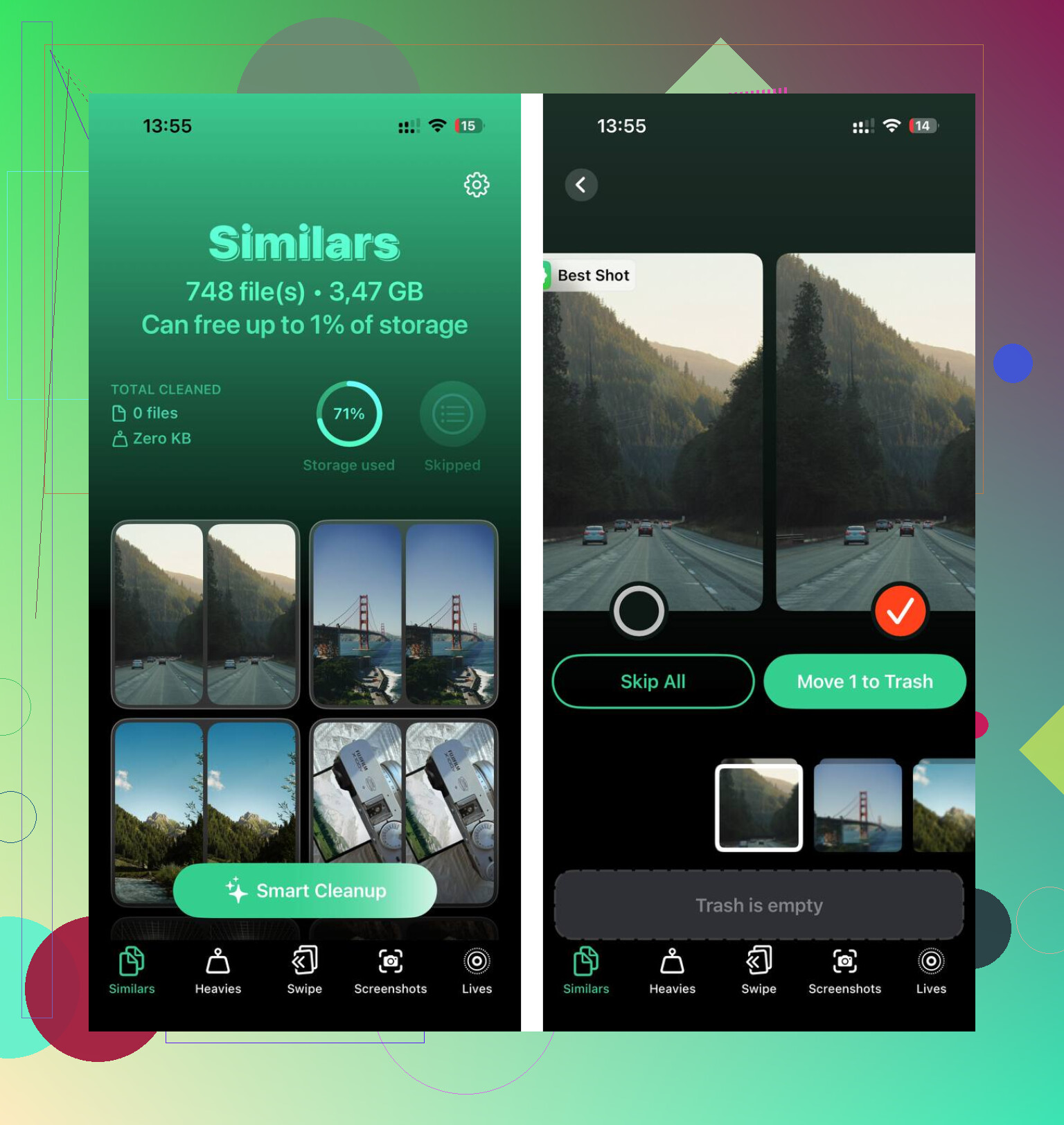
Clever Cleaner is free, with no ads or subscription. The Heavies tab sorts files from largest to smallest, which is useful because a few old videos can take more space than a whole batch of recent imports. The Similars tab groups near-identical photos and picks a Best Shot from each group so the extras can be removed quickly. It also shows file sizes on screenshots before deleting anything, and the processing stays on the device.
After running that cleanup after the import process, about 15GB came back that the manual cleanup had missed. The keyboard lag and slow camera behavior that came with low storage went away after that too.
16 Likes
Do not erase them from Recently Deleted until you have at least one copy that is not part of iCloud Photos syncing. A Mac Photos library can still be “the same cloud library,” so I would export the keepers to a normal folder or external drive first, then delete from the phone. If space is urgent, delete a few large videos first rather than wiping the whole import in one go.
“Imported” only matters if you know exactly what got imported: originals, edited versions, Live Photo video parts, and full-size videos. A quick thumbnail in Photos or File Explorer is not enough proof. Before deleting from the phone, open a few random items from the import, especially older videos, portrait shots, and Live Photos. If you care about Live Photos, check that you did not only save the still JPEG/HEIC and lose the little .MOV part.
I’m a little more cautious than the “just use Image Capture and delete” route. It works, but it’s easy to confuse “copied into my Mac Photos library” with “backed up somewhere safe.” If that Mac library is syncing with iCloud Photos, deleting from the phone can still come back around and bite you. A real safe copy is something outside that sync chain, like an exported folder on the Mac plus Time Machine, or an external drive.
So my answer would be: yes, you can delete them right away if you have verified a real local copy and preferably one backup. If you only imported and have not checked anything yet, no, don’t empty Recently Deleted yet. Delete a smaller batch first, confirm the space comes back and the Mac copies are fine, then do the rest. That is slower, but it is a lot less painful than finding out later that a cable transfer skipped half your videos.