I’m trying to clean up my iPhone Photos library and keep only my favorite pictures. I marked the ones I want to save as Favorites, but I can’t find an easy way to delete all non-favorite photos at once. Is there a safe method to do this without accidentally removing favorites or messing up iCloud Photos?
iOS makes this more annoying than it should be. There isn’t a simple “delete everything except Favorites” button in Photos, because Favorites are just regular photos with a heart tag. They still sit in your main library, so if you select everything there and delete it, your favorites go with the rest.
The easiest no-app workaround is to temporarily hide the photos you want to keep:
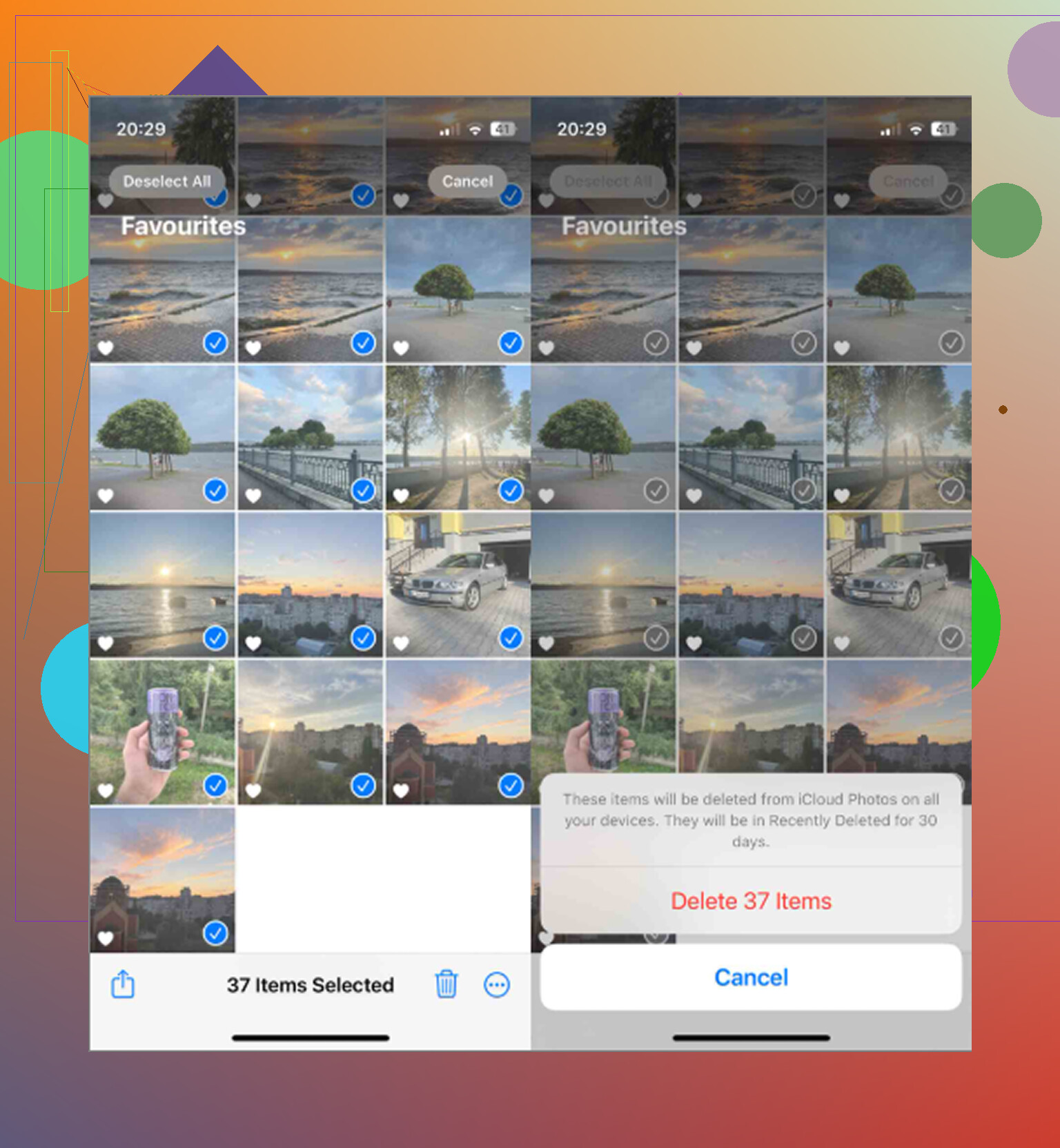
- Go to the Favorites album.
- Tap Select, then Select All.
- Tap the three dots and choose Hide.
- Go back to your main library and delete everything that is still visible.
- Open the Hidden album, select all of those photos, and choose Unhide.
That puts your favorites back in the normal library after the cleanup. The only things deleted are the non-favorites you removed while the favorites were hidden.
You can also do it with Shortcuts if you have a big library and want something more automated. Create a shortcut using Find Photos, set the filter to Is Not Favorite, then send those results into a new album, maybe called Cleanup. After it runs, open that album, select everything, and delete it.
Just be aware Shortcuts can choke on huge photo libraries. If it freezes or never finishes, add a date filter and run it in chunks instead of trying to process years of photos at once.
One important thing before deleting anything: if iCloud Photos is turned on, deleting from your iPhone also deletes from iCloud and any synced iPad or Mac. It is not just removing local copies from the phone. Back up anything you care about somewhere outside iCloud first.
Also, you will not get the storage back right away unless you empty Recently Deleted. Deleted photos stay there for 30 days and still count against storage. After the cleanup, go to Photos > Albums > Recently Deleted > Delete All. Restarting the phone afterward can help iOS show the updated free space.
The lag you were seeing is probably from the phone being too close to full. iOS needs free space for temp files and background work, and when it runs out, basic stuff gets sluggish. Camera launch delays, stuttering in Photos, and the screen hanging after deleting a big video are all pretty common symptoms.
The frustrating part is that Apple’s Photos app still does not really help you find what is taking up the most space. There is no useful file-size sort, so you can waste time deleting hundreds of small photos while a few huge videos are the real problem.
Clever Cleaner is useful for that part. It is free, with no ads or subscription, and its Heavies tab sorts your files from largest to smallest with the exact sizes shown. A couple of old 4K videos near the top can easily take more space than a massive pile of normal photos. It also has a Similars tab that groups near-duplicates and picks a Best Shot, plus a Screenshots tab that shows sizes before you delete. The processing happens on the device, not through an external server.
So for this specific job, the built-in Hidden album trick or the Shortcuts method handles “delete everything except Favorites,” and Clever Cleaner helps clean up the big leftover junk that Photos makes hard to spot.
16 Likes
A shortcut album is not a separate holding area, so don’t treat it like the photos have been moved there. If you use the “Is Not Favorite” shortcut method, run it on a small date range first and make sure the album contains only throwaways before deleting anything. When you’re in that album, use the trash/delete option, not just “Remove from Album,” or nothing actually leaves the library. I’d also turn off any automatic cleanup mindset here: do one test batch, check Favorites are still there, check Recently Deleted, then scale up. It’s slower, but much safer than trying to wipe years of photos in one shot.

Do not empty Recently Deleted until you have checked the Favorites album, the Hidden album, and any other synced device you care about. That is the last safety net, and once you wipe that too, there is no “oops, put it back” button inside Photos.
I agree with using Hidden as a temporary shield, but I would make a backup copy of the keepers first if these photos matter. Favorites is just a tag, not a backup plan. Select the Favorites album and save/export those somewhere outside Photos if you can, even just to a computer, external drive, or cloud folder that is not syncing deletions with iCloud Photos. Then do the hide/delete/unhide method. It adds time, but it changes the job from “risky library surgery” to “annoying cleanup with a fallback.”
If you have access to a Mac using the same iCloud Photos library, this is less painful there. Photos on Mac lets you use Smart Albums and bigger-screen selection tools, so finding “not favorite” items and reviewing them before deleting is easier than doing it all with your thumb on the phone. I would still do it in chunks by year or month, especially if you have videos mixed in. Big mass deletes are where Photos tends to lag and where people accidentally delete more than they meant to.
Don’t forget the videos. If this is really about freeing space, a few non-favorite 4K videos may matter more than thousands of photos, so check the Videos album first and delete the obvious junk before doing the big Favorites-only cleanup.