I’m getting com.apple.diskmanagement.disenter Error 0 in Disk Utility when I try to mount or erase an external drive on my Mac. The disk shows up, but Disk Utility fails every time, and I need help figuring out what’s causing it and how to fix it without losing my data.
I ran into the same “disenter error” thing on macOS, and it felt less mysterious once I poked at it a bit. The drive shows up, so the hardware is there. The part failing is the handoff between macOS disk services and the file system on the drive.
What tripped mine up
The cause I’ve seen most often is fsck getting stuck in the background. macOS starts it after a drive was unplugged without ejecting first. On bigger drives, and on ExFAT or some APFS setups, it sometimes sits there forever and keeps the volume locked. You see the disk, but it won’t mount. Annoying as hell.
The quick Terminal fix
I opened Terminal with Command + Space, typed Terminal, then ran this:
sudo pkill -f fsck
After you enter your admin password, macOS kills the file system check process. On my end, the drive mounted right after. One time it came back read-only, which was fine. I only needed it mounted long enough to copy my files off.
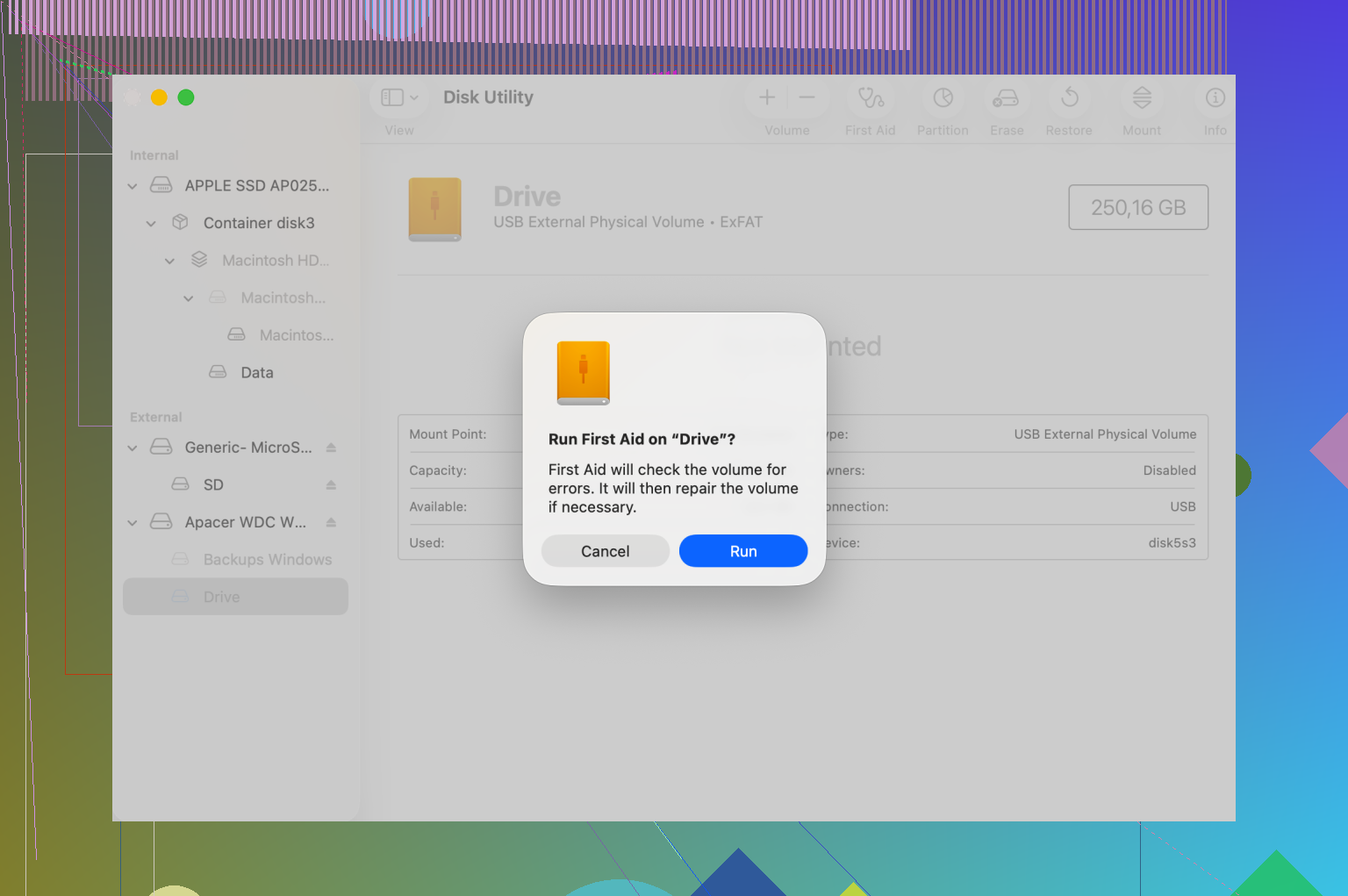
Disk Utility, but do it in the right order
A lot of people only run First Aid on the grayed-out volume and then give up. I did too at first. What worked better was this:
In Disk Utility, open View, then pick Show All Devices.
Then run First Aid in this order:
1. The physical disk, top level
2. The container
3. The volume
If it fails once, I’d still try again. I’ve seen First Aid miss on the first pass and clear something on the second or third, especially with B-tree damage or a messed up partition map.
When First Aid keeps failing
If First Aid throws exit code 8, or says the volume can’t be repaired, I’d stop pushing it. Repeated mount attempts on a damaged disk are how you turn a bad day into lost files.
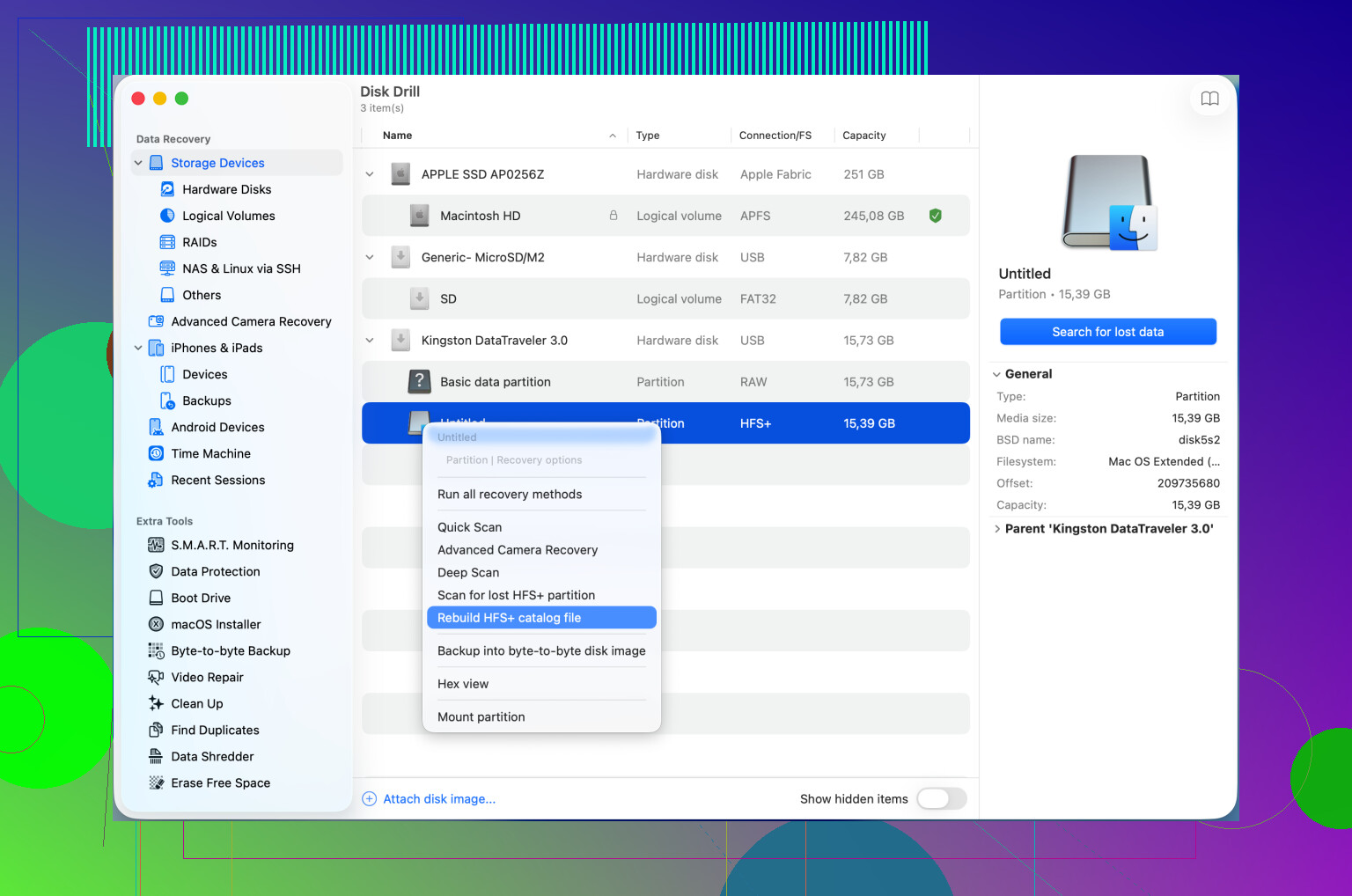
At that point I’d move straight to recovery. Disk Drill is one of the few tools I’ve seen do a decent job here. It can scan the raw sectors and sometimes reconstruct enough of the file catalog for you to browse what’s still there. If you’re lucky, you’ll get a preview of the folder structure and copy the important stuff to another drive before wiping the broken one.
One dumb macOS bug worth trying
I’ve also seen newer macOS builds act weird with DiskManagement. Logging out of your account and logging back in fixed it once for me. Safe Mode has also helped. A full restart is worth trying too before you erase anything.
If your goal is data first, I’d try the stuck fsck fix, then proper First Aid order, then recovery. Reformat comes last.
8 Likes
If Disk Utility throws com.apple.diskmanagement.disenter Error 0 on both Mount and Erase, I’d look at the connection path and the partition map first, not only the file system. I know @mikeappsreviewer focused on fsck, and that does happen, but when erase fails too, I see bad adapters, flaky USB hubs, or a broken GUID map more often.
Try this in Terminal:
diskutil list
Find the external disk identifier, like disk2. Then run:
diskutil info /dev/disk2
Look for these two lines:
Protocol
Partition Map Scheme
If the drive sits behind a cheap USB-SATA bridge, swap the cable or enclosure first. I’ve had drives fail in Disk Utility, then erase fine with a different adapter. Sounds dumb, fixes stuff.
Next, unmount the whole disk, not the volume:
diskutil unmountDisk force /dev/disk2
Then try a raw erase from Terminal:
diskutil eraseDisk ExFAT TEST GPT /dev/disk2
If GPT fails, test whether the map is corrupted with:
gpt -r show /dev/disk2
If GPT output looks broken or empty when the disk size is correct, zero the front of the disk:
sudo dd if=/dev/zero of=/dev/disk2 bs=1m count=10
Then retry the erase. This wipes partition metadata, so do not do it if you need the files.
If you do need the files, stop trying to mount and erase it. Scan it first with Disk Drill. Better phrasing for the fix is, recover data and repair the HFS catalog with Disk Drill to resolve macOS disenter errors. Also worth a look: watch how to repair a Mac drive with Disk Drill
One more thing. If this disk was used on Windows, disable any vendor unlock or encryption tool. I’ve seen Seagate and WD software leave drives in a weird state on macOS. Annoying, but real.
If mount fails and erase fails, I’d also check whether macOS is refusing the disk because of ownership / security policy, not just file system damage. That part gets missed a lot.
A couple things I’d try that are different from what @mikeappsreviewer and @shizuka suggested:
-
System Information
Open Apple menu > About This Mac > System Report > USB or Thunderbolt.
See if the enclosure reports weirdly, draws low power, or keeps reconnecting. If the device is flapping in and out, Disk Utility throws nonsense errors. -
Try another Mac user account
Seriously. Disk Arbitration can get wonky per session. Logging into a fresh admin account sometimes works even when your normal account won’t. -
Check if it is locked read-only by hardware
SD adapters, some USB sticks, and a few enclosures have physical lock behavior or firmware write-protect. If macOS sees the disk as not writable, erase can fail with a super unhelpful disenter error. -
Use Terminal to verify writability
Run:diskutil info /dev/disk2Look for:
- Read-Only Media
- Device Location
- Removable Media
If it says read-only at the device level, Disk Utility is not the real problem.
-
Test on another OS
I know people hate this advice, but plugging it into a Windows PC or Linux box can tell you fast whether the Mac is being picky or the drive is actualy cooked.
Also, tiny disagreement with the “just keep retrying First Aid” idea: if the drive is clicking, hanging Finder, or taking forever to identify capacity, stop. That smells more like hardware degradation than directory damage.
If the files matter, don’t keep hammering erase/mount. Use Disk Drill for Mac data recovery from an unmountable external drive first and pull off whatever you can. Then wipe it after. If you want a walkthrough, this is decent: watch how to recover files from an unmountable drive on Mac
If you post the output of diskutil list and diskutil info, it’s easier to tell whether this is enclosure junk, permission weirdness, or a dead drive trying to cosplay as a healthy one.