My iPhone storage is almost full, and I’ve noticed apps keep using more space even after I delete photos and videos. I tried offloading apps, clearing Safari data, and restarting the phone, but I’m not sure what really removes temporary files and cache. I need help figuring out which methods actually work to free up space on an iPhone without deleting important data.
iPhone “System Data” taking up gigs, here’s what moved the number for me
That big “System Data” chunk on iPhone storage is one of those things Apple shows you without giving you a clean fix button. I went through the usual junk advice first. Most of it did almost nothing. The stuff below did.
What helped, what was a waste of time
I saw people recommend turning off iCloud, location services, notification history, all sorts of random toggles. I tried some of it. Storage barely moved, if at all.
The only fixes worth doing were the ones aimed at places where temp files pile up. Browser cache. App cache. Old downloads. Message attachments. Then a restart, after the cleanup, not before.
The built-in cleanup steps I’d do first
- Clear Safari’s cache
Go to Settings > Apps > Safari > Clear History and Website Data.
This wiped cached site images, scripts, and login data. On my phone, this was usually the fastest small win. A few hundred MB came back right away.
If you use Chrome, do it inside Chrome under Settings > Privacy and Security.
- Clear app caches, one app at a time
Apps like Telegram, Spotify, and TikTok usually have their own cache cleanup option inside app settings. Use those first.
For apps with no real cache button, Instagram and Facebook were the worst on my end, I deleted the app and installed it again. That forced the app to rebuild local junk from scratch. I got back way more space doing this than messing with random system settings.
- Check the Files app
Open Files > Browse > On My iPhone. Then look in Downloads.
This is where old PDFs, ZIP files, docs, and random attachments sit for months. I found stuff I forgot I ever saved. If your storage looks wrong, check here before doing anything dramatic.
- Cut down message history
Go to Settings > Messages > Keep Messages.
If yours is set to Forever, change it to 1 Year or 30 Days.
Old message threads with videos, GIFs, memes, screenshots, all of it stacks up. People forget this one because Messages feels “small” until you look at years of attachments.
- Restart the phone
Do a restart after the cleanup.
This part matters more after you’ve cleared caches manually. A reboot seems to flush some temp logs and lower-level junk iOS doesn’t show you anywhere. I got better results doing this weekly than waiting until storage was already a mess.
After an iOS update, it gets uglier
Major iOS updates leave leftovers behind. Install files, temp junk, weird inflated storage readings. I’ve seen System Data stay high for days after an update.
First step, restart the phone once the update is done.
If the number still looks wrong after a few days, go to Settings > General > iPhone Storage and look at the biggest apps. Delete the worst offenders and reinstall them. I had better luck with this than offloading. Reinstalling forced those apps to rebuild clean instead of dragging old bloated cache forward from the previous iOS version.
Where the built-in tools stop helping
This is the annoying part. Apple gives you some cleanup options, but not enough visibility into the photo library, which for most people is where the real space goes.
I couldn’t sort photos by file size in any useful way. I couldn’t quickly spot near-duplicate shots. Screenshots were mixed into everything else. Large videos were buried unless I hunted for them one by one. It was clumsy.
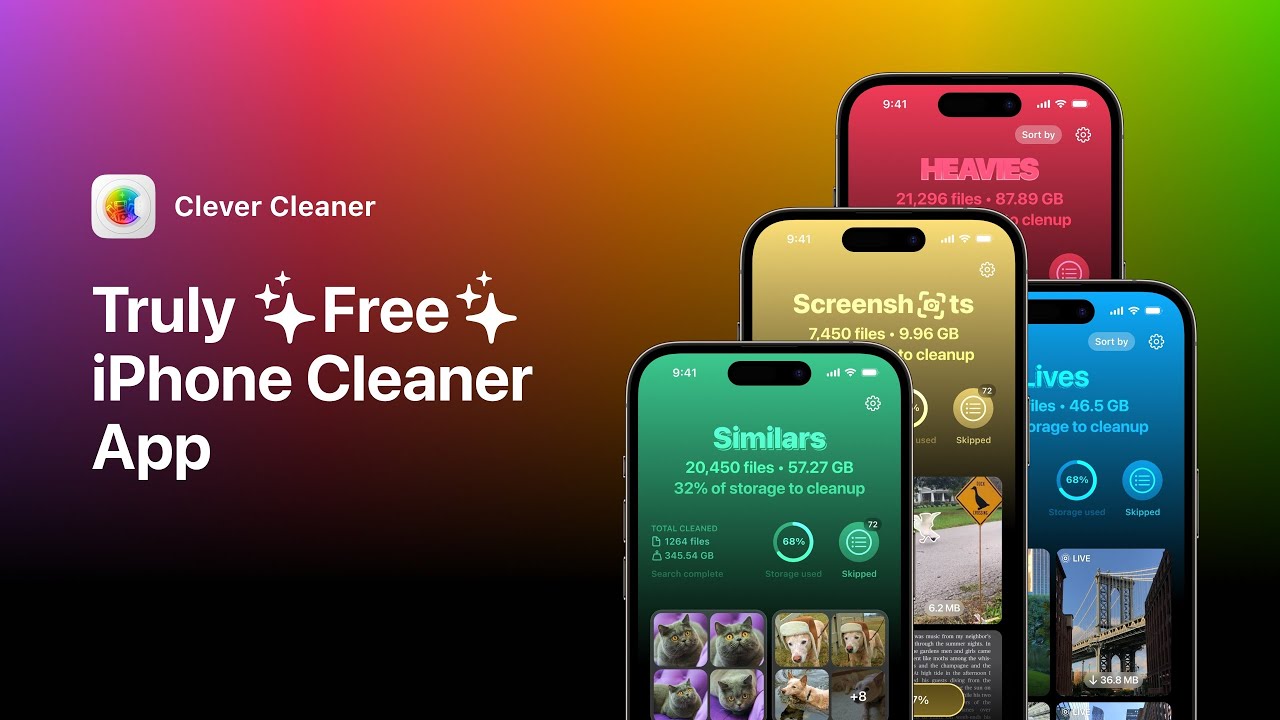
Clever Cleaner covered the gap I kept running into. What stood out to me was the Heavies section, which sorted files from biggest to smallest, so the giant videos and screen recordings showed up first instead of hiding in the library. The Similars section grouped near-matching photos, not only exact duplicates. Burst shots, three tries of the same photo, tiny angle changes, all of that showed up together. It also picked a Best Shot for each group, which sped things up.
I liked one boring detail here. File sizes were shown before deleting anything. Also, the processing stayed on the device.
Stuff that sounded useful and wasn’t
Restarting by itself did almost nothing for me long term.
Offloading apps freed some space, sure, but it didn’t clear the temp junk I was trying to get rid of.
Clearing Safari while leaving social apps untouched missed the biggest storage hogs on my phone.
And if you skip photo cleanup, the problem tends to come back fast. Videos and photos eat space way quicker than browser cache ever will.
The combo that worked
What moved the needle for me was this order:
- clear Safari or Chrome cache
- clean app caches, or delete and reinstall the worst apps
- check Files > Downloads
- reduce message retention
- restart the iPhone
- clean up the photo library with Clever Cleaner
Anything less felt temporary. This stuck longer, or at least long enough where I stopped checking storage every other day.
10 Likes
Offloading is overrated for this. It removes the app, but often leaves documents and data behind, so storage creeps back fast. I disagree a bit with @mikeappsreviewer there. Deleting and reinstalling the worst apps works better when an app has no cache clear option.
Two things people miss:
First, Photos trash. Open Photos, then Recently Deleted, then wipe it. Deleted videos still sit there for 30 days. I’ve seen 20GB stuck there.
Second, synced media. Check Music downloads, Podcasts, Netflix, YouTube, Spotify. Offline files eat space quietly.
Also look at Settings > General > iPhone Storage > Review Large Attachments. That view is faster than digging through message threads.
If System Data stays huge after all this, backup the phone, then do an erase and restore. Annoying, but it’s one of the few fixes that consistently drops bloated system storage.
For photo cleanup, Clever Cleaner helps more than Apple’s built-in sorting. The big win is spotting large videos and duplicate shots fast. This short video on how Clever Cleaner clears iPhone storage fast shows the workflow pretty well.
Stuff thta rarely helps, low power mode, closing apps, random privacy toggles. Those are mostly forum myths.
What actually worked for me was going after the stuff iOS hides in plain sight, not the usual “restart and pray” routine. I agree with parts of what @mikeappsreviewer and @ombrasilente said, but I think people overestimate “temporary files” and underestimate sync/download bloat.
A few things I’d check that weren’t really covered enough:
- Mail app attachments and offline mailboxes. If you use the built-in Mail app with multiple accounts, it can hoard local copies. Removing and re-adding the account sometimes drops a weird amount of storage.
- Podcast downloads and “saved” episodes. These pile up silently.
- Notes app with scanned PDFs. Sneaky storage hog.
- Voice Memos. People forget these exist until they find 8GB of old recordings lol.
- iCloud Photos optimization can lag. If “Optimize iPhone Storage” is on, space does not always free up instantly.
Also, I slightly disagree with the idea that restart-after-cleanup is some big fix. For me, rebooting only changed the number, not the real usable space, so it felt kinda cosmetic.
One thing that does matter: let the phone sit on Wi-Fi and charging overnight. Seriously. iOS does a lot of indexing, cleanup, and photo syncing in the background. Storage readings can look wrong for hours.
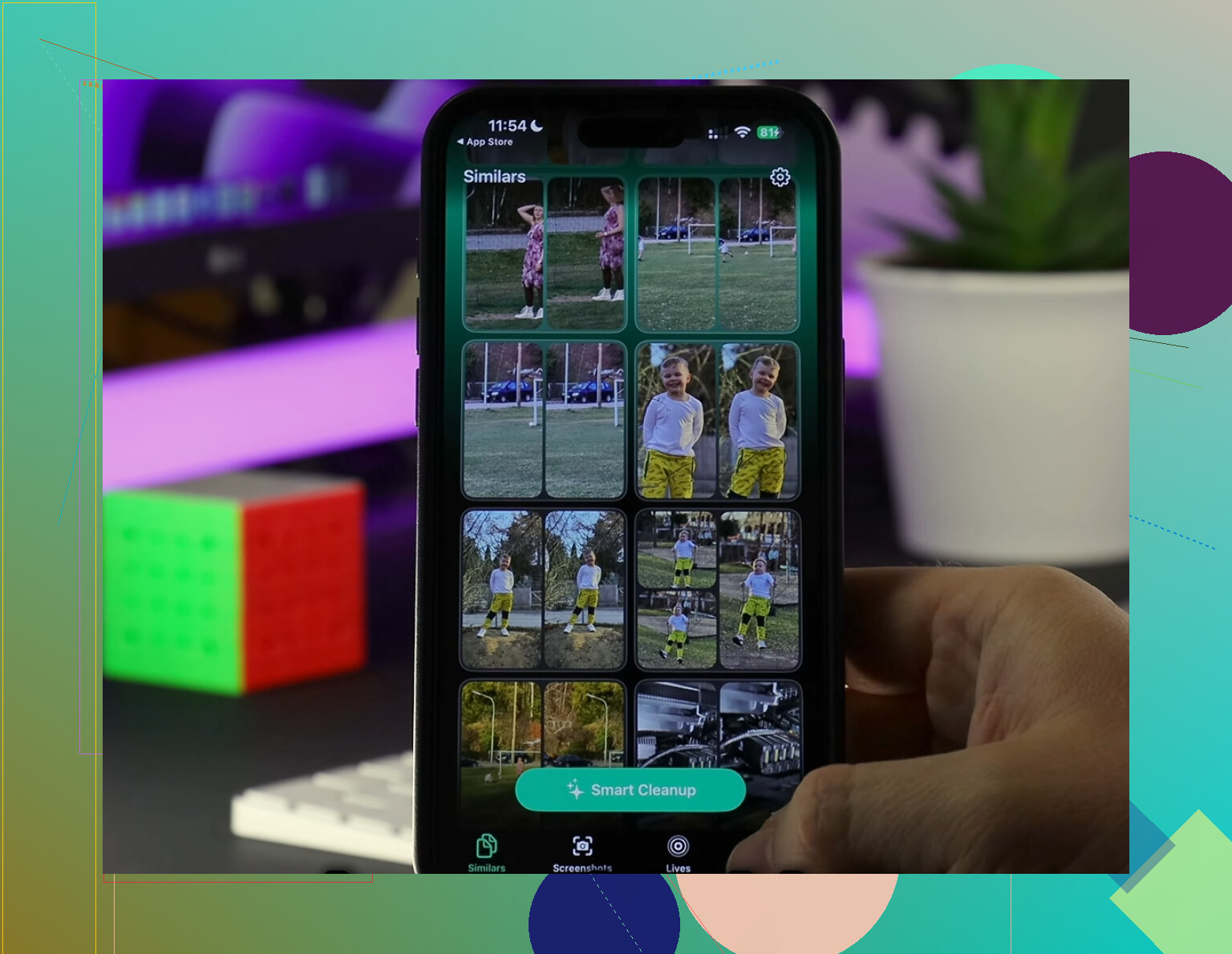
If your main issue is photo/video clutter, Clever Cleaner is worth a look because iPhone’s own sorting is kinda bad for finding the biggest files fast. This hands-on Clever Cleaner review for clearing iPhone storage shows pretty clearly what it can and can’t clean.
Stuff that usually does not help much:
- force closing apps
- low power mode
- deleting a few pics but not emptying Recently Deleted
- offloading apps if the app data is the real problem
If System Data is still absurd after all that, erase and restore is still the nuclear option that annoyingly works moost often.
I’m with @ombrasilente and @viajantedoceu on one big thing: most “temporary file” advice is half myth. But I’ll push back a little on the erase-and-restore talk being the next move too quickly. Before going nuclear, check the stuff iOS rebuilds in the background:
- Maps offline areas
- Siri voices and dictionaries
- downloaded translation packs
- GarageBand, iMovie, CapCut project files
- book/audiobook downloads in Books
- old iOS update files if an update was downloaded but not installed
A sneaky one: streaming apps can show low app size in iPhone Storage while still keeping chunky in-app downloads. Open the app itself, not just Settings.
Another thing people miss is that iPhone Storage numbers lag. If you deleted a bunch of stuff, leave it charging on Wi-Fi for a night before deciding nothing worked.
I also disagree a bit with “restart after cleanup” being important. In my experience, it mostly refreshes the graph, not the real free space.
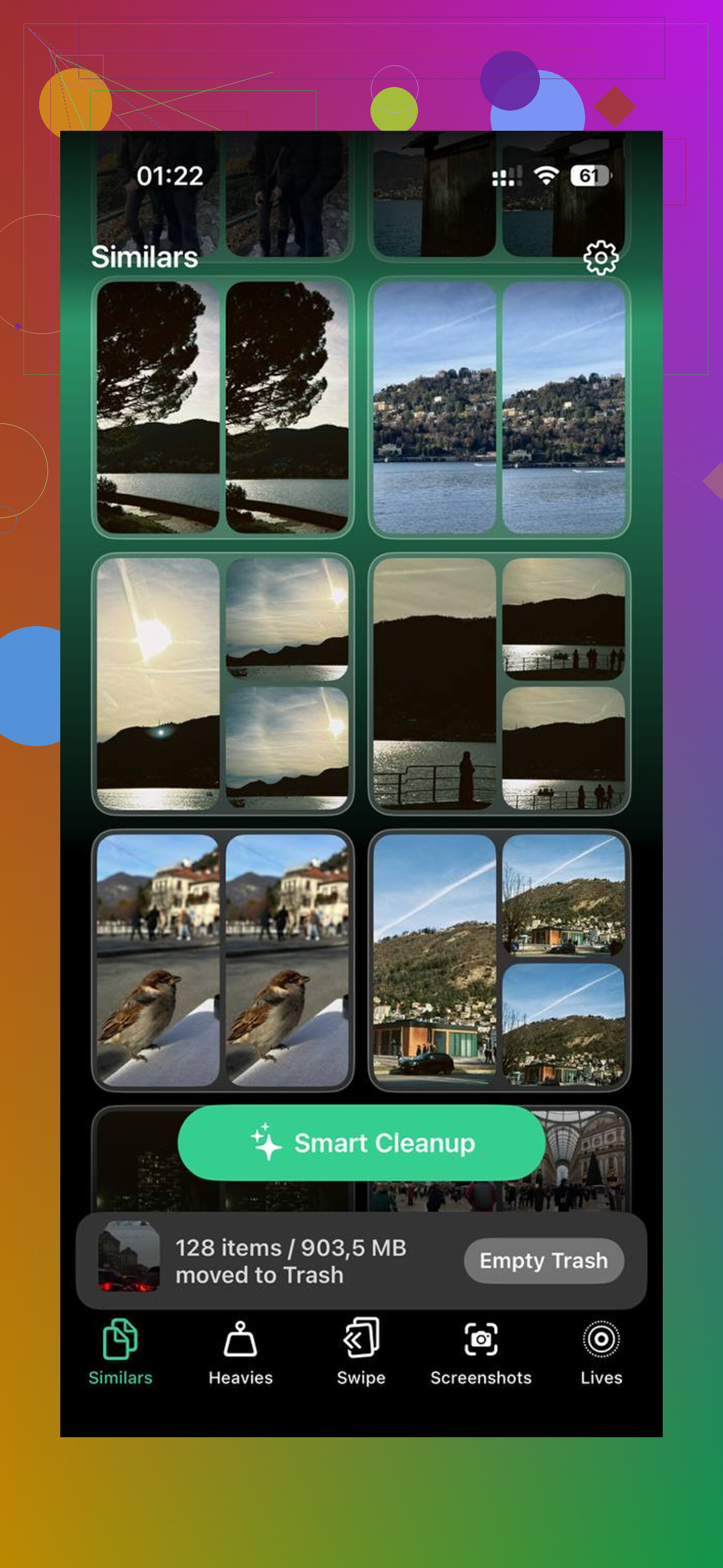
If your main bloat is photos/videos, Clever Cleaner is useful, but mostly for visibility.
Pros:
- good at surfacing large files fast
- easier duplicate/similar photo cleanup than Apple’s tools
Cons:
- won’t fix true System Data corruption
- another app still needs photo access
- less useful if your storage issue is Messages, Mail, or app documents
So yeah, @mikeappsreviewer had the right idea about app-level junk, but I’d treat “temporary files” as only one piece of the problem. The real storage killers are usually hidden downloads, media libraries, and app documents.