I’m trying to clear Facebook app data on my iPhone because it’s taking up a lot of storage and seems to be running slowly. I cleared cache where I could, but iOS doesn’t seem to offer a simple way to remove Facebook data without deleting the app. Is uninstalling and reinstalling really the only option, or is there another way to free up space?
Facebook can take up a ridiculous amount of space on an iPhone, and it usually catches people off guard. The annoying part is that clearing it once doesn’t really “fix” it forever, because the app starts rebuilding that local storage again as soon as you use it.
Clearing Facebook data will not delete your account
Your Facebook account, posts, friends, profile photos, saved posts, and other important stuff are stored on Facebook’s servers. They are not sitting only on your iPhone.
What gets cleared from the phone is local app data, mostly temporary files Facebook saves so the app loads faster. So no, clearing the cache or reinstalling the app will not wipe your account or remove your saved content.
Best way to actually clear Facebook cache on iPhone
iOS does not give you a simple “clear cache” button for Facebook or most other third-party apps, so you basically have two choices.
Offload Facebook
Go to Settings > General > iPhone Storage > Facebook, then tap Offload App.
This removes the app itself but keeps its Documents and Data. That means you may stay logged in after reinstalling, and your settings are usually still there. The downside is pretty important though: this does not fully clear the part that is often taking up all the space. If Facebook is only slightly bloated, offloading might help a bit. If it is using a huge amount of storage, it usually is not enough.
Delete and reinstall Facebook
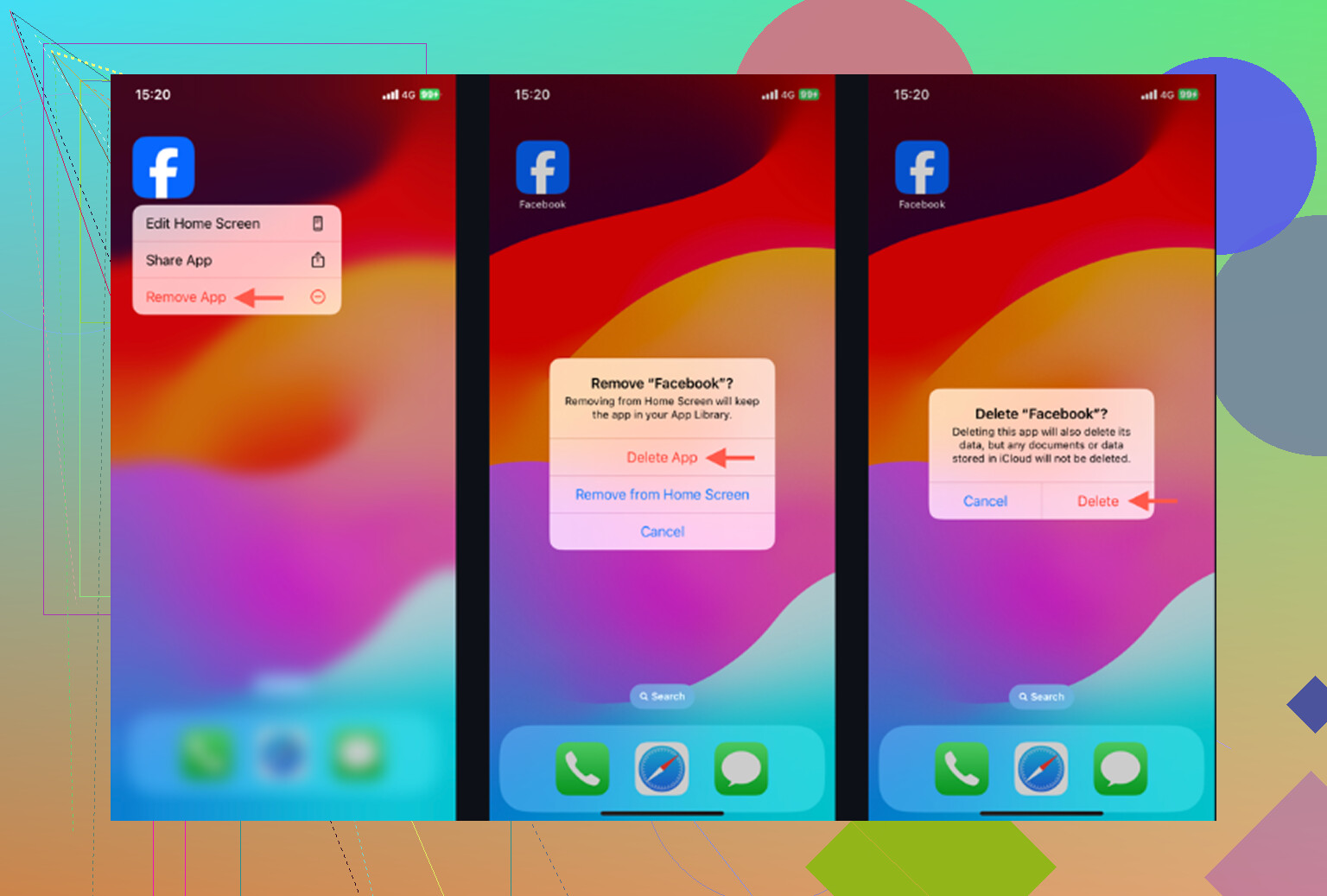
For a real cleanup, delete the app instead. You can do it from Settings > General > iPhone Storage > Facebook > Delete App, or long-press the Facebook icon and choose Remove App.
This removes the app and its local data, including the cache. After reinstalling, you will need to log in again, but your Facebook content comes back because it syncs from Facebook’s servers.
The in-app cleanup only helps a little
Facebook also has a small cleanup option inside the app. Go to Menu > Settings and Privacy > Settings > Browser, then clear Browsing Data.
That clears cookies and cached pages from Facebook’s built-in browser. It can shave off a little space, but it does not deal with the bigger issue, which is usually media cache from videos, Reels, photos, and autoplay content.
Why Facebook fills up again so fast
Facebook caches things constantly. Scroll past images, watch Reels, let videos autoplay, open links, and the app starts saving temporary data again so the next session feels faster.
So if you delete and reinstall Facebook today, then use it normally for a few days, the storage number will start climbing again. That is expected behavior. It is frustrating, but it is how the app is designed.
If the phone is still slow, Facebook may not be the real problem
A lot of people clear Facebook and expect the whole phone to feel better, then nothing really changes. Usually that means the bigger storage issue is somewhere else, and most of the time it is the Photos app.
Old screenshots, duplicate-looking photos, burst shots, screen recordings, and large videos pile up quietly. A few forgotten videos can take up more room than Facebook’s cache ever did.
iOS also needs free storage to work properly in the background. When the phone is almost full, everything can feel slower, even after clearing one app’s cache.
What helps with the bigger storage cleanup
Clever Cleaner is free, with no ads and no subscription. It does not clear Facebook cache, so you still need to delete and reinstall Facebook if that is your goal. Its use is more for finding the photo and video files that are quietly eating the most space.
The Heavies tab sorts files by size, largest first, and shows the exact file sizes. That makes it easy to spot one huge video that is doing more damage than weeks of Facebook cache.
The Similars tab groups photos that look almost the same and selects a Best Shot from each group, so you do not have to manually compare five versions of the same picture.
It also shows file sizes on screenshots before you delete them, which makes cleaning up old screenshots a lot easier.
Everything is processed on the iPhone, with nothing uploaded to an external server.
A practical order to do it
First, delete and reinstall Facebook if you want the biggest immediate cache cleanup. Then check your photo library with Clever Cleaner to find the large videos, repeated photos, and screenshots that are probably causing the real storage pressure.
One last step matters: after deleting photos or videos, open Photos > Recently Deleted > Delete All. Until you clear that folder, the storage may not actually show as freed.
2 Likes
Offloading is not the same as deleting the app, and that distinction matters here. If your goal is to make the Facebook number under iPhone Storage drop, offload usually disappoints because iOS keeps the app’s documents and data around. Delete App is the cleaner reset. That is the closest iPhone has to a real “clear Facebook app data” button.
The caveat I’d put in front of this is login stuff. Before deleting Facebook, make sure you know your password and still have access to whatever 2FA method your account uses. A lot of people treat reinstalling as harmless, then get stuck because their code goes to an old phone number or they were relying on being permanently signed in. Your account and posts won’t be deleted, but your local session can be.
After reinstalling, don’t be surprised if the storage reading looks weird for a bit. iOS sometimes takes time to recalculate app storage, and Facebook will start caching again the minute you scroll through videos and photos. If you only need a quick temporary fix, delete and reinstall. If the phone is generally low on space, then Facebook is probably only one piece of the mess, and photo/video cleanup will usually buy you more room than chasing Facebook cache every week.
Don’t reset the whole iPhone or keep offloading Facebook over and over expecting a different result. If the storage problem is Facebook’s “Documents & Data,” deleting the app is the cleanest normal fix on iOS. The small browser-data cleanup inside Facebook only handles part of it, and offload keeps the very stuff you’re probably trying to remove. Before deleting, check that you can log back in, especially if you use two-factor authentication. After reinstalling, expect the size to creep up again because Facebook will cache videos and images as you scroll. So yes, for a real Facebook app data clear, delete and reinstall is basically the practical option.
Check the Facebook entry in iPhone Storage before you delete anything, because the split tells you what you’re actually fighting. If the app itself is the big number, offloading can help a little. If “Documents & Data” is the monster, then the others are right: offload is mostly the wrong button, because it keeps the local junk you want gone.
Small caveat that gets missed: finish or discard anything pending inside Facebook first. Draft posts, half-uploaded photos/videos, Marketplace messages you haven’t sent, or anything stuck in the app may not survive a delete/reinstall. Your account is fine, but local unfinished stuff is not something I’d trust to sync perfectly.
If this keeps happening every few weeks, I’d seriously consider skipping the app for a while and using Facebook in Safari instead. Add it to the Home Screen if you want the icon. It is less smooth, notifications are worse, and some features may be clunkier, but it usually stops Facebook from camping in your storage like it owns the place. For occasional use, that may be less annoying than constantly reinstalling the app.