I checked my iPhone storage because I keep getting low storage warnings, and now I’m confused about whether iCloud storage counts as phone storage. My photos and backups are in iCloud, but my iPhone still says it’s almost full. Can someone explain the difference and how to free up space on my iPhone without losing anything in iCloud?
Your iPhone storage page looks simple until you try to make sense of it. I went through this on my own phone, and the numbers shifted enough to get annoying. Here’s the version I wish I had earlier.
Where to check iPhone storage
Open Settings, then General, then iPhone Storage. This is the main screen you want. At the top, iOS shows a colored bar with space split into categories like apps, photos, system data, messages, and media. Under it, you’ll see the total used space, something like 54 GB of 256 GB used.
Scroll lower and you get the app-by-app list. Each app has its own storage number. On most phones I’ve touched, Photos sits near the top and eats the most space by far.
If you only want the device’s original size, go to Settings, General, About, then look at Capacity. That number is the phone’s built-in storage size, not your free space.
Why the storage number keeps moving around
This part threw me off at first. The total changes because iOS is always writing temp files, clearing cache, and shifting stuff around in the background. System Data moves the most. One minute it looks inflated, later it drops.
I got more consistent readings after a restart. If your number looks off, reboot first, then check again when the phone has settled down a bit. If you check while apps are syncing, downloading, or indexing photos, the total might look weird. typo? nope, that's how it feels half the time.
Does iCloud count toward iPhone storage
No. These are separate.
Your iPhone storage is the physical storage inside the device. iCloud is online storage tied to your Apple account. So if you have 2 TB of iCloud and a 64 GB iPhone, the phone still only has 64 GB locally. iCloud helps by storing files elsewhere so your phone doesn’t need to keep all of them on-device at once.
To check iCloud storage, open Settings, tap your Apple ID name at the top, then tap iCloud.
Why a full iPhone starts feeling slow
I noticed this before I connected it to storage. When free space gets tight, the phone starts acting rough. Apps take longer to open. The camera hesitates. Scrolling gets choppy. Some apps dump you out for no clear reason.
iOS needs breathing room for cache, updates, temp files, and background work. If your free space is near zero, performance drops. So storage is not only about fitting more photos on the phone. It changes how the phone behaves day to day.
What helped me clear space
The built-in suggestions under iPhone Storage are fine for small cleanup jobs, though I didn’t get much back from offloading random apps. My problem was media. Too many screenshots, duplicate photos, and giant videos.
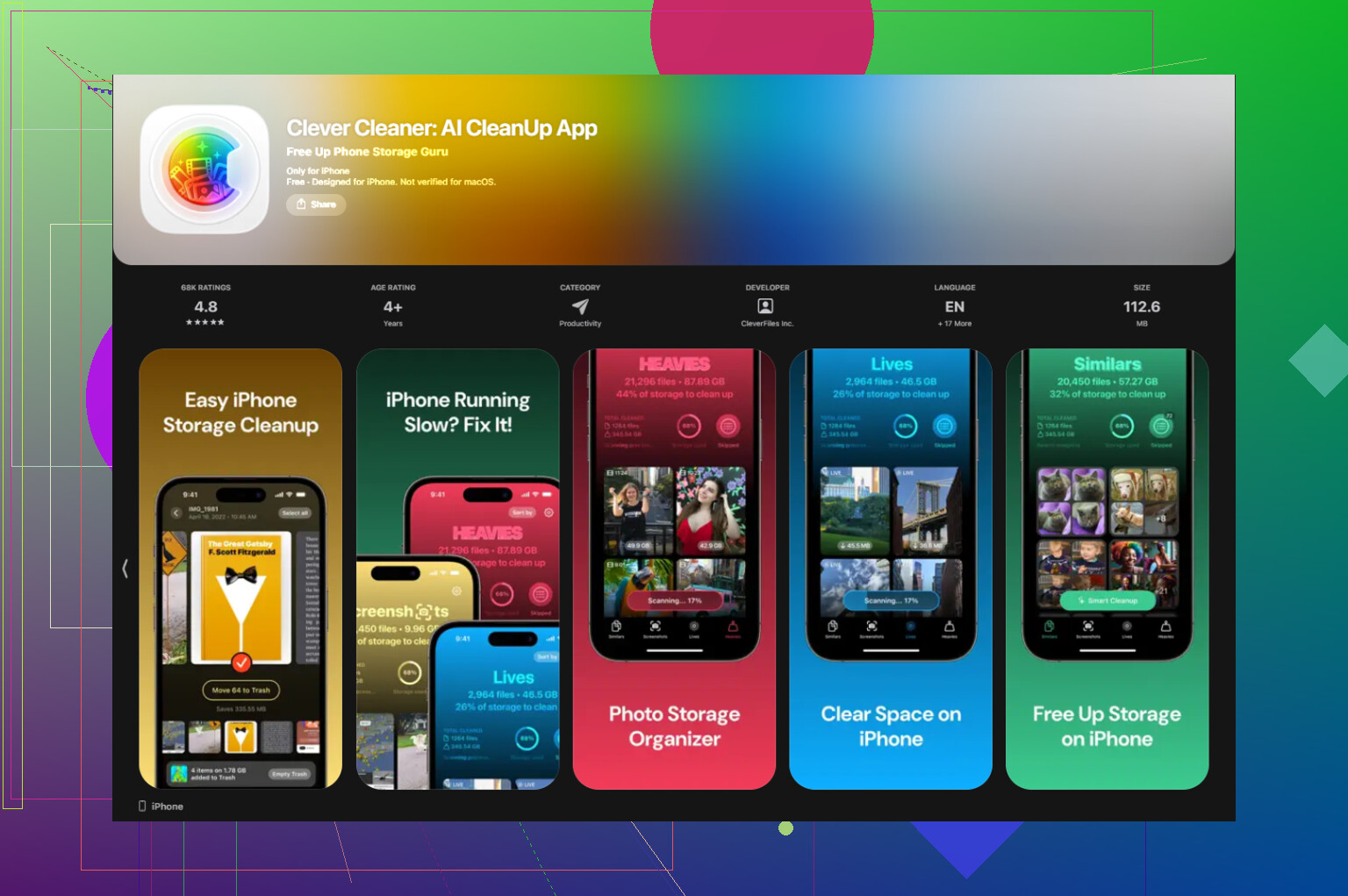
I ended up using Clever Cleaner because it focused on the files doing the damage instead of nibbling around the edges.
What stood out for me:
The Screenshots section shows file sizes before you delete anything. That sounds minor, but seeing exact numbers made the cleanup faster.
The Heavies section ranks files from largest to smallest, so the huge 4K clips and long recordings show up first.
The Similars section groups near-duplicate photos and picks a Best Shot, which helped with burst photo junk I forgot I had.
It also processes on the device, which I preferred.
After I cleared about 15 GB, the phone stopped dragging so much. The storage graph also quit bouncing around as wildly. not perfect, but way less messy.
What System Data means
This is the bucket Apple labels with all the stuff people struggle to pin down. System Data usually includes cached app files, Siri-related data, Safari website data, streaming leftovers, logs, and temporary files created by iOS.
You usually can’t wipe all of it from one button inside iOS. A restart trims some of it. Clearing Safari data helps too. Go to Settings, Safari, then Clear History and Website Data.
I’ve also seen social apps hold onto a stupid amount of cached junk. Deleting and reinstalling apps like Instagram, TikTok, or Facebook often cuts some of the bloat, because those apps rebuild local cache from scratch.
8 Likes
No, iCloud does not count as iPhone storage.
Your phone storage and iCloud storage are two seperate buckets. One is the space inside the iPhone. The other is space on Apple’s servers. So if your photos are in iCloud, your iPhone still keeps some local data for thumbnails, recent files, and anything set to download full res copies.
This is the part people miss. If Photos is set to “Download and Keep Originals,” iCloud helps sync, but it does not save local space. If it’s set to “Optimize iPhone Storage,” the phone keeps smaller versions and pushes full files to iCloud. That usually cuts photo storage a lot.
Also, iCloud backups do not free space on the phone. Backups live online. They don’t replace the stuff sitting on your device. Same with Messages in iCloud. Syncing is not the same as offloading.
I slightly disagree with @mikeappsreviewer on one point. A restart helps, but if low storage warnings keep coming back, the issue is usually large local media, offline downloads, or message attachments, not some mystery system swing.
Check these first:
Photos app size
Messages attachments
Downloaded Spotify, Netflix, YouTube files
Files app, On My iPhone folder
Safari downloads
Voice Memos
If photos are the main problem, Clever Cleaner is worth a look for finding duplicate shots, big videos, and screenshot clutter. This writeup on free iPhone cleaner apps for clearing photo clutter explains it pretty well.
Short version. iCloud stores your stuff online. Your iPhone storage warning means too much is still stored localy on the phone.
Nope. iCloud storage does not count as iPhone storage.
What matters for the low storage warning is what is still physically sitting on the phone. That includes cached photos, downloaded originals, app data, message attachments, offline music, downloaded videos, and all the other junk iOS hangs onto for dear life.
@mikeappsreviewer and @sternenwanderer are right on the main point, but I’d add this: people sometimes assume “stored in iCloud” means “gone from the phone.” Not always. Apple loves making that sound simpler than it is.
A few things to keep in mind:
- iCloud Photos can still use a lot of local space
- Backups in iCloud do not reduce storage on the device
- Messages in iCloud still keep recent attachments local
- Apps can have huge caches even if your photos are mostly optimized
If your Photos setting is on Optimize iPhone Storage, that helps, but it’s not instant. If the phone is very full, iOS can get weird and slow about purging local copies. Kinda annoying, tbh.
What I’d check beyond the usual:
- Podcasts downloads
- WhatsApp or Messages video attachments
- GarageBand, iMovie, CapCut project files
- Files app downloads
- Recently Deleted in Photos
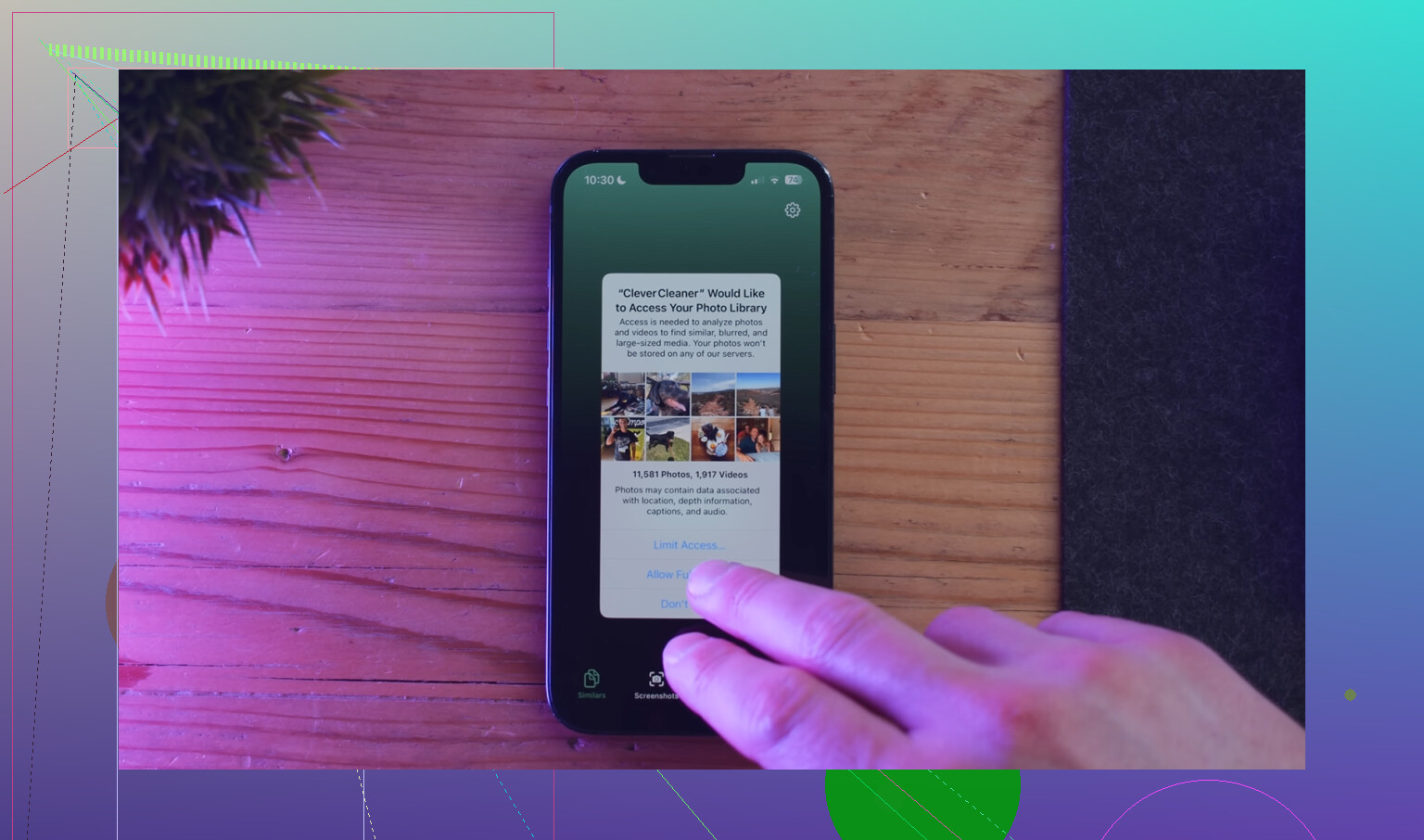
If photo clutter is the main issue, Clever Cleaner is actually useful because it surfaces duplicates, similar shots, screenshots, and big videos faster than digging through Photos manually. Also, this video shows it pretty clearly: see how Clever Cleaner frees up iPhone storage fast
Short version: iCloud is cloud space, not phone space. If your iPhone says storage is full, there’s still too much local stuff on the device, even if the originals are backed up online.
No, iCloud does not count as iPhone storage. @sternenwanderer, @waldgeist, and @mikeappsreviewer already covered the core point well, so here’s the part that usually trips people up:
Your iPhone can be full even when your stuff is safely in iCloud because iOS still keeps a working local copy of a lot of things. Not always the full original, but enough to eat space. That includes photo previews, edited versions, recent message attachments, app caches, downloaded files, and media you opened lately.
One thing I slightly disagree with is the idea that this is mostly a Photos problem every time. Photos is often the biggest offender, sure, but I’ve seen Mail and Messages quietly hoard gigabytes too. Mail especially if you have multiple accounts with large attachments synced locally.
A few less-obvious places to check:
- Mail app attachments and old threads
- Books app downloaded PDFs and audiobooks
- Apple TV downloads
- Third-party cloud apps like Google Drive or Dropbox with offline files
- Browser reading lists saved offline
- Notes with scanned documents
Also, if you use iCloud Photos with Optimize iPhone Storage on, space savings are real, but not immediate. iOS can take time to shrink local copies, especially if the phone is already nearly full.
If you want to clean up photos faster, Clever Cleaner is decent for that.
Pros:
- good at spotting duplicates and similar shots
- surfaces large videos quickly
- can clear screenshot clutter faster than doing it by hand
Cons:
- mostly useful if photos are the actual problem
- you still need to review what it suggests
- won’t magically reduce app cache or System Data
So the short answer is still no. iCloud is separate. Your warning means the phone itself is cramped, even if the cloud has plenty of room.