My drive suddenly shows up as RAW in Windows even though it was NTFS before, and now I can’t open any of my files. Disk Management is asking me to format it, but I’m trying to avoid losing important data. Is there a safe way to convert a RAW drive back to NTFS without erasing everything?
I’d hold off on converting it to NTFS right away. When Windows labels a partition as RAW, what I’ve seen is simple, it no longer reads the file system in a way it understands. Your data is often still sitting there. The problem is access, not always total loss.
I ran into this once with an external drive after a bad unplug. Another time it was a flaky USB cable. I’ve also seen it happen after a write got interrupted, from file system damage, bad sectors, malware, or a drive starting to die. So yeah, formatting first is the move people regret later.
What I’d do is this.
Step 1: Look at the drive in Disk Management
Open Disk Management and check whether the drive shows the right capacity. If the size looks normal, even with RAW showing up, recovery still has a fair shot. If Windows keeps dropping the drive, shows some weird incorrect size, or the drive starts clicking or making odd noises, stop there. I would not keep poking it. That’s where hardware failure starts to look likely.
Step 2: Pull your files off first with Disk Drill
Disk Drill is one of the easier options for this kind of mess. What I liked is it runs more than one recovery method in the same scan, so you don’t have to keep guessing which mode to pick first.
This is the way I’d handle it:
- Install Disk Drill on some other drive. Don’t install anything onto the RAW one.
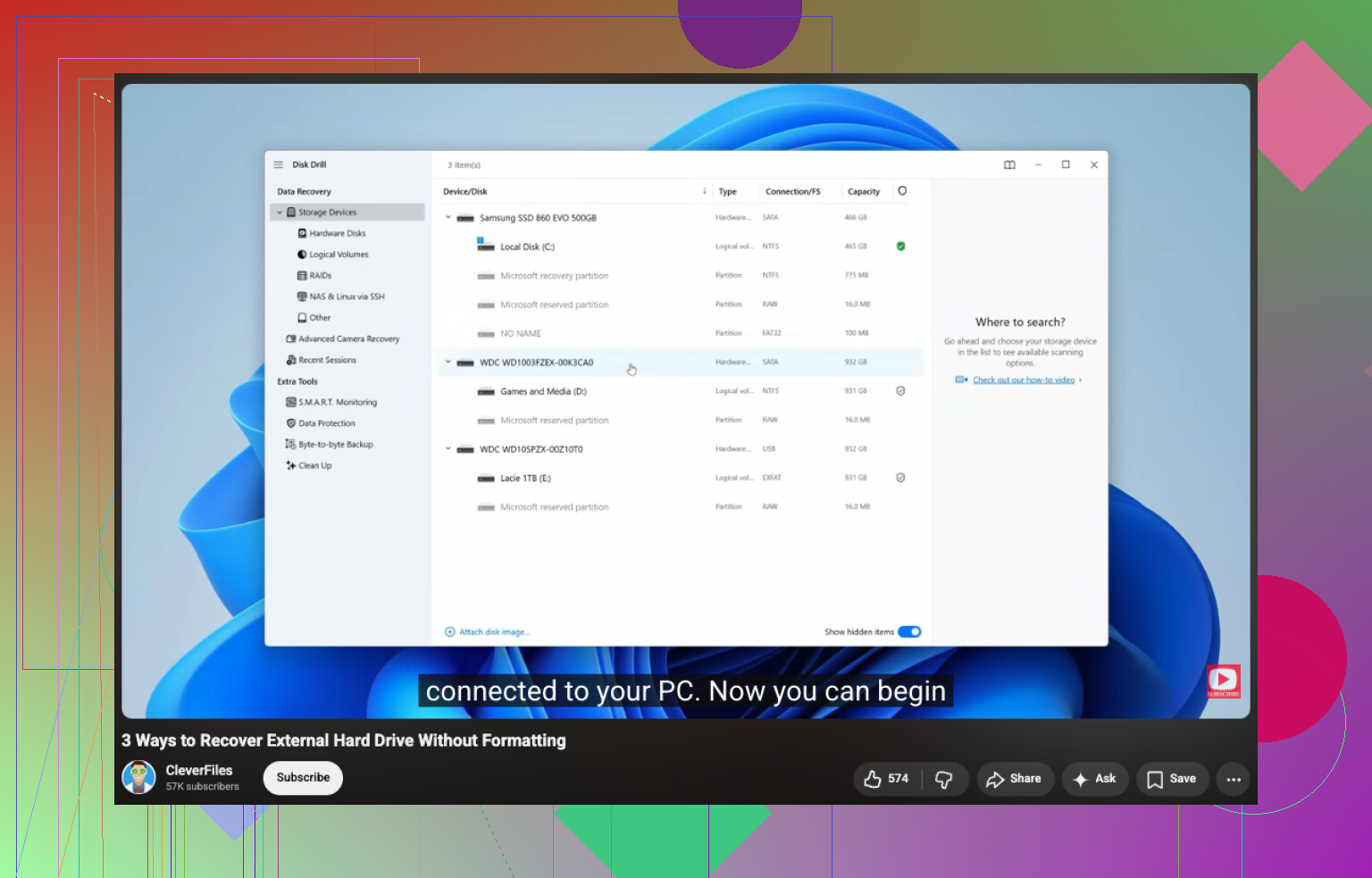
- Open it and choose the RAW partition, or the full physical disk if needed.
- Hit Search for lost data and let it finish. RAW scans tend to drag, sometimes a lot. Don’t kill it halfway unless the drive is falling apart.
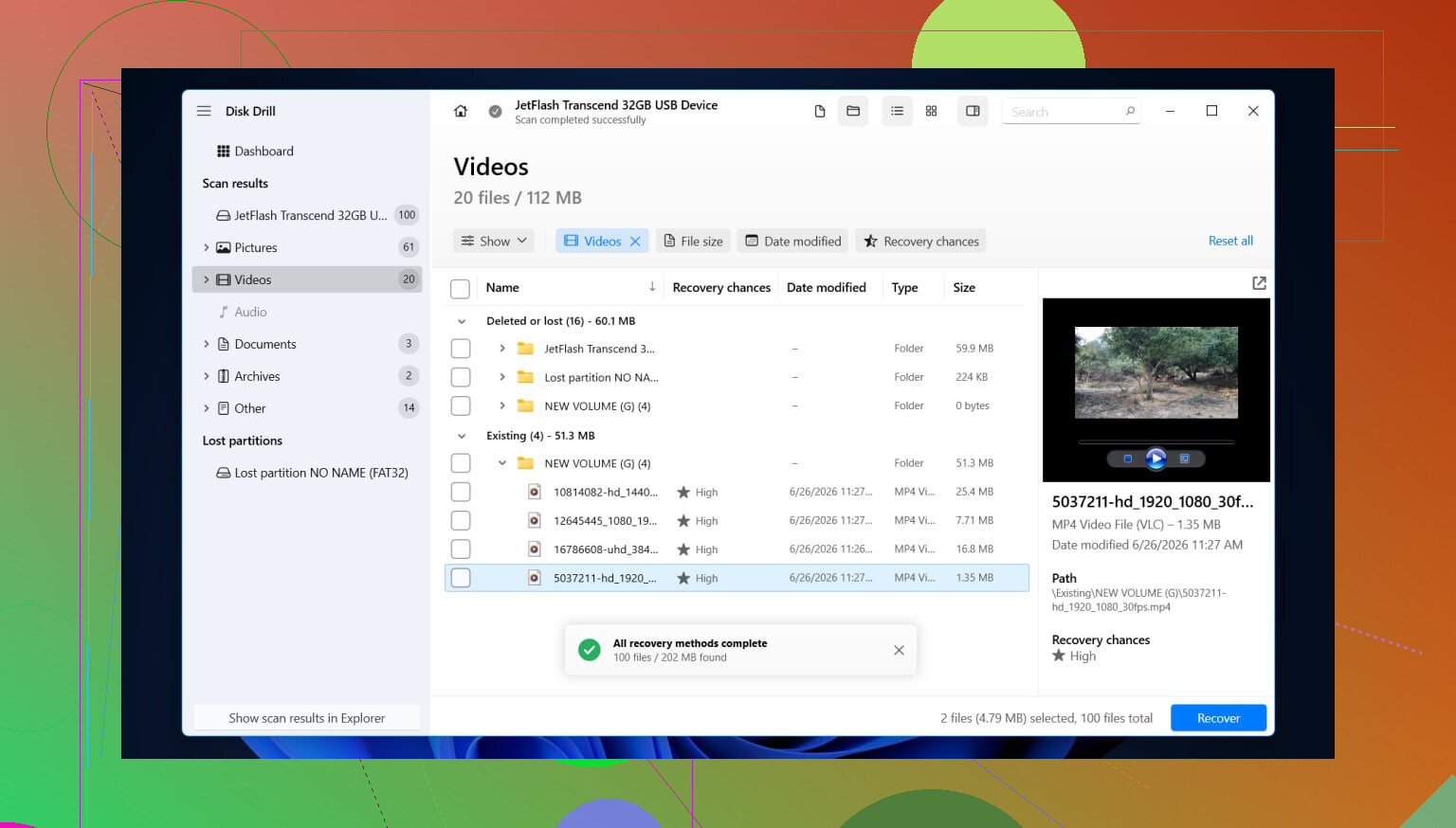
- Go through the results with the file type filters or the search field. If folder view is available, check there first. Sometimes you get your old folder layout back, which makes life easier.
- Preview the stuff you care about, photos, docs, videos, whatever, so you know the files still open.
- Mark the files you want.
- Recover them to another drive. Not back onto the damaged partition. Never there.
If the drive starts disconnecting during the scan, or the read speed drops into the floor, I’d stop and make a byte-for-byte image first. Re-reading a failing disk over and over is how you make a bad day worse. Work from the image if you can.
Step 3: Repair the drive only after the data is safe
Once your important files are somewhere else, then fix the disk. What fix makes sense depends on what broke in the first place.
Usual options:
- Format it to NTFS if the file system is trashed and you no longer need anything left on it.
- Rebuild or restore the partition if the partition table got damaged.
- Assign a drive letter if Windows sees the partition but refuses to mount it properly.
- Run CHKDSK only after recovery. I’m serious on this one. CHKDSK writes changes to the file system. It is for repair, not file recovery, and I’ve seen people lose recoverable stuff by rushing into it.
- Update or reinstall storage controller drivers and USB drivers if this started after a Windows update, or if the drive misbehaves on one PC but not another.
- Replace the drive if SMART errors show up, bad sectors keep growing, or read errors won’t stop. At that point I’d stop pretending software will fix hardware.
After it seems fixed, test it a bit. Copy over a few large files, unplug it safely, reconnect it, and check whether it still behaves. If it flips back to RAW again after formatting, I’d treat the drive as untrusted and replace it. I’ve tried nursing drives like that before. Didn’t end well.
8 Likes
No, Windows does not convert RAW to NTFS without data loss. If you use Format in Disk Management, you wipe the file system metadata and make recovery harder. So do not press format yet.
I agree with @mikeappsreviewer on one big point, recover first. I differ a bit on repair tools though. If the drive is stable and not clicking, I would try to confirm whether this is file system damage or partition damage before doing anything else.
Do this in order.
-
Test the drive on another USB port, cable, or PC.
A bad enclosure or cable causes RAW reports more often than people think. I had one do this last yer, swapped the cable, drive mounted fine. -
Check SMART health with CrystalDiskInfo or similar.
If health is bad, stop using the disk for scans until you clone it. -
If the partition itself vanished or looks wrong, try TestDisk.
TestDisk is better for restoring a lost NTFS partition than for file-by-file recovery. It is not beginner friendly, so read each screen twice. -
If you need your files now, use Disk Drill.
It is a solid option to recover files from a RAW drive without formatting first. Save recovered data to a different disk. -
After your files are safe, reformat to NTFS.
Also, skip chkdsk at the start. People love typing chkdsk /f like it solves everythng. On a RAW disk, it often does nothing useful, or it changes things you wanted left alone for recovery.
If you want a walkthrough, this video covers how to restore data from a RAW or corrupted drive without formatting first, watch this RAW drive recovery guide.
Short version. Windows will not save your data while converting RAW to NTFS. Pull files off first, then format.
Nope. If Windows is offering Format to NTFS, that is not a safe “convert” in the way people hope. It’s basically Windows saying, “I can’t read this file system, want me to make a new one?” Which is great if you hate your data.
I mostly agree with @mikeappsreviewer and @codecrafter, but I’d push one extra point: before doing any repair attempt, check whether the drive is acting weird in Event Viewer under System logs. Look for disk, ntfs, or controller errors. If you see a flood of I/O errors, the issue may be lower-level than just a damaged file system. That can save you from wasting time on “fixes” that won’t stick.
Also, slight disagreement with the usual “just run repair tools after.” If this is an external drive and the enclosure is flaky, reformatting may appear to fix it, then the same RAW issue comes back. So I’d test the enclosure/adapter too before trusting the disk agian.
What I would not do:
- don’t format
- don’t use convert commands hoping RAW magically becomes NTFS
- don’t copy new files to it
- don’t keep reconnecting it 50 times if it’s disconnecting
What I would do:
- try another cable, port, enclosure, or PC
- check SMART if possible
- if files matter, recover them first with something like Disk Drill
- save recovered stuff somewhere else
- only then wipe/rebuild the drive
If you want extra reading on top hard drive recovery and repair software for fixing damaged disks, that may help you compare tools a bit.
Short version: Windows cannot convert RAW to NTFS without data loss in this situation. Recover first, repair later.
No. Windows is not doing a safe in-place RAW to NTFS conversion here. If you click Format, you are rebuilding the file system, not “repairing” the old one.
I mostly agree with @codecrafter, @nachtschatten, and @mikeappsreviewer, but one thing I would add is this: check whether the drive is actually showing the correct partition type in a tool like PowerShell Get-Disk / Get-Partition or a Linux live USB. Sometimes Windows calls it RAW just because the NTFS boot sector or partition entry is damaged, while the data itself is still largely intact.
A couple things I would avoid:
- do not initialize the disk if prompted
- do not run quick format “just to see if it comes back”
- do not let Windows “scan and fix” automatically on reconnect
My angle is: verify first whether this is a Windows-reading problem or real file system corruption. If another OS can see the files, copy them off immediately.
If Windows still cannot read it, then recovery before repair is the right move. Disk Drill is fine for that.
Disk Drill pros
- easy preview and filtering
- good for pulling files off RAW volumes
- beginner-friendly compared with deeper partition tools
Disk Drill cons
- not the best choice if you specifically need partition-table reconstruction
- long scans on large failing drives
- recovery quality still depends on how damaged the disk is
So: no safe Windows conversion, yes recover first, then wipe and reformat to NTFS only after the data is somewhere else.