I emptied my Windows Recycle Bin and realized some important files were in there. I’m trying to figure out if Recycle Bin recovery can bring back permanently deleted files, what tools are safe to use, and what steps I should take before the data gets overwritten.
If you emptied the Recycle Bin by mistake, don’t keep using that drive more than you have to. Deleted files usually aren’t wiped instantly. Windows often just marks that space as free, and the data may still be sitting there until something new gets written over it.
First, check the Recycle Bin one more time. It sounds basic, but it’s worth doing, especially if the file was inside a folder you deleted. Open the Recycle Bin from the desktop, look for the file or the folder it was in, right-click it, and choose Restore. If it’s there, Windows should put it back where it came from.
If the bin is already empty, avoid anything that writes new data to the same drive. Don’t install recovery tools there, don’t download random files, don’t save new documents, and try not to browse heavily. The more the drive is used, the better the chance that the deleted file gets overwritten.
After that, check whether Windows has an older copy saved. Go to the folder where the file used to be, right-click inside the folder, and choose Restore previous versions. If you see versions from before the deletion, open one and copy the missing file somewhere safe.
You can also get to File History here:
Control Panel > System and Security > File History > Restore personal files
That view lets you browse older backed-up versions of common folders like Documents, Pictures, Desktop, and similar locations.
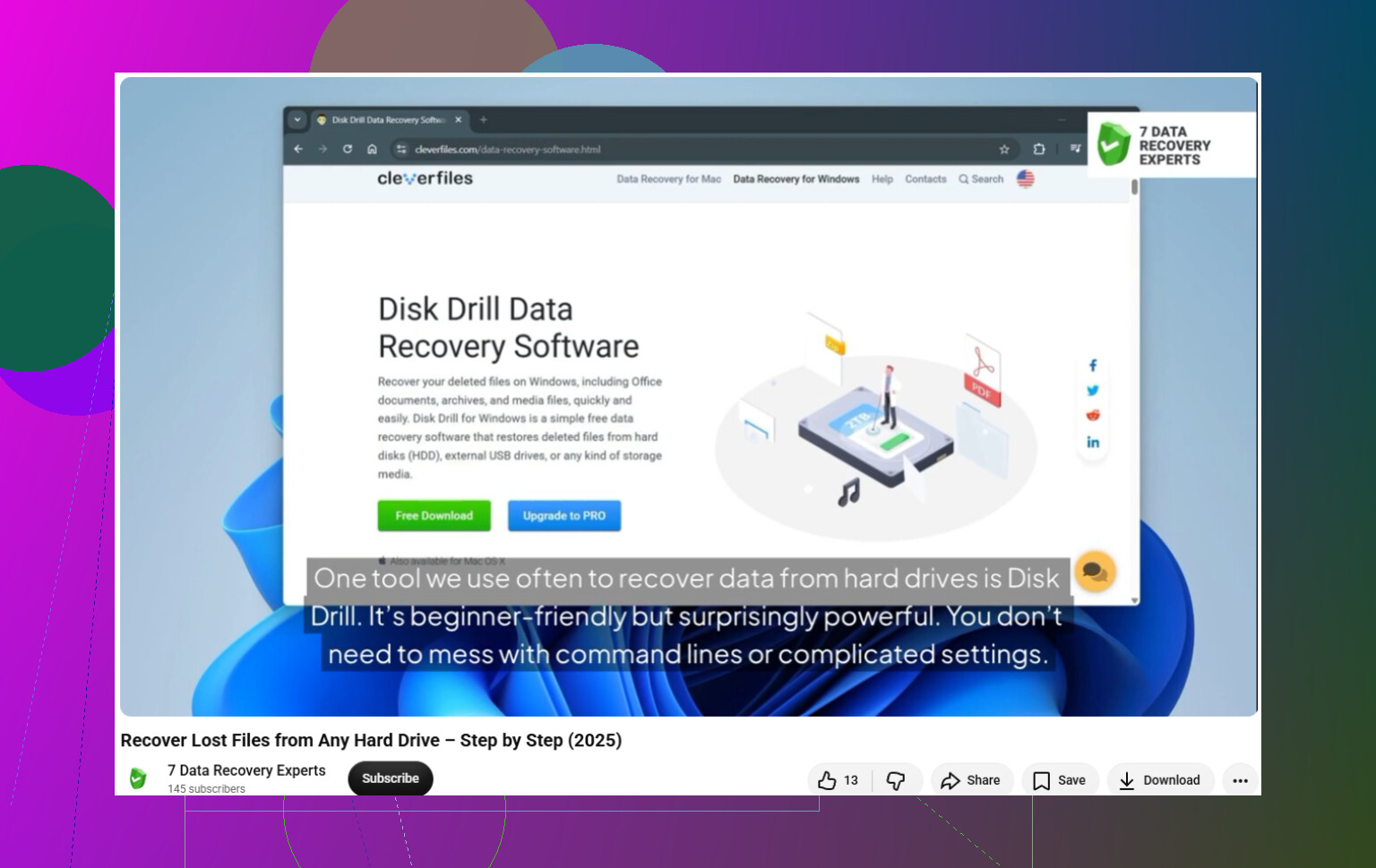
If there’s no backup, recovery software is probably the next thing to try. Disk Drill is one option that can scan NTFS, FAT32, and other file systems for deleted documents, photos, videos, and other file types.
A few important points if you go that route:
Install the recovery program on a different drive than the one you’re trying to recover from. So if the deleted file was on C:, install the software on another internal drive, an external drive, or another safe location.
Open the program, pick the affected drive, and choose Search for lost data.
Let the scan finish. A deeper scan can sometimes find files even when the original filename or folder path is gone.
Preview files when the software lets you. If a preview works, that’s a decent sign the file is readable, though it still doesn’t guarantee a perfect restore.
When you recover the files, save them to a different drive. Saving recovered data back onto the same drive can overwrite other deleted files you might still want.
The Windows version may include a small amount of free recovery, which might be enough if you only need a few small files. Check the current license terms before you spend time scanning.
One extra thing: SSD recovery can be harder because of TRIM. That feature helps SSDs clear deleted blocks quickly, but it can also make deleted data disappear sooner. If the file was on an SSD, stop using the computer as much as possible and start recovery quickly.
10 Likes
Don’t run “cleanup,” defrag, CHKDSK repair, or any optimizer app on that drive right now. Those tools can write to the disk or rearrange things, which is the opposite of what you want after deleting files. I agree with @mikeappsreviewer about not installing recovery software onto the same drive, but I’d be even stricter if this was your C: drive: shut the PC down and do the recovery from another computer if the files matter a lot.
Emptying the Recycle Bin does not mean the files are magically unrecoverable. It means Windows removed the easy restore path. Recovery depends on whether the file contents are still sitting in unused space. On an HDD, chances can be decent if you act quickly. On an SSD, it can be a lot worse because TRIM may clear deleted data before a recovery tool ever sees it.
For safe tools, I’d stick to known names and avoid random “100% guaranteed recovery” downloads. Disk Drill is a reasonable option to scan with, but do not judge the result just because it lists filenames. The real test is whether the file previews correctly or opens after recovery. If the files are extremely important, make a full image of the drive first or take it to a recovery shop instead of experimenting. If they’re replaceable, try a scan from another drive and save anything recovered somewhere else, like an external USB drive.
Don’t buy or install anything until you’ve checked the boring places that don’t touch the disk at all.
The advice above about not writing to the drive is right, but I’d try the “no-risk” recovery paths before running any undelete scan. If the file lived in Desktop, Documents, Pictures, or a folder under OneDrive, Dropbox, Google Drive, iCloud Drive, etc., check the web version of that service. Cloud sync tools often have their own recycle bin or version history, and emptying the Windows Recycle Bin does not always mean the cloud copy is gone. Same idea if the file was emailed to you, downloaded from a browser, attached in Teams/Slack/Discord, or saved by an app with recent files. That route is less exciting than recovery software, but it does not gamble with the deleted data.
For the actual Recycle Bin question: yes, “permanently deleted” in Windows can sometimes be recovered, but that wording is misleading. It usually means “removed from normal Windows restore,” not “securely erased.” If the drive space has not been reused, a recovery program may be able to find the file. If the data was overwritten, or if an SSD’s TRIM already cleaned it up, software may only find a name, a broken file, or nothing useful.
I’d be careful with the word “safe” too. A safe recovery tool is not just one that is malware-free. It should let you scan without changing the source drive, preview results, and save recovered files somewhere else. Disk Drill fits that general style because it can scan first and show previews/recovery chances, but don’t treat a list of found files as proof. A previewable photo or document is a much better sign than a filename sitting in a results table.
If you want a cheaper route and you’re comfortable with command-line stuff, Microsoft’s Windows File Recovery is worth knowing about. Microsoft describes it as a command-line app from the Microsoft Store, and even their example shows recovering from one drive to a different recovery drive, which is the important habit here. It is less friendly than a GUI app, but it avoids downloading random “miracle recovery” tools.
My order would be:
Check cloud recycle bins and version history first.
Check File History, previous versions, backups, and any external backup drive.
If it was on an HDD or USB stick, scan from another drive and recover to another drive.
If it was on the main SSD, shut down sooner rather than later if the files matter, because normal Windows use can keep writing in the background.
If the missing files are business-critical, legal, tax, family photos with no backup, or anything you cannot replace, stop DIY attempts earlier than your instincts tell you to. Every scan is not equally dangerous, but every boot, update, download, browser cache write, and recovery save can make the odds worse.
The annoying answer is that recovery is possible, not predictable. The best “tool” is usually whatever path finds a second copy before you have to touch the deleted space at all.
Expect “maybe recoverable” rather than “bring it back like Undo.” Once the Bin is emptied, Windows usually no longer has a neat restore record you can rely on. A recovery scan may find the file contents, but it may come back with a weird name, no folder path, or only as a partial file. That matters if you deleted one Word doc, but it matters a lot more if you deleted a folder full of photos where the names and dates were part of how you organized them.
A detail people forget: recovery results can be noisy. Deep scans often find old thumbnails, temp copies, duplicates, browser cache files, and broken fragments. So if you use Disk Drill or any similar tool, don’t just hit “recover everything” unless you have a separate drive with plenty of space. Filter by file type, size, and date if the program allows it, preview what you can, and recover the most important stuff first. Saving a giant pile of junk back to the same disk is how people make the situation worse.
If the files were on an external USB hard drive, your odds are usually better because you can unplug it and scan it from another PC. If they were on the Windows system SSD, I’d be much less relaxed about it. In that case, the safest practical move is to stop using the machine and either scan the drive from another computer or clone/image it first if the files are worth the effort. Recovery software can help, but it is not a time machine, and the longer the drive stays active, the more you are betting against yourself.