I turned on Optimize iPhone Storage to free up space, and now I’m worried my full photo library might not stay visible on my iPhone. I need help understanding whether I can still see all my pictures, how optimized photos work, and what happens if I’m offline or low on storage.
I ran into this after my iPhone kept throwing the storage warning and then started feeling slow. I spent a while poking through settings, deleting random stuff, restoring backups, the whole mess. Here’s what I found.
Does Optimize iPhone Storage work without iCloud?
No. It doesn’t.
This setting depends on iCloud Photos. Your phone keeps smaller versions of your pictures on the device, and the full resolution files stay in iCloud. If iCloud Photos is off, or your iCloud storage is full, the feature stops doing its job.
So if you were hoping the phone would somehow compress everything locally and save space on its own, I didn’t see it work like that.
Is it safe?
From what I saw, yes. Your photos are not being deleted in the normal sense. The original file is stored in iCloud, and your iPhone pulls it back down when you open or edit the image.
The catch is simple. Internet matters.
If you’re offline, on a plane, underground, or stuck with weak service, you might only get the lower quality version until the original downloads again. For some people that’s fine. For others, it gets annoying fast.
Why it sometimes looks broken
This part tripped me up.
I had Optimize turned on, but my phone still sat near full storage for longer than I expected. A lot of people report the same thing. iOS seems slow about reclaiming space. It often waits until storage gets tight before it starts offloading more originals.
The other common failure point is iCloud capacity. The free 5GB fills up fast. Once that space is gone, your phone has nowhere to place the originals, so optimization sort of stalls out.
Optimize or keep originals?
I think this comes down to your phone size and how you use it.
If you’ve got a 512GB iPhone and plenty of room, keeping originals makes life easier. Everything stays local. No waiting. No signal needed.
If your phone storage is cramped, Optimize is the more practical choice. I’d pick it on smaller models every time.
What low storage did to my phone
Mine got ugly before I dealt with it.
Apps started hanging. The camera took longer to open. Scrolling felt off. A few apps crashed for no clear reason. Once I checked my library, I saw the real problem. Thousands of screenshots. Bad photos I meant to delete. Five copies of the same thing because I kept tapping the shutter.
So even with Apple’s storage setting enabled, junk still piled up.
What helped more than changing one setting
For me, cleanup mattered more than toggling Optimize on and off.
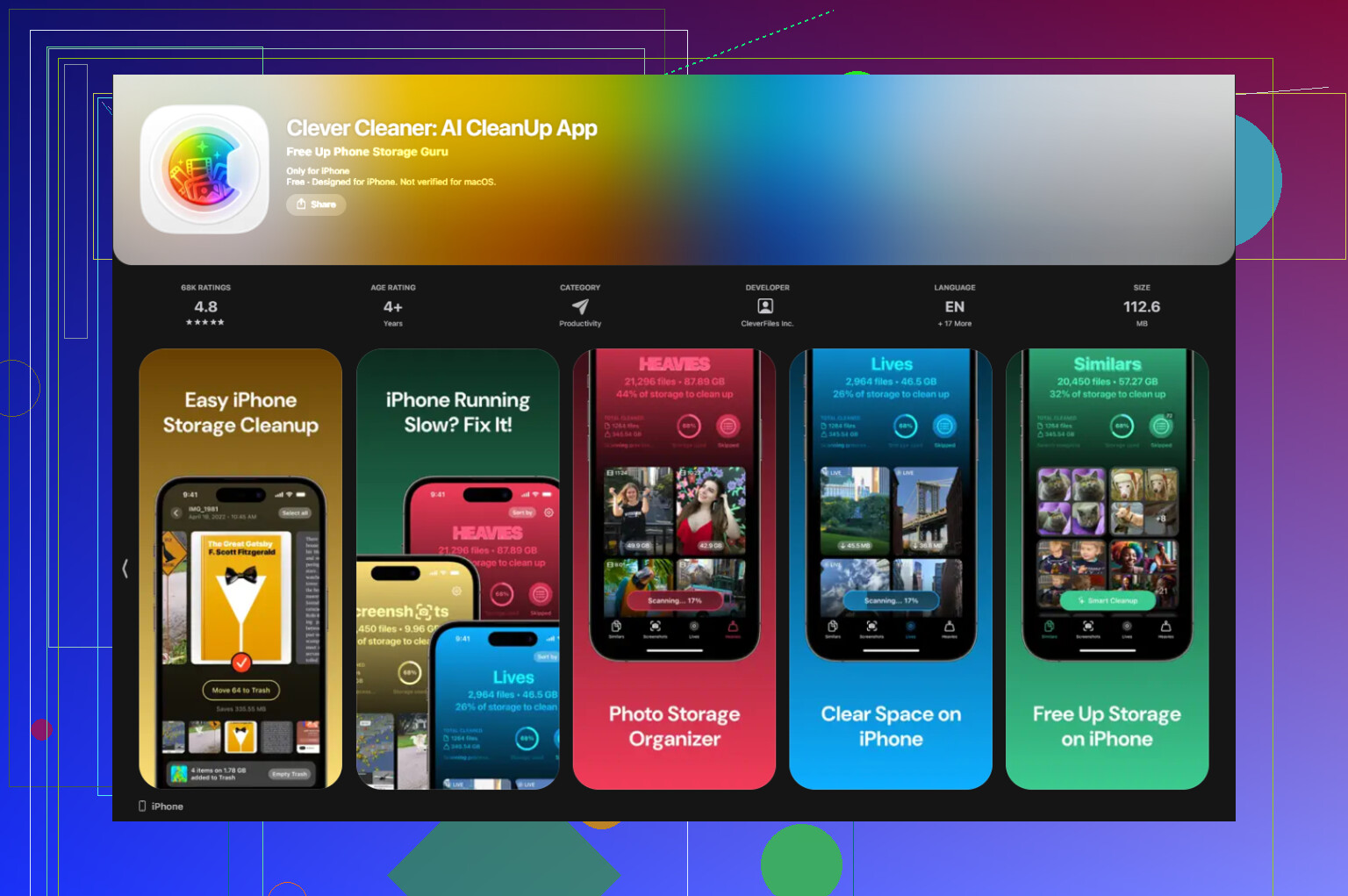
Most iPhone cleaner apps looked shady. Too many subscriptions, too many fake scans, too much nonsense. I ended up trying Clever Cleaner, and it was one of the few I didn’t regret installing.
What stood out:
File sizes are shown clearly
I liked seeing the exact size of screenshots and videos before deleting anything. Makes it easier to judge whether a cleanup session is worth your time.
The big files show up fast
There’s a Heavies section, which helped me spot huge videos fast. I found one accidental 4K clip eating a stupid amount of space. Deleted it in a sec.
Similar photos are easier to sort
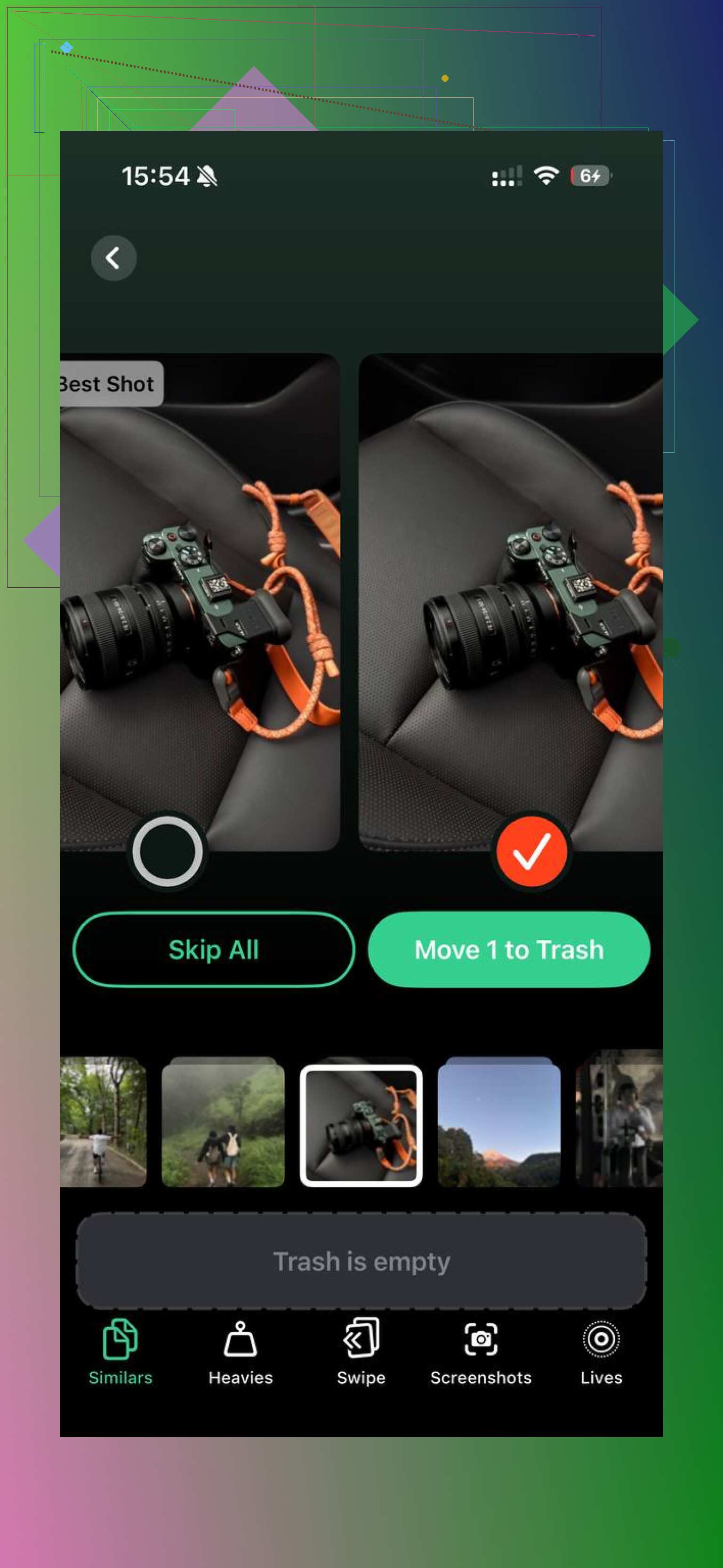
The Similars section grouped near-duplicate shots. Good for those moments where you took 12 photos of the same subject and only one came out decent. It also suggests a best shot, which saved me some tapping. Not perfect, but better than digging through the Photos app by hand.
Privacy looked better than most apps
What made me keep using it was local processing. My photos weren’t getting pushed to some unknown server. I care about that stuff, so yeah, big deal for me.
After one pass, I cleared around 15GB. My phone felt normal again right after. Less lag, fewer weird pauses.
What I’d check first if your storage still won’t budge
Open Settings > General > iPhone Storage.
Look at what is consuming space before you start deleting apps you still use. If Photos is huge, or System Data looks bloated, clean the library first. In my case, the issue wasn’t iCloud failing. It was all the junk I forgot I had.
Optimize Storage helps, but it won’t clean your mess for you. I learned that the annoyng way.
15 Likes
Yes, you still see your full photo library in the Photos app after turning on Optimize iPhone Storage. What changes is what stays on the phone.
Your iPhone keeps smaller device-sized versions of many photos. The full-resolution originals stay in iCloud. When you tap a photo, edit it, or share it, the original downloads if needed. So the library stays visible, but some images take a sec to sharpen on weak Wi-Fi or cell service.
One small point where I differ from @mikeappsreviewer. It can feel like optimization is not working, but iOS often frees space gradually, not all at once. So if storage does not drop imediately, that is normal.
A few practical checks:
- Settings > Photos > iCloud Photos must be on.
- You need enough iCloud storage for the full library.
- If you want all originals on the phone, choose Download and Keep Originals instead.
If thumbnails look blurry for a bit, that is expected. If photos are missing, it is usually syncing, not deletion.
If space is still tight, clean out duplicates, screenshots, and huge videos. Clever Cleaner helps with that. I also found this review useful for a quick breakdown of what it does: see why Clever Cleaner is a solid free iPhone cleanup app.
Yes, you can still see your whole photo library after turning on Optimize iPhone Storage. That part freaks people out, but Apple does not hide half your pics or anything. The Photos app still shows everything. What changes is this:
- smaller previews stay on the iPhone
- full resolution versions live in iCloud
- originals download when needed
So if you open an older photo, it might look a little soft for a second, then sharpen once the original pulls down. That’s normal, not your phone being broken.
I mostly agree with @mikeappsreviewer and @ombrasilente, but one thing I’d push back on a bit: people act like Optimize is only useful if you’re constantly online. Not really. For everyday browsing, the cached previews are usually enough unless you’re zooming hard, editing, or exporting. It’s annoyng sometimes, sure, but not unusable.
What I’d watch for:
- iCloud Photos has to stay enabled
- your iCloud storage can’t be full
- syncing needs time, espeically after turning it on
If your goal is freeing up more space beyond Apple’s built-in tools, cleaning junk matters more than flipping the setting on and off. Screenshots, duplicate shots, giant videos, all that adds up fast. Clever Cleaner is actually useful for that if your Photos library is a mess.
Also, if you want a clearer visual guide, this easy guide to optimize iPhone storage and manage photos explains it pretty well.
Short version: yes, all photos remain visible. No, full originals do not all stay stored locally.
Yep. You still see the whole library in Photos after turning on Optimize iPhone Storage. What changes is local storage, not visibility.
Where I slightly disagree with @codecrafter is the offline part gets more annoying than some people admit. If you travel, shoot a lot, or edit on the go, optimized storage can be a pain because older full-res files may need to re-download.
A practical way to think about it:
- Visible in Photos: yes
- Full originals stored on iPhone: not always
- Full originals available through iCloud: yes, if sync finished and iCloud space is available
- Can some images look blurry for a moment: yes
- Can you still lose access temporarily with bad internet: also yes
One thing not mentioned enough by @ombrasilente and @mikeappsreviewer: favorites, albums, people tags, edits, and search results still remain in your library structure. Optimize does not wreck the organization side of Photos.
If your phone still feels packed, the problem may be videos, duplicates, screenshots, or Recently Deleted not being emptied. That is where Clever Cleaner can help.
Pros of Clever Cleaner:
- easy way to spot duplicates and large files
- saves time versus manual cleanup
- useful if your Photos app is cluttered
Cons:
- still need to double-check before deleting
- cleanup apps are never a substitute for proper backup
- results depend on how messy your library actually is
So the short answer is yes, you can still see your photos. Just do not confuse “visible in Photos” with “stored in full quality on the device.”